A spreadsheet budgeting alternative with CSV import.
Koody is a spreadsheet budgeting alternative that cleans up and auto-categorizes transactions, then flags transfers, refunds, recurring charges, and duplicates.

How it works
Koody gives you a spreadsheet budgeting alternative built for real transaction cleanup: cleaner descriptions, auto-categorized rows, duplicate checks, and faster review after every upload.
Upload the file, let Koody prepare it, then review the few patterns that actually need your attention.
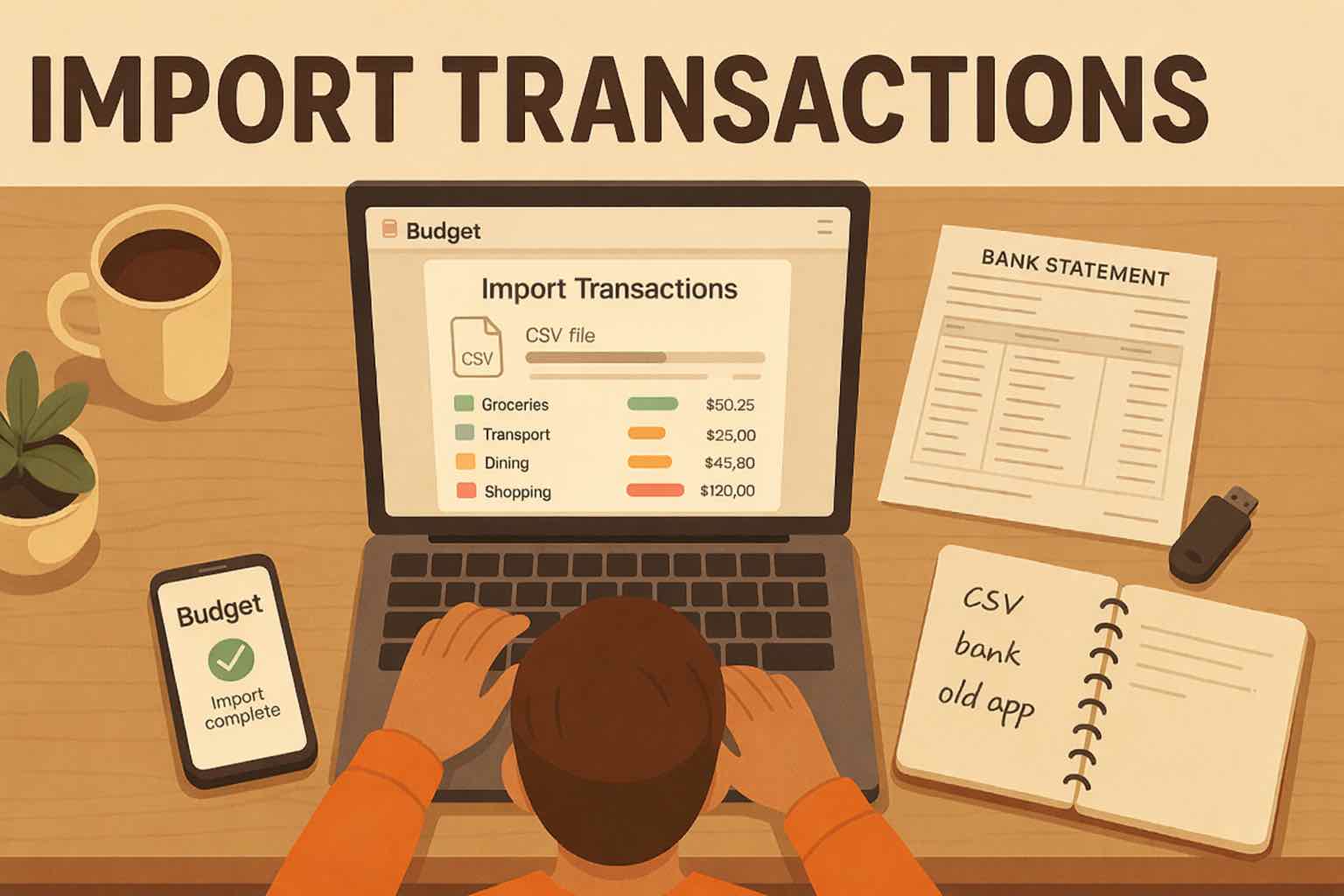
Upload the CSV
Export a transaction-level CSV from your bank, card, spreadsheet, or old budgeting app, then upload it into Koody.
Let Koody clean it
Koody reads the file, cleans descriptions, auto-categorizes transactions, and shows what was imported.
Review the patterns
Bulk edit anything that needs attention, save useful cleanup edits, and make future imports easier.
When spreadsheet budgeting turns into spreadsheet maintenance.
Excel and Google Sheets are useful places to start. The problem begins when every monthly import needs the same cleanup before your budget is trustworthy.
Copied CSV exports
Monthly budgeting gets heavy when every bank or card export has to be pasted, aligned, and checked before it is useful.
Merchant cleanup
Raw merchant names rarely look clean. One store can appear three different ways, and every variation needs attention.
Card payments vs purchases
Credit card purchases, payments, refunds, and transfers need review so spending totals do not get distorted.
Formula maintenance
Lookup tables, category formulas, and helper columns work until the next export changes shape or a row gets missed.
Import a CSV, then review cleaner transactions.
Koody gives spreadsheet users a cleaner handoff: upload the file, check the import result, then bulk edit only what needs attention.
Step-by-step walkthrough of importing transactions into Koody.
Spreadsheet cleanup vs Koody import review.
The difference is not whether you can import a CSV. It is how much repeat work stands between the file and a budget you trust.
| Task | Spreadsheet | Koody |
|---|---|---|
| Import setup | You paste, rename, and reshape exported rows by hand. | Koody auto-cleans merchant names. |
| Categories | You maintain category columns, formulas, or lookup tables. | Koody auto-categorizes transactions. |
| Subscriptions & bills | You search statements for repeat charges manually. | Koody identifies recurring subscriptions and bills. |
| Duplicates | You compare old tabs and new exports yourself. | Koody checks for duplicate imports. |
| Refunds & transfers | You separate purchases, refunds, payments, and transfers by hand. | Koody flags refunds, transfers, and card payments for review. |
| Next import | You rebuild the same cleanup steps every month. | Koody remembers your preferences for next time. |
Import the transaction files you already have.
CSV is the primary import format. If your data starts in Microsoft Excel or Google Sheets, save the transaction sheet as CSV first.
Bank statement CSVs
Import transaction-level checking, savings, or other bank-account exports.
Credit card CSVs
Bring in card purchases, payments, refunds, fees, and recurring charges.
Budgeting app exports
Move history from another app when it can export transactions as CSV.
Excel or Google Sheets
Save Excel or Google Sheets transaction files as CSV before importing.
What happens after import?
Koody turns raw CSV rows into a cleaner review queue, so you are not rebuilding the same spreadsheet cleanup every month.
Cleaned descriptions
Make transaction names easier to read before review starts.
Auto-categorization
Start from categorized transactions instead of an empty spreadsheet column.
Duplicate protection
Reduce the risk of double-counting repeated exports.
Recurring detection
Spot subscriptions and repeat bills hiding in imported data.
Bulk review
Fix category and description patterns across many rows at once.
Saved import preferences
Let cleanup edits carry forward when the same merchant appears again.
spreadsheet budgeting alternative
Stop rebuilding your budget cleanup every month.
Koody turns repeat CSV cleanup into a faster review step, so imported transactions become useful sooner.
- Cleaner imported transaction names before review starts
- Auto-categorized rows instead of blank category columns
- Saved cleanup patterns that make future imports faster
Learn more when you need the details.
Learn more about import setup, CSV apps, auto-categorization, and card-specific cleanup.
Pricing
Replace repeat spreadsheet cleanup with cleaner imports and faster review.
Free
Track money by hand, calculate your tax set-aside, and talk to Koody AI.
- Input transactions manually
- Add bank accounts
- Track spending and income (up to 1 year)
- Categorize transactions
- Monitor subscriptions or bills
- Koody AI
- Upload receipts
- Calculate your tax set-aside
- Access on mobile and desktop
Standard
Budgets that match your paydays, longer history, and exports.
- Everything in Free
- Track spending and income (up to 3 years)
- Add new categories
- Auto-generate recurring transactions
- Export transactions (CSV, Excel, JSON)
- Create and manage budgets
- Sync budgets with your payday
- Create recurring budgets
Plus
Statement imports, auto-categorization, and unlimited history.
Available to eligible customers in the US, UK, Canada, and Australia.Terms apply.
- Everything in Standard
- Import transactions from bank and credit card statements (CSV or PDF)
- Track spending and income (unlimited years)
- Automatic transaction categorization
- Unlimited categories
- Automatic detection of recurring transactions
- Advanced Koody AI
- Keep budgets active indefinitely
Frequently asked questions
Can Koody replace my Excel budget spreadsheet?
Yes. Koody helps you move from spreadsheet budgeting to faster importing, auto-categorization, review, and transaction tracking.
Can I import a spreadsheet into Koody?
Koody imports CSV files. If your transaction list is in Microsoft Excel or Google Sheets, save or export it as CSV before uploading.
Do I need to convert Excel or Google Sheets to CSV first?
Yes. CSV is the primary import format. Saving the transaction sheet as CSV gives Koody a clean file to read.
Will Koody auto-categorize transactions from my CSV?
Yes. Koody auto-categorizes imported transactions, and you can review or bulk edit anything that needs a different category.
Can Koody handle credit card CSVs?
Yes. Import each card CSV into the matching Koody account so purchases, payments, refunds, and recurring charges stay easier to review.
What happens if my CSV already has categories?
If your CSV includes category values, Koody asks whether you want to preserve them or let Koody categorize the import from scratch.
Can I still export my data later?
Yes. Koody supports transaction exports, so you can save a copy of your records or share your data with an accountant.
Does Koody import spreadsheet formulas or budget templates?
No. Koody imports transaction data from CSV files. It does not import spreadsheet formulas or full template logic.
Do I have to link my bank to use Koody?
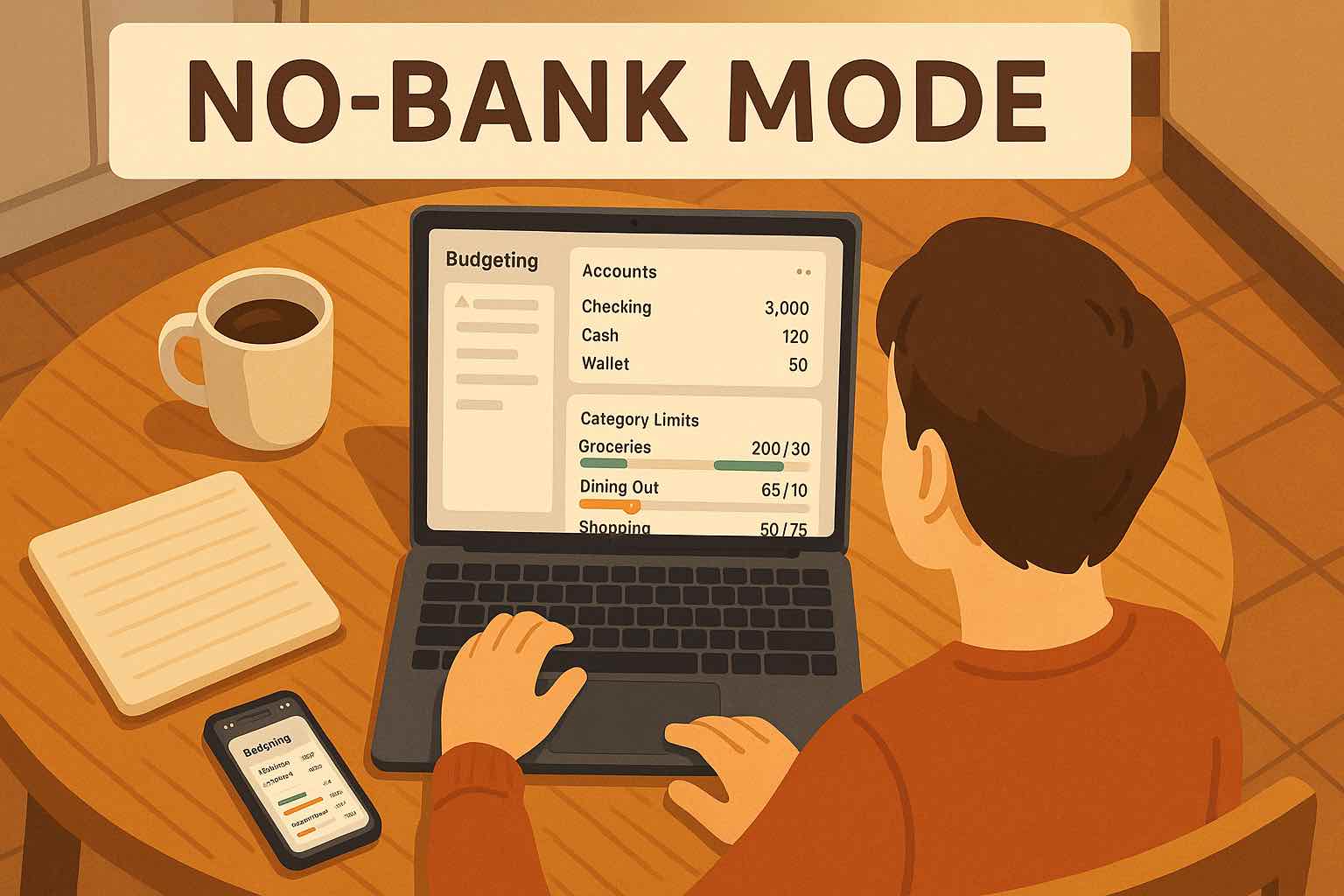
No. You can import CSV files into Koody without linking your bank or card accounts.
Replace spreadsheet cleanup.
Import the CSV, review cleaner transactions, and let future uploads get easier.