There is a specific kind of frustration that shows up after you have tried a few money apps.
You link your bank. It works until it does not. A connection breaks. Balances look off. Transactions arrive late, duplicated, or missing. Then you end up doing the one thing your bank always supports: downloading a CSV.
And you think, "Why can't I just upload this to my money app?"
This thread on r/budget and this on r/fintech asked exactly that. If your bank can export a CSV, why can a personal finance app not simply accept it? It is one extra step, but you are working with the same data your bank is willing to export.
This post is for people searching for a money management app with CSV import, not as a fallback, but as a normal way to run your finances.
If you want a personal finance management tool that supports importing CSV files from your bank for quick setup, Koody is built for that.
Koody is built for people who want CSV import to feel normal: upload the file, let Koody prepare the transactions, review the result, bulk edit anything you want to change, and move on with your budget.
- Import bank and credit card transactions from CSV exports.
- Bring history over from another app that supports CSV export (even simple trackers).
- Combine multiple institutions into one budget with consistent categories.
- Keep control over timing, privacy, and data quality.
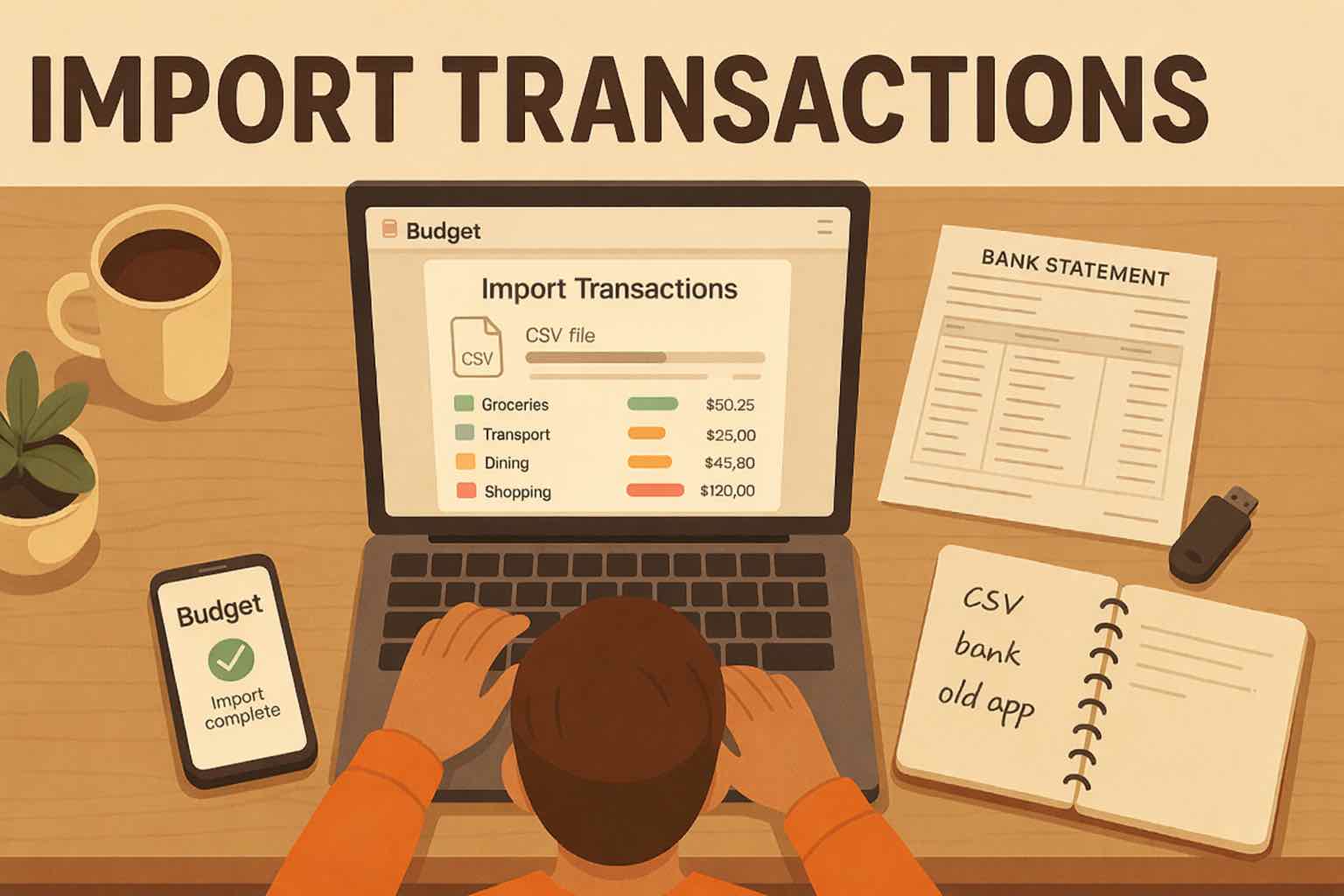
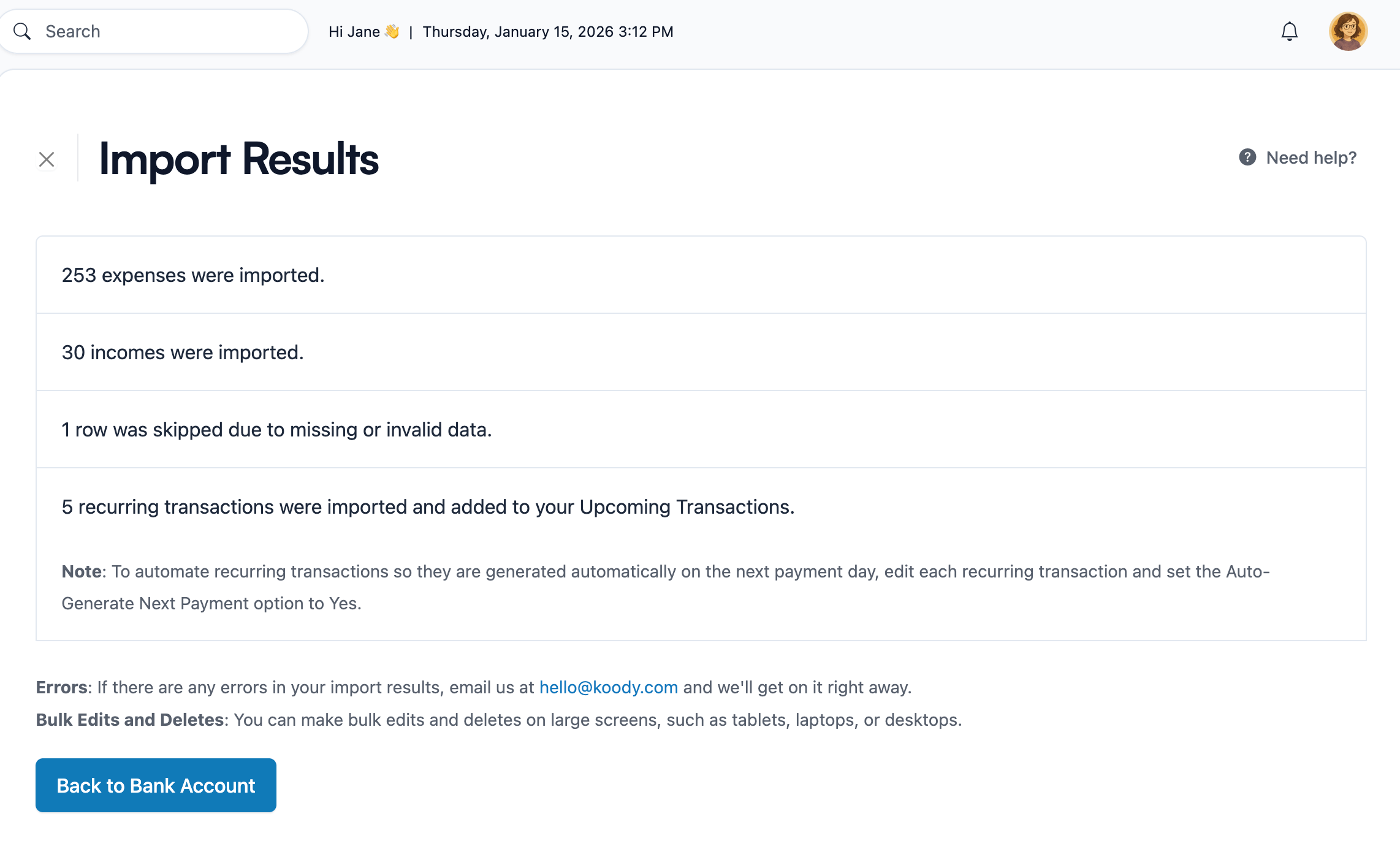
Here is a step-by-step walkthrough of importing transactions into Koody:
CSV import makes bank sync optional
CSV is not fancy, but it is dependable. Almost every bank and card provider can export transactions as a CSV. When you import that file, you bring in dates, amounts, descriptions, and whatever other fields your institution includes.
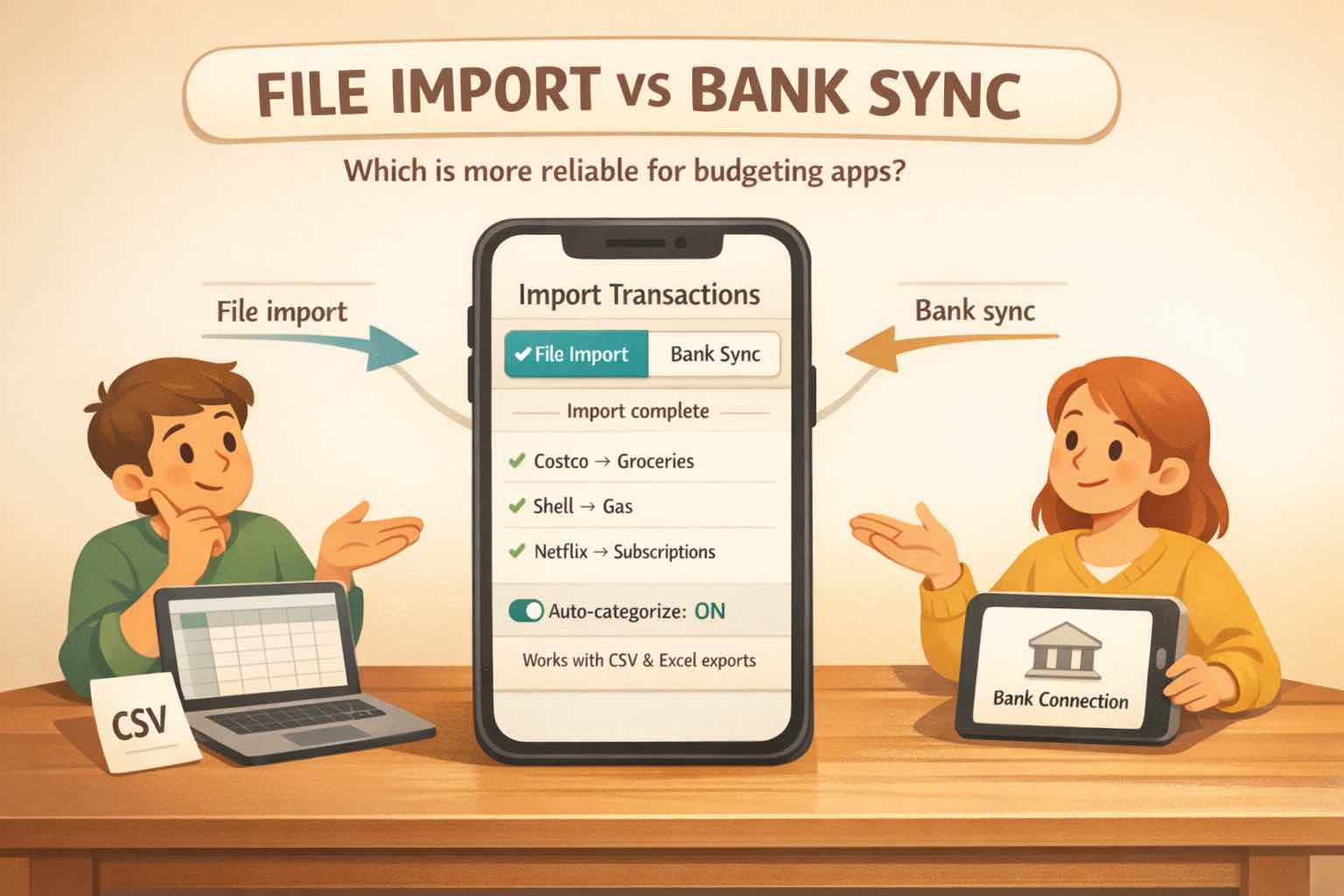
Many apps support file-based import as one option alongside bank linking. That is useful, but it often treats CSV as something you do only when syncing is not available.
A growing number of people choose CSV on purpose because they want:
- Fewer connection headaches.
- Control over when data enters the app.
- Coverage for banks and accounts that are not supported by sync providers.
- A simple way to import historical transactions.
If that is what you are looking for, the real question becomes: what should a CSV-import money app do well?
What to look for in a CSV-import app
Lots of apps can technically import a CSV. Far fewer make it feel smooth. Here are the things that matter most.
1. Import should not start with a setup checklist
Some tools require manual field mapping. You have to tell the app which column is Date, which column is Amount, and which column is Merchant. That is fine for power users, but it adds friction for everyone else.
A strong CSV importer assumes: if you downloaded the file, you have already done your part.
2. Auto-categorization should help without taking over your structure
If everything imports as Uncategorized, you are doing the work the app should do. But the other extreme is not great either: importing categories in a way that leaves you with a long list you never wanted.
The sweet spot is sensible categorization that gets you to a useful breakdown quickly, plus an easy way to adjust anything you do not like.
3. Recurring detection should use your history
One of the biggest benefits of importing is history. History makes patterns obvious. A good CSV-import app should help you spot subscriptions, rent, utilities, insurance, regular transfers, and recurring charges that quietly add up.
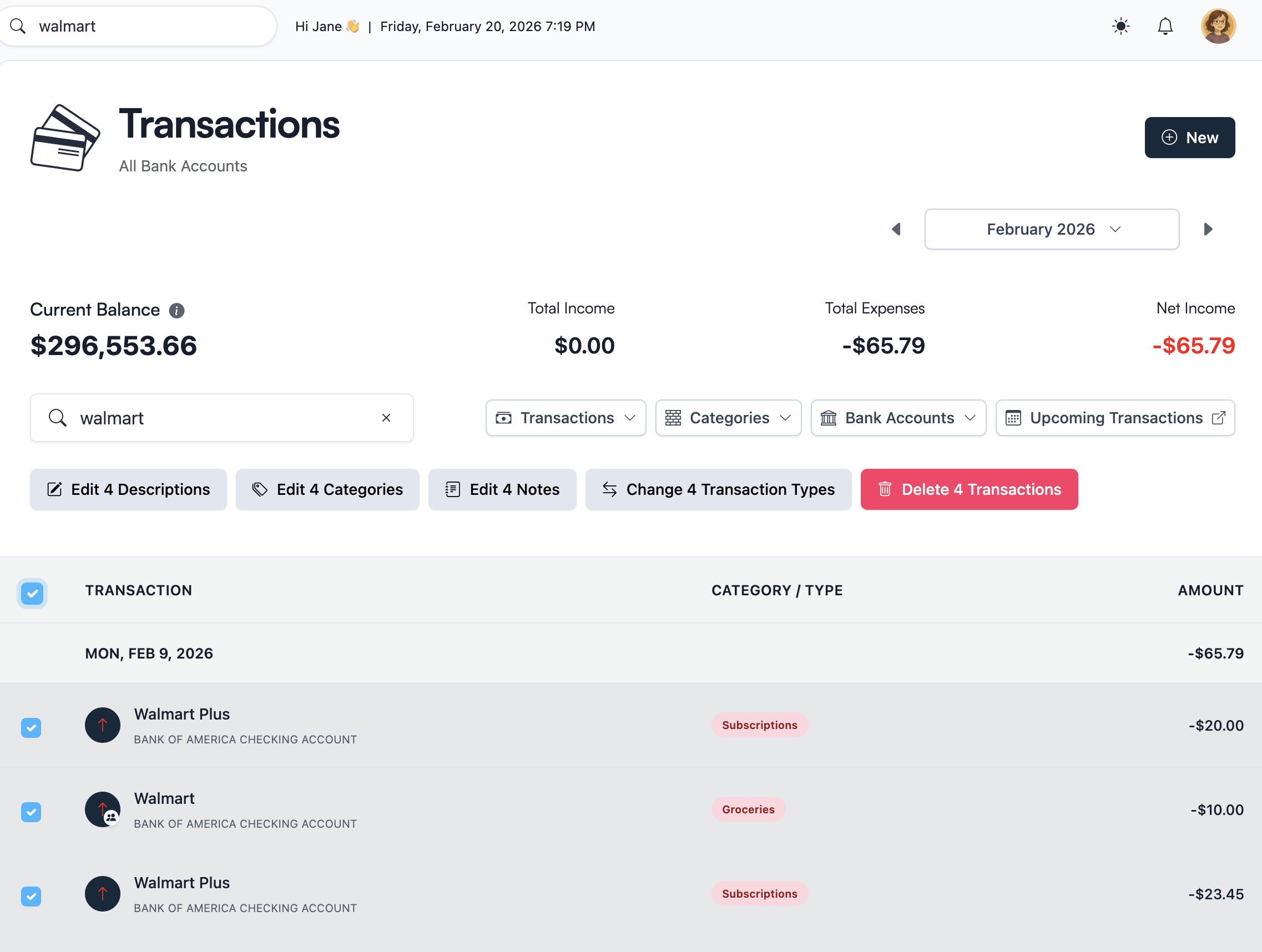
4. Bulk edit should make fixes fast
Every import needs review. The question is whether it takes minutes or hours. Bulk edit is what makes repeated imports practical:
- Re-categorize a group of similar transactions at once.
- Rename a merchant across months of history.
- Fix a batch of transfers or refunds in one go.
- Mark recurring payments quickly.
5. Repeat imports need duplicate protection
If you import weekly or monthly, overlap happens. A good importer helps you avoid double-counting the same transactions across multiple uploads.
6. Privacy and control matter
CSV import is often chosen by people who want more control. You download the data yourself, upload it yourself, and decide when updates happen. If you care about that, CSV import is a clean approach.
What a good import experience feels like
Bank exports are inconsistent. Some include duplicate header rows. Some have totals lines. Some use odd delimiters. Some mix extra codes into descriptions.
A good importer quietly cleans that up so the review screen is about your money, not formatting.
The best CSV import experience is not one where issues never happen. It is one where:
- Most problems are handled automatically.
- The review screen makes the remaining issues obvious.
- Bulk edit makes fixes quick.
That is what turns CSV import into something you can do regularly without dreading it.
How Koody handles CSV imports
Koody treats CSV import as a primary way to manage your money, not a last resort.
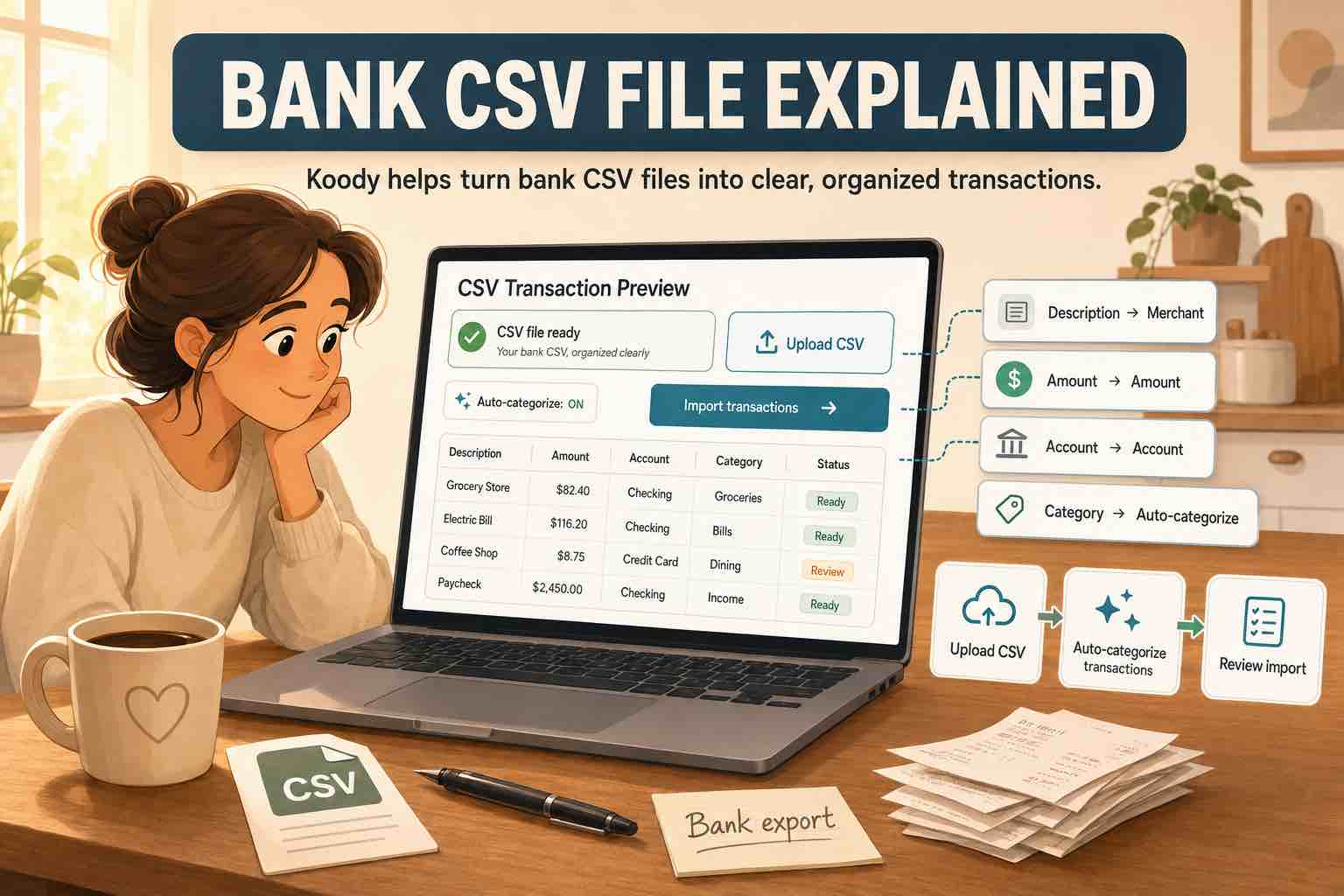
The idea is simple: upload your CSV, Koody prepares and organizes the transactions automatically, then you review the results and bulk edit anything you want to change.
In practice, it looks like this:
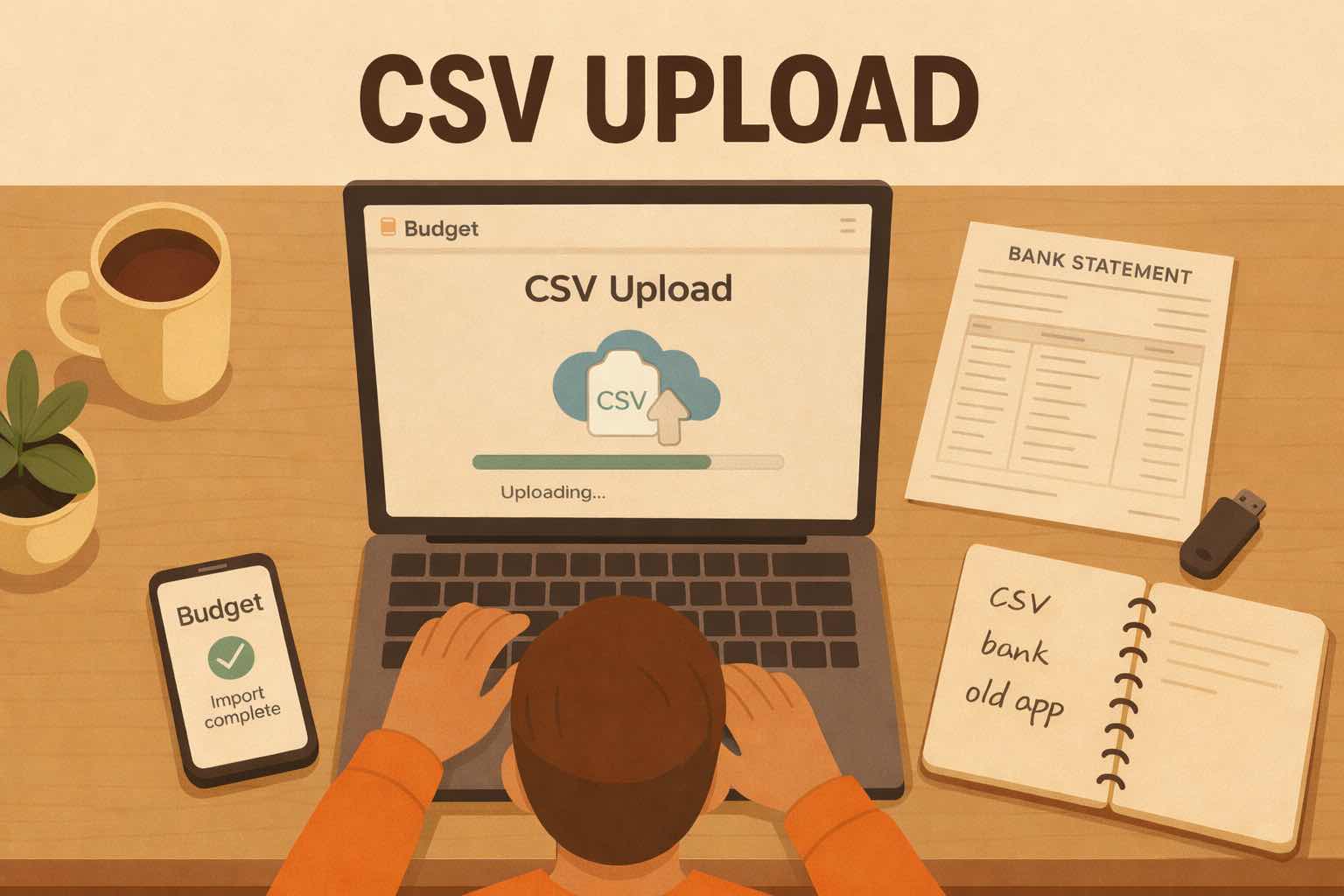
- Upload a CSV from your bank, credit card, spreadsheet, or another app export.
- Koody cleans the file automatically.
- Koody auto-categorizes transactions so you start with a useful breakdown.
- Koody flags likely recurring transactions based on patterns.
- You review and bulk edit anything you do not like.
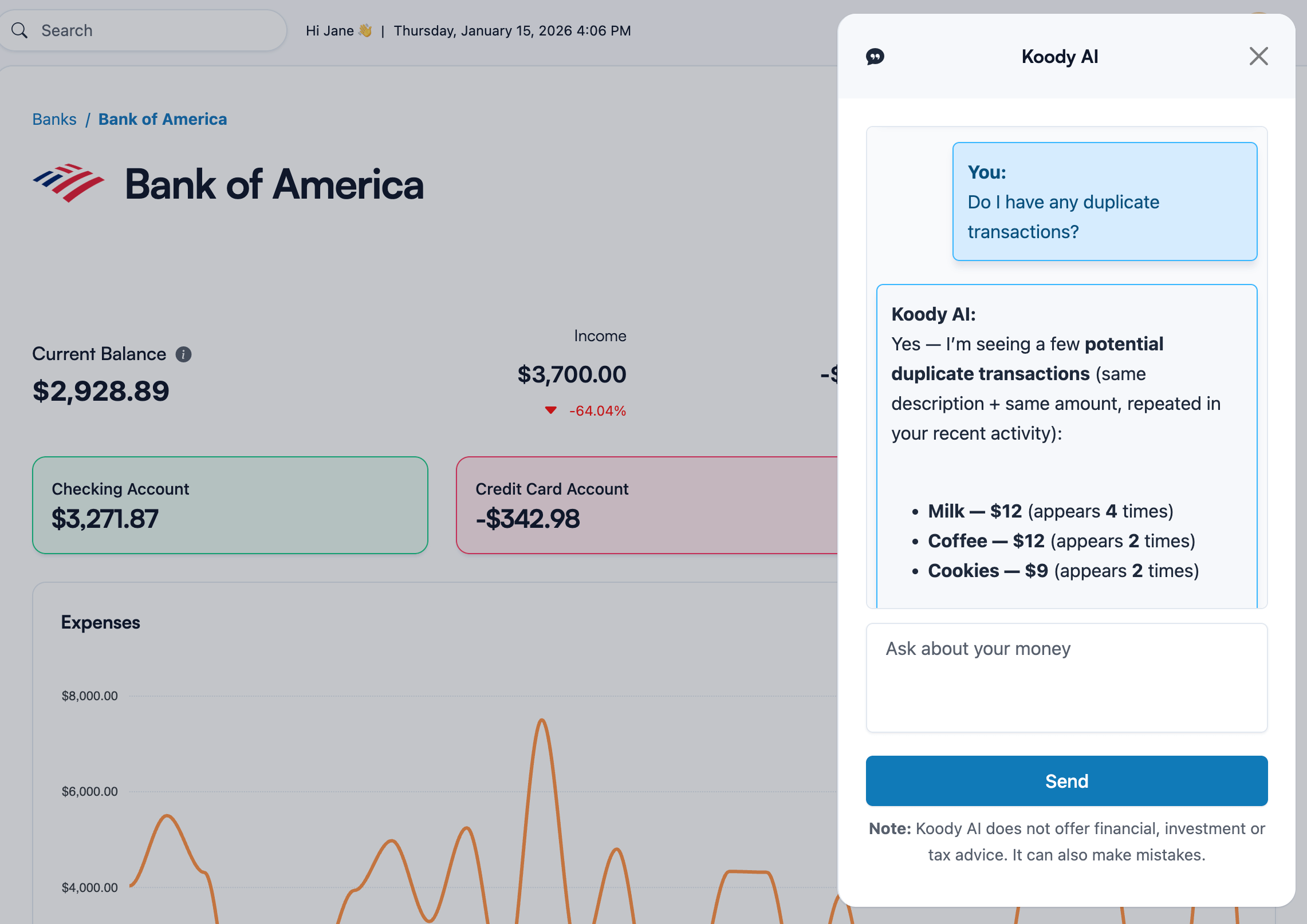
- Koody AI can guide you if you get stuck while reviewing.
Useful edits can carry forward. When you change a category or fix a merchant name, Koody can remember that preference for similar transactions so future imports get faster to review.
If you want to learn more about the AI copilot itself, see Koody AI.
What you can import
Most people start with one account, then expand:
- Import your primary checking account CSV.
- Add your main credit card CSV, where most spending often lives.
- Import anything else that matters, such as another card, savings, or a spreadsheet you maintain.
When CSV import is treated as a first-class feature, you can build a complete picture of your finances without depending on bank sync coverage.
Common CSV import problems
When people struggle with CSV import, it is usually one of these:
- Refunds and credits interpreted inconsistently.
- Descriptions missing or stored in an unexpected column.
- Manual entries that also exist in the CSV.
- Dates formatted differently across institutions.
A good importer does not pretend these never happen. It makes them easy to handle with automatic cleanup, a clear review screen, and bulk edit tools.
Start importing CSV transactions into Koody
If your transaction history is already in bank, card, spreadsheet, or app-export CSV files, Koody gives you a cleaner place to put it.
Upload the file, let Koody auto-categorize and check the imported rows, then review your transaction history inside a real budgeting app.
Start importing CSV transactionsFAQs: CSV import for money management
1. Can I import transactions without linking my bank?
Yes. Koody lets you import bank, card, spreadsheet, and old-app CSVs without linking your bank. Upload the file when you are ready, then review the imported transactions in Koody.
2. Can you recommend a personal finance management tool that supports importing CSV files from my bank for quick setup?
Yes. Koody is built for quick setup with bank statement CSV imports. Upload your file, and Koody cleans descriptions, auto-categorizes transactions, flags likely recurring items, and lets you bulk edit anything you want to change.
3. Can I import data from multiple financial institutions seamlessly (multiple banks and credit cards)?
Yes. You can import separate CSV files from multiple banks and cards into the same Koody budget. Most people start with checking, then add their main credit card, then bring in any other accounts that matter so everything ends up in one place with consistent categories and filters.
4. Which money management tool supports importing my financial dashboard data from another app?
If your current app lets you export transactions as a CSV, you can import that history into Koody. Most "dashboard" tools store charts and insights differently, but the underlying transactions and categories are often exportable. Once your history is in Koody, you can rebuild budgets and reports from the same transaction data.
5. Which personal finance management software supports importing my spending insights from a CSV file?
In most cases, "spending insights" come from transactions. Importing your transaction CSV is the direct way to bring those insights over, because Koody can categorize, filter, and help you review spending patterns from the same underlying data.
6. Is there a money management app that can import my monthly budget template from a CSV file?
Koody's CSV import is focused on transactions, which are usually the hardest part to move. If you have a budget template spreadsheet, recreate your category list and monthly limits once inside Koody, then let imported spending flow into those categories.
7. What file type should I use: CSV or Excel?
Use CSV whenever possible. If your bank gives you an Excel file, you can save or export it as CSV first. Note that some banks, like Bank of America, will give you a CSV file, but call it an Excel file. If the file extension is .csv, for example, stmt.csv, Koody can usually work with it.
8. Will Koody automatically categorize imported transactions?
Yes. Koody auto-categorizes imported transactions, then you can bulk edit anything you want to change. Koody makes a smart first pass, and bulk edit lets you re-categorize up to 500 transactions at once.
9. Does Koody learn from my changes over time?
Yes. When you adjust merchant names or categories using bulk edit, Koody can carry those preferences forward so future imports get easier to review.
10. What if my CSV already has a category column?
If your CSV includes Category values, Koody asks whether you want to keep them or let Koody auto-categorize. You do not need to edit or rename the column before uploading.
11. If I import again next month, will I get duplicates?
Koody checks new imports against transactions you previously imported and refuses duplicate imported rows. That means you can import on a schedule without double-counting the same bank CSV history. If you manually entered a transaction that also appears in a file, review after upload or ask Koody AI to help spot likely duplicates.
12. Can the Koody AI money copilot help with CSV import cleanup?
Yes. Koody AI can help you spot likely duplicates, find category review opportunities, and suggest practical next steps after import so your transaction history is easier to trust.
13. Do I need perfect data before I start?
No. Start with one account and a recent date range, then improve as you go. A workable system today beats waiting for a perfect spreadsheet.
14. Can I import investment tracking, retirement, or calculator CSVs?
If the file is transaction-like (date, description, amount), you can usually import it into Koody. If it's a holdings or performance export (positions, tickers, allocations), that's typically a different format than a transaction ledger, so most people keep that in an investment tool and import only the cash flow side they want reflected in their budget.
Ready to bring your data into one place? Create an account and upload your first CSV today.