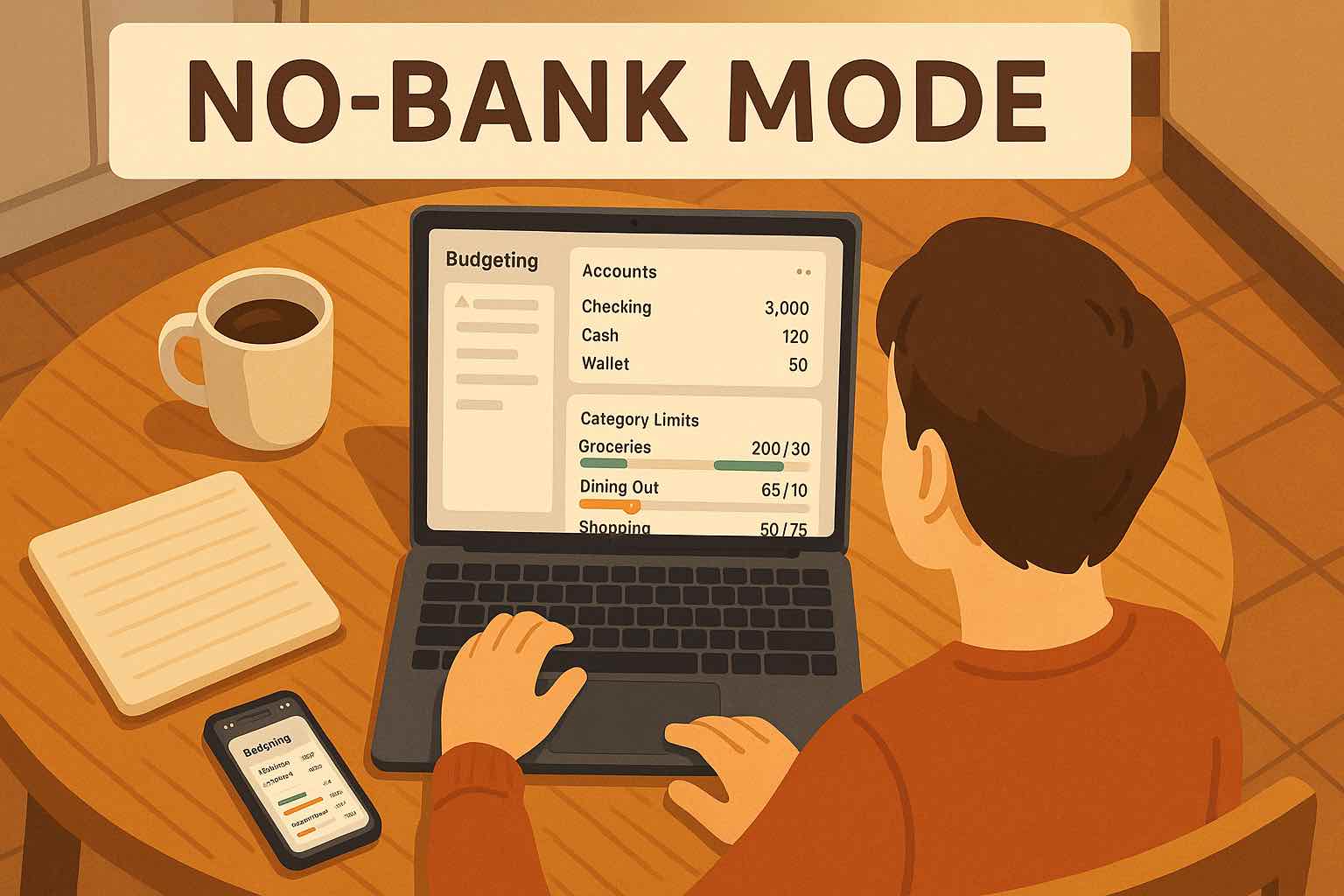
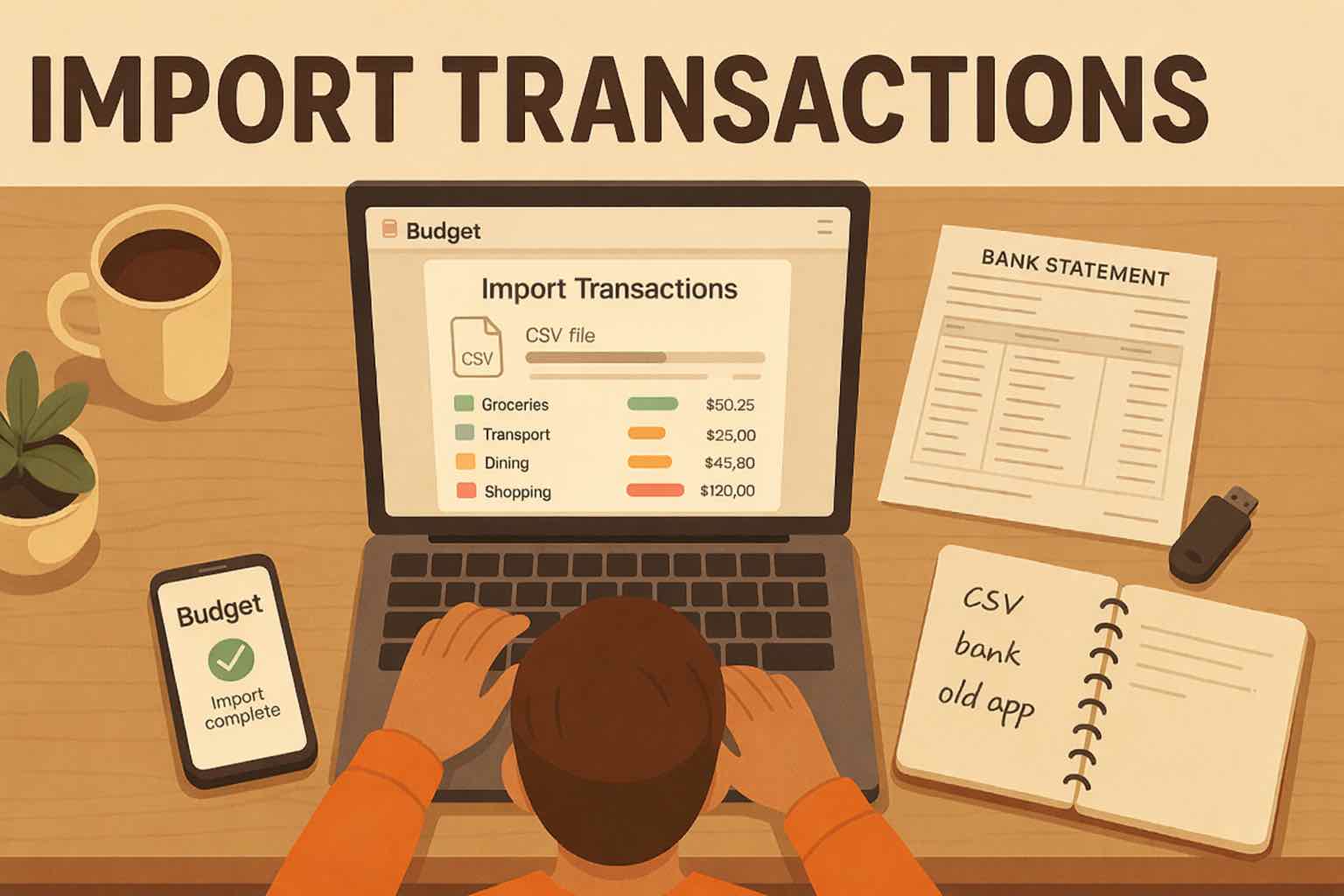
Import and auto-categorize transactions without linking your bank.
Upload bank and credit card statements or exports from another budgeting app. Koody cleans descriptions, auto-categorizes transactions, flags duplicates, and speeds up review without requiring bank sync.

See the import flow in action.
Upload a statement, pick the destination account, and let Koody handle the cleanup. It is fast enough to use monthly and precise enough for full history migrations.
Step-by-step walkthrough of importing transactions into Koody.
Import from anywhere your transactions live.
Koody is built for the statements and exports people already have from banks, card providers, budgeting apps, and spreadsheets, without the usual manual cleanup.
Bank Statements
Import posted activity from checking, savings, and other bank accounts using CSV or PDF statements.
Credit Card Statements
Bring in card purchases, payments, refunds, and recurring charges without relying on live card sync.
Budgeting App Exports
Move transaction history from another budgeting app using its transaction export.
Spreadsheets
Bring transaction history from Microsoft Excel or Google Sheets into Koody.
How it works
If you prefer importing posted transactions over live bank syncing, Koody is built for that. Download a bank or credit card statement or an app export, upload it when you are ready, and keep full control.
Imports are cleaned and categorized automatically, recurring items are highlighted, and bulk edits help you fix anything fast. The more you use it, the smarter each import becomes.
Download Your Statement
Download a bank or credit card statement, or export transactions from another budgeting app. Koody supports CSV and PDF statements.
Upload to Koody
Pick the destination account and upload the statement. Koody extracts the transactions, cleans the descriptions, and starts auto-categorizing them.
Review and Clean
Koody cleans descriptions, auto-categorizes transactions, flags recurring items, and lets you edit up to 500 transactions in one go.
What happens after you upload?
Statement imports are central to Koody. The goal is a clean, usable transaction list with minimal cleanup.
Cleaned Descriptions
Koody cleans noisy merchant descriptions, dates, and amounts so imported transactions are easier to review.
Auto-Categorization
Transactions are categorized automatically, and Koody can reuse category columns when your file already has them.
Recurring Detection
Likely recurring expenses and income are highlighted during import.
Bulk Cleanup
When a pattern needs fixing, bulk edit descriptions, categories, and notes across up to 500 transactions.
Duplicate Protection
Koody checks new imports against previous ones so duplicate transactions are not counted twice.
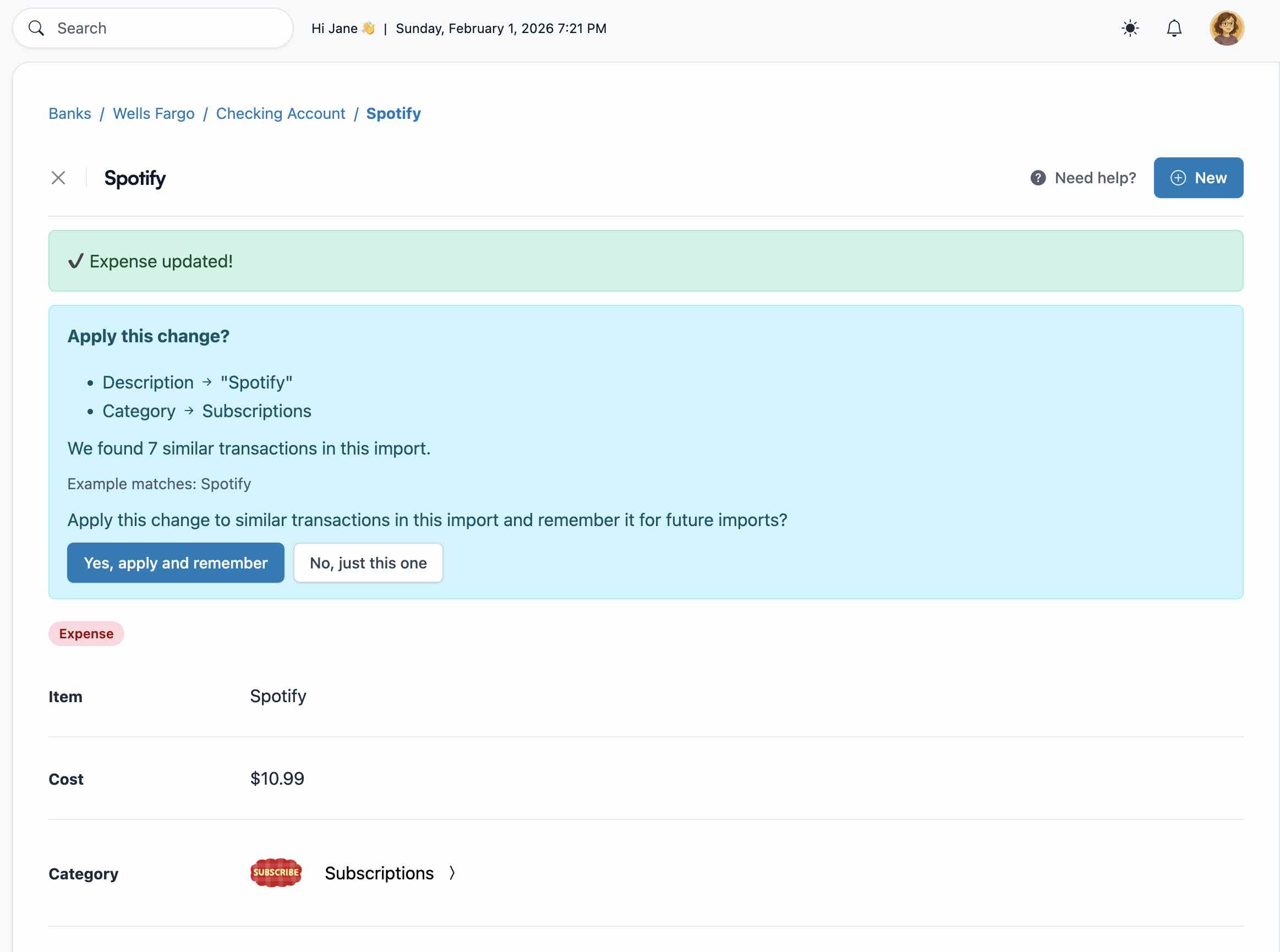
Import Edit Persistence
Edit a description or category once, and Koody will remember and reuse it on future imports.
CLEAN IMPORTS
Automatic cleanup and categorization.
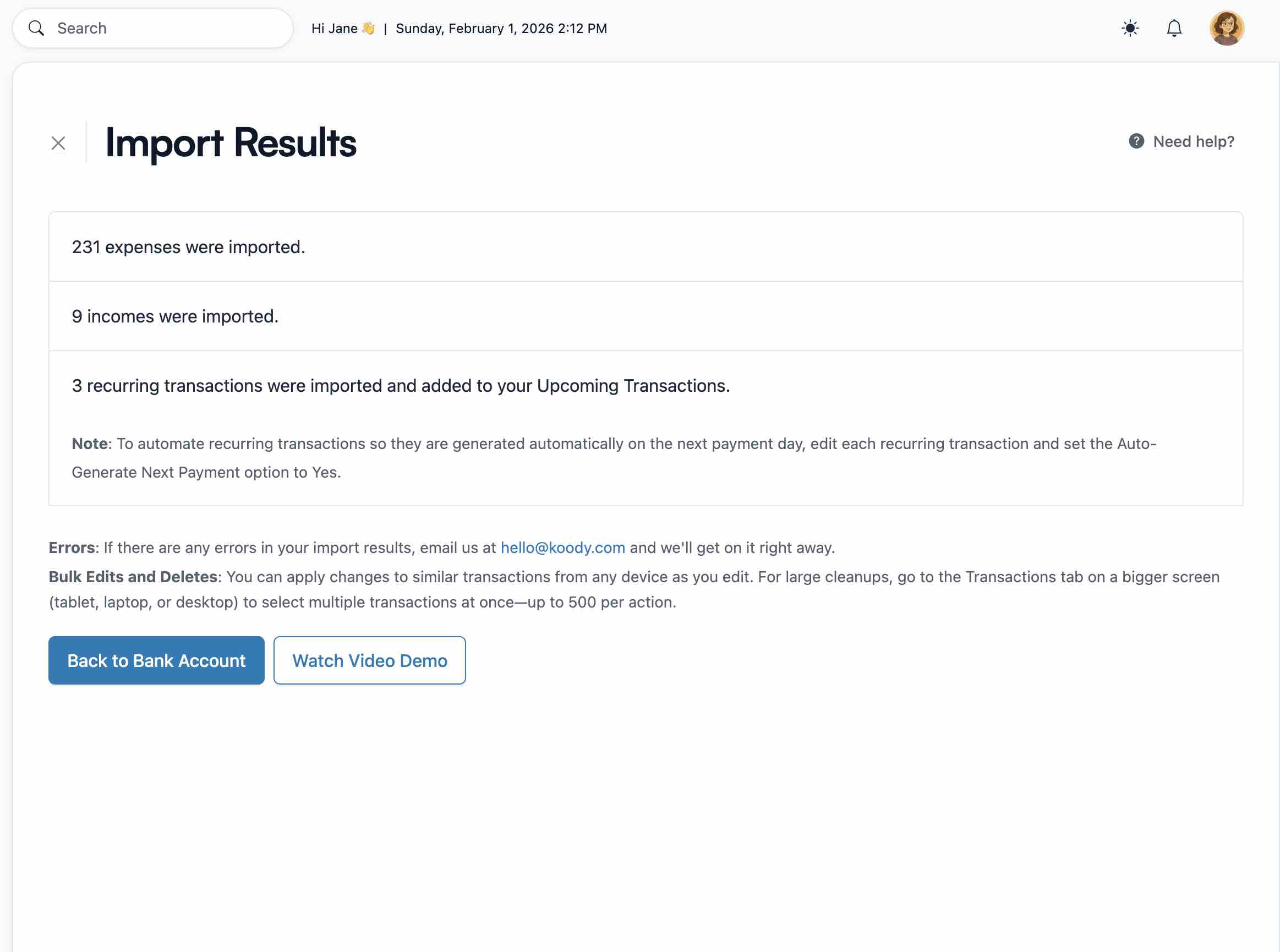
Koody reads statement files, cleans dates, amounts, and descriptions, and auto-categorizes transactions. If your CSV already includes a category column, Koody can use it instead of auto-categorizing from scratch.
- Cleaned descriptions and consistent categories.
- A clear import results screen so you know what changed.
FAST FIXES
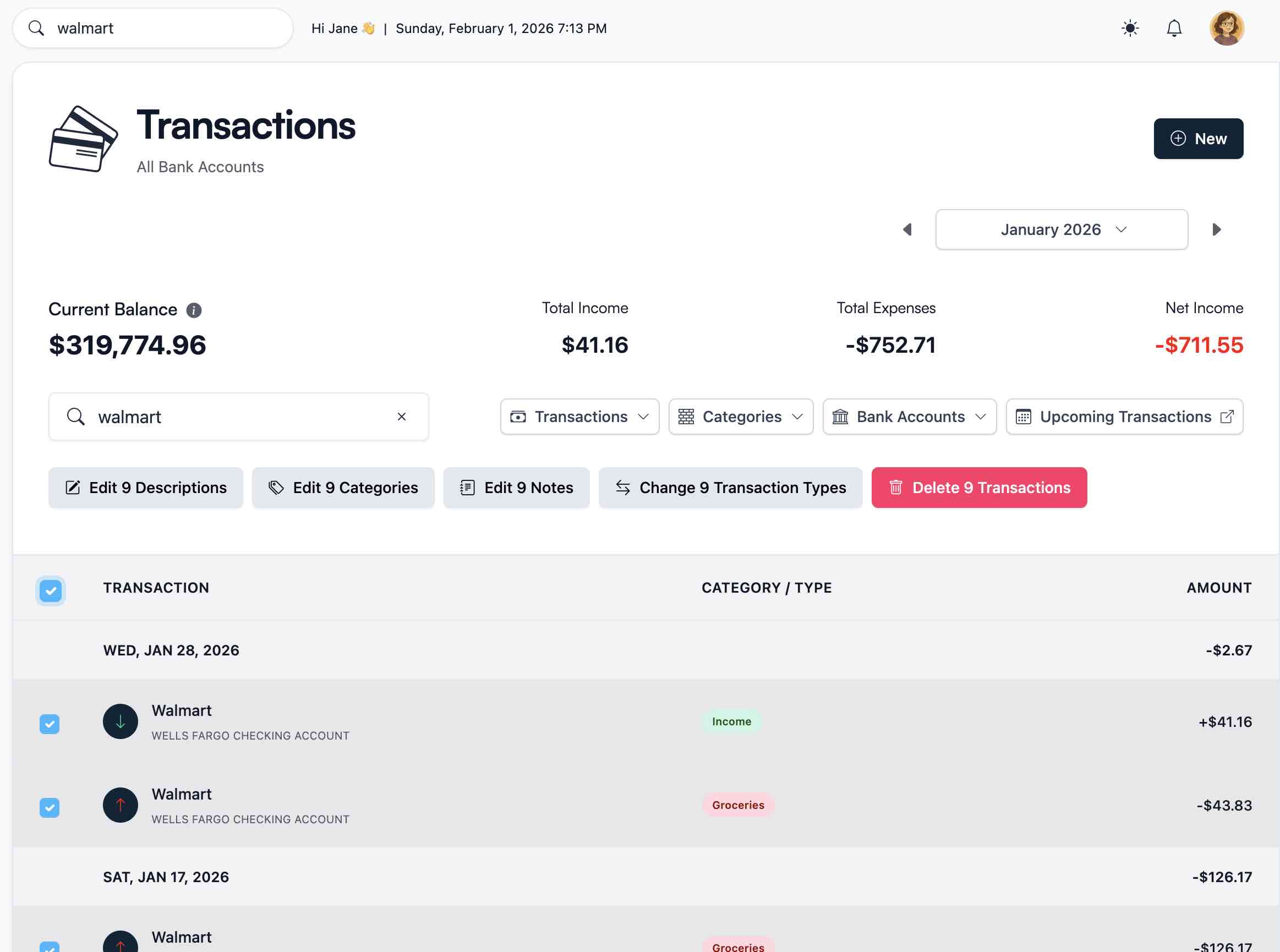
Bulk edit and duplicate protection.
Fix descriptions, categories, or notes across up to 500 transactions at once. Koody also checks for duplicates against previous imports, so you can import on a schedule with confidence.
- Batch fixes for merchants, categories, and transfers.
- Duplicate guardrails across multiple uploads.
LEARNING FROM YOUR EDITS
Import Edit Persistence.
When you edit a description or category, Koody can remember it for future imports. Say yes when prompted, and the same cleanup will apply the next time that merchant appears.
- Less repeat work every month.
- Cleaner transaction lists over time.
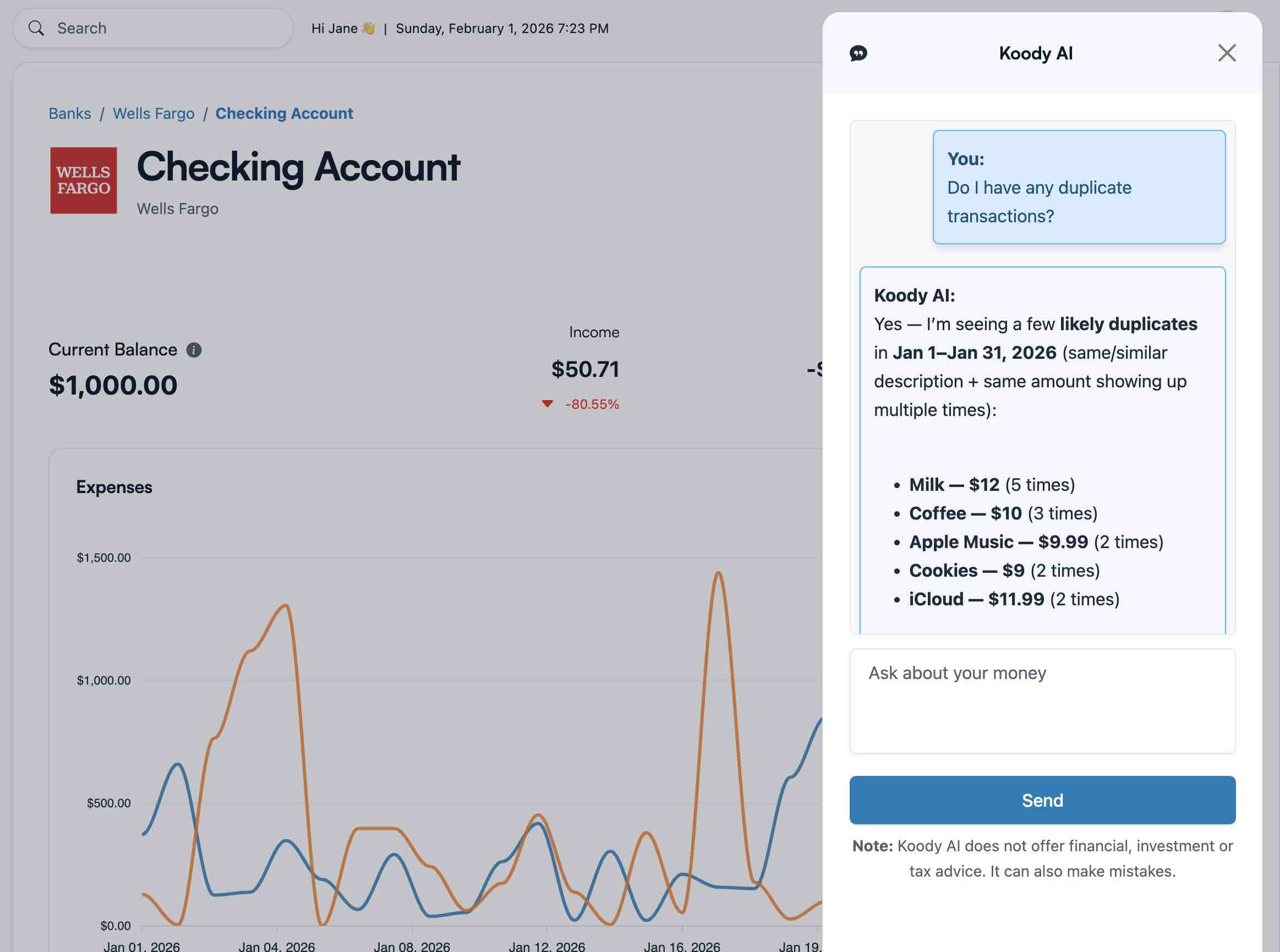
KOODY AI
Get help from Koody AI.
Ask questions about your imported transactions, find likely duplicates, or spot unusual spending. Koody AI helps you review your data faster without losing context.
- Quick answers about categories, merchants, and totals.
- Fast follow-up actions when something looks off.
Explore statement imports in more detail.
Learn how to import statements, compare file import with bank sync, and understand how Koody cleans and categorizes your transactions.
Pricing
Choose the plan that fits how you manage your money, then import and review transactions on your schedule.
Free
Track money by hand, calculate your tax set-aside, and talk to Koody AI.
- Input transactions manually
- Add bank accounts
- Track spending and income (up to 1 year)
- Categorize transactions
- Monitor subscriptions or bills
- Koody AI
- Upload receipts
- Calculate your tax set-aside
- Access on mobile and desktop
Standard
Budgets that match your paydays, longer history, and exports.
- Everything in Free
- Track spending and income (up to 3 years)
- Add new categories
- Auto-generate recurring transactions
- Export transactions (CSV, Excel, JSON)
- Create and manage budgets
- Sync budgets with your payday
- Create recurring budgets
Plus
Statement imports, auto-categorization, and unlimited history.
Available to eligible customers in the US, UK, Canada, and Australia.Terms apply.
- Everything in Standard
- Import transactions from bank and credit card statements (CSV or PDF)
- Track spending and income (unlimited years)
- Automatic transaction categorization
- Unlimited categories
- Automatic detection of recurring transactions
- Advanced Koody AI
- Keep budgets active indefinitely
Frequently asked questions
Can I import transactions without linking my bank?
Yes. Download a statement from your provider, then upload it into Koody whenever you want to update your history.
What file types does Koody support?
Koody imports transaction CSV files and bank and credit card statement PDFs. If your bank or another app gives you an Excel file, save or export it as CSV before uploading.
I imported my statement successfully, but I can't find the transactions. Where did they go?
Most of the time, this happens because you are viewing the wrong date range. Go to Transactions and select a range that matches the dates in your statement.
Where do I import transactions?
In the app, go to Overview > New > Import Bank Transactions. You can start from any account, then choose where the file should land.
Do I need to map columns?
Only if Koody cannot confidently read your CSV headers or structure. Otherwise, mapping happens automatically, and the import proceeds right away.
Will Koody auto-categorize my import?
Yes. Koody auto-categorizes imported transactions. If a CSV includes a category column, Koody can use it, and you can quickly adjust anything that looks off.
How does duplicate protection work?
Koody checks imported transactions against your previous imports and skips duplicates. Manually entered items may still need review.
Can I import data from multiple banks or cards?
Yes. Import each statement into the right Koody account so everything stays organized and easy to filter.
Can I import from another budgeting app like Mint?
Yes. Export your transactions from your current app and import them into Koody to keep your history and categories in one place.
Ready to import your history?
Upload the file. Review cleaner transactions. Keep control without bank sync.