Not everyone wants to link their bank to a budgeting app. Some people prefer to download statements, work with CSV files, or bring in data from an older budgeting tool they are leaving behind.
Koody is built for exactly that.
Instead of forcing live bank connections, Koody gives you a powerful import system that lets you:
- Upload CSV files and bank statements from almost any bank.
- Import transaction exports from other budgeting apps.
- Automatically clean, categorize, and detect recurring transactions.
- Fix anything you do not like with bulk edit tools.
- Ask Koody AI for help when you get stuck.
Importing matters because it lets you keep your history, move off older tools, and maintain a manual-first process where you decide when and how your data enters your budget.
Where you can import from
Koody's importer is designed to handle a variety of sources. In practice, most people import from one of three places.
Bank and card statements
Most banks and card providers let you download transaction history as a CSV or spreadsheet. That might include:
- Checking and savings accounts.
- Credit cards.
- Online banks and digital wallets.
- Payment services such as PayPal or similar tools.
If you can download it as a CSV, there is a good chance Koody can work with it.
Other budgeting apps
If you are leaving another budgeting app, you can often export your transaction history there, too. Typical cases include:
- Exports from Mint or similar tools.
- CSV exports from zero-based budgeting apps.
- Transaction downloads from envelope-based budgeting apps.
Your old app may not say "Export for Koody," but as long as you get a CSV, Koody's importer can take a shot at cleaning and categorizing it.
Your own spreadsheets
Maybe you have been tracking spending in a spreadsheet for years. In that case, you can:
- Save or export the sheet as a CSV file.
- Upload it to Koody just like a bank statement.
You do not need to rewrite everything. Koody will look at your headers and values and try to make sense of them for you.
Step 1: Download a CSV or statement file
Here is a sample CSV file:
The first step in any import is getting your data into a file.
From your bank or card provider:
- Sign in to online banking.
- Go to your transactions or statements area.
- Look for an option such as "Download," "Export," or "Export transactions."
- Choose CSV if it is available. Excel works in many cases, too, as long as you can save it as CSV.
From another budgeting app:
- Open the app's settings or account area.
- Look for "Export," "Download data," or "Download transactions."
- Export as CSV if you can.
From your own spreadsheet:
- Open the sheet in your spreadsheet tool.
- Use "Download as CSV" or "Save As → CSV."
You do not need a perfect file. Koody is designed to handle typical messy exports, including extra columns, unusual date formats, missing headings, and bank-specific quirks.
Step 2: Upload your file to Koody
Once you have your file, you are ready to bring it into Koody:
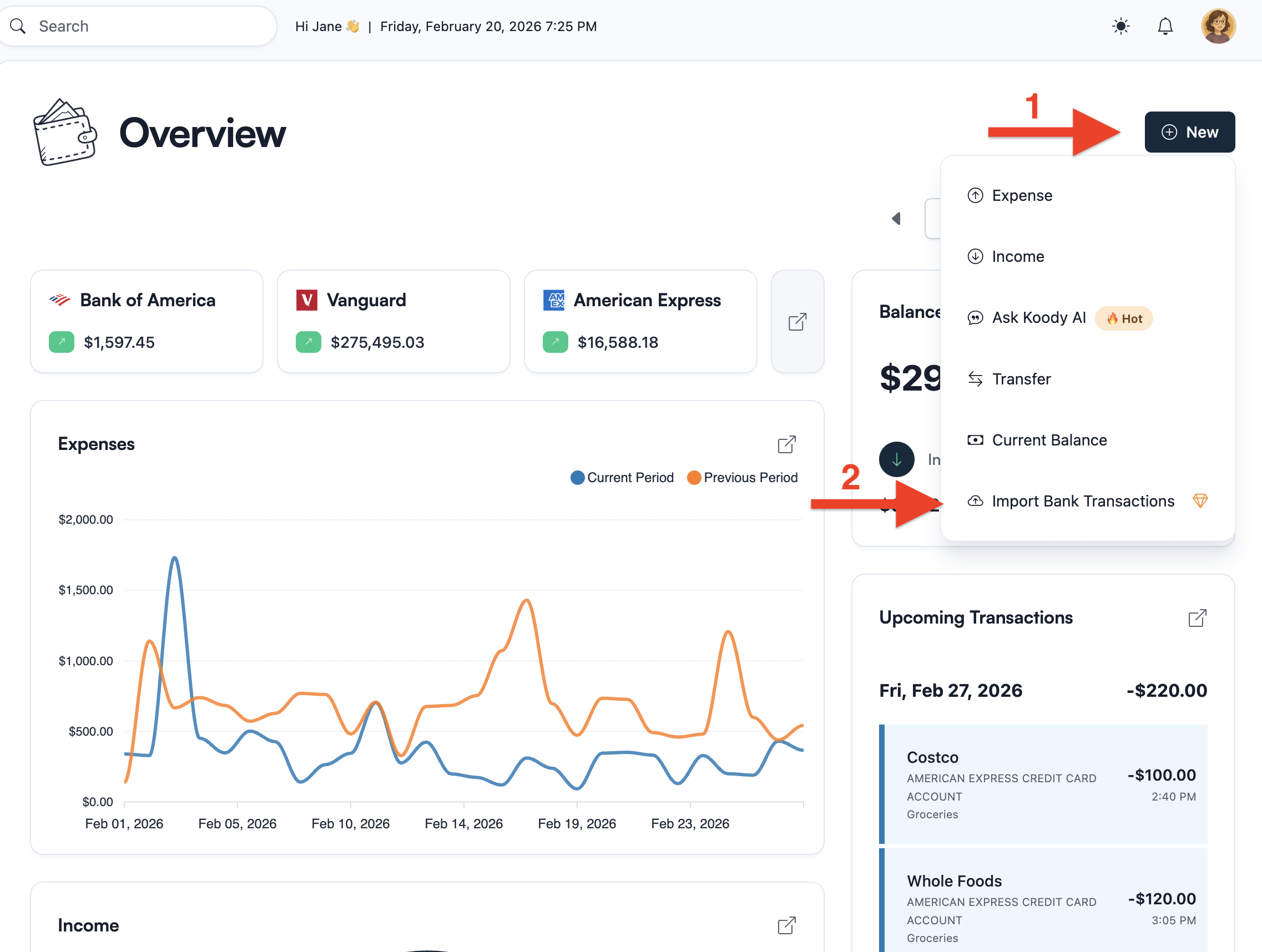
- Open Koody and go to the Overview or Transactions tab.
- Click the New button in the top right corner.
- Look for the option to Import Bank Transactions.
- From the drop-down menu, select the account you want to import into.
- Click or drag and drop your downloaded CSV file to upload it.
- Click Import.
As soon as you click Import, Koody starts processing the file in the background. For most CSVs, the importer automatically detects your headers and formats, cleans up obvious noise, and applies categories and recurring detection without any extra setup from you. The system is built to be robust and to work with common bank and app exports out of the box.
If Koody cannot confidently read the file structure, you will see a quick Map Your Columns step instead. There, you simply tell Koody which column is the Date, Amount, Description, and so on. Once you confirm the mappings, Koody runs the same cleanup and auto-categorization process on top of your choices.
Step 3: Let Koody clean and categorize your import
This is where Koody's importer earns its keep.
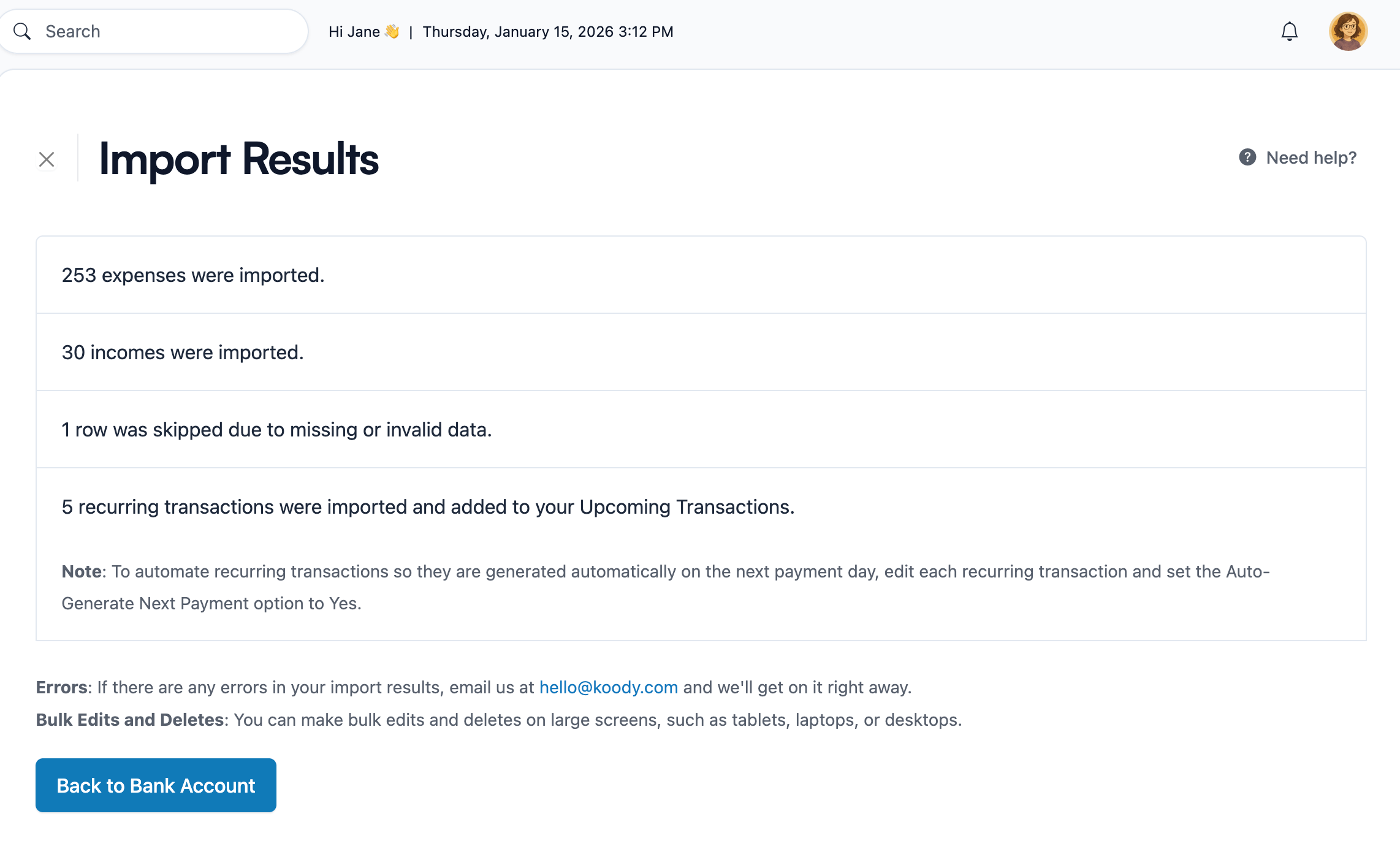
After you upload a file, Koody:
- Detects the file format. It figures out the separator, decimal style, and date format your file uses.
- Cleans up obvious noise. It strips out duplicate header rows, summary lines, totals, and formatting artifacts that banks sometimes include in downloads.
- Normalizes merchants. It tidies up messy descriptions so similar transactions are grouped together under a recognizable merchant name.
- Automatically categorizes transactions. Based on merchant names, amounts, and patterns, Koody assigns categories so you get a meaningful breakdown right away.
- Detects recurring transactions. It looks for regular patterns, such as monthly subscriptions, rent, or recurring transfers, and flags them as likely recurring.
- Checks against previous imports. This helps prevent the same imported history from being counted twice when you upload on a steady schedule.
The importer is designed around real-world statement formats and CSV exports, including the kind that come from older budgeting apps.
That means the import step is not just about getting rows into Koody. It is also about shortening the cleanup loop you have to repeat next week or next month so automatic expense import feels practical instead of messy.
Import and auto-categorize your transactions.
Upload the original CSV to Koody. Koody cleans the descriptions, auto-categorizes the transactions, and identifies transfers, refunds, recurring bills, and subscriptions for you to review.
Import transactionsStep 4: Review and fix with bulk edit
Once Koody finishes processing, it gives you a quick summary and an easy way to review the imported transactions right away. If something does not look right, you can continue reviewing there or navigate to the Transactions tab.
On the Transactions tab, you can:
- See a list of imported transactions, their descriptions, and the categories Koody assigned.
- Filter or group by description, category, account, or date range.
- Use bulk edit tools to change many transactions at once.
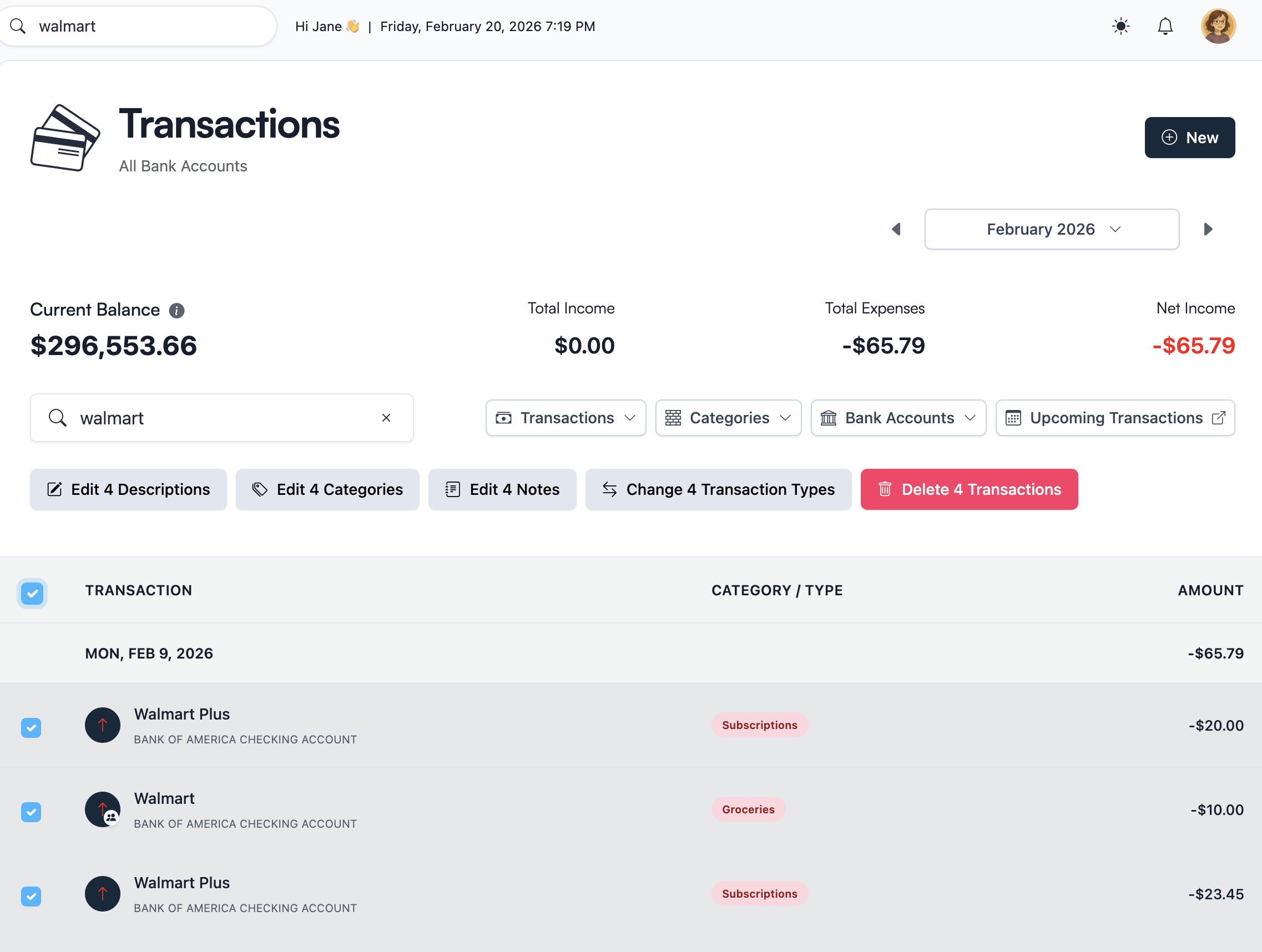
Bulk edit is how you fix things quickly:
- Change the category for a group of similar transactions in a single action.
- Reassign a recurring payment from a generic category to a specific goal.
- Clean up edge cases without touching the rest of your file.
This turns what used to be a long, line-by-line cleanup into a short review session. Most people can tidy an import in minutes, not hours.
Note: Bulk editing is only available on large screens, such as tablets, laptops, and desktop devices.
Step 5: Teach Koody your preferences
The importer is not meant to stay static. Over time, Koody can learn from how you correct its guesses.
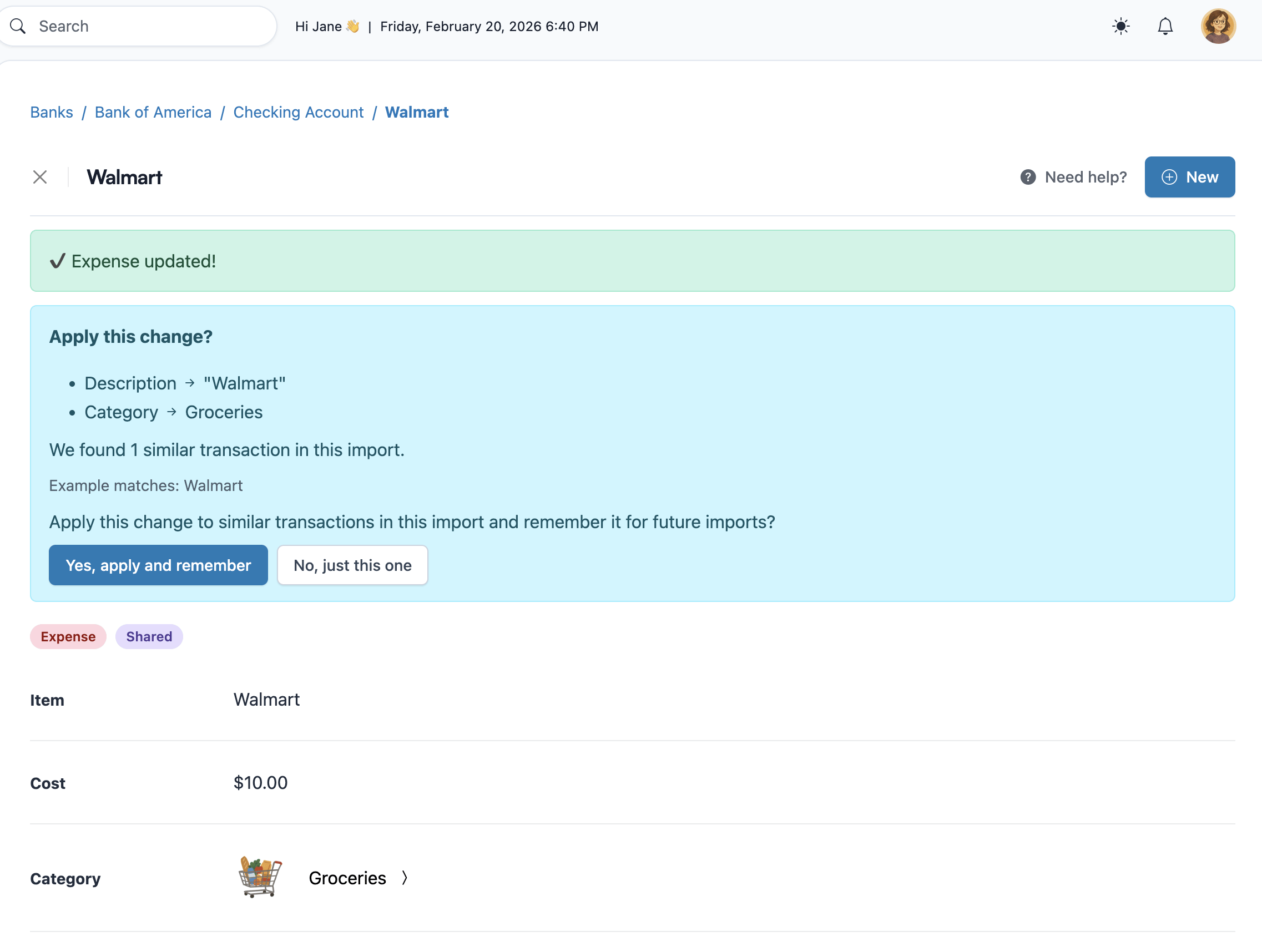
When you:
- Re-categorize a group of transactions from one category to another, or
- Regularly rename or retag the same type of merchant,
Koody can use those corrections as training signals so future imports get smarter. The more you teach it what looks right for you, the less you need to adjust in later uploads.
You can think of this as building your own rules without having to write rules. You use bulk or individual transaction edit tools to make changes, and Koody quietly learns the patterns.
This learning layer is especially helpful when you import the same account every week or month. As it grows, future imports will feel more and more tailored to the way you personally budget and categorize your spending.
Step 6: Get help from Koody AI
Importing is not just about getting data in. It is also about understanding what you imported and how it fits into your budget.
If you reach a point in the review where you are unsure what to do, you can open Koody AI right inside the app and ask questions such as:
- "What is the simplest way to group these transactions?"
- "Which of these look like subscriptions?"
- "How should I categorize these transfers?"
- "What changed the most compared to my last import?"
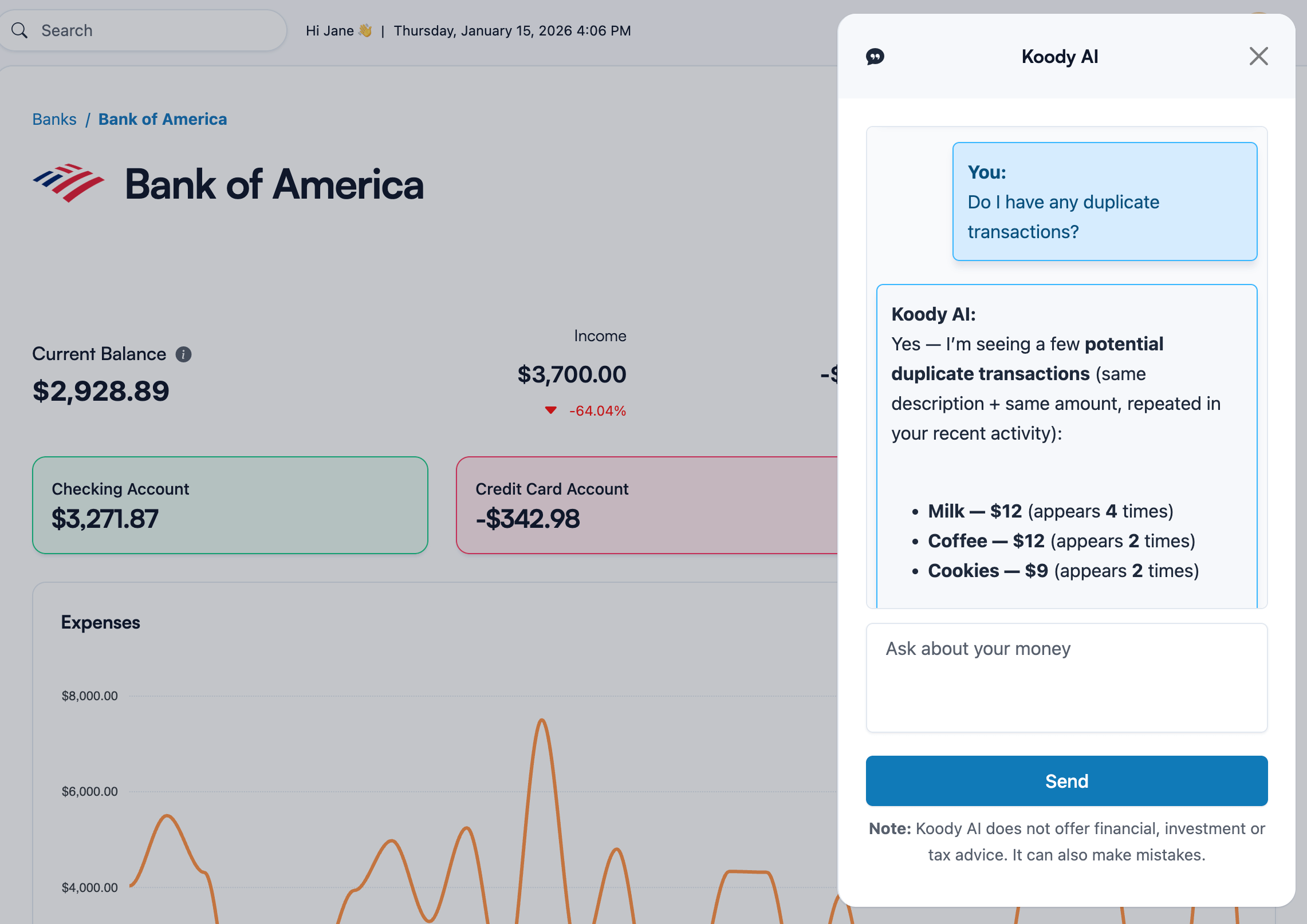
Because Koody AI can see your imported transactions and your existing categories and budgets, it can give you answers that match your actual situation, not generic advice from a template.
You stay in control, but you do not have to figure everything out on your own.
Importing without linking your bank
One of the biggest reasons people look for CSV import and file-based import is that they do not want to link their bank accounts at all.
Koody is designed to work well in that mode:
- You download statements from your bank whenever you are ready.
- You import them into Koody using the flow described above.
- Koody cleans, categorizes, and highlights recurring payments.
- You adjust anything with bulk edit and Koody AI.
You get the benefits of a modern budgeting app without handing over your bank login details or waiting for live sync. If you prefer a more offline, manual-first approach, this is the best of both worlds.
It also works well when your bank is unsupported by sync providers, or when you would rather work from posted statement data than chase changing pending transactions.
For more on this philosophy, see our article on using Koody without bank linking and how manual-first budgeting can work better than you might think.
How often should you import?
There is no single right answer for how often you should import, but a few patterns work well for most people.
Weekly imports
Weekly imports are great if you like to check in regularly and keep your budget very current. You download statements or recent activity once a week, import them into Koody, review with bulk edit, and move on.
Twice a month
Importing twice a month works well if you want to match pay cycles. You might import after each paycheck so that your budget and transaction view reflect the latest changes when you plan the next two weeks.
Monthly imports
Monthly imports are a good fit if you prefer a single "money day" each month. You pull statements for all your accounts, import them into Koody, review them, and then adjust your budget for the next month.
You can mix and match by account. For example, you might import card transactions weekly but only import savings account activity once a month. Koody cares more about bringing everything into the same place than about the exact schedule you choose.
If you are backfilling years of old history, work in chunks. One account and one clear date range at a time is much easier to verify than one giant upload.
Troubleshooting common import issues
If something looks off after your import, these quick checks usually fix it.
- Imported file, but no transactions appear. Adjust the Transactions date range to match the dates in your CSV.
- Amounts look reversed. Pick the opposite sign mode or map Debit and Credit columns instead of a single Amount.
- Duplicate-looking rows after import. Koody checks new imports against previous imports, so review whether a manual entry or another source overlaps with the CSV, then remove the extra copy with bulk edit.
- CSV will not upload. Make sure it is a real CSV (not a PDF), has headers, and includes at least one transaction row.
- Columns are mixed up or headers are odd. Use the Map Your Columns step to set Date, Description, Amount, and optional Category.
- Imported into the wrong account. Bulk delete the affected rows, then re-import the file into the correct Koody account.
FAQs
1. I imported my CSV successfully in Koody, but I can't find the transactions. Where did they go?
Most of the time, this happens because you're viewing the wrong date range. Go to the Transactions tab and find the date range button (top right on desktop, middle on mobile). Select a range that matches the dates in your CSV, then your imported transactions should appear.
2. Can I import transactions without linking my bank?
Yes. The whole import system in Koody exists so that you can use CSV files, statements, and exports without ever linking a bank account. You choose when to download from your bank, when to upload into Koody, and what to keep.
3. How do I avoid duplicates when I import again later?
Koody checks new imports against previous imports, so repeat weekly or monthly uploads should not double-count old imported history. The main thing to review is overlap with transactions you entered manually or brought in from another source.
4. What file types does Koody support?
Koody focuses on CSV because it is the most widely supported export format across banks and apps. In many cases, you can save other spreadsheet formats, such as Excel, as CSV and then upload the result. If your bank gives you multiple options, choose CSV where possible.
5. Will Koody automatically categorize imported transactions?
Yes. Koody will try to automatically categorize imported transactions based on merchants, amounts, and patterns. After that, you can use bulk edit to fix anything that does not match how you think about your money. Over time, Koody can learn from your edits so it can make better guesses on future imports.
6. What if my CSV import fails?
If a file fails to import, it is usually because the file is not really a CSV (such as a PDF or formatted report), the file is empty or only contains headers, or the structure is unusual enough that Koody cannot read it automatically. Try redownloading as CSV, opening it in a spreadsheet and saving again as CSV, and confirming there is at least one real transaction row. If the file is valid but the structure is ambiguous, Koody will prompt you to map your columns as a fallback, then complete the import as usual. If problems persist, reach out to support with a sample file so Koody can learn how to handle it better in the future.
7. Can Koody automatically track my finances from credit and debit card statements?
Yes. Download your credit or debit card statement as a CSV, import it into Koody, and Koody will clean the file, categorize transactions, and detect likely recurring charges. This is a simple way to “auto-track” spending using statements, without needing live bank connections.
8. Can I import data from multiple financial institutions?
Yes. You can import statements from multiple banks and cards into Koody. Each time you import, you choose the Koody account the file should go into, so your transaction history stays organized across institutions.
9. Can I import a CSV with spending insights or categories already included?
If your CSV includes transaction-level rows, Koody can import it even if it already contains categories, notes, or labels. If the CSV is only a summary report or “insights” table (totals by category, charts, scores), it is better to export the underlying transaction list instead, since Koody builds insights from transactions.
10. Can I import retirement or investment data from a CSV export?
If your retirement or investment export includes transactions (contributions, buys, sells, dividends, fees), you can import that transaction history into Koody. If your export is only a calculator output or holdings snapshot, Koody will not treat it as transactions, so the best approach is to import the transaction activity and set your starting balances manually.
11. Can I undo an import if I uploaded to the wrong account?
Yes. If you imported into the wrong Koody account, you can bulk delete up to 500 transactions in one go and re-import to the correct account. You can also use bulk edit to quickly fix descriptions, categories, notes, and other fields if the import results are not what you expected.
Bring your transaction history into Koody.
Choose the account, upload your transaction file, and review the categorized results in one place.
Open Koody