If you've ever tried to get your money under control, you've probably noticed something about many budgeting apps:
They ask you to connect a bank account before you've even decided if the app is right for you.
For a lot of people, that is a hard no.
Maybe you do not want to share bank credentials with another app. Maybe your money is spread across cash, cards, side income, older accounts, or multiple currencies. Maybe you just want to decide what gets tracked and when.
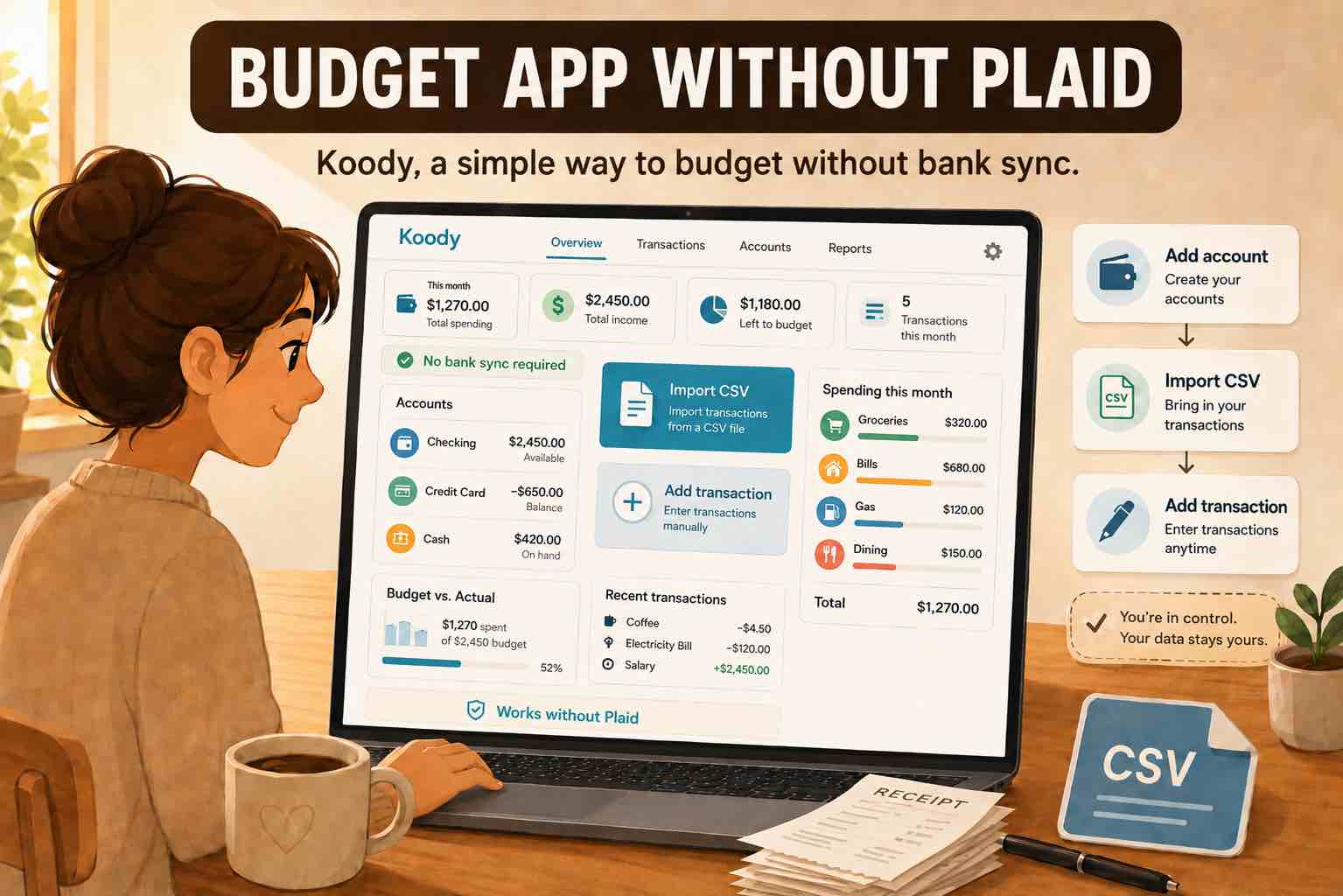
Koody is built for that decision. It is a budgeting app that does not require bank linking, but still gives you the tools you need to plan, track, review, import, export, and understand your money.
You can add transactions manually, import bank and card CSVs when you want faster catch-up, build budgets and categories, track recurring bills, and ask Koody AI practical questions without bank sync.
Start with Koody if you want a real budget without making bank linking the price of admission.
Why choose a budgeting app that doesn't link to your bank?
Koody exists for people who want a modern budgeting app without making bank linking the default starting point.
1. Privacy and control
Most budgeting apps that connect to your bank pull in a lot of data: balances, transaction history, merchants, and sometimes even credit and loan details.
If you're not comfortable with that, you're not paranoid. You're paying attention.
With a budgeting app that doesn't link to your bank account, you:
- Never share your bank username or password.
- Control exactly what goes into the app.
- Decide whether to add a transaction manually or import a file.
- Keep accounts private when you do not want another app connected to them.
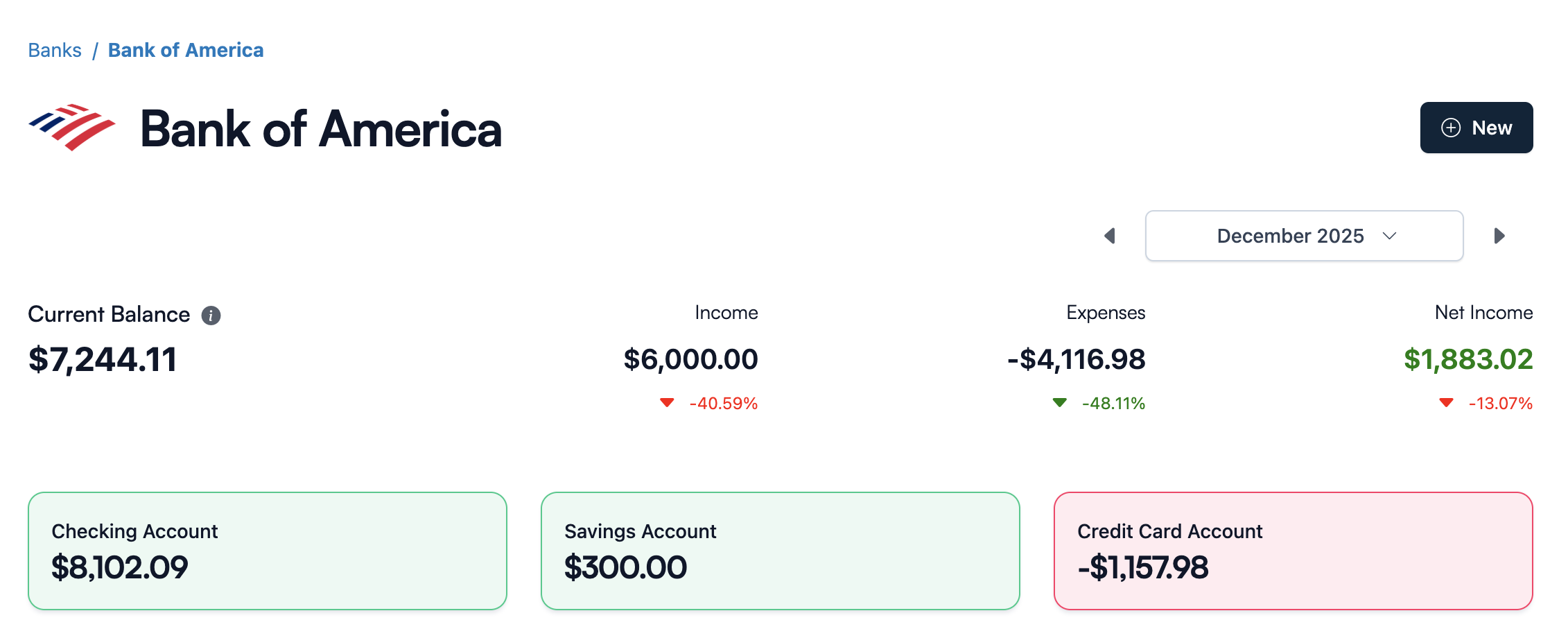
Koody is designed so you can use it as a safe budgeting app without bank sync: just add your accounts manually (like "Checking", "Savings", "Cash in Wallet"), then log income and expenses as you go.
2. Real awareness of your spending
Automatic bank sync is convenient, but it also makes it easy to ignore your budget while transactions pile up in the background.
When you budget without bank linking, you can review money on your own schedule:
- Add important transactions as they happen.
- Import a CSV when you want to catch up.
- Review categories before your budget decisions depend on them.
- Notice subscriptions, bills, and spending patterns before they disappear into a feed.
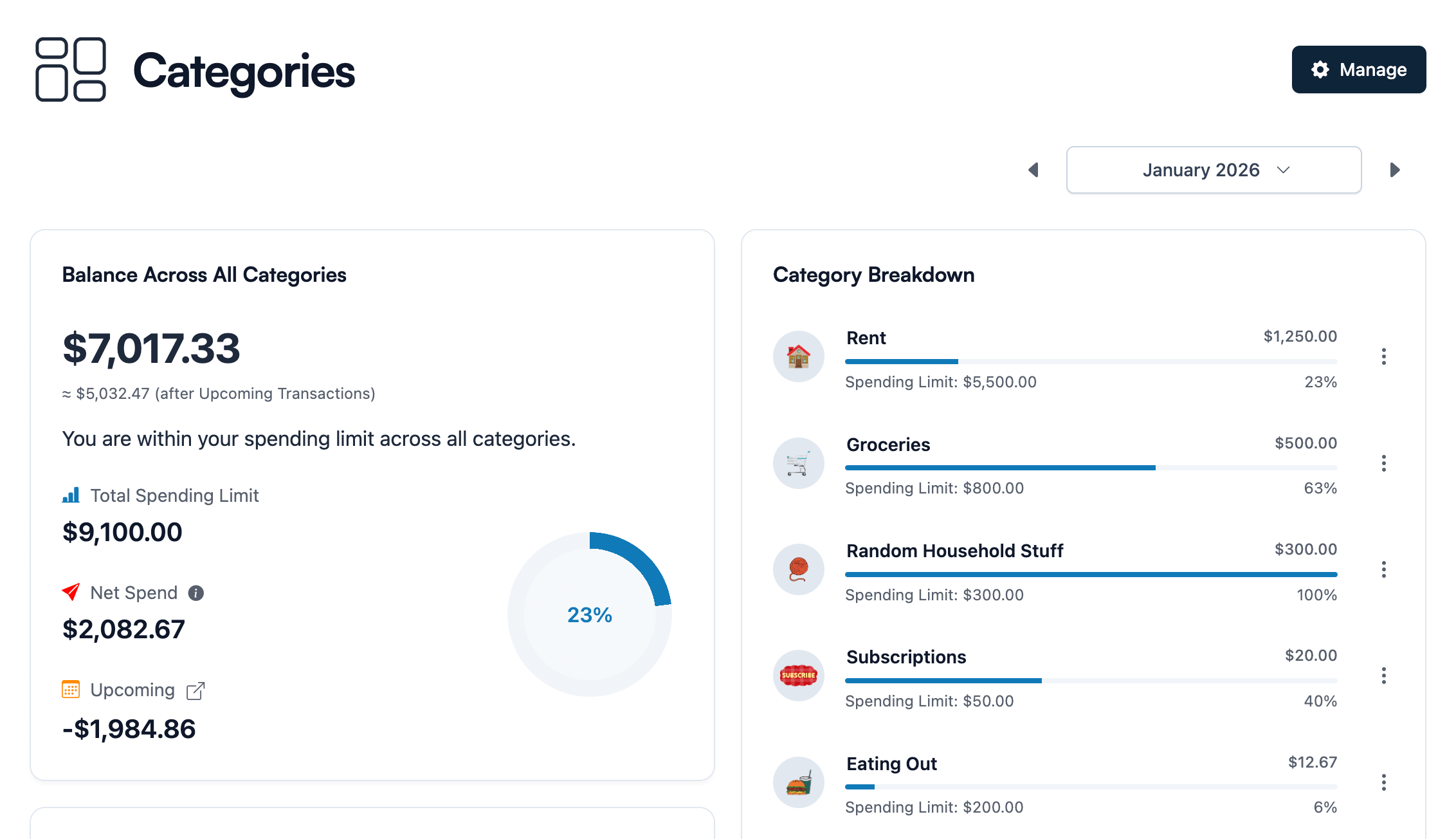
That review step is useful. A budgeting app that doesn't connect to your bank can still help you see category choices, subscription creep, and impulse spending before the month gets away from you.
3. Flexibility for messy, real-life money
Not everything shows up neatly in a bank feed:
- Cash tips
- Cash envelopes
- Money from side hustles
- Transfers across multiple banks and currencies
- Older statements or exports you only review once a month
A budgeting app without bank sync is naturally built for this. You decide:
- Which accounts exist.
- Which currency each account uses.
- What counts as income, an expense, a refund, or just moving money around.
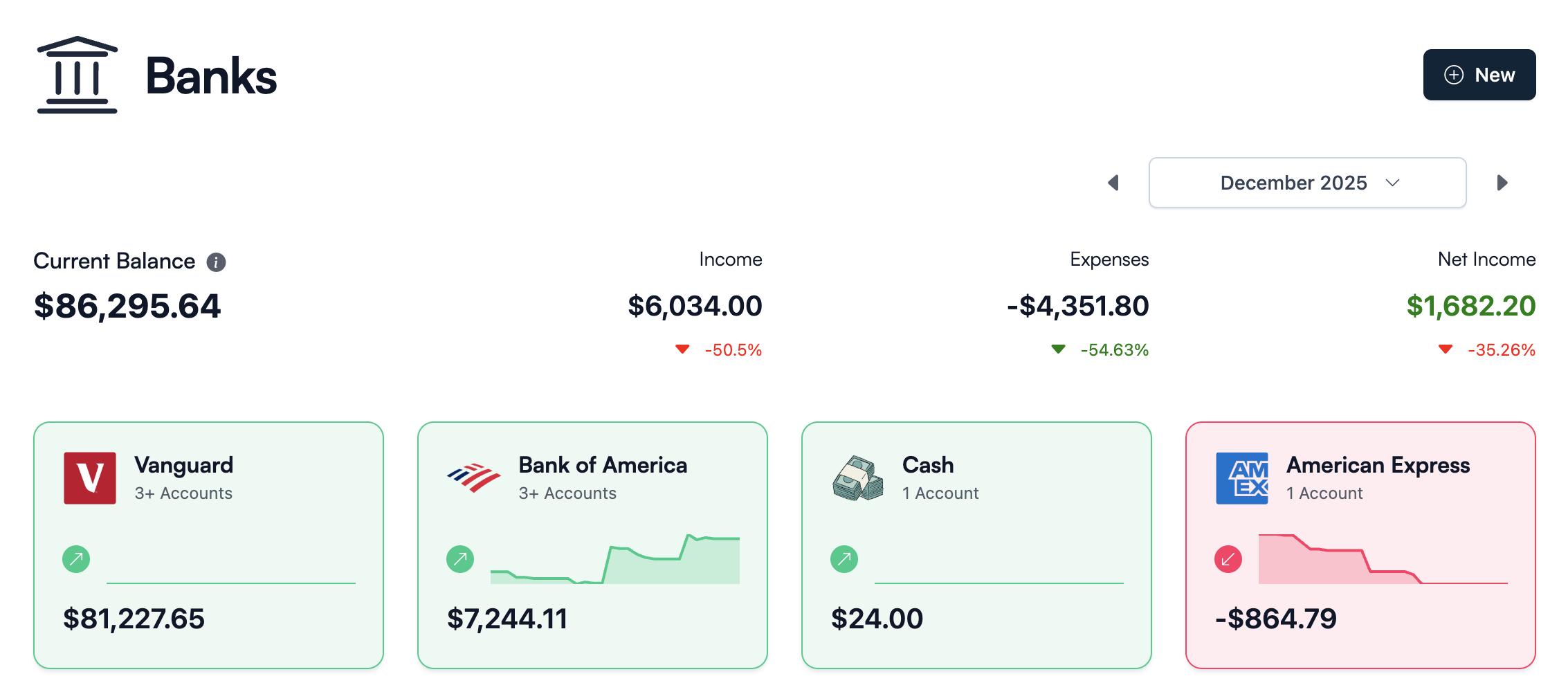
Koody lets you create the accounts you need, track balances, and keep your budget organized whether the activity came from manual entry or a transaction import. No bank connection required.
Budget without linking your bank.
Add accounts, set category limits, enter transactions, import files when you need speed, and review your money in Koody.
Open KoodyManual entry and CSV imports without bank sync
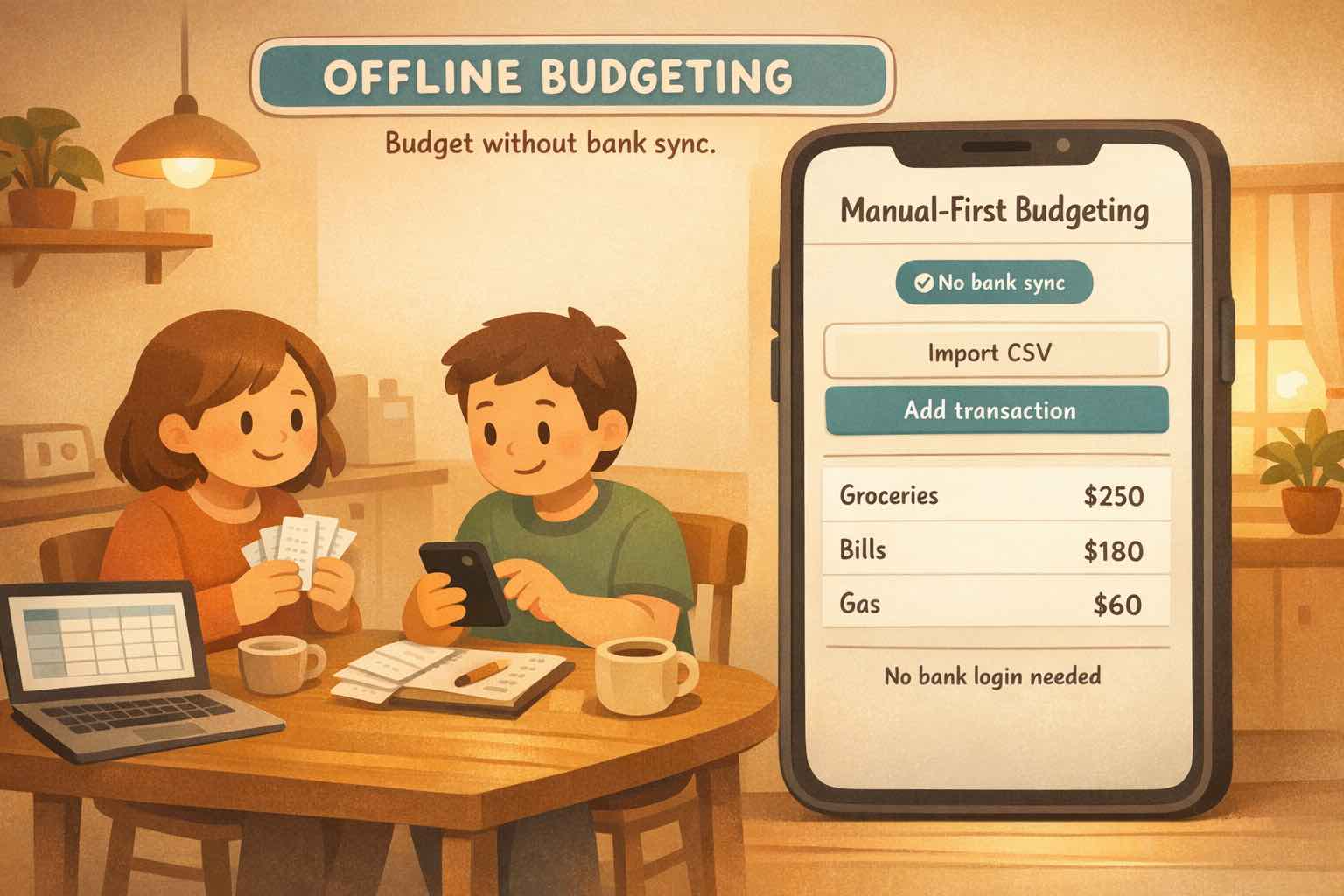
You do not have to choose between typing every purchase and connecting your bank.
Koody supports both manual entry and transaction imports, so you can use the method that fits the moment.
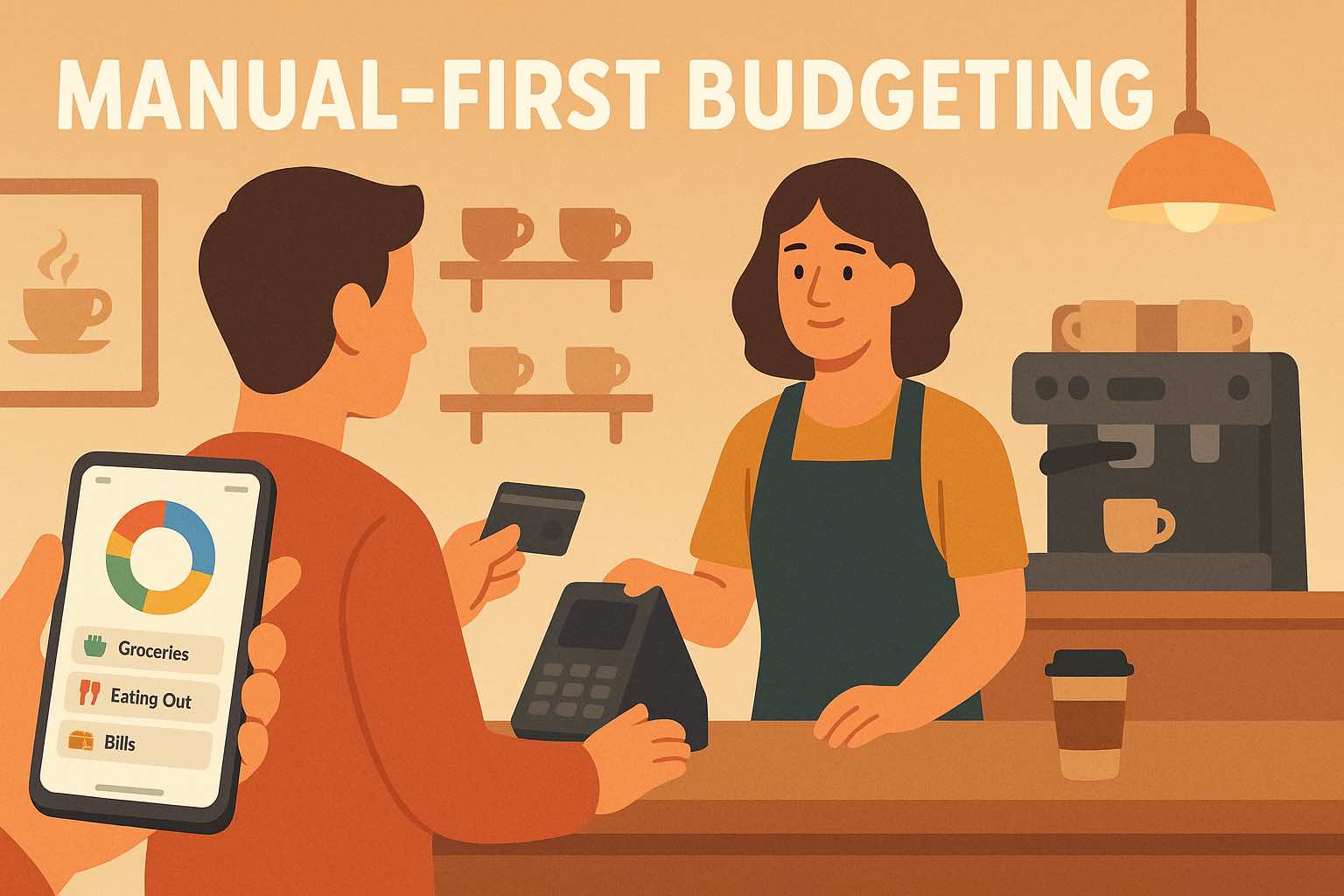
Manual entry works well for day-to-day control.
Add a purchase at the counter, record a cash expense, enter side income, or adjust a balance when you already know what changed. Manual entry keeps small updates fast and intentional.
CSV imports work well for catch-up and review.
Download a bank statement CSV, credit card CSV, or spreadsheet export, then import it into Koody. Koody helps prepare the rows for review so you are not typing every transaction by hand.
If you want the deeper import experience, see how Koody imports transactions without linking your bank and turns uploaded files into reviewable budget data.
How Koody works without bank linking
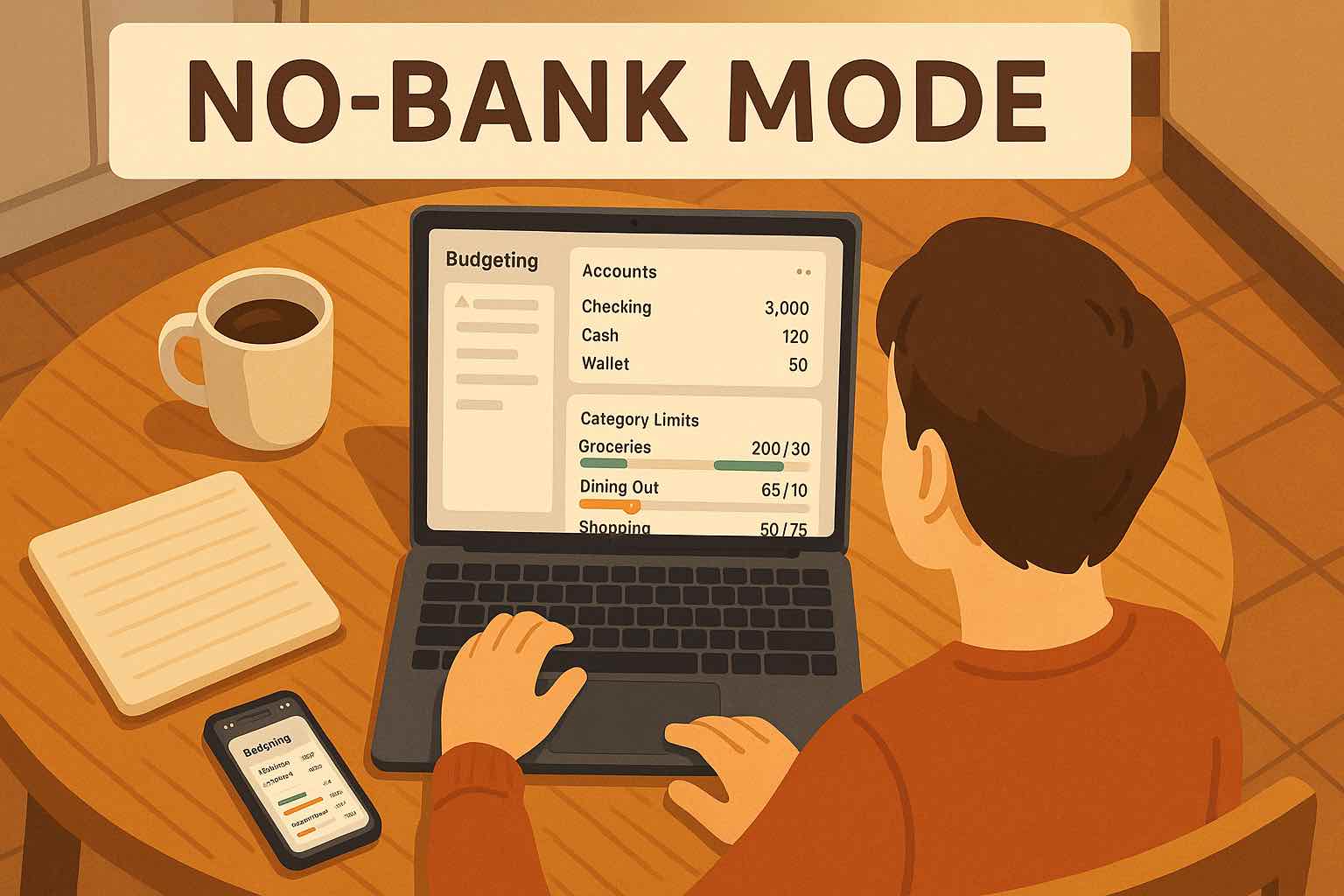
In Koody, everything starts with a simple choice: set up a manual bank or use a cash bucket. No bank logins, no connections, just places that mirror where your money really lives.
Once those accounts exist, Koody gives you the budgeting tools around them.
1. Set up your manual banks and accounts
First, create a home for your money:
- Choose from a list of popular banks, or type the name of your own (like "Local Credit Union" or "Employer Card") and hit Add bank.
- If you mainly use cash, set up a simple cash bucket instead (for example, "Cash in Wallet", "Cash at Home", or just "Cash").
After you've added a bank or cash bucket, you can create one or more accounts inside it that match how you actually use your money:
- "Checking"
- "Joint Checking"
- "Credit Card"
- "Savings"
- "High-Interest Savings - Emergency Fund"
- "Wallet"
- "Vacation Jar"
- "Business Account"
- "Crypto" or "Investment" if you want to track balances manually
Each new account can have:
- A starting balance so your totals are accurate from day one
- A type (checking, savings, credit card, cash, etc.), so your reports and filters make sense
From that moment on, Koody treats your manual banks and accounts as if they were "real" bank connections inside the app—just without ever asking for your credentials.
2. Add transactions manually when it makes sense
You can input transactions in seconds:
- Choose the account (e.g., "Checking").
- Select whether it's an income, expense, or transfer.
- Enter the amount, date, and category (Groceries, Rent, Utilities, etc.).
- Optionally add a quick note like "Dinner with friends" or "Uber to airport".
This keeps quick updates lightweight and fully under your control.
3. Import CSVs when you want faster catch-up
If you have more history to bring in, upload transaction files instead of connecting your bank:
- Bank statement CSVs
- Credit card CSVs
- Spreadsheet exports
- Older budgeting app exports
Koody can help clean descriptions, auto-categorize imported transactions, detect recurring items, and review duplicate imports.
4. Use budgets like a built-in budget calculator
Inside Koody, you can create budgets for:
- Monthly spending overall
- Individual categories (Groceries, Eating Out, Shopping, etc.)
- Specific goals (Emergency Fund, Travel, Debt Payoff)
You can follow classic methods like the 50/30/20 rule (50% needs, 30% wants, 20% savings/debt) by setting up categories that match those buckets.
In practice, this turns Koody into your:
- Budget calculator
- Free online budget planner (with better UI than a spreadsheet)
- Ongoing "am I on track?" dashboard
You don't need automatic bank sync to have a powerful budget calculator app. You just need a place where the math is done for you and the numbers actually reflect how you live.
5. Track recurring items, exports, and AI help
Staying bank-optional does not turn off the useful parts of Koody. You can:
- Track recurring bills and subscriptions.
- Export transaction records when you need them.
- Attach receipts to expenses.
- Ask Koody AI practical questions about your budget.
As long as the numbers live in Koody, the app can help you understand them.
What to look for in a no-bank-link app
A good no-bank-link budgeting app should still feel like a real product, not a blank spreadsheet with nicer colors.
1. No forced bank connection
The app should work perfectly as a budget app not linked to your bank account by default, with bank sync as an optional extra instead of a requirement.
2. Clear privacy story
You should understand what data is collected, what's stored, and how it's used. You shouldn't need a law degree to get a straight answer.
3. Fast manual entry
If you're going manual, adding an expense should take seconds, not minutes. Recent categories, favorites, and smart defaults matter here.
4. Transaction import support
If you ever need to catch up, you should be able to import bank statements, card CSVs, or spreadsheet exports instead of typing every row.
5. Good reporting and visuals
You deserve charts that actually make sense: how much you spent this month, where it went, how it compares to your budget.
6. Recurring items, exports, and AI
The app should help you stay organized after setup: recurring bills, transaction exports, and AI support can all make a bank-optional budget easier to maintain.
7. Available on the devices you actually use
Ideally:
- Best budget app for Android? ✔
- Best budget app for iOS? ✔
- Best budget app for web or desktop? ✔ Plan in a bigger view when you need more space.
Koody is designed to check those boxes: no bank linking, manual entry, CSV imports, budgets, exports, recurring items, Koody AI, and access on mobile and web.
Start budgeting in Koody in 5 minutes
If you want to try Koody without linking a bank, here is a simple first session:
- Create your Koody account — Available on the web, iOS, and Android.
- Set up a manual bank or use cash — Add the name of your bank (if you want to track it) or just use cash.
- Add your main accounts and current balances — Use the numbers from your bank and your wallet. You only need to do this once. Koody will keep track from here.
- Add or import recent transactions — Enter a few recent transactions manually, or import a CSV if you want to bring in more history.
- Create a simple monthly budget — Start with big, easy categories: Housing, Groceries, Transport, Eating Out, Debt/Savings, Everything Else. If you like rules, set it up roughly like a 50/30/20 budget app: ~50% needs, ~30% wants, ~20% savings/debt payoff.
- Review your budget — Check categories, recurring items, and account balances so your plan reflects what is actually happening.
That's it. No bank login, no waiting for sync, no wondering what's happening behind the scenes.
Start budgeting without linking your bank.
Add transactions manually, import CSVs when you need to catch up, build budgets, and ask Koody AI practical questions about your money.
Open KoodyFAQs: budgeting without linking your bank
1. Do I have to link my bank account to use Koody?
No. You can create manual banks or cash buckets, add account balances, track income and expenses, and import transaction CSVs without connecting a bank account.
2. Can I import transactions instead of linking my bank?
Yes. You can import bank statement CSVs, credit card CSVs, and spreadsheet exports, then review the transactions in Koody without live bank sync.
3. How much work is budgeting without bank linking?
For day-to-day tracking, manual entry can take a few minutes. For bigger catch-up sessions, transaction imports help you bring in more history without typing every row.
4. What if I miss a few transactions?
That is normal. Add them when you catch up, then compare account balances to your real statements to reconcile. Consistency over time matters more than perfect same-day entry.
5. Can I track household spending without sharing bank logins?
Yes. One account owner can maintain a household budget in Koody while keeping real bank credentials private.
6. Will Koody auto-categorize imported transactions?
Yes. Koody auto-categorizes imported transactions, detects recurring items, and helps you review patterns after upload.
7. Can Koody AI help if I do not link my bank?
Yes. Koody AI works with the budgets, categories, accounts, and transactions you add or import. You do not need bank sync just to ask practical money questions.
8. What should I do in my first 15 minutes?
Create your main accounts, enter starting balances, add or import recent transactions, and set simple category limits for groceries, transport, bills, and savings.
Final thoughts
You do not need to link your bank account just to build a useful budget.
Koody gives you manual entry, CSV imports, auto-categorization, budgets, recurring items, exports, and AI help without bank sync.
You stay in control of what gets tracked and when it gets added. Koody turns that information into a plan you can actually use.