Watch a short demo of Import Edit Persistence in action.
At A Glance
Import Edit Persistence helps your CSV import edits stick. Koody cleans and auto-categorizes your bank statement CSV first, then you review what looks off, fix it once, and choose whether that cleanup should carry forward to future imports.
What Is Import Edit Persistence?
Import Edit Persistence helps your imports get smarter over time. When you import a CSV into Koody and then fix a merchant name, category, or both, Koody can remember that correction and reuse it the next time that merchant shows up.
This matters because real statements are messy. Banks often export merchants as ALL CAPS, short codes, or placeholder company names, which makes transactions harder to read and harder to categorize—especially for local and new vendors.
Koody AI can clean up and auto-categorize a lot of transactions, but it shouldn't guess when confidence is low. Import Edit Persistence fills that gap by letting you correct it once after a bank statement import, then automatically applying your preference in future imports.
And now the saved behavior is easier to manage, too. You can later open Settings > Imports > Import Rules to review, edit, or delete the saved rules created from those import-cleanup prompts.
The result is simple: less repeat work, cleaner transaction lists, and imports that improve every month.
How It Works In Koody
Step 1: Import your CSV or bank statement into Koody.
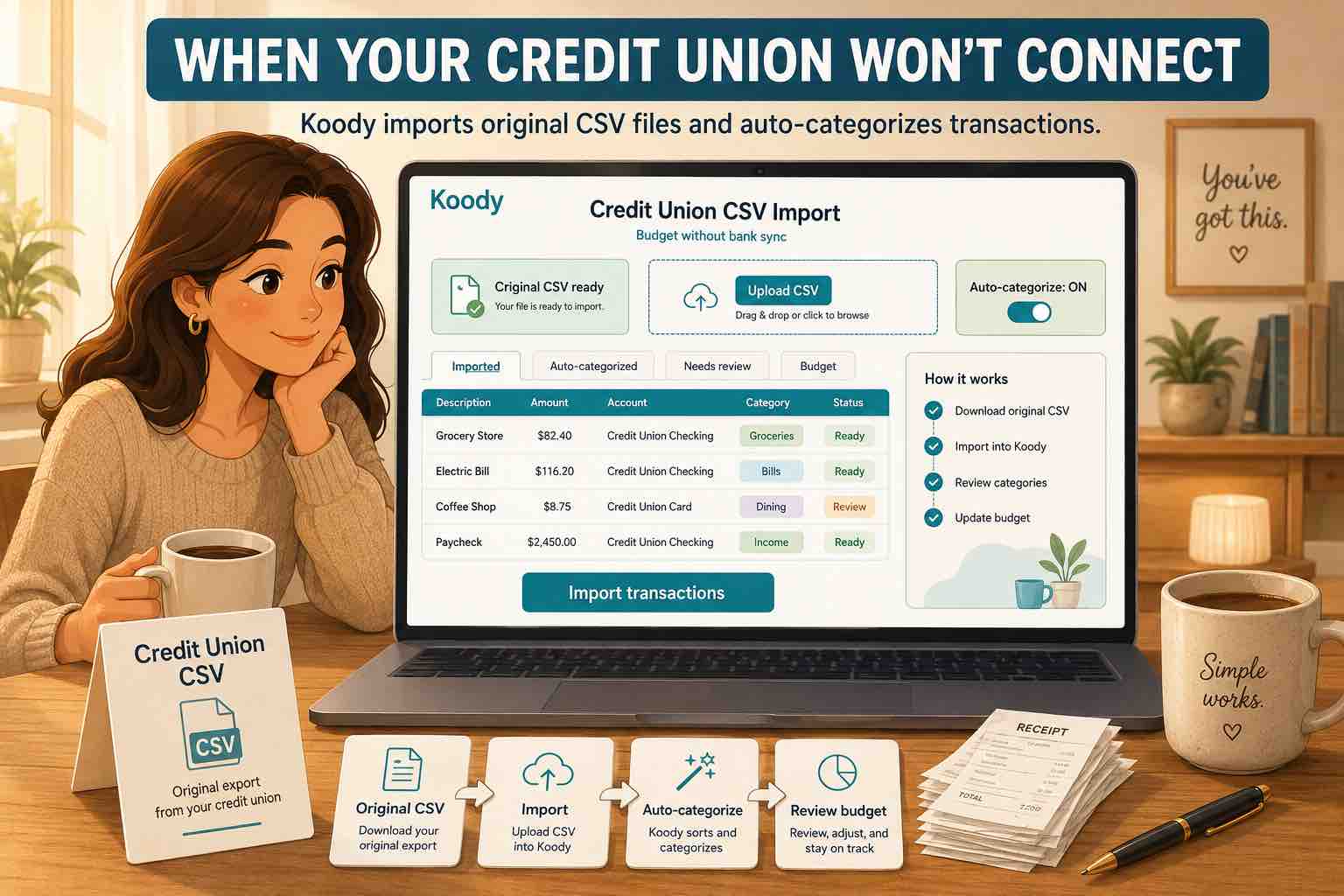
Step 2: Watch Koody clean up and auto-categorize your transactions.
Step 3: Review the transactions and edit any merchant name or category that looks off.
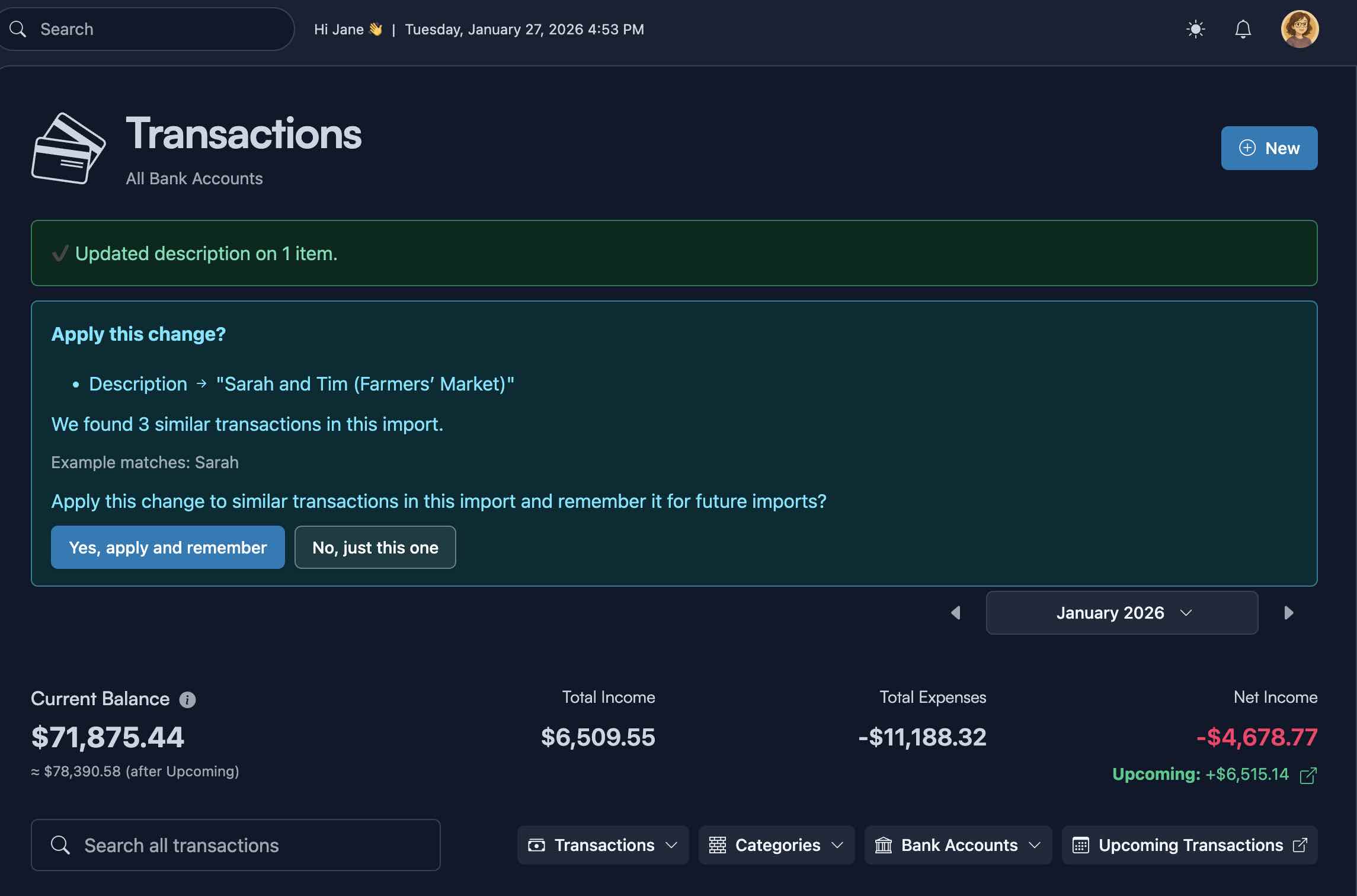
Step 4: After any individual or bulk transaction edit, you'll be prompted to apply that edit to future imports.
Step 5: Click "Yes, apply and remember."
Step 6: The next time that merchant appears, Koody automatically applies the same description and category.
Step 7: If you want to change that saved behavior later, open Settings > Imports > Import Rules to review, edit, or delete the rule.
You stay in control. Persist the edits that matter and ignore the ones you want to keep as one-offs.
That matters because remembered cleanup does not have to become a black box. Use the one-click prompt while reviewing an import, then manage the saved rule later if a merchant name changes or you picked the wrong category.
Example: A Farmers' Market Merchant
Say your bank statement shows “SARAH AND TIM LLC” for a stall you love at the farmers' market. That label doesn't mean much at a glance, so you clean it up once: rename it to “Sarah and Tim (Farmers' Market)” and set the category to Groceries.
With Import Edit Persistence turned on, Koody remembers that choice. Next month, when “SARAH AND TIM LLC” appears again, it's automatically renamed and categorized the same way — so you're not stuck doing the same little bit of cleanup over and over.
Import Edit Persistence works on both individual transaction edits and bulk edits.
And if you later decide Groceries was the wrong category, you do not have to wait for another import. Open Settings > Imports > Import Rules, find that Sarah and Tim rule, and update or remove it there.
CSV, Bank Statements, And Excel Notes
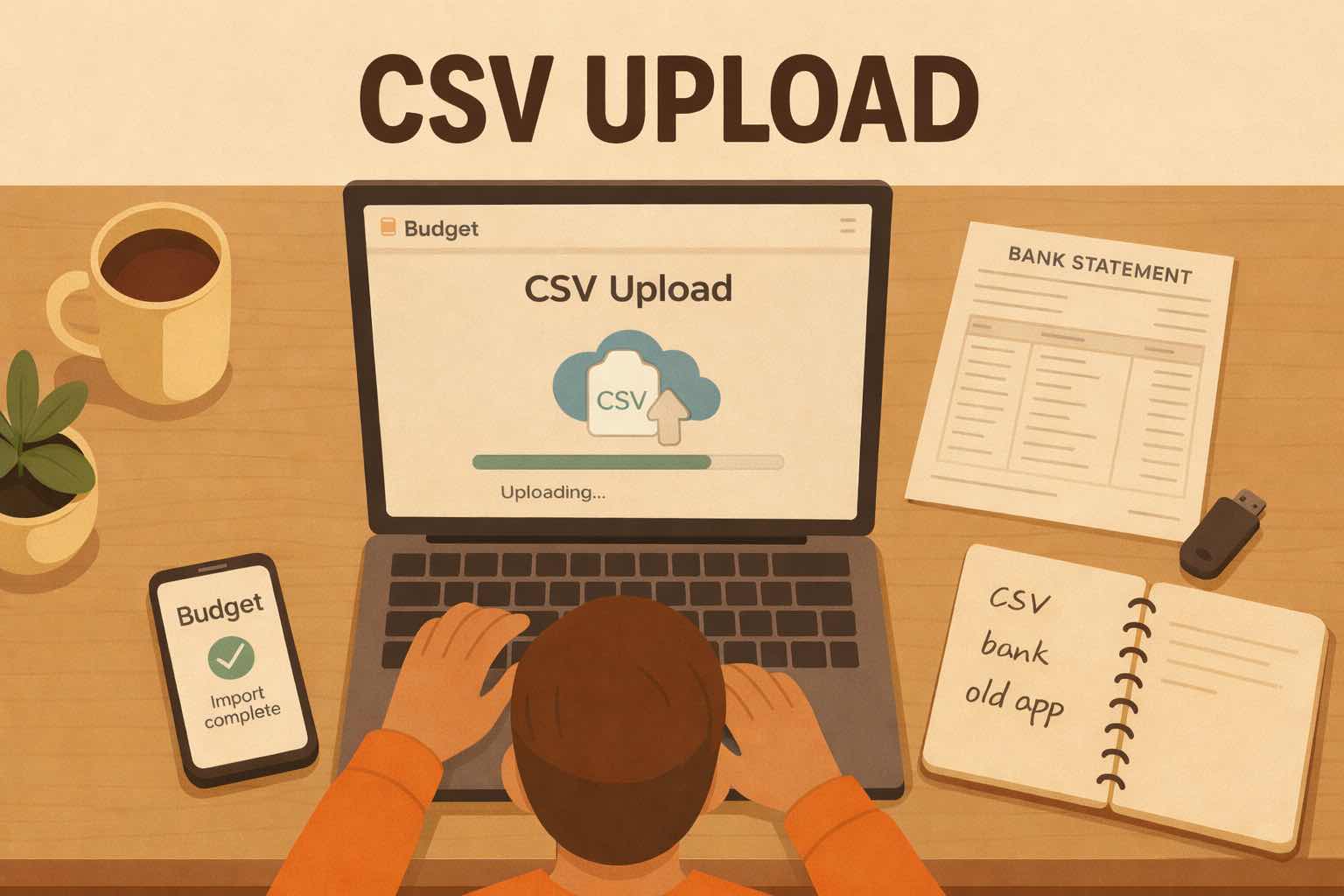
Import Edit Persistence works on CSV imports. If your bank gives you a statement in Excel, just save it as CSV first. Most banks and card providers export CSV directly, and Koody is built around that workflow.
If you are deciding between tools, this is what to look for: a CSV-first budgeting app that can auto-categorize, let you clean up in bulk, and remember the fixes you make.
FAQs: Import Edit Persistence
1. Can I use Import Edit Persistence if I upload CSVs from my bank?
Yes. If you import transactions from a bank statement CSV, Koody can remember the edits you make and reuse them the next time that merchant appears.
2. Does this work with Excel or spreadsheets?
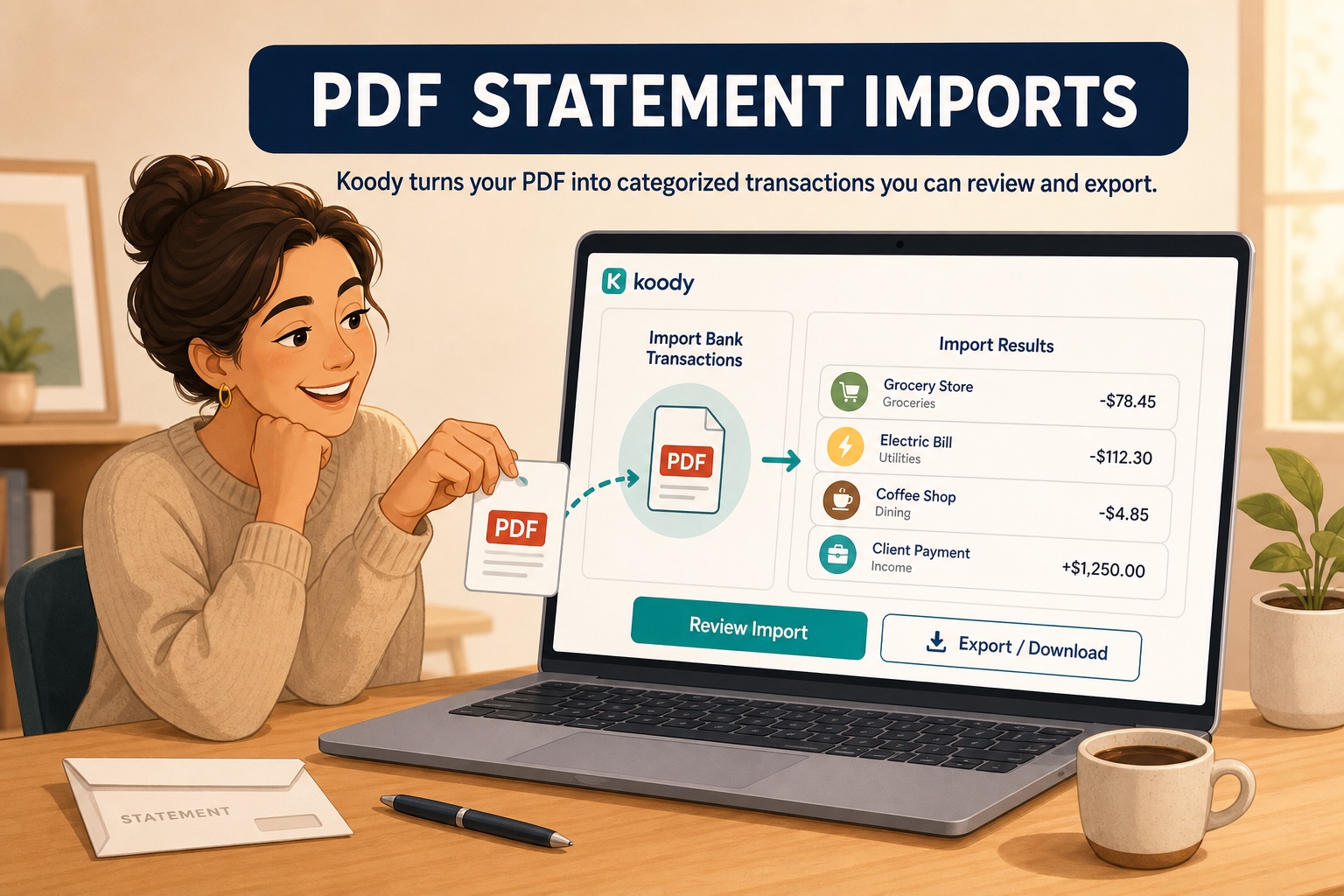
Yes. If your bank gives you an Excel file, you can save or export it as CSV first. Import Edit Persistence works on CSV imports, which covers most bank statements and spreadsheets.
3. Will Koody still auto-categorize after import?
Yes. Koody does its normal auto-categorization first, then you can review the cleaned transactions and fix anything that is off. When you opt in to persistence, your edits override future auto-categorization for that merchant in future imports.
4. Does Koody remember both the merchant name and the category?
Yes. You can persist a description change, a category change, or both. If you only fix one of them, Koody will remember just that part.
5. Do I have to turn this on for every edit?
You choose when to save an edit for future imports. If you skip it, the edit stays local to that import only.
6. Can I change or delete a saved import rule later?
Yes. Go to Settings > Imports > Import Rules to review, edit, or delete the saved description and category rules created during import cleanup.
Ready to try it on your next import?Create an accountand upload your next CSV.