Export your transaction history in a format your accountant can use right away.
Before You Start
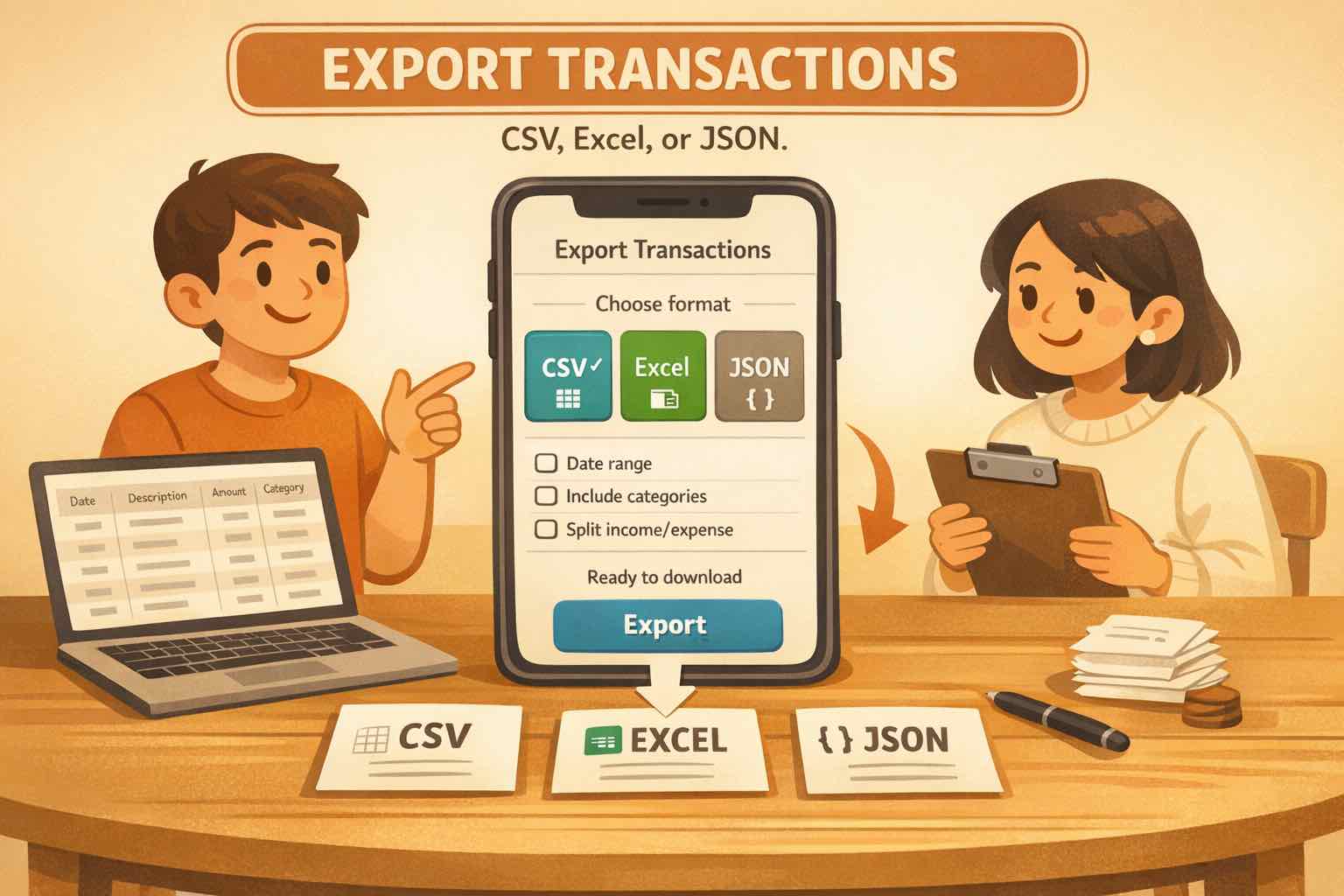
This guide shows you how to export your transactions from the Transactions screen in Koody. You can pick a date range and export as CSV, Excel (.xlsx), or JSON.
Use this workflow for bookkeeping, tax-prep, monthly reviews, or sharing records with your accountant.
Export is available on Standard and Plus plans.
How To Export Transactions
Open the Transactions tab and apply any filters you need.
Click Export.
Select your From and To dates.
Choose one or more formats: CSV, Excel (.xlsx), or JSON.
Click Download to generate your file.
Save it locally or share it from your device.
Tip: If you need to run monthly reconciliations, use one export per month so each file stays clean and easy to review.
Use Filters To Refine Exports
Before you click Export, set filters on the Transactions screen. Your export uses those same filters, which helps you create precise files without extra cleanup.
Type filter: export all transactions, income only, or expenses only.
Bank and account filters: narrow to a specific bank or account.
Category filters: export only selected categories.
Search filter: export transactions matching a keyword.
Transfers setting: keep or exclude transfers based on your current selection.
Example: for accountant prep, you can filter to one bank account + one month + expenses only, then export exactly that set.
How To Send To Your Accountant
Want to send the export directly from Koody? Use Send to Accountant in the same export screen.
Enter your accountant's email address.
Add an optional note with context (for example: "These are January records for tax prep.").
Keep Send a copy to yourself checked if you want a copy in your inbox.
Confirm the email prompt before sending.
This flow helps prevent accidental sends while keeping handoff fast.
Looking for a simple finance app that exports to CSV?
Koody lets you track spending, review transactions, then export clean records as CSV, Excel, or JSON when you need them.
It works well when you want a simple budget day to day and usable records for spreadsheets, tax prep, or your accountant later.