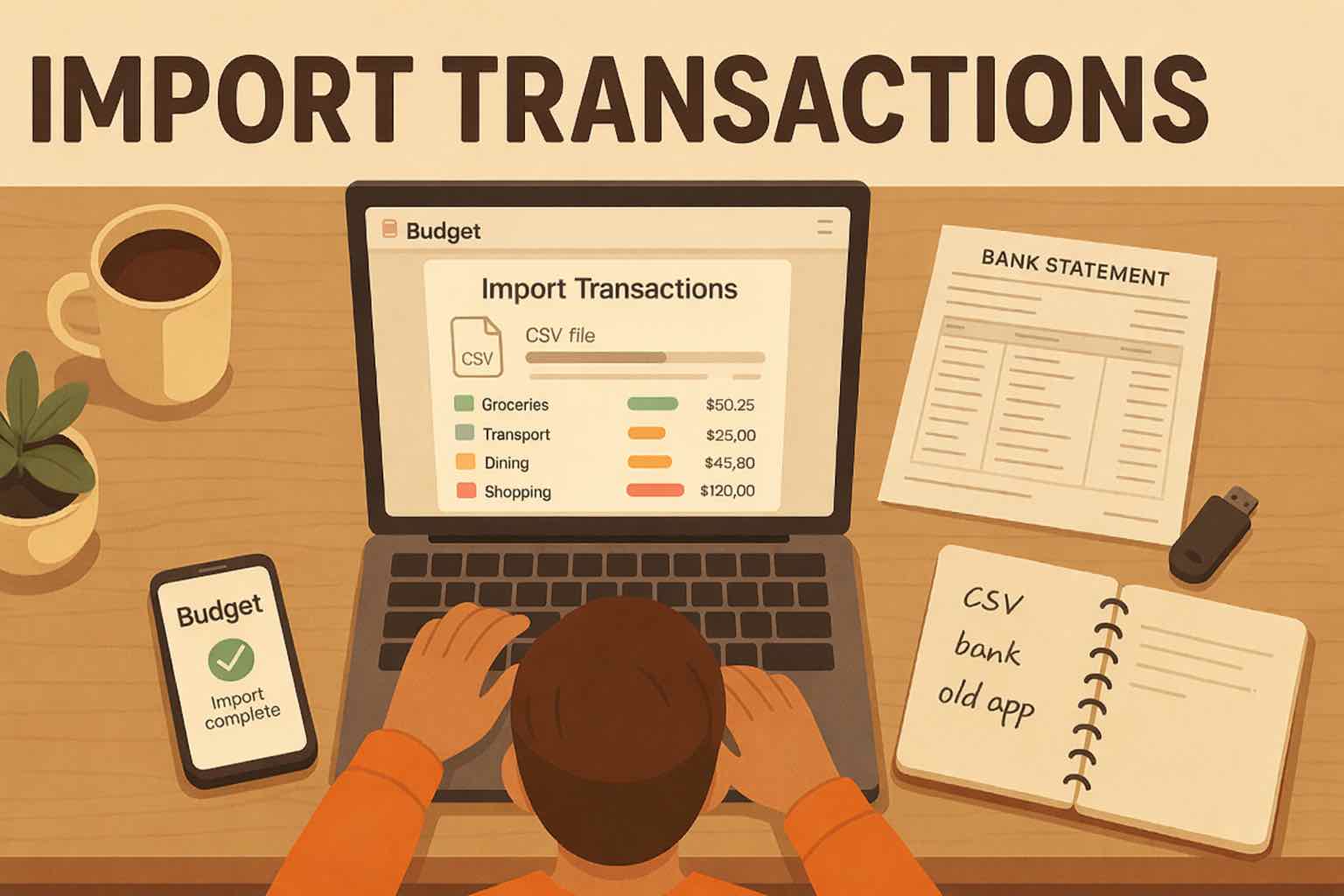
Bank statement CSV import for budgeting.
Upload bank statement CSVs from checking and savings accounts. Koody cleans descriptions, auto-categorizes transactions, spots transfers, refunds, bills, and duplicates, and helps you review faster without linking your bank.

Watch bank statement CSV import in action.
Choose the matching bank account, upload the CSV, then review cleaner categorized transactions in Koody.
Step-by-step import review in Koody.
Turn bank statement files into budget-ready transactions.
If you are looking for a bank statement CSV file, start in your bank's transaction or activity screen. Pick a date range, choose CSV, and let Koody turn those rows into cleaner spending data.
Start from your bank activity
Open the transactions or activity view in online banking instead of copying statement lines by hand.
Pick the date range you need
Download one month, a quarter, or the history you want to review in Koody.
Choose CSV when you export
CSV gives Koody the transaction rows it can clean, categorize, and prepare for review.
Review a cleaner budget
Upload the file, check the imported rows, and move forward with better spending data.
What Koody does after upload.
A raw bank CSV becomes more useful when descriptions are readable, categories are filled in, and important patterns are easy to review.
Clean merchant descriptions
Turn noisy bank labels into transaction names that are easier to read and trust.
Auto-categorize transactions
Start with categorized spending instead of a blank spreadsheet column.
Find transfers and refunds
Keep money movement, refunds, subscriptions, bills, and duplicate rows easier to spot.
How it works
Keep each checking or savings file tied to its matching Koody account. That makes repeat imports easier to review and keeps your bank history organized.
Export the CSV, upload it into Koody, then check the cleaned and categorized result before you move on.
Export your bank CSV
Download a transaction CSV from the bank account you want to review.
Import it into the matching account
Choose the Koody checking or savings account where those transactions belong.
Review cleaner categorized transactions
Check the import result, bulk edit patterns, and save preferences for next time.
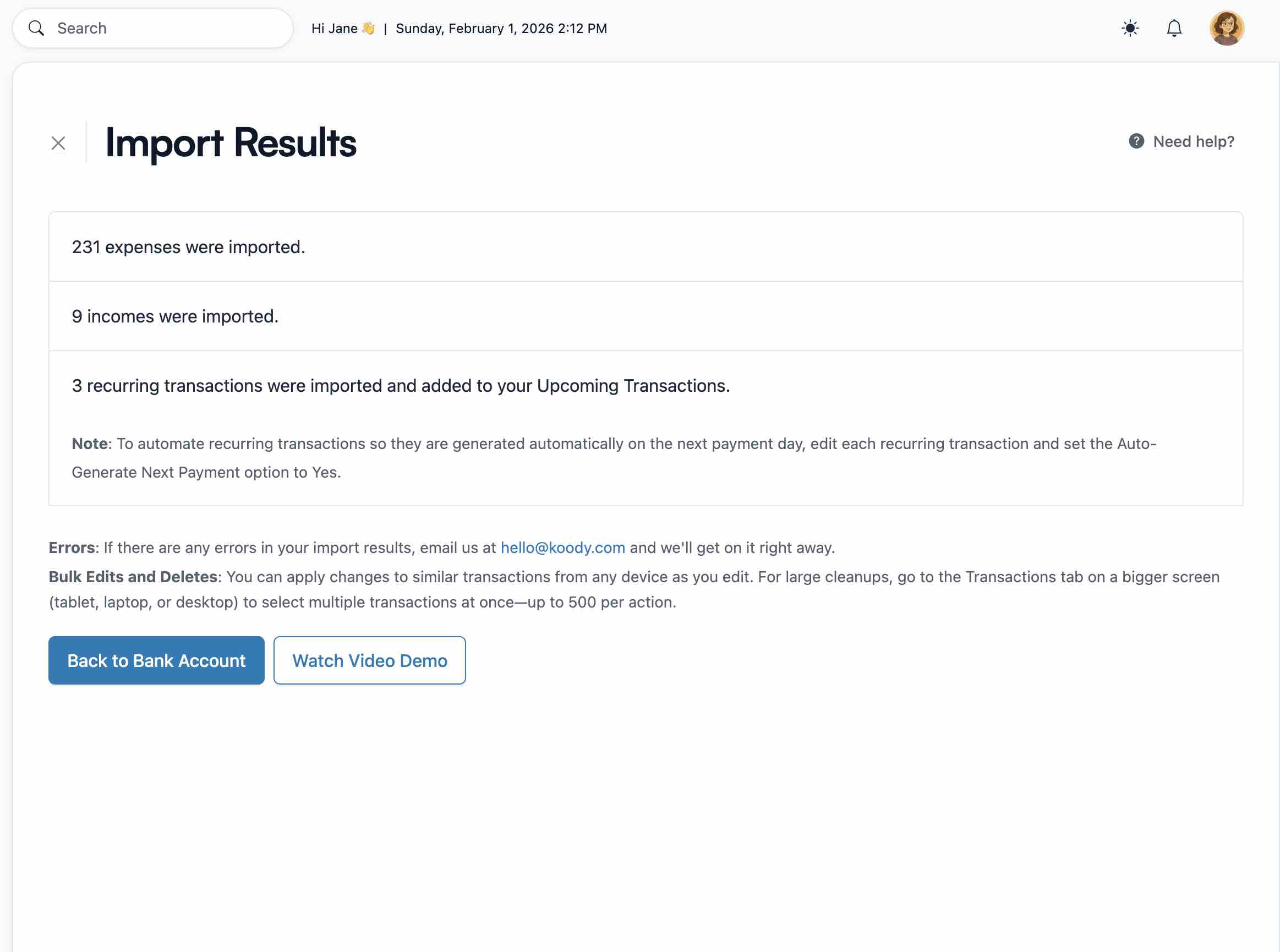
IMPORT RESULTS
See what came in from the bank CSV.
Koody gives bank imports a clear result screen, so you can confirm income, expenses, transfers, refunds, and recurring items before moving on.
- Quick totals for imported income and expenses.
- Recurring bills and subscriptions surfaced after upload.
BULK EDITS
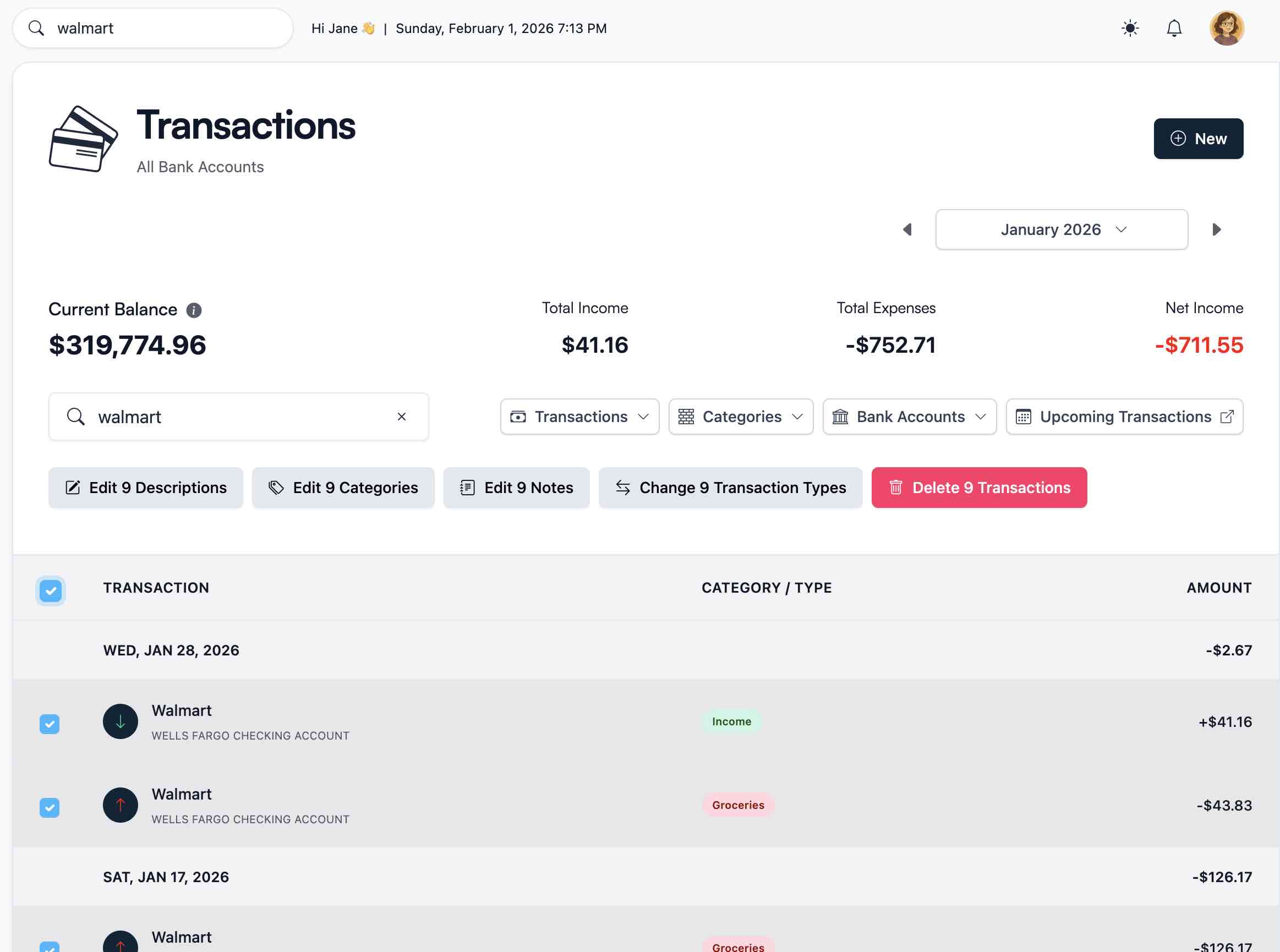
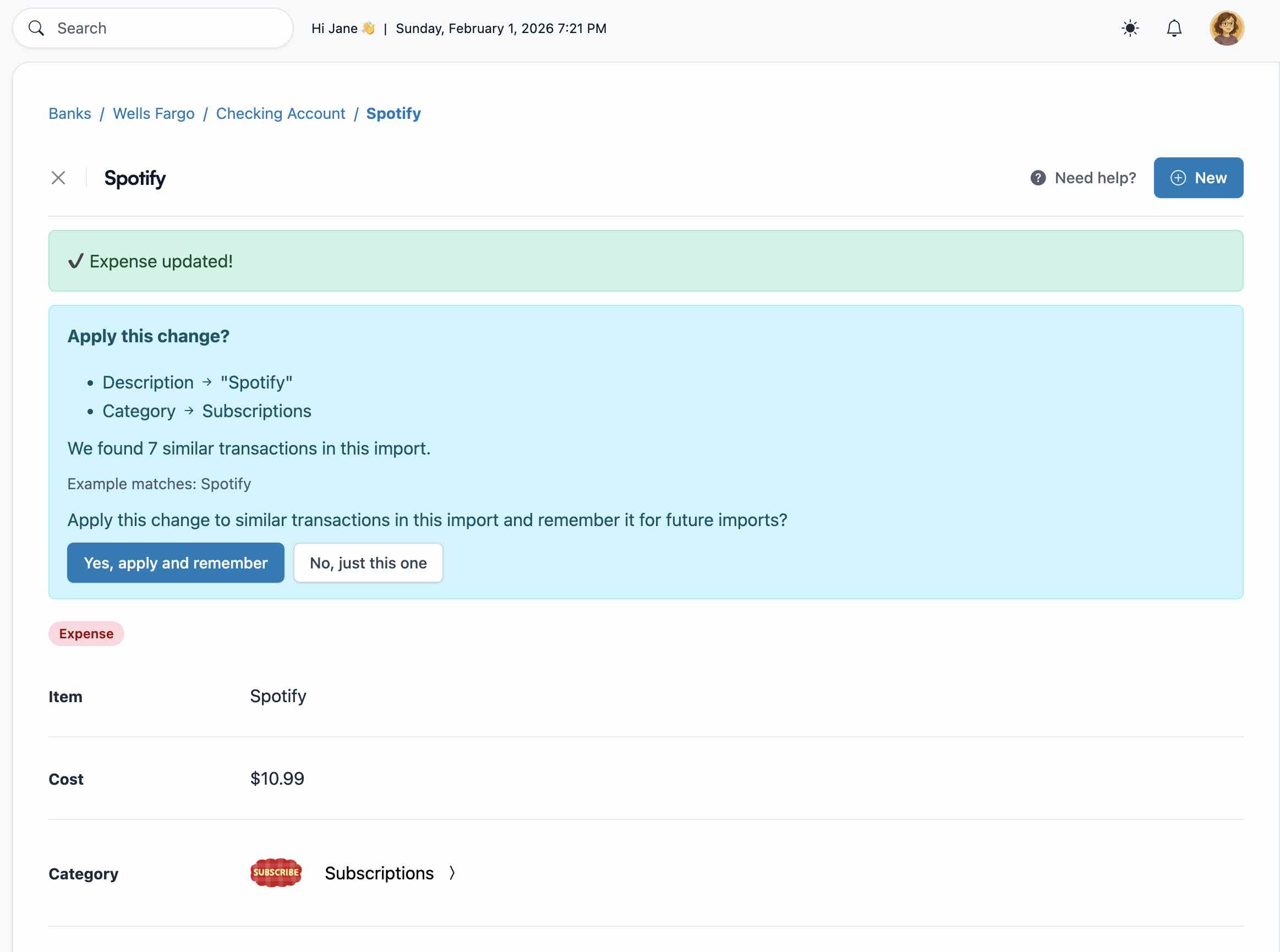
Fix repeated bank patterns at once.
When the same merchant, category, note, transfer, or refund pattern needs a change, Koody lets you update matching rows in batches.
- Confirm imported income, expenses, transfers, and refunds before they affect your budget.
- Bulk edit repeated merchant names, categories, and notes instead of fixing rows one by one.
- Ask Koody to remember useful cleanup choices so repeat imports start cleaner.
SAVED PREFERENCES
Make the next bank import easier.
When you fix a merchant name, category, or note, Koody can remember that preference for the next matching bank transaction.
- Less repeat editing when the same merchant appears again.
- Cleaner imports as your preferences build up.
KOODY AI
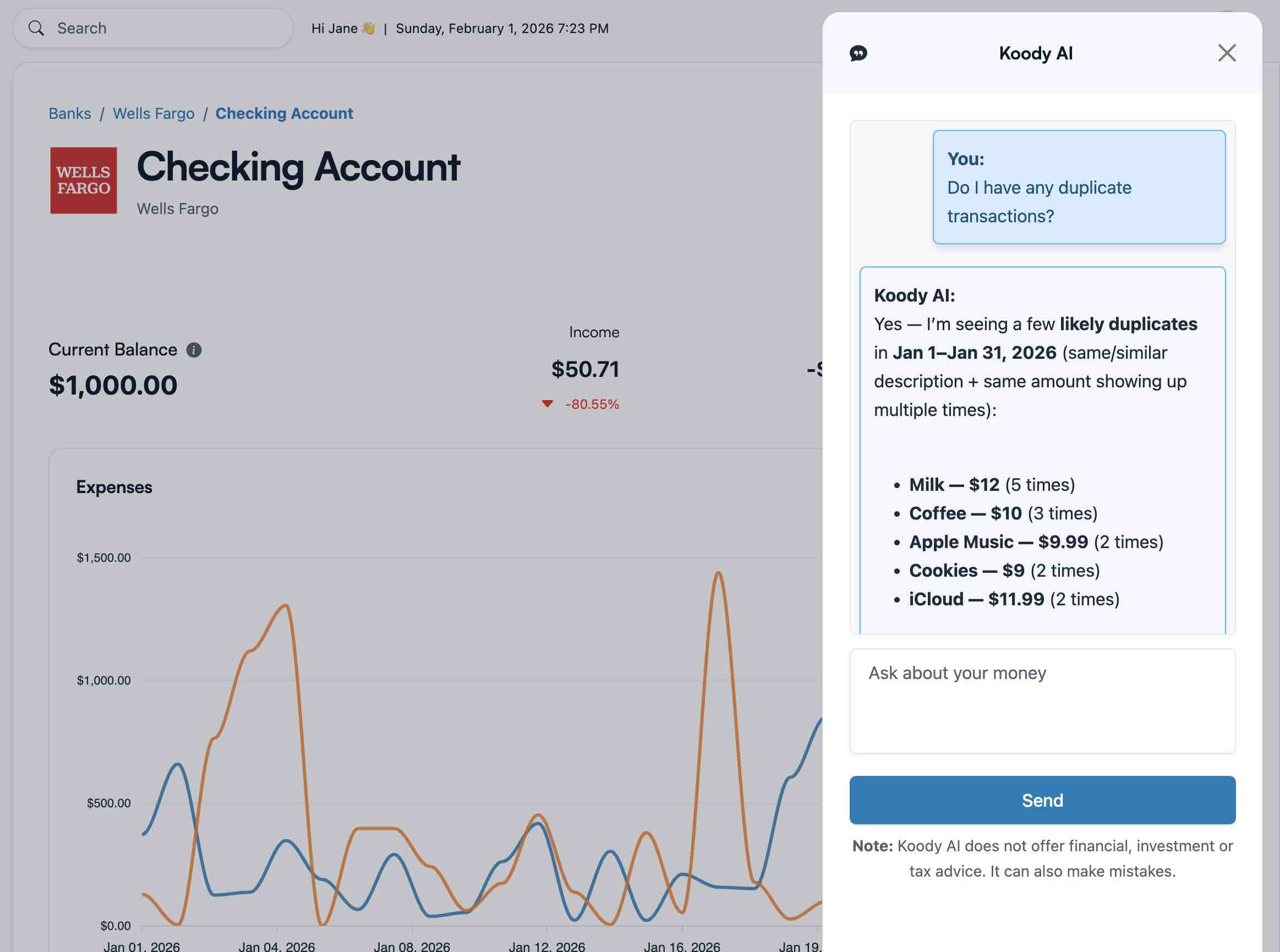
Ask Koody AI what needs attention.
Koody AI can help you review imported bank data faster by surfacing likely duplicates, category issues, and unusual spending.
- Plain-English help when a bank import looks messy.
- Faster review without hunting through every row.
Why choose Koody
Bank statement CSV import that does more than upload rows.
Koody turns bank statement CSVs into cleaner, categorized transactions you can review quickly. It is built for the real work after export: spotting transfers, refunds, recurring bills, subscriptions, and duplicates before they distort your budget.
- Import bank statement CSVs without linking your bank or rebuilding your budget by hand.
- Let Koody clean merchant names, auto-categorize transactions, and surface bills, subscriptions, transfers, and refunds.
- Review duplicates, bulk edit repeated patterns, and ask Koody to remember your preferences for next time.
Learn more about importing transactions.
Use these guides for CSV setup, card imports, spreadsheet cleanup, and cleaner ways to review transactions without linking your bank.
Pricing
Import bank statement CSVs, review cleaner transactions, and keep checking and savings accounts organized.
Free
Track money by hand, calculate your tax set-aside, and talk to Koody AI.
- Input transactions manually
- Add bank accounts
- Track spending and income (up to 1 year)
- Categorize transactions
- Monitor subscriptions or bills
- Koody AI
- Upload receipts
- Calculate your tax set-aside
- Access on mobile and desktop
Standard
Budgets that match your paydays, longer history, and exports.
- Everything in Free
- Track spending and income (up to 3 years)
- Add new categories
- Auto-generate recurring transactions
- Export transactions (CSV, Excel, JSON)
- Create and manage budgets
- Sync budgets with your payday
- Create recurring budgets
Plus
Statement imports, auto-categorization, and unlimited history.
Available to eligible customers in the US, UK, Canada, and Australia.Terms apply.
- Everything in Standard
- Import transactions from bank and credit card statements (CSV or PDF)
- Track spending and income (unlimited years)
- Automatic transaction categorization
- Unlimited categories
- Automatic detection of recurring transactions
- Advanced Koody AI
- Keep budgets active indefinitely
Frequently asked questions
Where do I find a CSV export from my bank?
Look in online banking for Transactions, Activity, Download, or Export. Pick your date range, choose CSV, then upload that transaction file to Koody.
How do I get a CSV if I only have a bank statement?
Log in to online banking and download the transaction or activity export for the same date range. CSV gives Koody the rows it can clean and categorize.
Can I import checking and savings transactions?
Yes. Import each checking or savings CSV into its matching Koody account so balances, transfers, and spending stay easier to review.
What columns should my bank CSV have?
Koody works best with transaction rows that include a date, description, and amount. Debit and credit columns can also work when the file clearly separates money in and money out.
Will Koody auto-categorize my bank transactions?
Yes. Koody auto-categorizes imported bank transactions, and you can review or bulk edit anything that needs a different category.
Can Koody identify transfers and refunds?
Yes. Koody helps surface transfer-like rows, refunds, recurring bills, subscriptions, and other patterns that are easy to miss in raw bank exports.
How does Koody help with duplicate imports?
Koody checks repeat imports so duplicate rows are easier to catch before they distort your spending history.
Can Koody remember my import edits?
Yes. When you fix a merchant name, category, or note, Koody can remember that preference for the next matching transaction.
Is bank statement CSV import free in Koody?
Manual tracking is free. Bank statement CSV import is a Plus feature, so you can upload files, review cleaner transactions, and save time on repeat imports.
Import your bank statement CSV
Upload the file, review cleaner transactions, and keep your budget moving.