Credit card CSV import for budgeting and personal finance.
Upload credit card CSV statements into your Koody account. Keep purchases, payments, refunds, and recurring charges easier to review while Koody cleans descriptions, auto-categorizes transactions, and helps prevent duplicate imports.

Watch the CSV import flow.
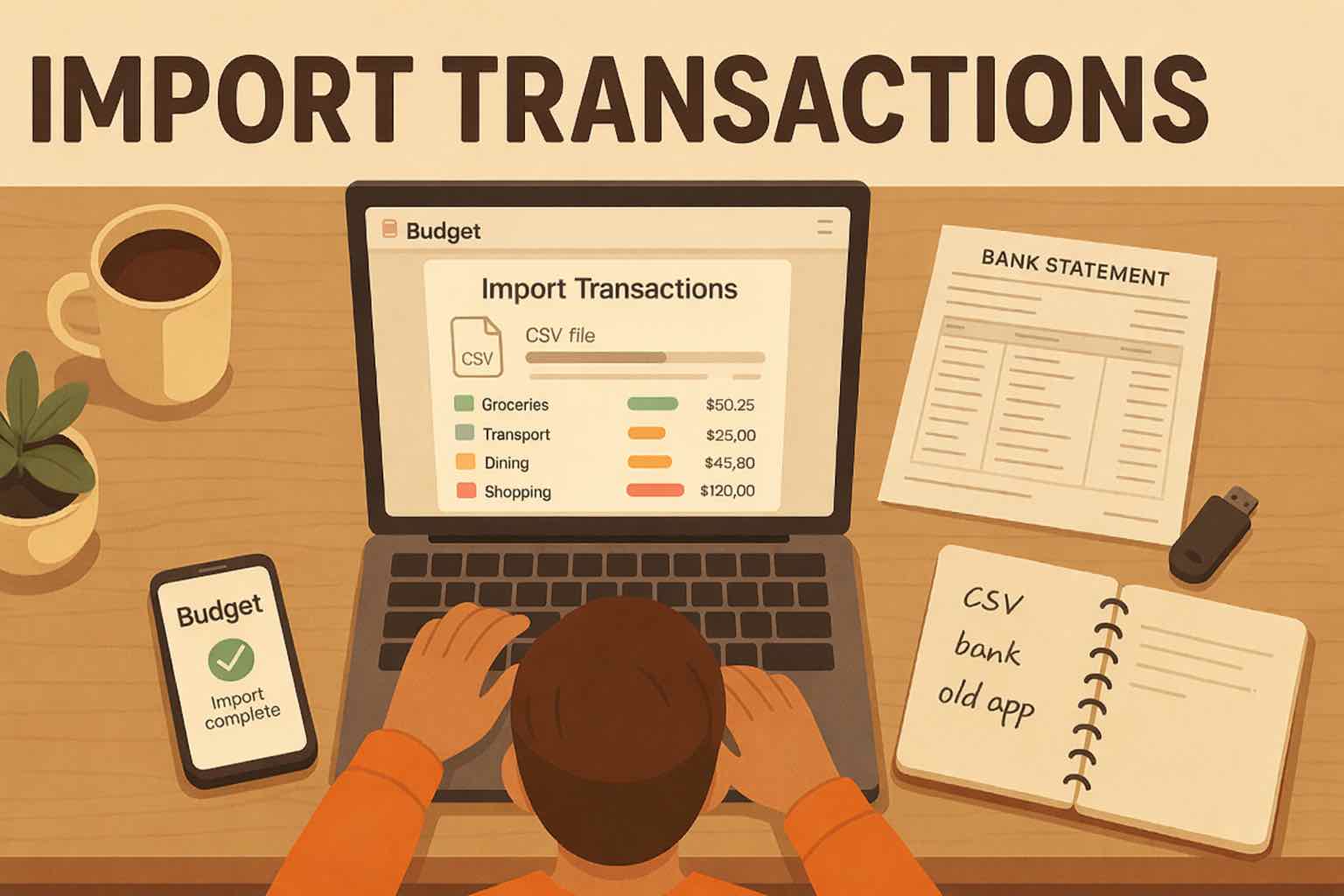
Import your credit card CSV, choose the matching card account, and review cleaner categorized transactions.
Step-by-step walkthrough of importing credit card transactions into Koody.
Credit card imports need card-specific review.
Credit card data behaves differently from other account data. Purchases, payments, refunds, subscriptions, and statement periods all need a clearer way to review what happened.
Payments are not purchases
Card payments can make spending totals look inflated when they are treated like new expenses.
Refunds need review
Refunds, statement credits, fees, and adjustments need a clear review step that keeps the card history readable.
Statement periods shift
Credit card statements often cut across budget months, so transaction-level imports are easier to review than summary balances.
Subscriptions hide on cards
Recurring apps, memberships, insurance, and renewals often live on cards and need to stay visible.
How it works
Keep each credit card tied to its matching Koody account. That makes repeat imports easier to review and keeps card spending organized by account.
Export the card CSV, upload it into Koody, then review the cleaned and categorized result before the next month gets away from you.
Export one card CSV
Download a transaction-level CSV from your card provider. If you receive Excel, save it as CSV before uploading.
Choose the matching card
Create or select the Koody credit card account where that statement belongs, then upload the file.
Review cleaner results
Koody cleans descriptions, auto-categorizes transactions, flags likely recurring charges, and lets you bulk edit patterns.
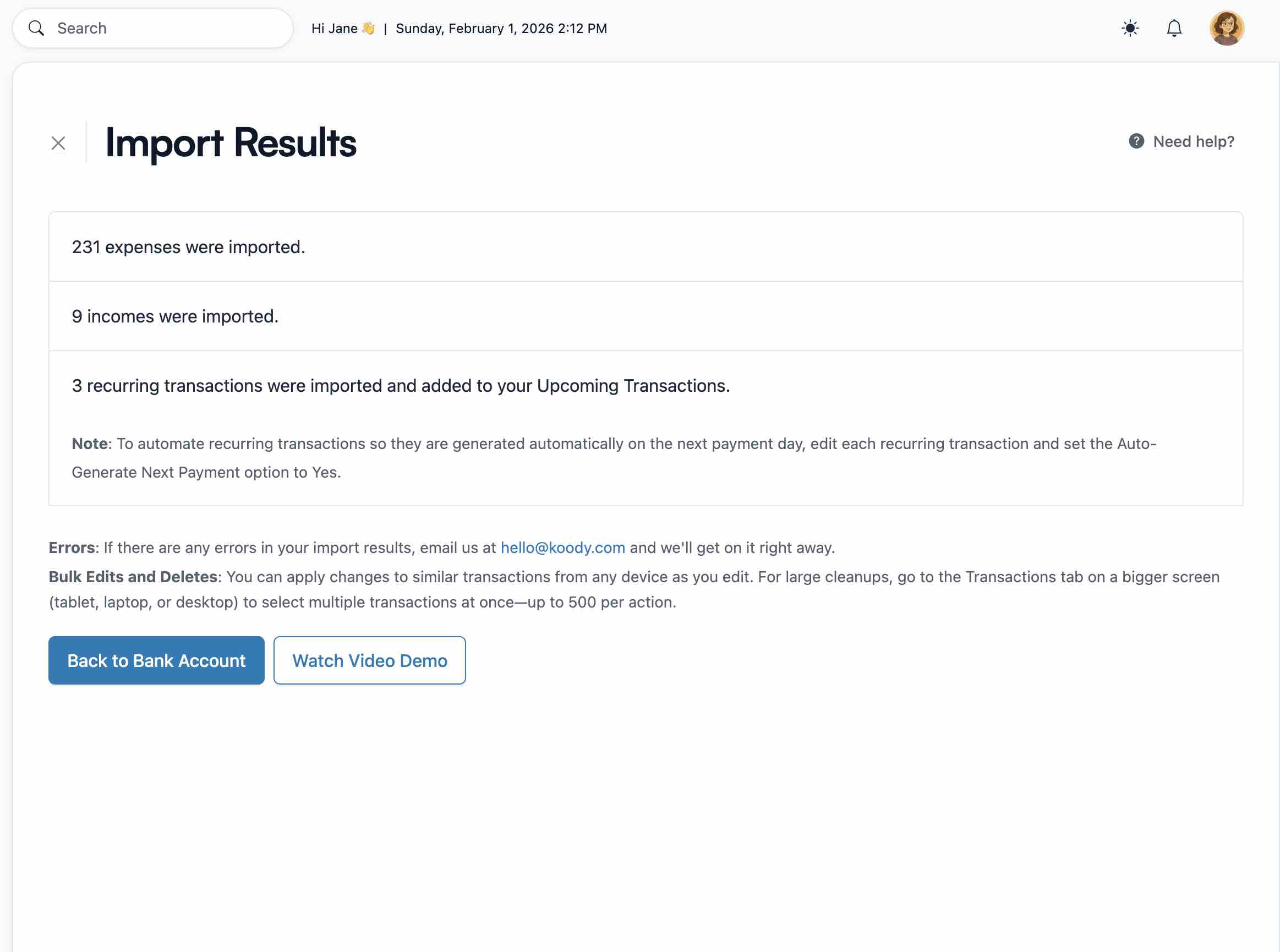
IMPORT RESULTS
See what came in from the card statement.
Koody gives card imports a clear result screen, so you can confirm purchases, payments, refunds, and recurring items before moving on.
- Quick totals for imported expenses and income.
- Recurring card charges surfaced after upload.
BULK EDITS
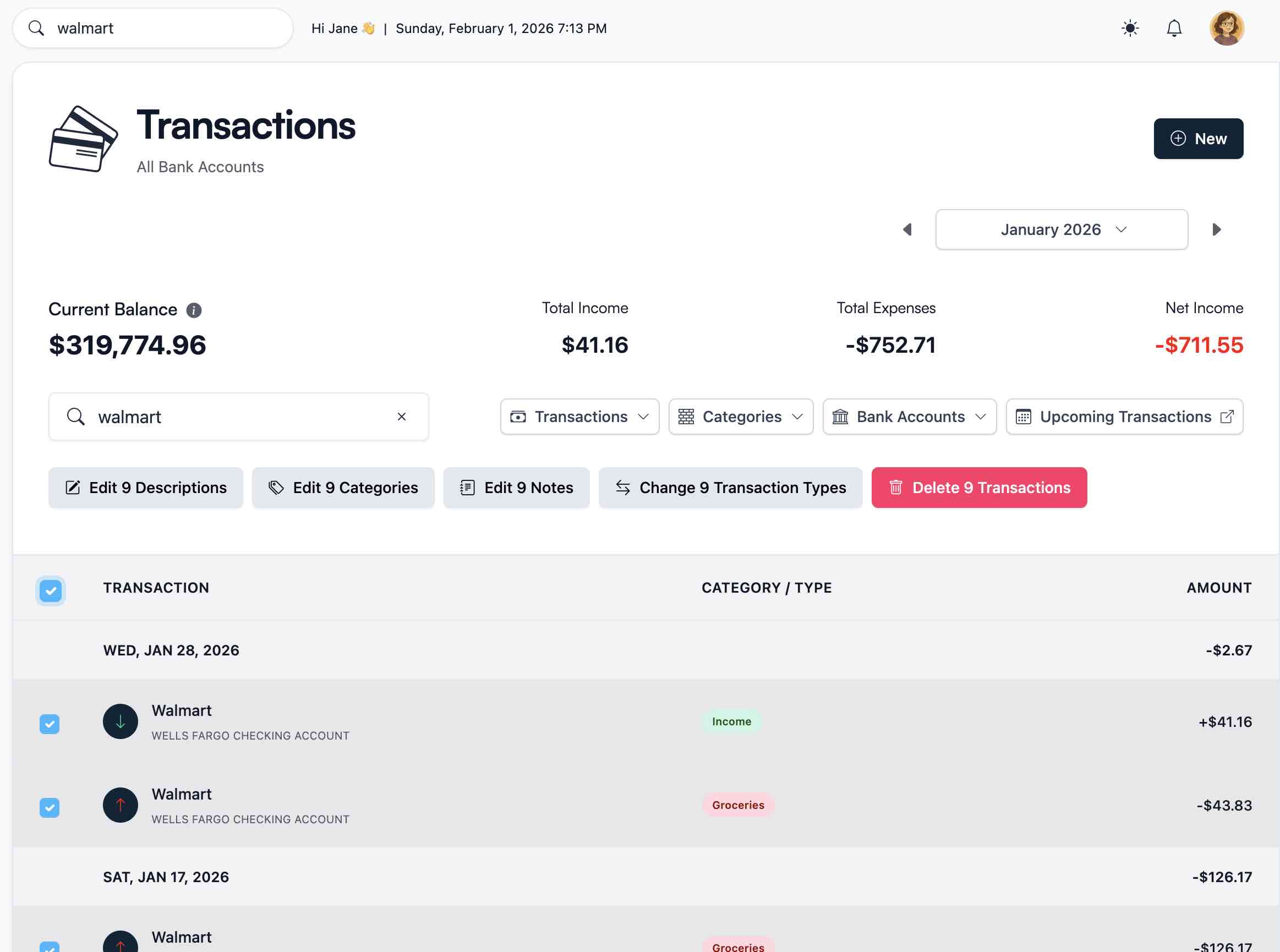
Fix repeated card patterns at once.
When the same card merchant, category, note, or payment type needs a change, Koody lets you update matching rows in batches.
- Edit repeated merchant names, categories, and notes together.
- Clean up payment-like rows without clicking every transaction.
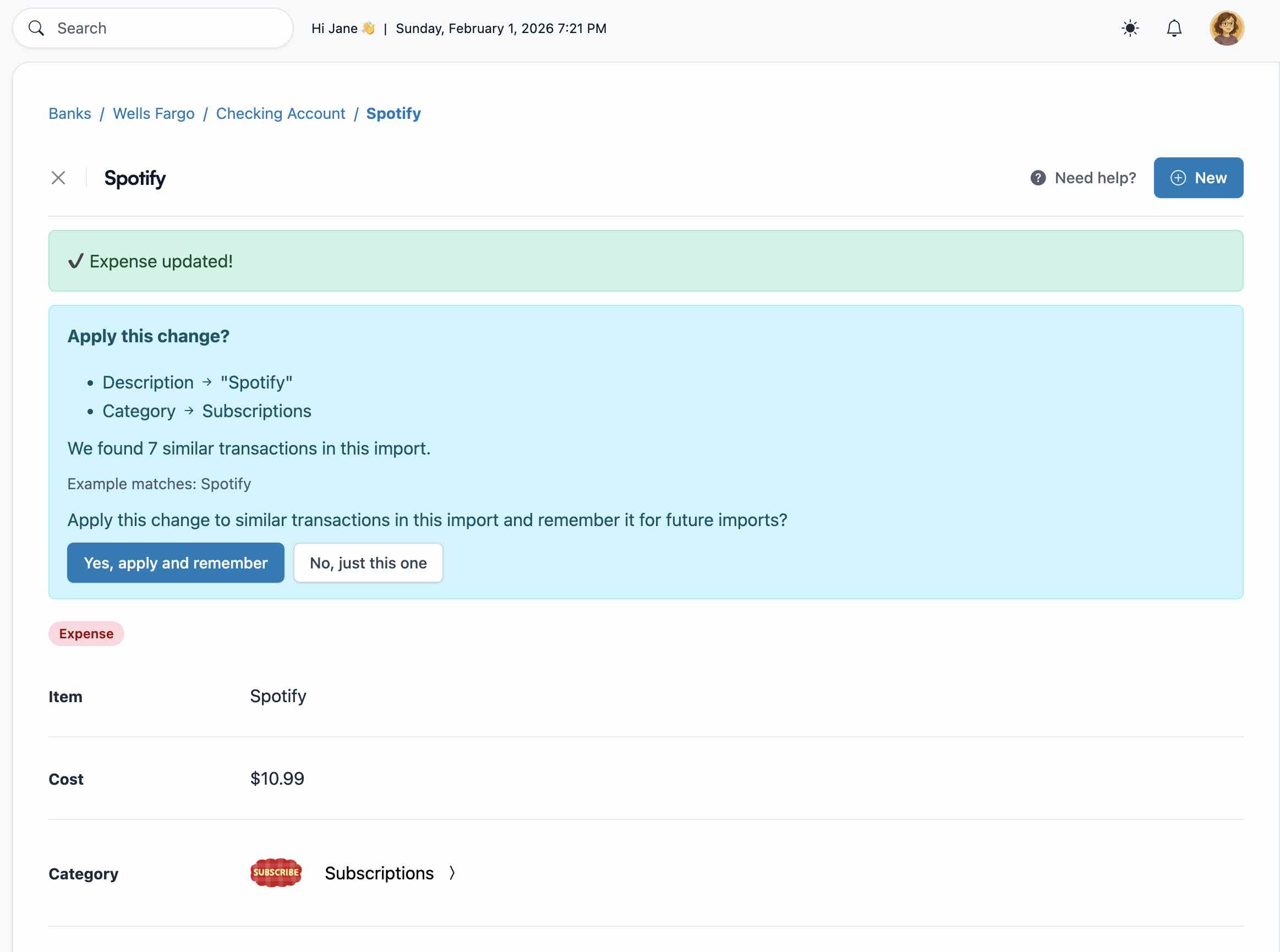
SAVED PREFERENCES
Make repeat card imports easier.
When you fix a merchant name, category, or note, Koody can remember that preference for the next matching card transaction.
- Less repeat editing when the same merchant appears again.
- Cleaner imports as your preferences build up.
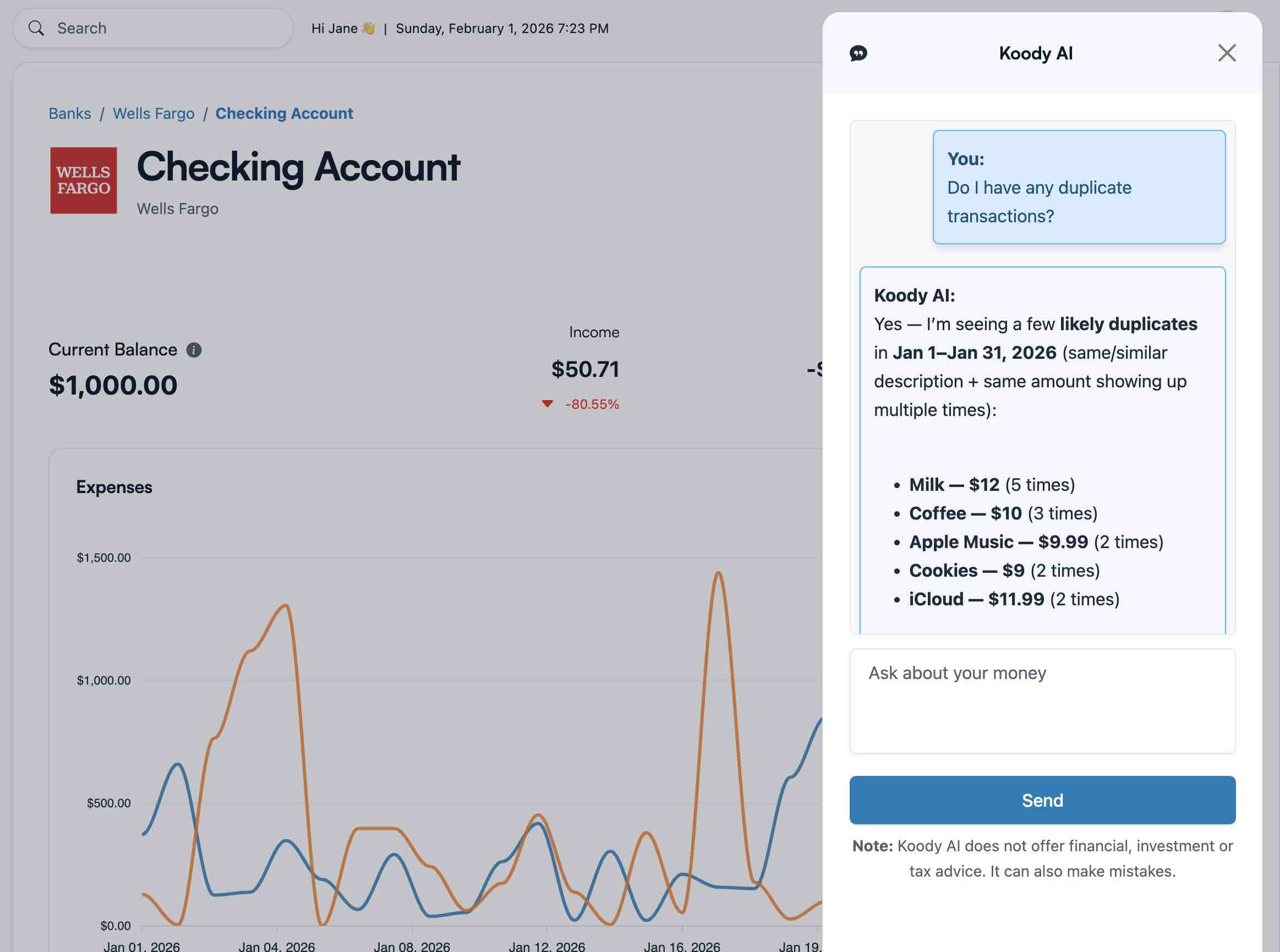
KOODY AI
Ask Koody AI what needs attention.
Koody AI can help you review imported card data faster by surfacing likely duplicates, category issues, and unusual spending.
- Plain-English help when a card import looks messy.
- Faster review without hunting through every row.
Purchases vs card payments
Keep card spending from getting muddy.
Purchases are spending. Card payments are usually money moving between your own accounts. Koody helps you review those rows clearly so they do not distort your budget.
- Review card payments separately from purchases so spending totals stay cleaner.
- Use bulk edit when several payment rows or transfer-like rows need the same treatment.
- Keep each card in its own Koody account so purchases, refunds, and balances remain easier to audit.
Recurring card charges
Find the subscriptions hiding in your card history.
Credit cards are where small repeat charges disappear. Importing the CSV turns those rows back into visible decisions during review.
A cleaner monthly card import routine.
The second import should feel easier than the first. Koody helps turn card CSV review into a repeatable habit.
Export the posted statement data
Use one recent CSV per card so the destination account stays obvious.
Import into Koody
Upload the file, check the import result, and review recurring or duplicate flags.
Save useful cleanup edits
Fix merchant and category patterns once, then let future imports start cleaner.
Learn more about credit card imports.
Use these guides for card import details, CSV setup, and cleaner ways to review transactions without linking your card.
Pricing
Import credit card CSVs, review cleaner spending, and keep each card account organized.
Free
Track money by hand, calculate your tax set-aside, and talk to Koody AI.
- Input transactions manually
- Add bank accounts
- Track spending and income (up to 1 year)
- Categorize transactions
- Monitor subscriptions or bills
- Koody AI
- Upload receipts
- Calculate your tax set-aside
- Access on mobile and desktop
Standard
Budgets that match your paydays, longer history, and exports.
- Everything in Free
- Track spending and income (up to 3 years)
- Add new categories
- Auto-generate recurring transactions
- Export transactions (CSV, Excel, JSON)
- Create and manage budgets
- Sync budgets with your payday
- Create recurring budgets
Plus
Statement imports, auto-categorization, and unlimited history.
Available to eligible customers in the US, UK, Canada, and Australia.Terms apply.
- Everything in Standard
- Import transactions from bank and credit card statements (CSV or PDF)
- Track spending and income (unlimited years)
- Automatic transaction categorization
- Unlimited categories
- Automatic detection of recurring transactions
- Advanced Koody AI
- Keep budgets active indefinitely
Frequently asked questions
Can I import credit card transactions without linking my card?
Yes. Download a transaction CSV from your card provider, then import it into the matching Koody card account.
What credit card file types does Koody support?
Koody imports credit card transaction CSV files and credit card statement PDFs. If your card provider gives you an Excel file, save or export it as CSV before uploading.
How does Koody handle card payments?
Koody gives you a clear review step so card payments and transfer-like rows can be kept from distorting purchase spending.
Can Koody detect recurring credit card charges?
Yes. Koody highlights likely recurring transactions after import so subscriptions, memberships, and renewals are easier to spot.
Will Koody auto-categorize my credit card CSV?
Yes. Koody auto-categorizes imported card transactions, and you can quickly adjust anything that needs a different category.
Can I import the same card every month?
Yes. Import each new card CSV into the same Koody account, then review duplicate and recurring flags before moving on.
What if my CSV has refunds or credits?
Koody identifies refunds and credits in your imported card data, so you can review them clearly and keep spending totals accurate.
Should I combine multiple cards into one CSV first?
Usually no. Import one card at a time into its matching Koody account so the history stays easier to review.
Is credit card CSV import free in Koody?
Manual tracking is free. Credit card CSV import is a Plus feature, so you can upload card statements, review cleaner transactions, and save time on repeat imports.
Import your credit card CSV.
Upload the card file, review cleaner transactions, and keep recurring charges visible.