People searching for automatic credit card transaction import are usually trying to solve a very specific problem.
Their spending lives on cards, but their budget does not feel clean. A statement closes in the middle of the month. A card payment appears in checking. A subscription gets buried in a long list of merchants. A sync feed shows pending activity one day and a posted version later.
That is why this post is narrower than a general how-to-import guide. Credit card imports need their own approach.
Why Credit Card Imports Need Their Own Process
Credit card data behaves differently from checking-account data in a budget.
The spending happens when you swipe the card. The payment happens later. If you do not separate those two moments, your budget can get muddy fast because the purchase is the real expense, while the payment is usually just money moving from one account to another.
Statement cycles add another layer of confusion. A credit card statement might run from the 14th to the 13th, while your budget runs from the 1st to the 31st. That does not mean your budget is broken. It means you need the transaction-level data inside the app so you can work from what actually happened rather than from a single balance number.
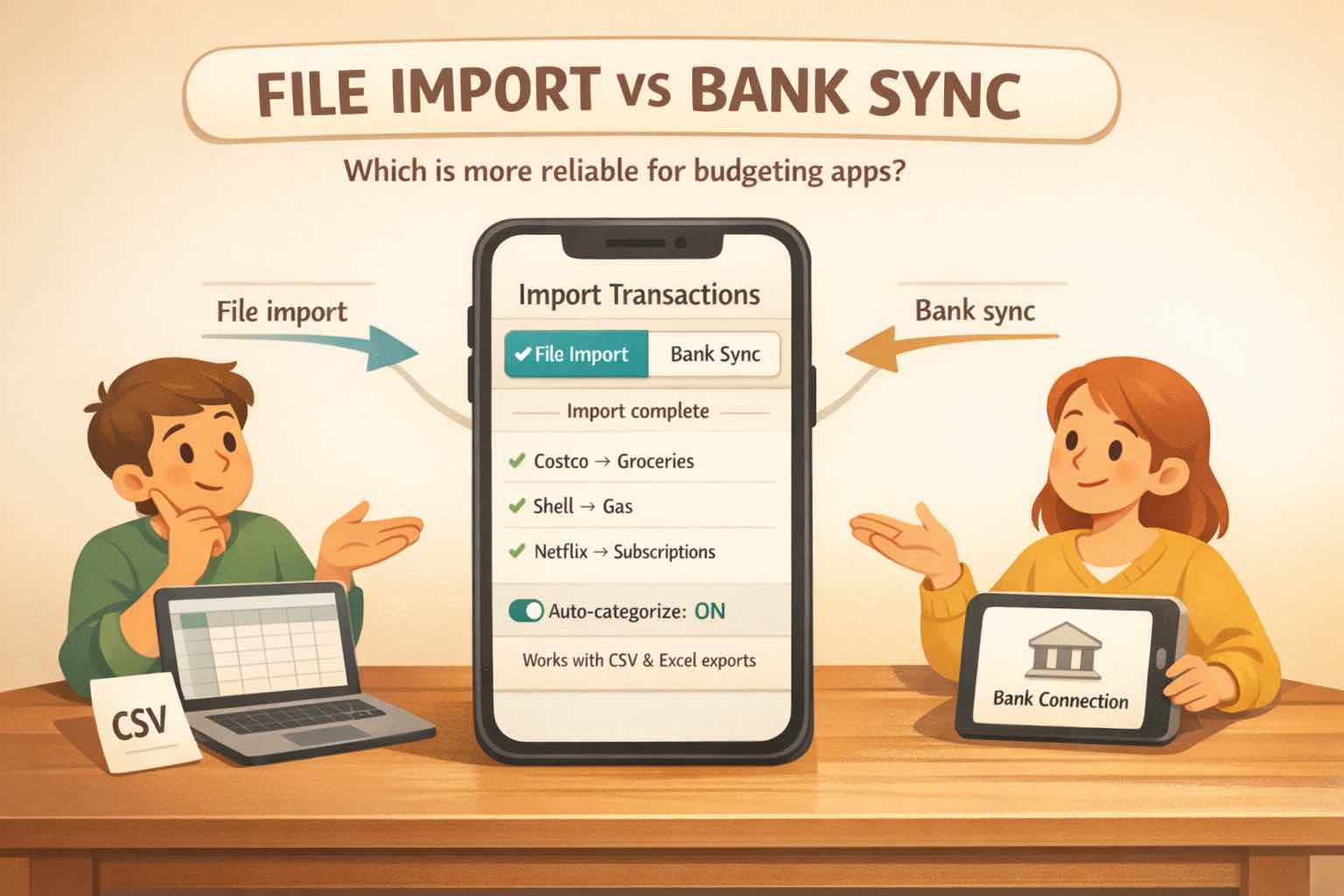
This is one reason file import often beats bank sync for card-heavy budgets. When you import posted statement data, you are usually working with a cleaner, more reviewable record than a live feed full of pending noise.
Step 1: Export A Clean Credit Card CSV
Start at your card issuer, not inside the budgeting app.
Sign in to the issuer's website or app, open the transactions or statements area, and look for an option such as Download, Export, or Export transactions. If CSV is available, choose that first.
A clean export process usually looks like this:
- Choose one card at a time.
- Pick a recent date range that matches the review period you want.
- Export the raw transaction list instead of a summary report.
- Use CSV where possible. If the issuer gives you Excel, save it as CSV before uploading.
Keeping one file per card matters. It keeps the import destination obvious, makes troubleshooting easier, and helps your history stay organized when you add multiple credit cards later.
If you are moving into Koody from a spreadsheet or another tool, that same rule still helps. Separate files by card first, then import them one by one instead of trying to combine everything into one oversized sheet.
Step 2: Import Into The Right Credit Card Account
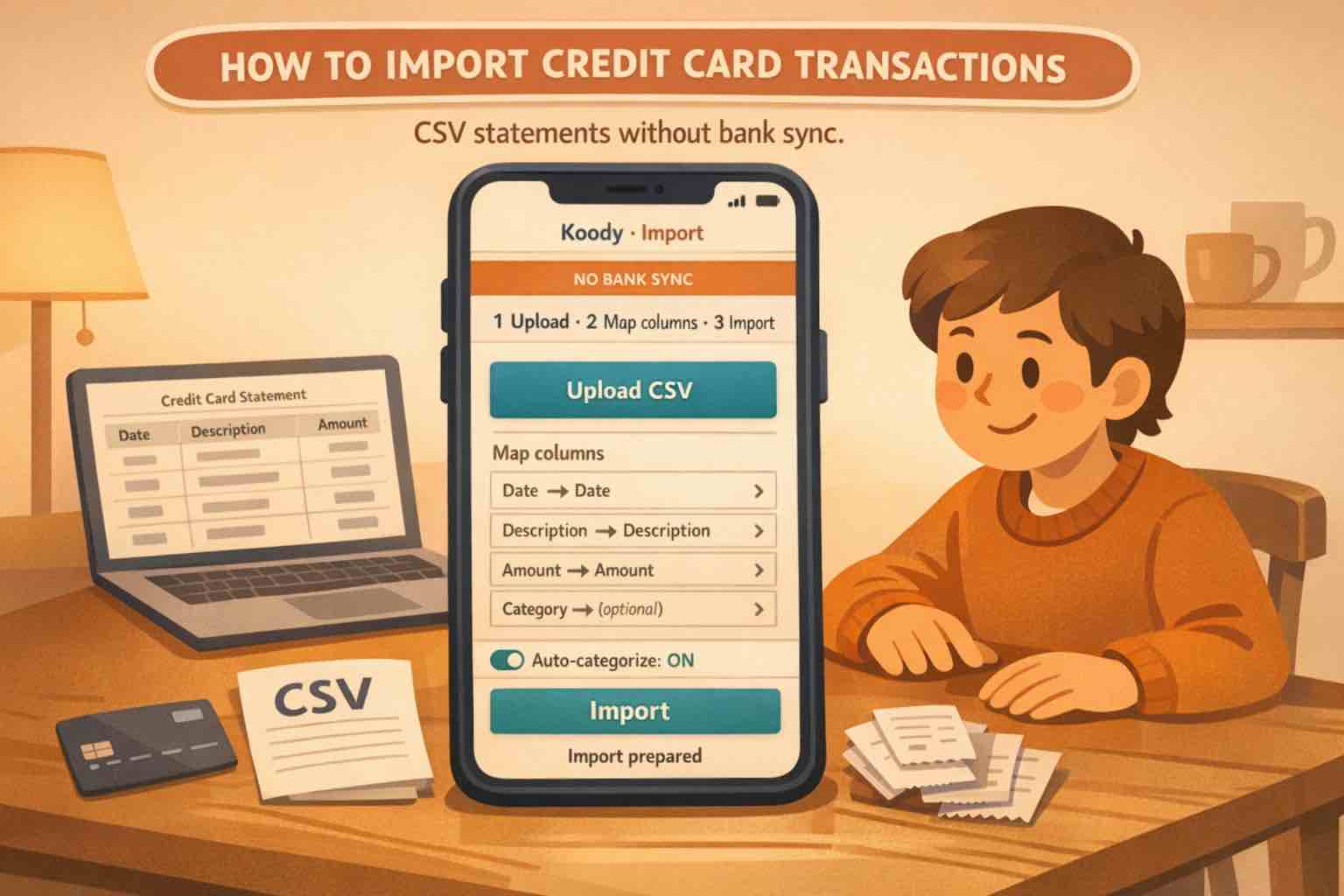
Once the CSV is ready, import it into the matching credit card account in Koody.
If the card does not exist yet, create the account first so future imports for that card always land in the same place. Then open Koody's import flow, choose the card account, upload the file, and let Koody process it.
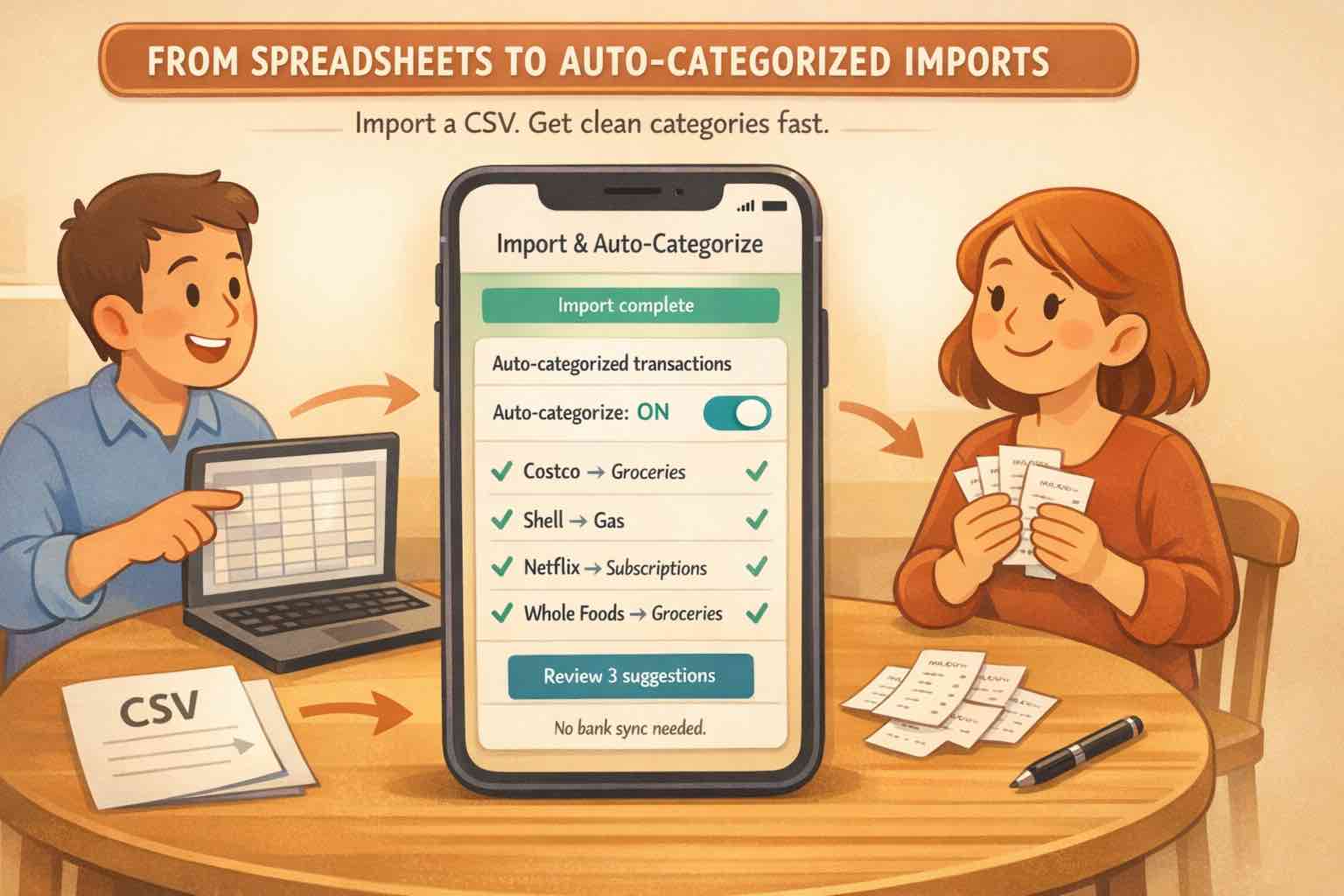
Koody's importer is built to clean common statement mess automatically, categorize transactions, and flag likely recurring activity. If the structure is unusual, Koody can fall back to a quick column-mapping step and then run the same cleanup on top.
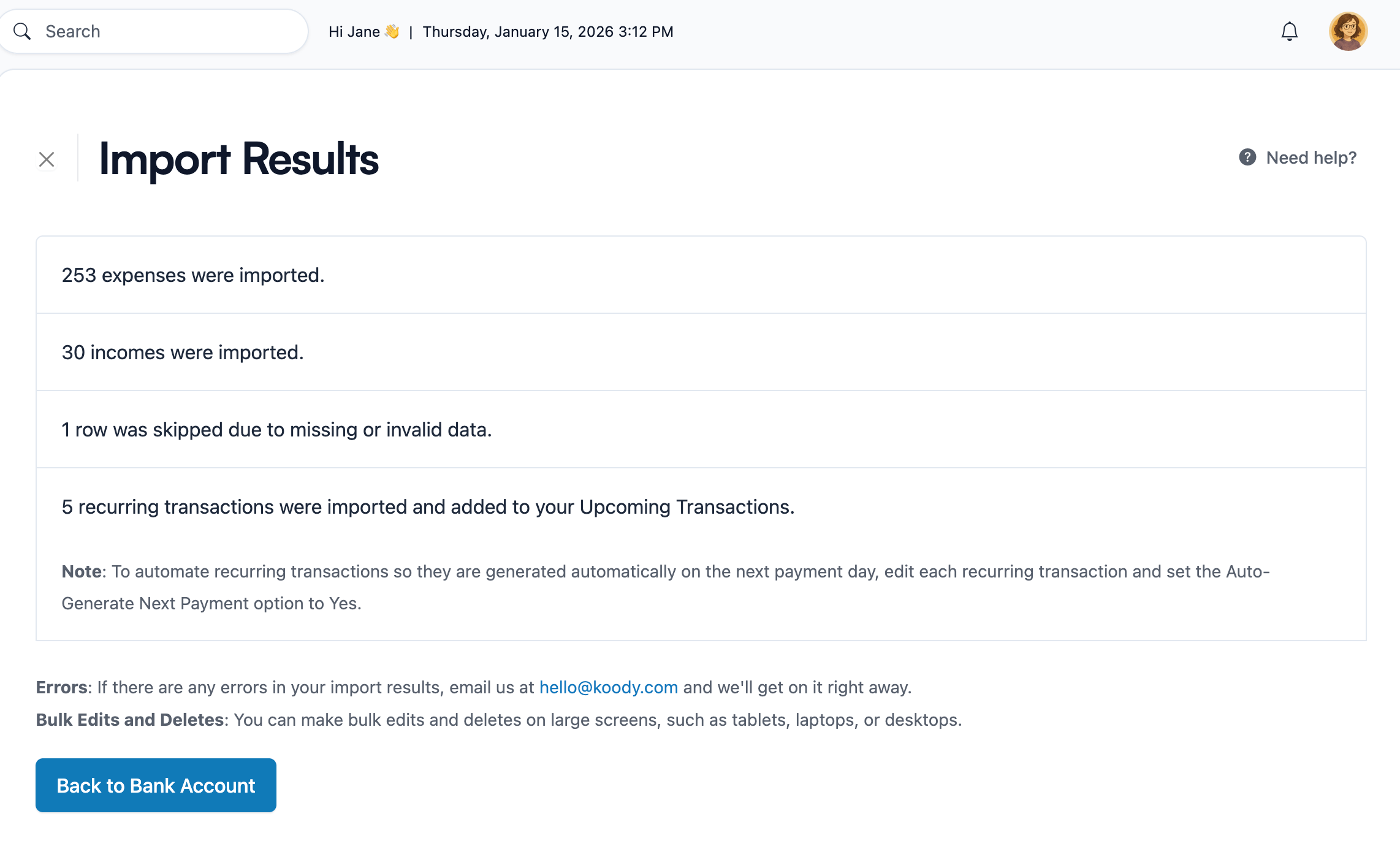
Step 3: Separate Purchases From Card Payments
This is the part that usually determines whether your budget feels clean or confusing.
Purchases on the credit card are spending. The payment from checking to the card is usually not new spending. It is settlement. If both get treated like expenses, your totals can look inflated.
A credit card statement can include purchases, refunds, fees, credits, and payments tied to that card. In Koody, common credit card payment lines are identified as transfer-like settlement activity rather than new spending, so the card-statement import can stand on its own. If you later decide to import the paying checking account too, then review that matching movement on the checking side so both accounts stay clean.
Koody's bulk edit tools help here because you can fix a batch of similar rows quickly instead of clicking through one payment at a time. That matters even more if you are importing multiple months or multiple cards.
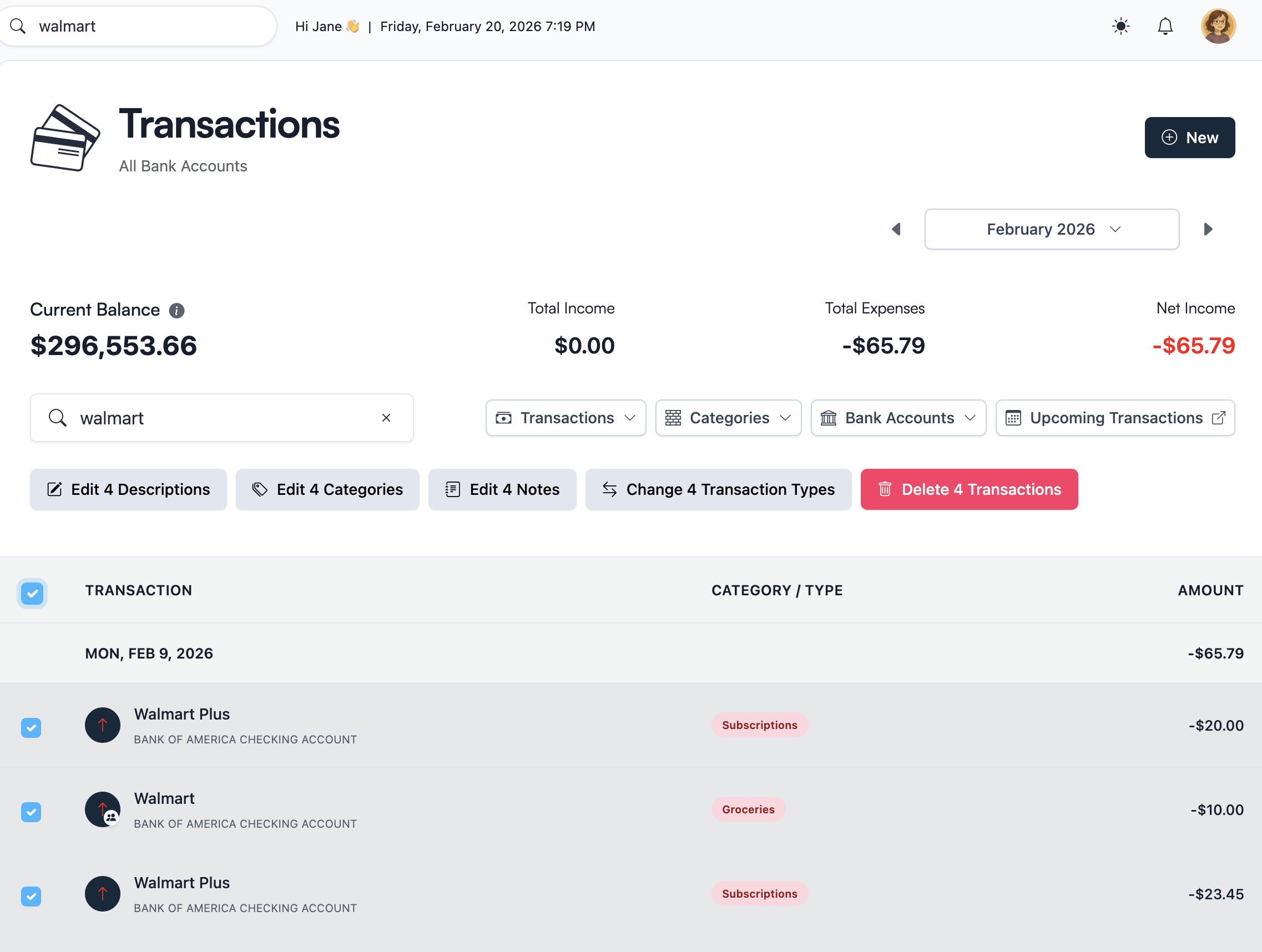
The same logic applies to refunds and statement credits. Review them as part of the card review process so your budget reflects what actually happened instead of just reflecting whatever labels the issuer exported.
Step 4: Catch Recurring Charges Faster
Credit card imports are one of the easiest ways to spot subscriptions and other recurring charges because so many repeat purchases already live there.
Streaming services, software subscriptions, insurance, memberships, cloud storage, app renewals, and other repeat merchants tend to surface quickly once the statement history is inside Koody.
Koody flags likely recurring transactions after import, so you can spot repeat charges without combing through every line of the statement. Instead of guessing what repeats, you can review the likely patterns and decide what belongs in your ongoing plan.
This matters because credit card spending often feels more fragmented than checking-account spending. The card becomes the place where "small monthly stuff" disappears. Importing the statement turns that blur back into visible decisions.
Step 5: Repeat The Process Without Messy Rework
The real test of a credit card import process is not whether the first upload works. It is whether the second, third, and fourth uploads still feel manageable.
A few habits keep the process clean:
- Import one card at a time into the same Koody account every time.
- Choose a steady cadence, such as weekly or monthly.
- Review for overlap if you also entered some of the same card purchases manually.
- Clean up merchant and category patterns while they are still fresh.
When you fix a merchant label or category during review, future card imports can stay cleaner because Koody learns from the cleanup you already did.
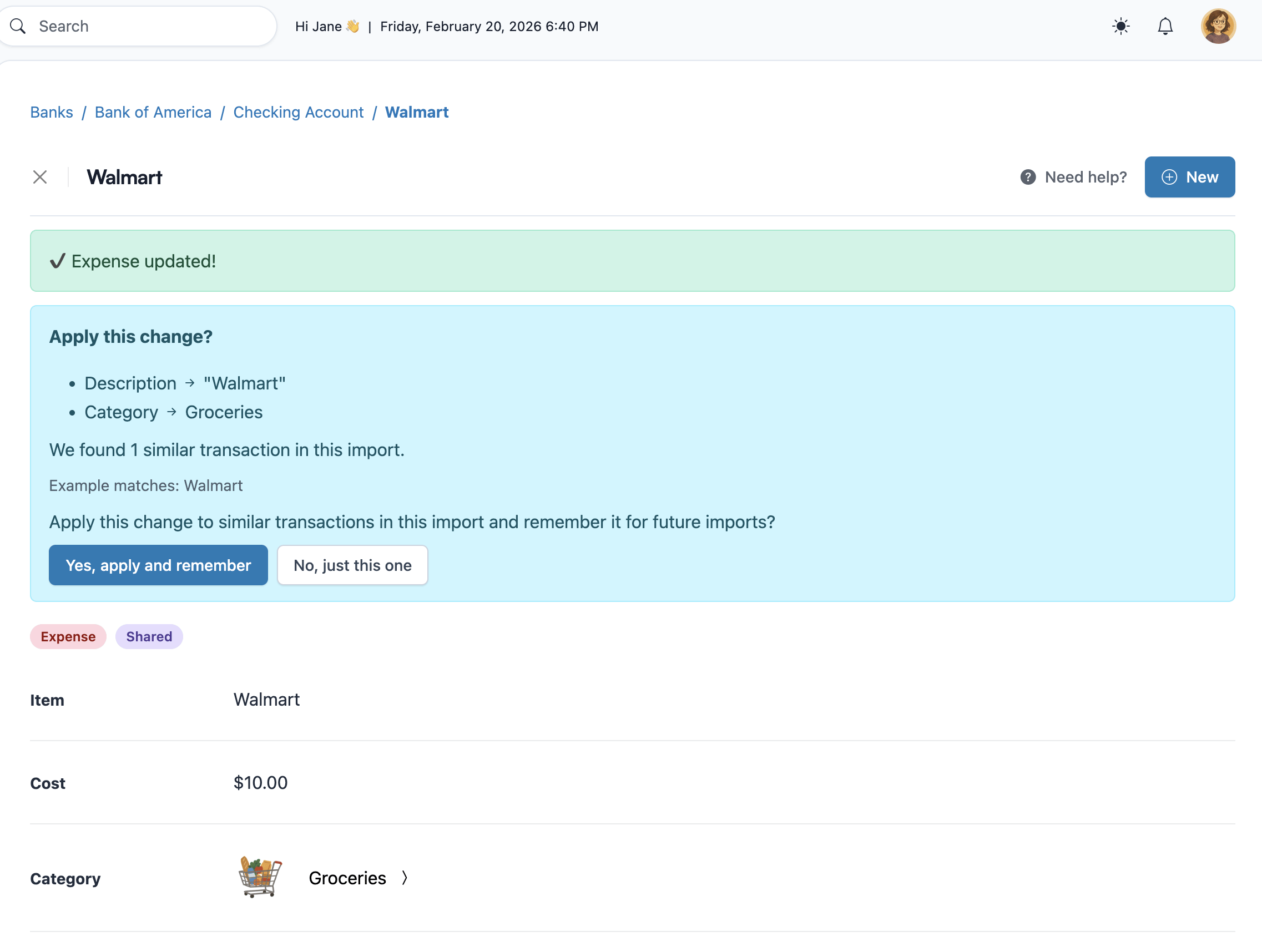
That is a better long-term answer than re-categorizing the same coffee chain, payment processor, or subscription brand every month.
When Credit Card Imports Beat Bank Sync
Credit card imports are especially strong when your priority is clean, posted data instead of background automation.
They make sense when:
- You want spending from one or more cards in Koody without handing over bank credentials.
- You care more about reviewable statement data than about pending transactions.
- Your card issuer or region is not well-supported by sync providers.
- Most of your useful history already lives in statement exports.
This is not a claim that every sync setup is bad. It is a practical point: when your budget depends heavily on credit cards, imports often give you a calmer, more trustworthy process because you can see what came in, clean what matters, and move on.
FAQs: Credit Card Statement Import In Koody
1. Can I import credit card statements into Koody without linking my card?
Yes. Download your credit card transactions as a CSV statement, import the file into the matching Koody account, and review the results. You do not need live bank sync to keep card spending current.
2. Will Koody detect recurring subscriptions from my credit card imports?
Yes. Koody looks for likely recurring patterns after import, which makes it easier to spot subscriptions, monthly services, and other repeat card charges.
3. What should I do with credit card payments that show up in my imports?
Koody identifies common credit card payment lines as transfers or settlement activity rather than new spending, which keeps them out of your totals. If you later import the paying account too, just review the matching movement on that side as well.
4. Can I import multiple credit card accounts into Koody?
Yes. Import each card into its own Koody account so your history stays organized by issuer and by card. Most people start with the card where most day-to-day spending happens, then add the rest.
5. Do my credit card statement dates need to match my budget month?
No. Statement cycles and budget months are often different. What matters is importing the underlying transactions so your budget reflects the dates and purchases that actually happened.
6. How do I avoid duplicates when I import the next statement?
Koody checks new imports against previous imports, so the next statement should not double-count prior imported history. The main thing worth reviewing is whether you also entered any of those card transactions manually.
If most of your day-to-day spending happens on cards, start with one recent statement instead of waiting for the perfect setup.
Import one credit card CSV into Koody, review the results, clean up any card payments or transfers, and let the next import get easier from there.