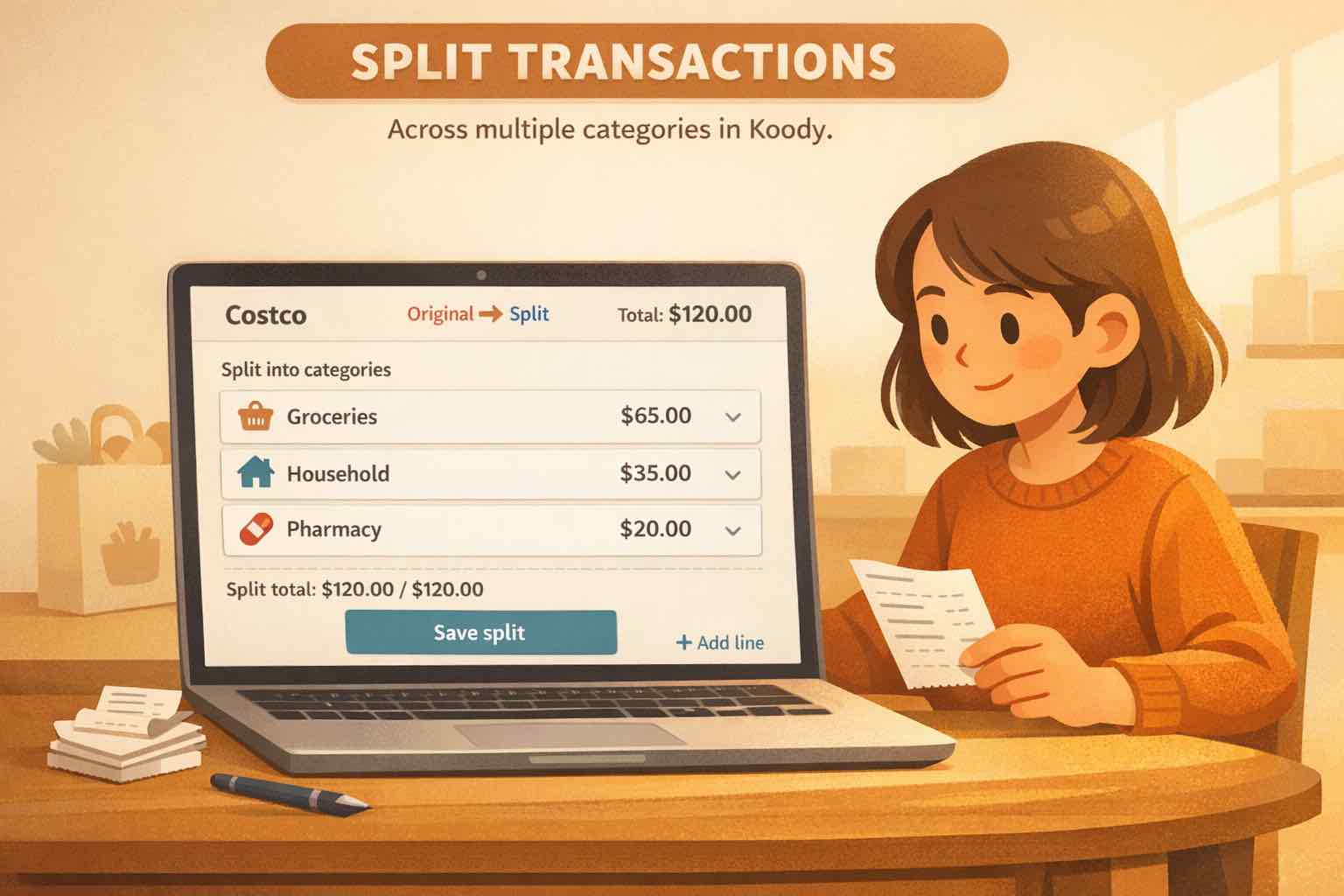
Illustration of one Costco purchase split across Groceries, Household, and Pharmacy in Koody.
At A Glance
Koody now supports split transactions, so one purchase can be divided across multiple categories instead of being forced into a single bucket. That keeps mixed purchases, split costs, reimbursements, and category totals far more honest.
One of the most annoying budgeting moments is a purchase that is clearly not one thing.
A warehouse-club run includes groceries, household supplies, and a prescription. A dinner bill includes your meal plus the part your friend paid you back for. A Target order mixes baby supplies with decor and pantry staples. The charge is single, but the budget story is not.
If you force that whole amount into one category, your reports drift away from reality. If you create fake extra transactions to work around it, your history gets messy. Koody's new split-transaction feature is the cleaner middle ground.
If your workflow usually starts with CSV uploads, Koody's transaction import guide covers the first pass. This post focuses on the next step: what to do when one charge honestly belongs in more than one category.
What Split Transactions Solve
Split transactions exist for mixed purchases, not for random extra complexity.
They solve the cases where one payment crosses category lines in a way your reports should reflect:
A Walmart or Costco run that mixes groceries, household supplies, and pharmacy items.
One Amazon order that combines essentials, gifts, and something for work.
A split restaurant bill where part of the charge is truly yours, and part should be treated differently.
One purchase that mixes personal spending with business-related costs.
Without split mode, you usually end up choosing the least-wrong category. That can be fine once or twice, but it adds noise over time. Split mode is what keeps category totals useful when real life refuses to stay neat.
When To Split Instead Of Re-Categorizing
The most important judgment call is whether the transaction is mixed or whether the category guess is just wrong.
Use split mode when one charge genuinely contains multiple spending jobs.
Do not use split mode when the whole transaction belongs in one category and just needs correction. In that case, a category edit, bulk edit, or Import Edit Persistence is usually the better fix because the pattern can carry forward to future imports.
In short: split when the purchase itself is mixed. Re-categorize when the app's first pass missed a single-category transaction.
How Split Mode Works In Koody
Koody keeps split transactions inside the normal create and edit flow. There is no separate screen you have to learn.
Open the transaction from the Transactions tab and click Edit.
Turn on split mode.
Add one category row for each part of the purchase.
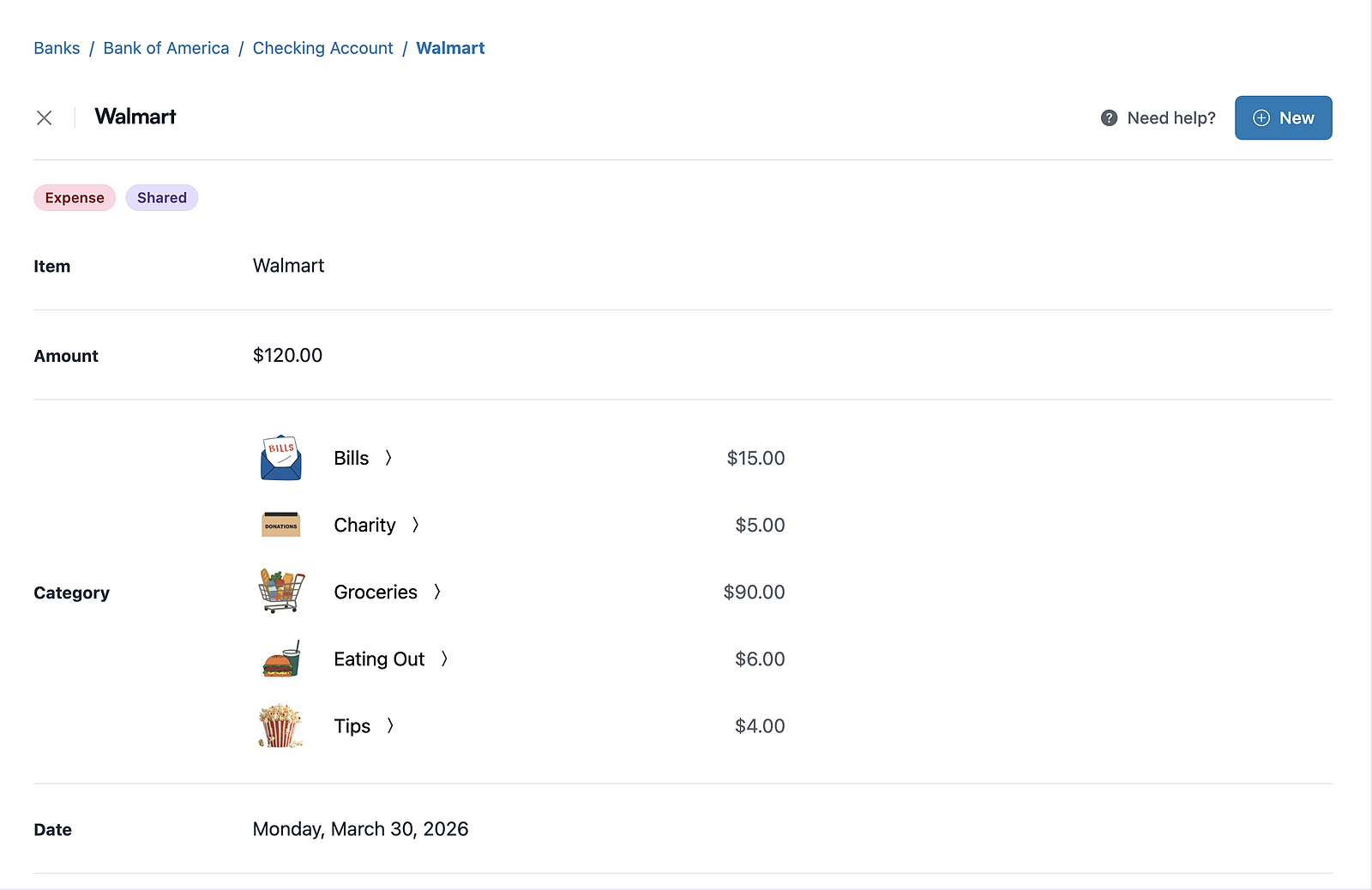
Enter the amount for each row until the full total is allocated.
Save once the split rows add up exactly to the full transaction amount.
That exact-total rule matters because it keeps your transaction history clean. The point is to explain one real charge more accurately, not to create a new math problem.
Split mode works for both expenses and income. So while most people will use it for mixed purchases, it also works for edge cases where one incoming amount needs to be represented across multiple categories.
Split mode lets you allocate one real transaction across the categories that actually apply.
Real-Life Examples
Mixed Store Runs
Big-box and warehouse-club purchases are the obvious example. When one receipt combines groceries, toiletries, home supplies, and a one-off gift, split mode keeps your category totals closer to reality than dumping the entire charge into Groceries or Shopping.
Split Spending
Split mode also helps when a single charge includes your spending plus someone else's share. The transaction still happened once, but your budget should not treat the whole thing as one pure category if part of that money belongs in a different bucket.
Business And Personal Combined
If one purchase mixes personal and work-related items, split mode helps you keep cleaner records without breaking the original transaction apart. That is especially useful when you want cleaner year-end totals and a calmer review later.
Tax-Sensitive Cleanup
When a mixed purchase matters for reporting, split mode helps you keep the transaction honest before you export or hand records off. The transaction history you export is only as clear as the categories behind it.
Split Transactions After Import Or Manual Entry
Split mode is not limited to one style of budgeting.
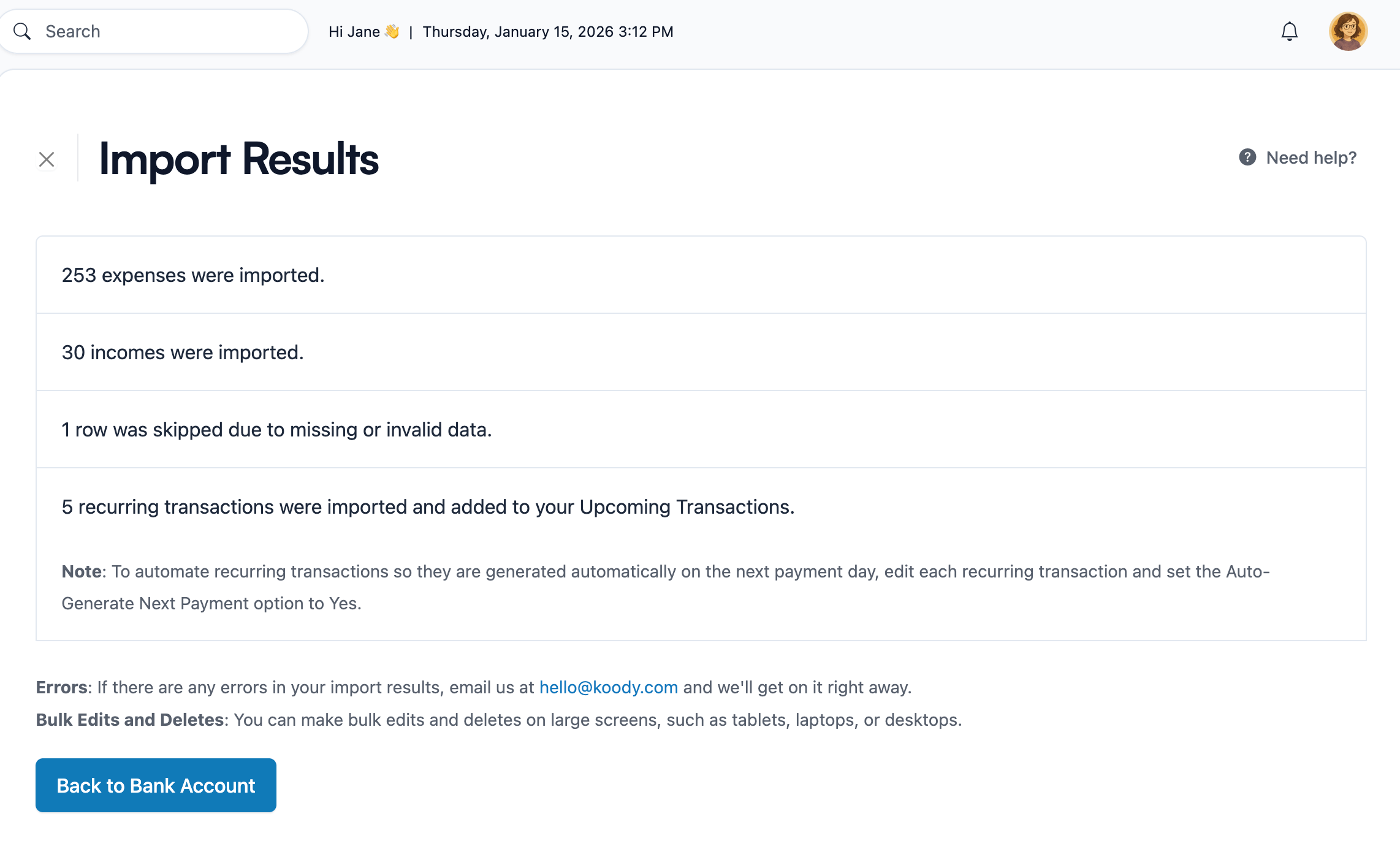
It works whether the transaction started as a manual entry or arrived through an imported bank file. That makes it useful whether you mostly import transactions or prefer manual entry and only need finer control over the occasional mixed purchase.
In both cases, the job is the same: keep one real-world charge intact while making the category totals more truthful.
Imported transactions can be reviewed, edited, and split after Koody finishes the first cleanup pass.
Limits To Know Before You Save
Split transactions are powerful, but they are meant for specific cases.
The split rows must add up exactly to the full transaction total before you can save.
Bulk category edits do not support split transactions.
Apply-to-similar category changes do not support split transactions.
If the whole transaction really belongs in one category, a normal edit is cleaner than splitting for the sake of detail.
Those limits are intentional. Split mode is for honest exceptions, while bulk cleanup and remembered rules are for repeated patterns.
FAQs: Split Transactions In Koody
1. What is a split transaction in Koody?
A split transaction is one expense or income entry divided across multiple categories. Instead of forcing the full amount into one bucket, you add separate category rows that together equal the full transaction total.
2. Can I split an imported transaction in Koody?
Yes. Open the imported transaction from the Transactions tab, click Edit, turn on split mode, and add one category row per part of the purchase.
3. Do split rows have to add up exactly to the full amount?
Yes. The split rows must add up exactly to the transaction total before Koody will let you save.
4. Can I bulk edit split transactions?
No. Bulk category edits do not support split transactions. If a transaction needs multiple categories, open that specific transaction and edit the split rows directly.
5. Does split mode work for income, too?
Yes. Split mode works in the normal create and edit form for both expenses and income, as long as the category rows add up to the full transaction total.
6. Do I need bank sync to use split transactions?
No. Split mode works whether the transaction was entered manually or brought in through Koody's CSV and bank-statement import workflow.
If your budget keeps getting distorted by mixed purchases, split mode gives you a cleaner answer than picking one category and hoping for the best.
Open the transaction, divide it across the categories that actually apply, and keep the original charge intact. If you want to try it on your own history,create a Koody accountand test it on your next import or manual entry.