A lot of people search for a way to automatically push bank transactions into spreadsheets with categories so they can create a quick profit and loss. The goal is reasonable: you want income, expenses, and category totals without spending a weekend fixing rows. Koody is built to take that painful sorting off your plate and keep the numbers in one app.
That is exactly where Koody helps. A bank or card CSV gives Koody the raw ingredients: dates, amounts, descriptions, and account movement. Koody turns those rows into a cleaner money picture by tidying merchant names, applying categories, and bringing income and expenses together.
That matters because bank language and business language are different. A client payment, a transfer from savings, a credit card payment, and a refund can all show up as money moving, but each means something different. Koody helps identify those patterns, so your quick P&L focuses on income and expenses, not account movement.
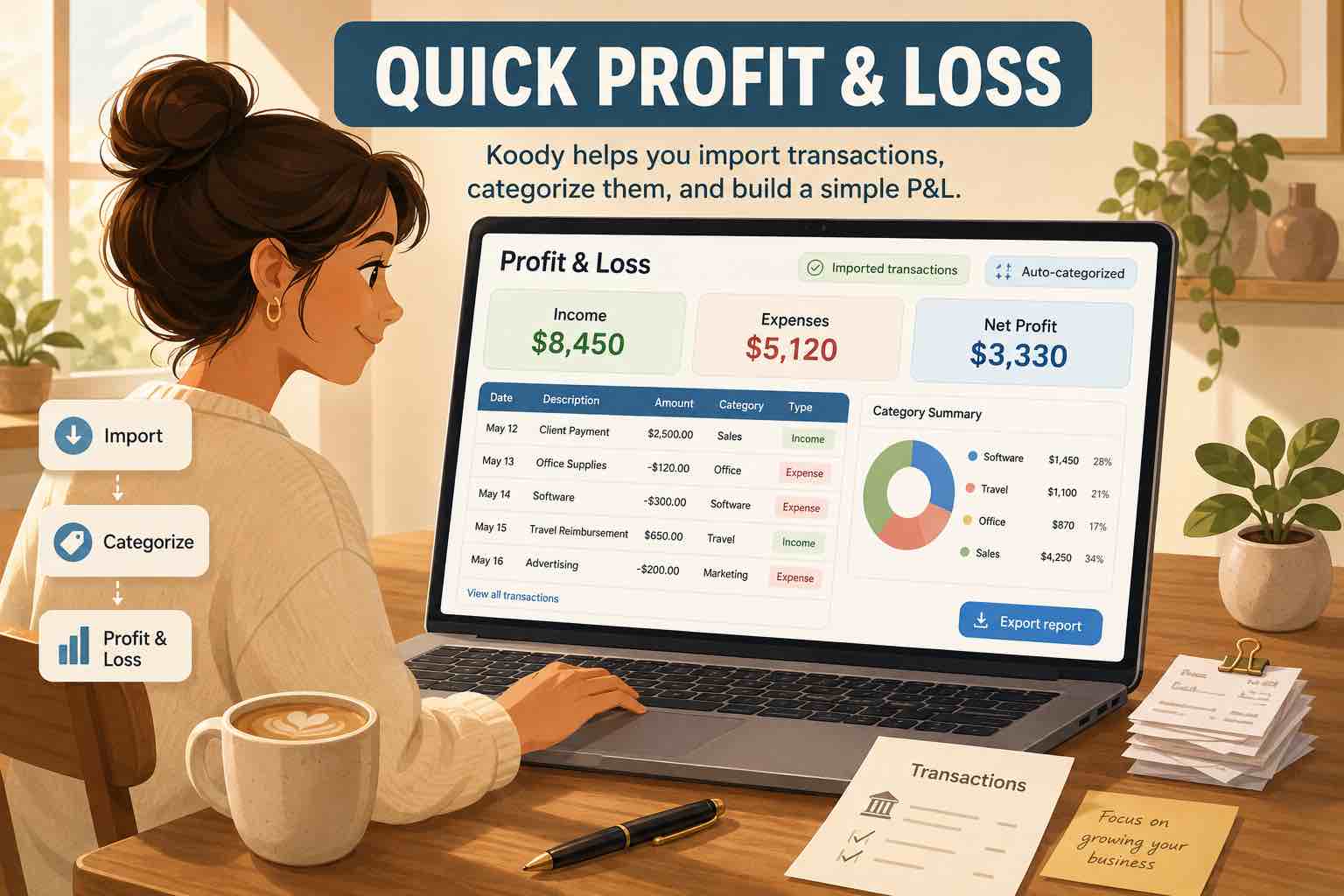
So the path is simple: import the transactions, let Koody clean and categorize them, and use Koody's generated P&L picture to understand what came in, what went out, and what changed this month.
Important: Koody helps you organize transactions, categories, receipts, and exports. Use a qualified accountant or bookkeeper when your profit and loss will be used for filing, lending, investor reporting, or formal business decisions.
What a quick profit and loss can tell you
A quick profit and loss is useful when you need a directional view fast:
- How much money came in this month or quarter?
- Which expense categories are largest?
- Did the business roughly make or lose money?
- Which transactions need receipts, notes, or accountant input?
- Is the current month meaningfully different from the last one?
That is enough for a monthly check-in, catch-up session, or early conversation with an accountant. Formal bookkeeping may need a deeper accounting process.
A true accounting profit and loss may need invoice timing, accruals, depreciation, inventory, payroll details, tax adjustments, and accountant-specific category mapping. A bank-transaction P&L is usually cash-based and practical. It tells you what happened in the imported accounts after Koody prepares the rows and highlights the transaction types that need context.
That distinction matters because it sets the right standard. Koody gives you the practical cash-based view first: income, expenses, categories, and the items that need context.
Why use Koody instead of starting in a spreadsheet
A spreadsheet sounds flexible until it becomes the place where every imported row needs a formula, category rule, transfer fix, and manual cleanup step.
Koody is different because the import gives you organized transaction data from the start. You export transaction CSVs from your bank, credit card, spreadsheet, or older app, then import them into Koody so the app can prepare the rows for you.
Koody's transaction import feature helps clean descriptions, auto-categorize rows, identify transfers, refunds, recurring items, and duplicates, and gives you tools to fix repeated patterns faster. Instead of starting with manual spreadsheet work, you start with a categorized transaction list in Koody.
That makes Koody a strong fit when you want control over when data enters your budget and want the repetitive categorization work handled for you.
What Koody sorts out
Koody handles the heavy lift and brings the important patterns forward.
Income
Koody helps separate money coming in from money that only moved between your own accounts. Client payments, platform payouts, sales deposits, interest, and other real income become easier to see without padding the total with transfers.
If the same deposit includes multiple jobs, platforms, or payout types, add a note while the context is still fresh.
Expenses
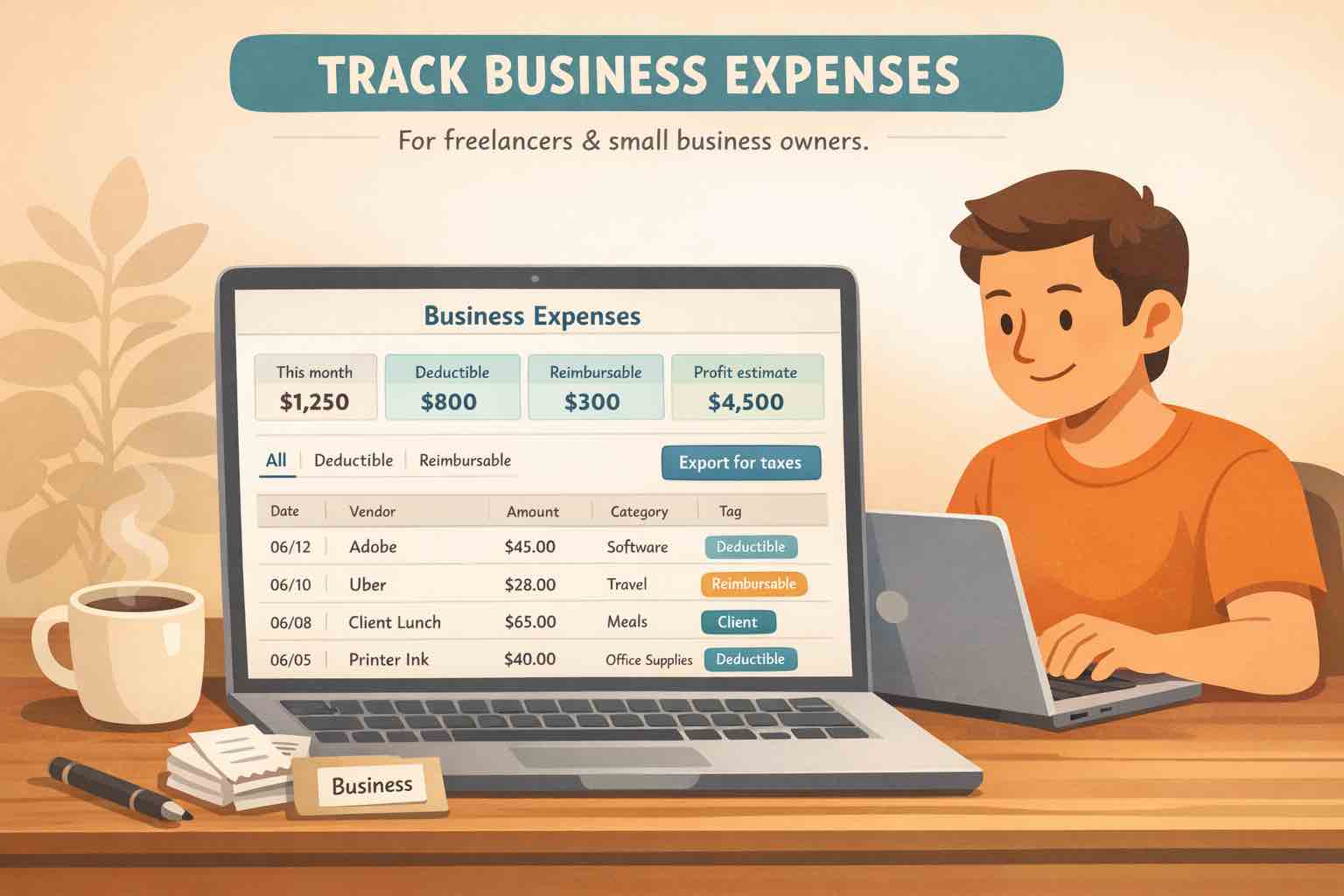
Koody categorizes ordinary costs into practical groups. For many freelancers and small business owners, a short list like software, supplies, marketing, contractors, travel, meals, fees, insurance, and taxes is more useful than a giant category map nobody keeps updated.
If a row is tax-sensitive, add supporting context or keep it ready for accountant input.
Transfers and card payments
Koody helps surface transfers between your own accounts, so revenue and expenses stay focused on the rows that matter. Credit card payments are especially easy to double count: the card purchases are expenses, but the payment from checking to the card is usually account movement.
Koody keeps that distinction visible, so your P&L stays focused on business activity.
Refunds and reimbursements
Koody helps identify refunds and reimbursements so they can be treated with the right context. A merchant refund may reduce the original expense. A client reimbursement may be income, an offset, or a pass-through depending on how you and your accountant handle it.
Koody helps classify positive rows correctly, including refunds and reimbursements.
Owner draws and personal spending
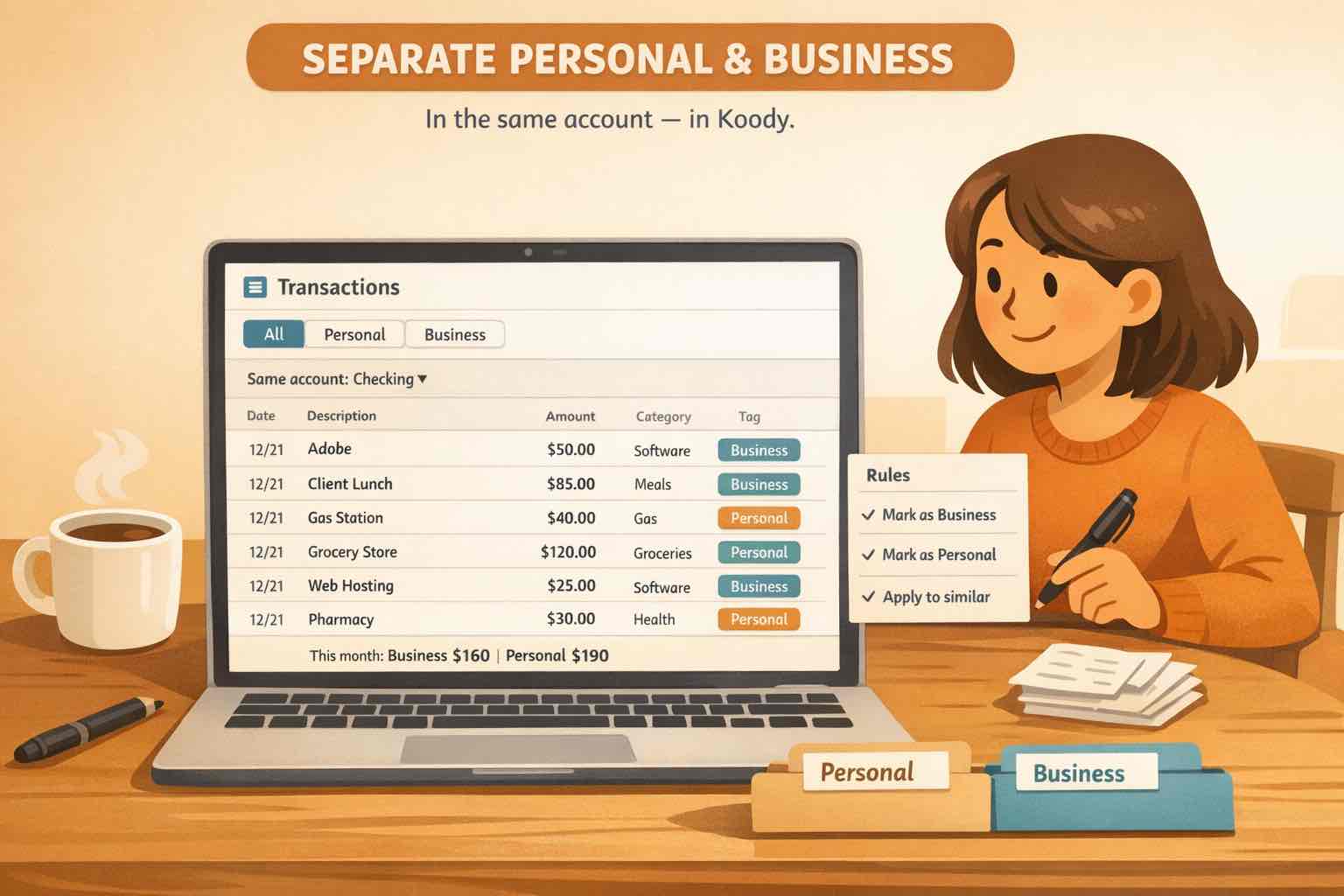
Owner draws, personal transfers, and household purchases can make a business P&L misleading. If personal and business transactions are mixed, Koody helps keep those rows separate from income and expense totals.
Mixed purchases
Some purchases span more than one category. One store run might include office supplies, household items, and groceries. If you force the whole row into one category, the category totals become less useful.
Koody supports split transactions when the receipt or notes make the split clear. Add a note when the split needs more context.
Let Koody import and categorize the file
Once you have the bank or card file, let Koody handle the repetitive sorting.
- Export one CSV per bank account or credit card for the period you want to understand.
- Import each file into the matching Koody account.
- Let Koody clean descriptions and auto-categorize transactions.
- Let Koody flag transfer, refund, recurring, duplicate, and card-payment signals.
- Bulk edit repeated merchants, categories, or notes.
- Save useful import preferences so future imports get cleaner faster.
Here is an example CSV file:
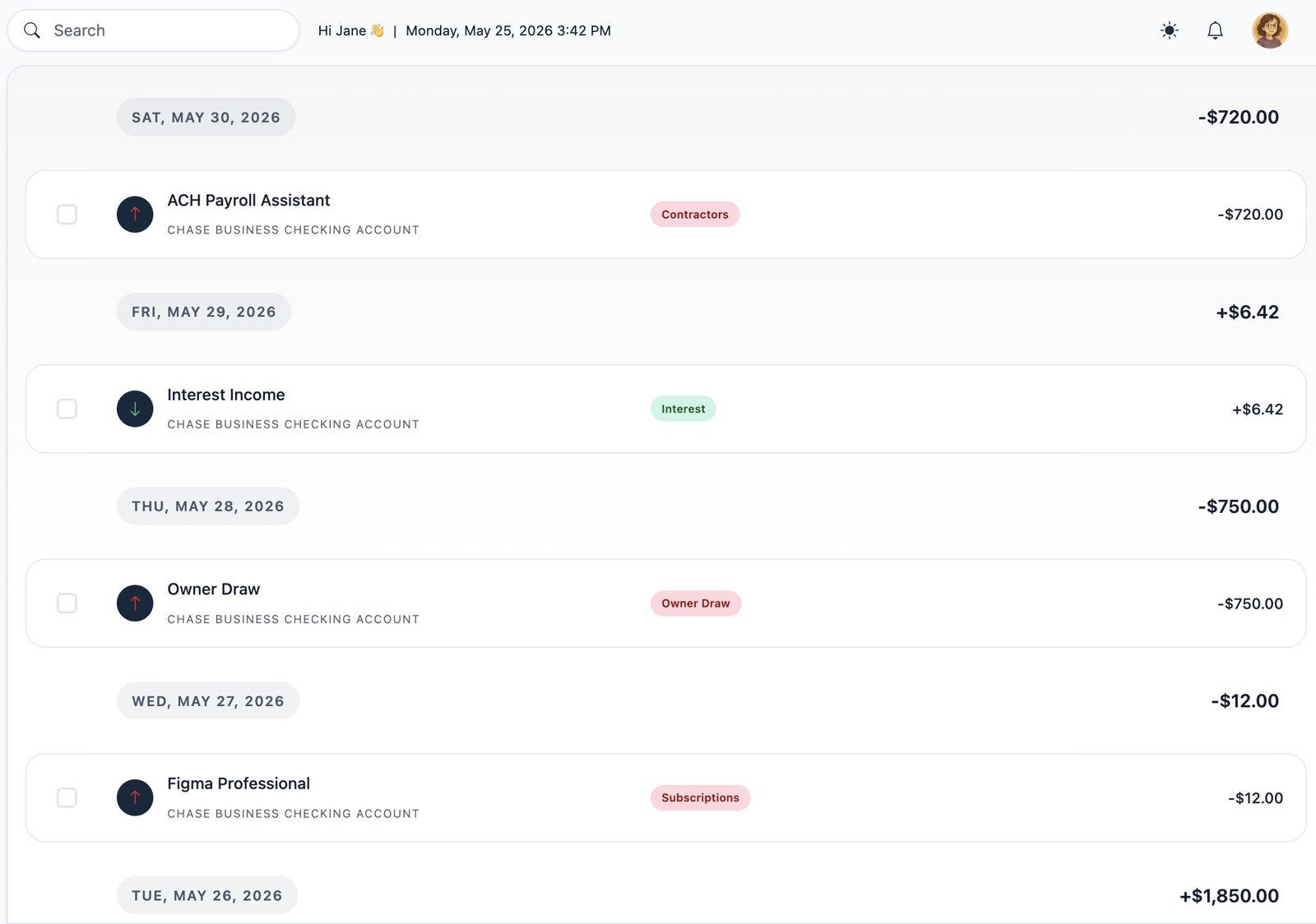
Koody turns the file into a cleaner, categorized money picture so you can move from raw rows to useful numbers faster.
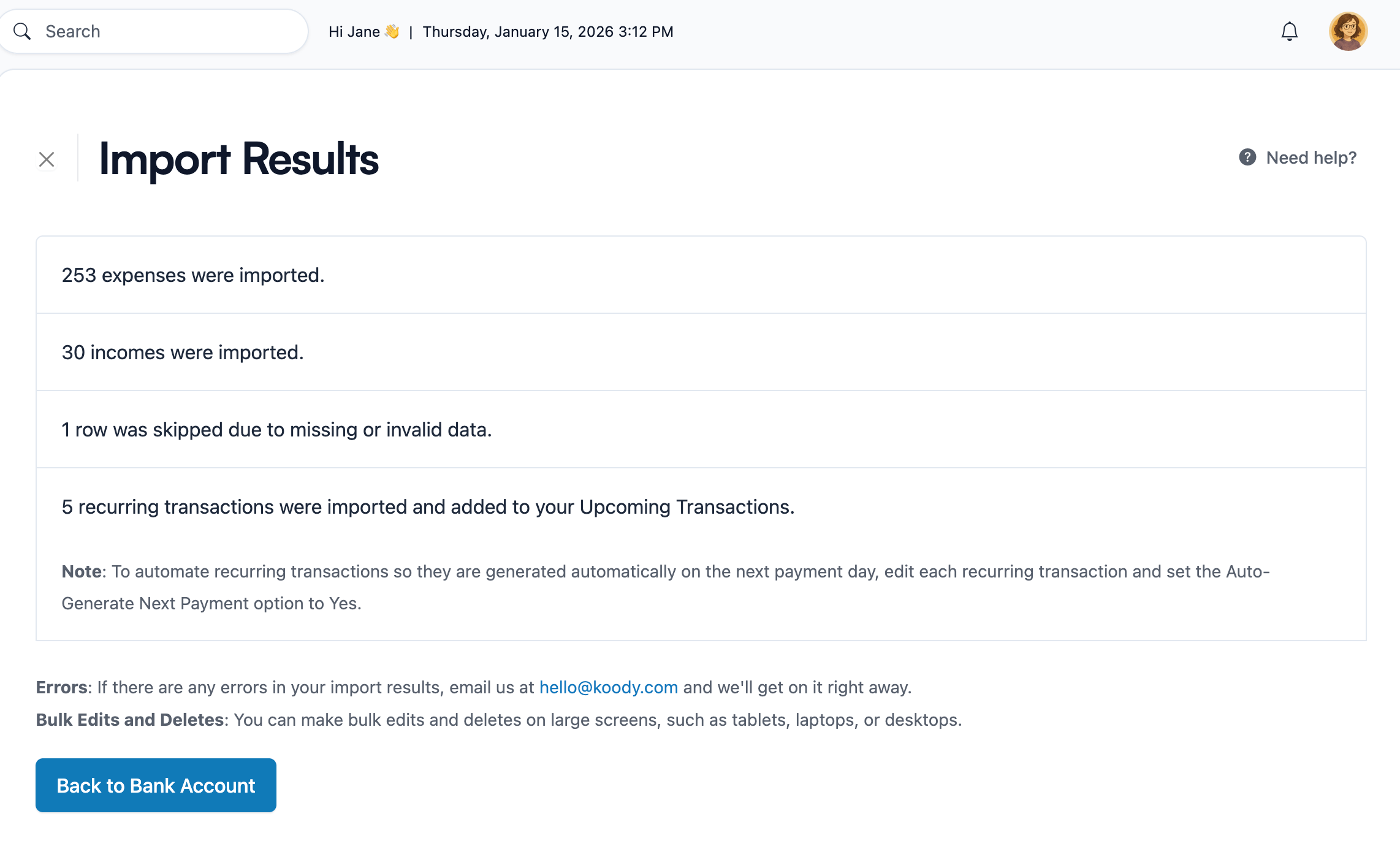
See your P&L in Koody
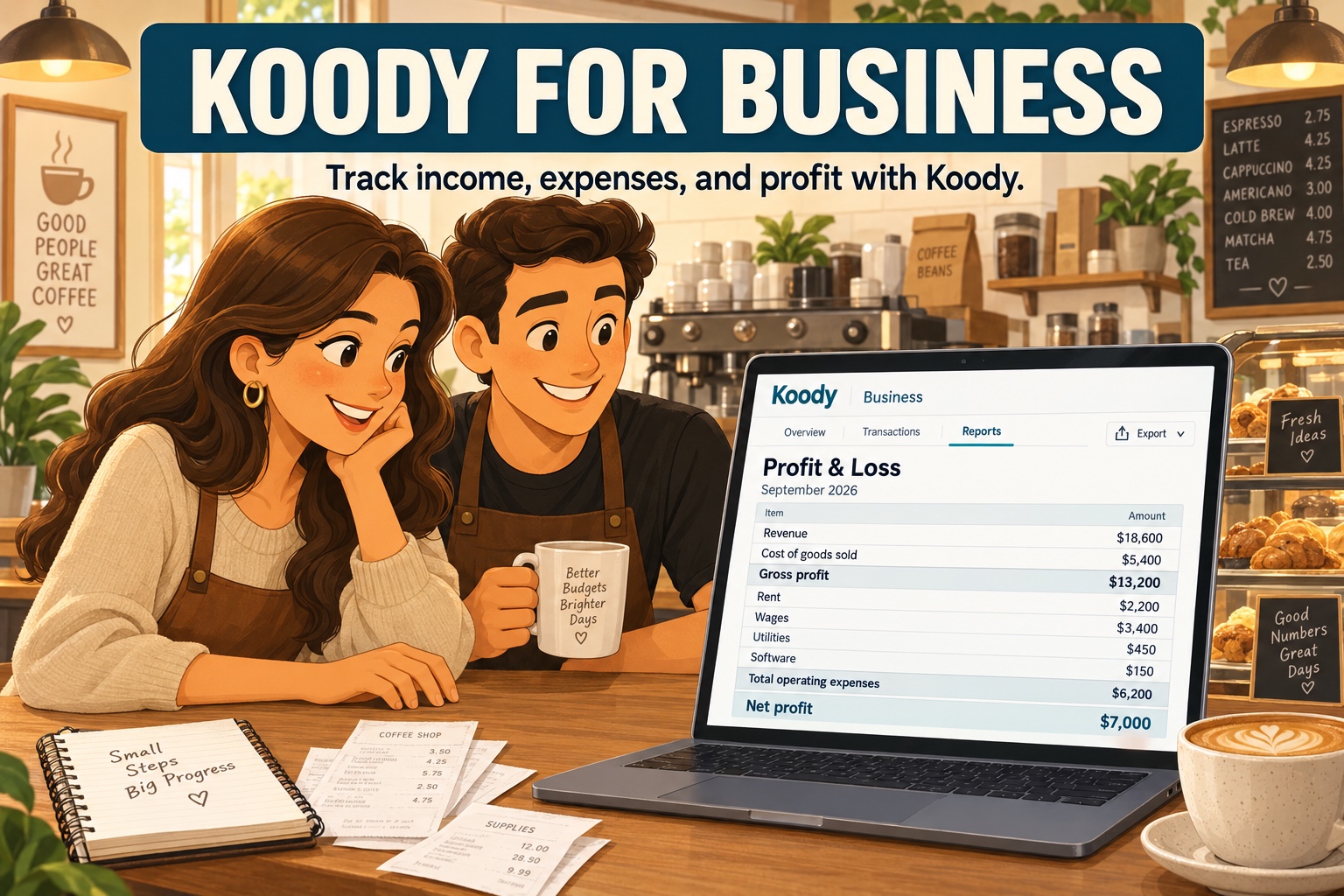
Once Koody imports and organizes the transactions, you can see the simple P&L picture in the app.
Use Koody to scan income, expenses, transfers, refunds, recurring charges, and category totals in one place. Koody helps you understand the money faster and keeps the list easy to maintain.
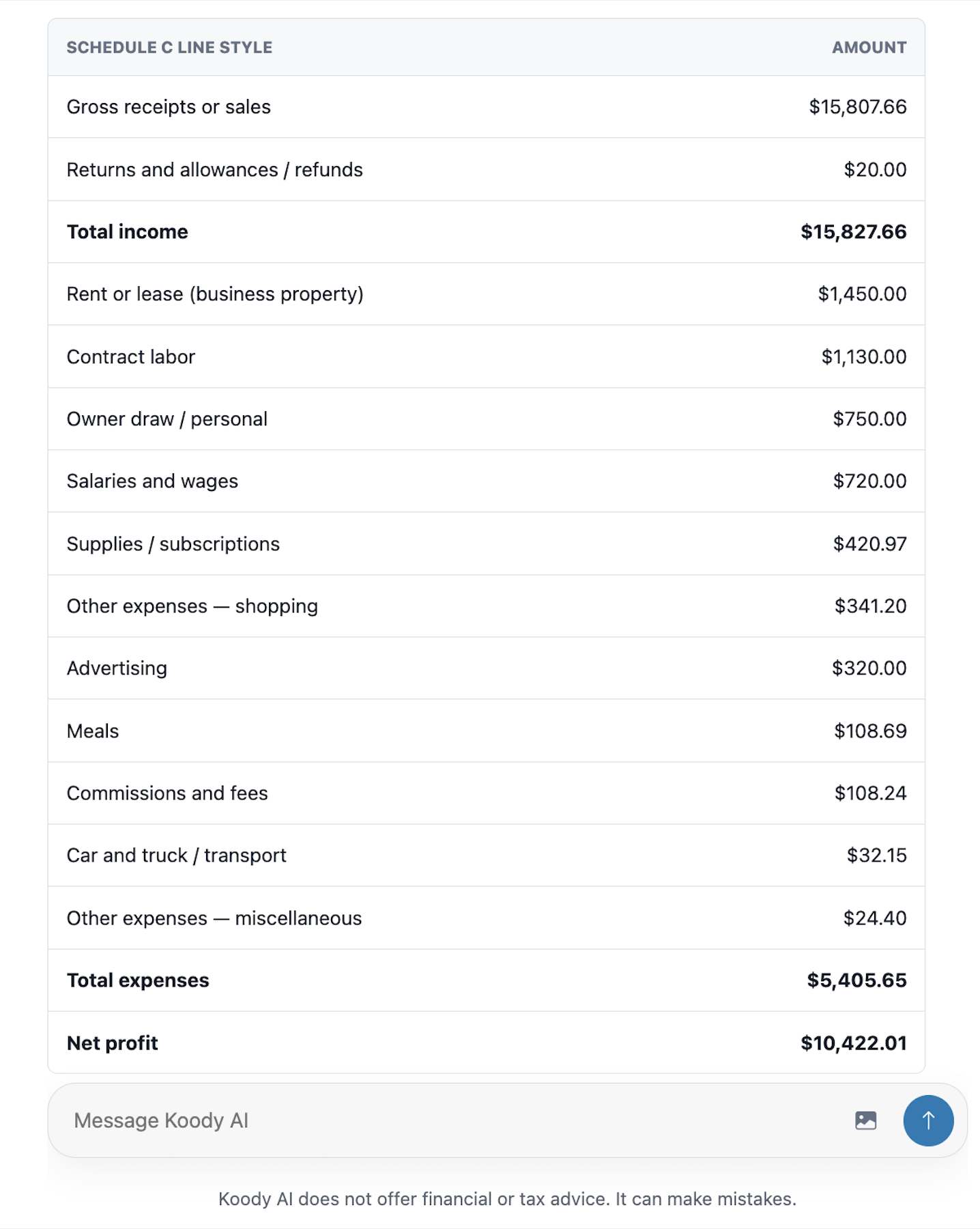
A simple profit and loss view in Koody shows:
- How much income came in?
- Which expense categories drove the month?
- Which transactions are transfers, refunds, reimbursements, or card payments?
- Which rows need receipts, notes, splits, or accountant input?
- What does the month look like after transfers, card payments, refunds, and owner draws are handled?
If an accountant, bookkeeper, or tax preparer asks for a file later, Koody can export transactions as CSV, Excel (.xlsx), or JSON on Standard and Plus plans. Koody is where the day-to-day money picture lives; export is there when someone needs a file.
Import transactions and understand profit and loss in Koody
Use Koody to import bank and card CSVs, auto-categorize rows, separate transfers and refunds, and understand the simple income and expense picture inside one app.
Start importing in KoodyFAQs
1. Can I create a profit and loss from bank transactions?
Yes, you can create a profit and loss from bank transactions in Koody. Import your bank CSVs into Koody. Koody cleans descriptions, auto-categorizes income and expenses, and generates a simple P&L for you.
2. Can Koody automatically sync bank transactions into Google Sheets?
Koody is built around transaction imports, categories, and clearer money views. Import your bank and card CSV files into Koody, let Koody categorize the rows, and understand the numbers inside the app.
3. What is the fastest way to categorize bank transactions for a quick P&L?
The fastest path is to import transaction CSVs into Koody. Koody cleans descriptions, auto-categorizes rows, identifies transfers, refunds, card payments, and recurring items, then generates a simple P&L picture.
4. Should I use accounting software instead of Koody?
Use accounting software when you need formal bookkeeping, invoicing, payroll, accrual accounting, tax filing processes, or accountant-controlled ledgers. Koody is great for everyday cash flow management: importing transactions, categorizing income and expenses, tracking receipts, and seeing where the money is going.
5. What should I exclude from a quick profit and loss?
For a simple P&L, you usually exclude transfers between your own accounts, credit card payments, loan principal movement, owner draws, and personal spending. Koody helps identify these rows so your income and expense totals stay focused.
6. Can I share Koody transactions with an accountant?
Yes. Koody can export filtered transactions as CSV, Excel (.xlsx), or JSON on Standard and Plus plans. Export is useful for accountant handoff, while your day-to-day money picture stays in Koody.
If you came here looking for automatic bank-to-spreadsheet categorization, Koody gives you the direct version of what you wanted: imported transactions, categories, clear income and expense totals, and a simple P&L picture in one app.
For many people, the better path is to import the CSV into Koody, let Koody categorize the rows, and keep the ongoing money picture in Koody.
Freelancers and small business owners
Create a quick profit and loss in Koody
Import bank and card CSVs, let Koody clean and categorize the rows, and see a simple P&L without rebuilding it in a spreadsheet.
Try Koody