Falling behind is common when you are also doing the work that pays the bills. A therapist sees clients. A cleaner moves between jobs. A driver spends the day on the road. An Etsy seller makes, lists, packs, and ships. Transaction review is easy to postpone until a tax deadline puts the whole year on the table.
You can still rebuild useful records. Start with information that already exists, work through it in a fixed order, and leave clear questions for an accountant when the available records do not settle the answer.
Important: Koody is a budgeting and record-prep app, not a tax filing service, tax advisor, accountant, tax preparer, or law firm. Use it to organize and review the records. A qualified professional should decide final tax treatment.
I did not track business expenses all year. Where do I start?
Start by defining the job. Write down the tax year, the business or side hustle, every account used, and the date your accountant needs the records.
Include personal accounts if business transactions passed through them. Include business accounts if personal purchases passed through those. Classify each row from the transaction details and the records behind it, regardless of the account name.
Make a simple account list:
- Checking and savings accounts used for income or expenses.
- Personal and business credit cards used for purchases.
- PayPal, Venmo, Cash App, Stripe, Square, or other payment accounts.
- Etsy, eBay, Shopify, Uber, DoorDash, or other marketplace and platform accounts.
- Cash sales and cash expenses that never reached an account.
- Loans or credit lines used for the business.
This list prevents a common catch-up error: finishing one bank account and forgetting the credit card that paid for most of the supplies.
Gather the original records
Bank and card transaction files
Download an original CSV for the full year from each bank and card provider. Some institutions limit downloads to a few months, so you may need several files for one account. Keep the date ranges in the filenames so gaps and overlaps are easy to spot.
Use the CSV exactly as the financial institution provides it. Do not spend hours changing columns or deleting rows. Koody is built to understand bank exports.
Income and platform records
Gather client invoices, sales records, Forms 1099, annual platform summaries, payout reports, refund reports, and payment processor statements. A net deposit from a marketplace may already have fees, refunds, shipping, reserves, or other amounts removed.
Receipts, invoices, and other files
Bring together paper receipts, receipt photos, email confirmations, supplier invoices, order histories, contracts, calendars, mileage logs, license renewals, insurance policies, and loan statements. Do not stop the whole project because some receipts are missing. Set the available records aside for the matching transactions and keep going.
Cash records
Cash transactions need their own list because they will not appear in the account CSVs. Use receipt books, invoices, calendars, point-of-sale summaries, and cash receipts to rebuild cash income. Use purchase receipts and dated notes for cash expenses.
A $300 ATM withdrawal is not automatically a $300 business expense. The withdrawal shows that cash left the account. Separate records need to show how the cash was used.
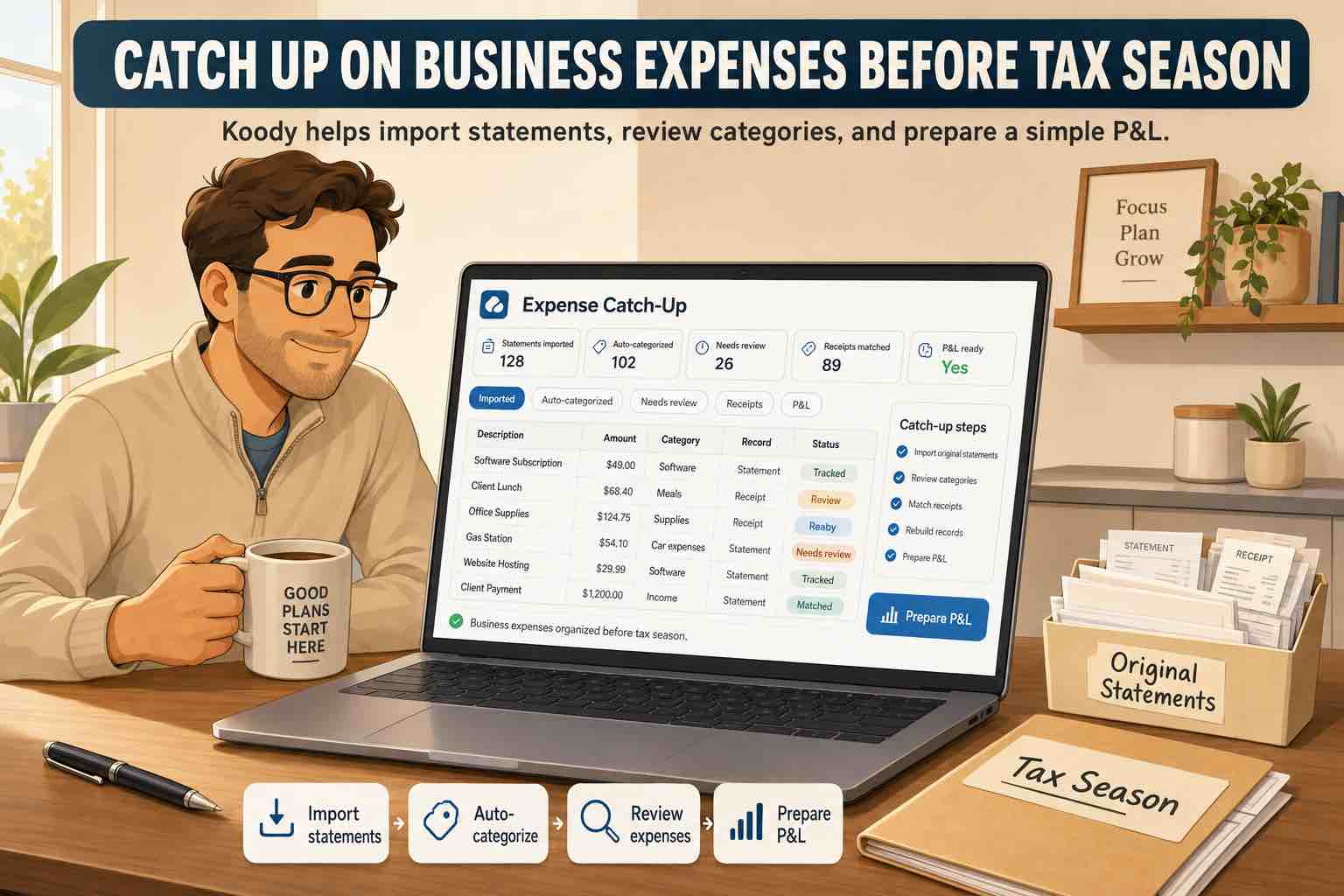
Import the year into Koody
Add each account you want to track in Koody, then import its CSV:
- Choose the account the file belongs to.
- Upload the file.
- Click Import.
- Review the results.
Koody reads the rows, cleans hard-to-read descriptions, auto-categorizes transactions, and identifies transaction types such as expenses, income, transfers, and refunds. It also checks imported rows against earlier imports and refuses duplicate imported transactions.
Import one account at a time. Check that the first and last dates match the file you expected, then move to the next file. When several files cover the same account, import them in date order so the review is easier to follow.
If you choose the wrong file or account, use the import history to review and delete that import batch. Do not try to repair a wrong import one row at a time when removing the batch and importing the correct file is faster.
Bring the year into Koody.
Import the original transaction files and let Koody auto-categorize the rows. You can bulk edit repeated transactions and ask Koody to remember useful changes for future imports.
Start the catch-up importReview income, transfers, payments, and refunds first
Do not begin by debating whether every coffee was a meal expense. First, remove the account movement and repayment rows that can distort the whole year.
Income
Review client payments, cash sales, platform income, tips, and other business income. Compare the totals with invoices, Forms 1099, platform statements, and sales records. Mark loan proceeds, owner contributions, and transfers separately so they do not inflate revenue.
Transfers and credit card payments
A transfer between your own accounts moves money without creating new income or a new expense. The same principle applies to a credit card payment: the purchases on the card are the expense records, while the payment moves money from checking to the card balance.
If you count a $900 card payment and the $900 of purchases that created it, the P&L can show twice the spending. Review transfers and card payments before relying on category totals.
Refunds and reimbursements
Tag merchant returns and reversals as refunds. Use the same clear description and category as the original expense when possible. This makes the original purchase, repayment, and any amount that was not returned easier to compare later.
Review reimbursements separately. A client paying back a filing fee or a roommate paying back half a utility bill is different from new business revenue. Add a note that connects the repayment to the original expense.
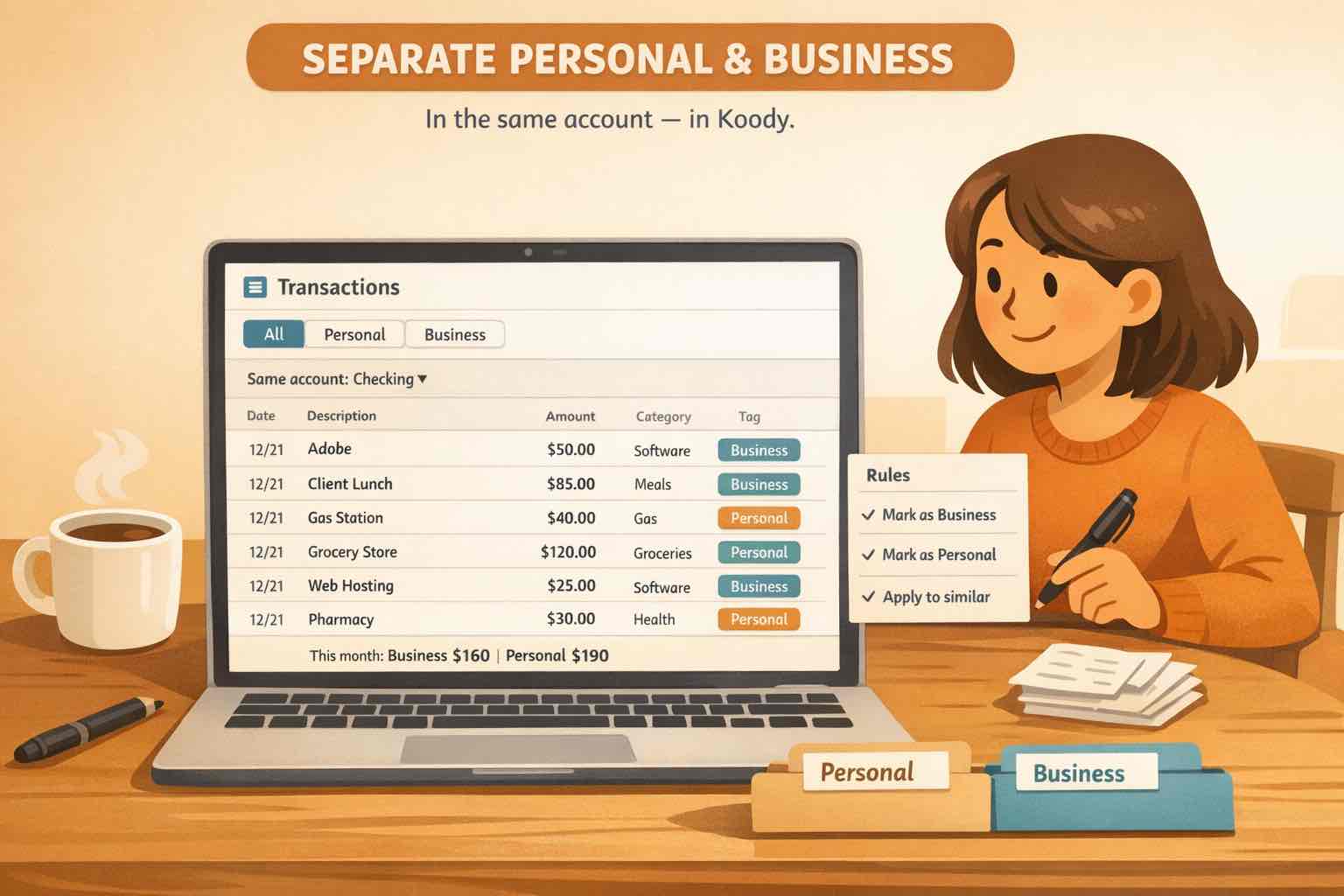
Separate personal and business spending
Now review the spending rows. Keep personal transactions in personal categories and business transactions in business categories, even when they share the same bank account or card.
Merchant names can help, but they do not always settle the answer. A charge from an office supply store may be business printer paper, school supplies, or both. A phone bill may include personal and business use. A hotel stay may include business days and vacation days.
When one transaction contains both, split it by category in Koody. For example:
- Split a $180 warehouse-store receipt between Business Supplies and personal Groceries.
- Split a $120 phone bill between Business Utilities and the personal phone category used in your budget.
- Split a hotel charge between Business Travel and personal Travel when the stay included both.
- Split a rideshare receipt between a business stop and a personal stop when the receipt supports the allocation.
Attach the receipt and add a note that explains how you divided the amount. This gives your accountant a better record than assigning the whole charge to whichever side seems more convenient.
Our guide to separating personal and business expenses in the same account goes deeper into this part of the review.
Rebuild receipts and business-purpose notes
Start with the records you can recover
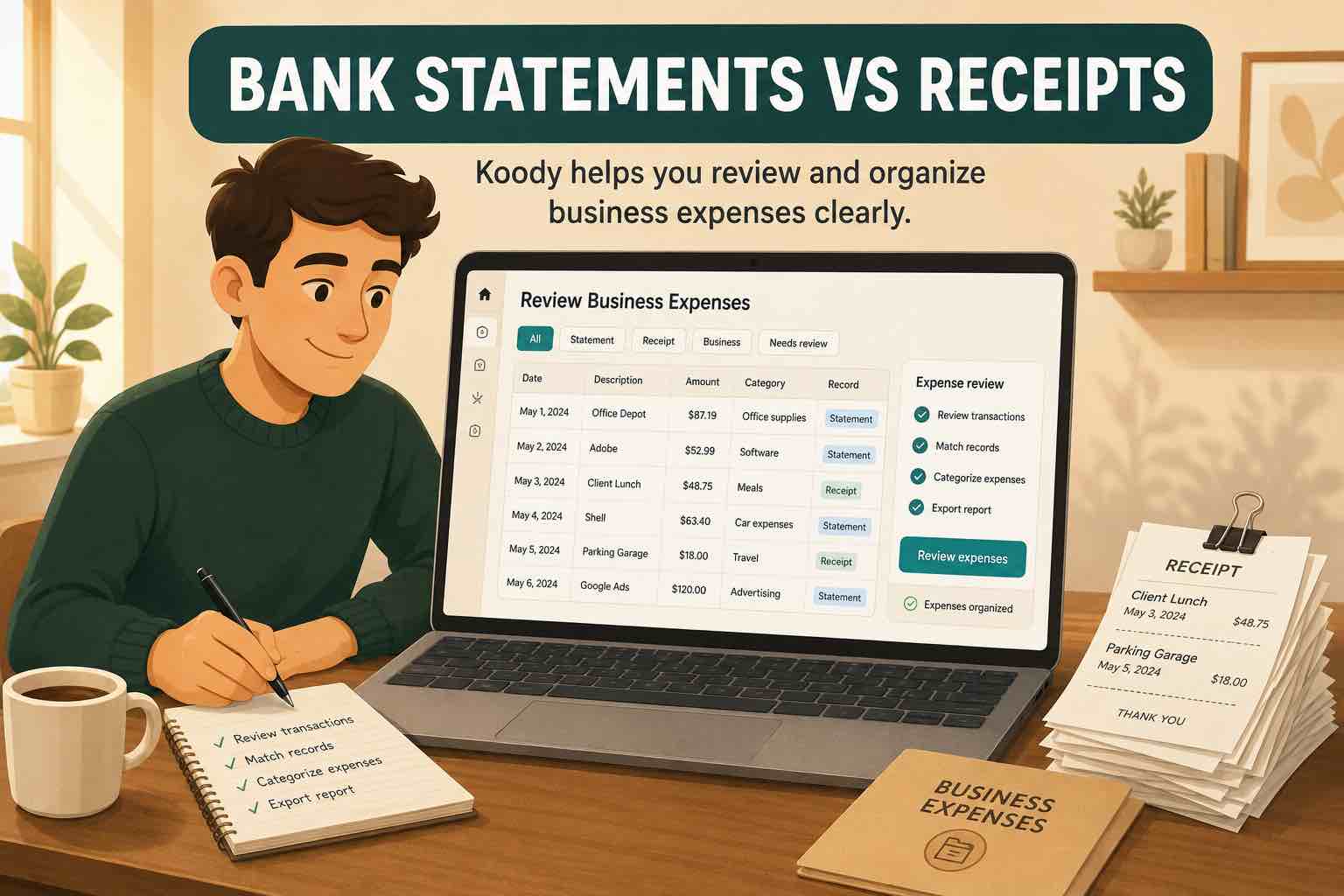
A bank statement can show the date, amount, account, and merchant. It may not show the items purchased, who attended a business meal, which client a trip involved, or why the purchase belonged to the business.
Search for supporting records in:
- Email receipts and invoices.
- Amazon, Apple, Google, or supplier order histories.
- Client calendars and appointment records.
- Marketplace and payment processor reports.
- Text messages or emails confirming a job or purchase.
- Photos and screenshots already on your phone.
- Warranty, registration, insurance, or equipment records.
- Mileage logs and trip records.
Add a note only when the available information lets you identify the purchase. Useful notes are specific: "Printer for therapy office, first used March 4" or "Lunch with client Ava Chen about June website project." A note based on a guess does not improve the record.
Keep the receipt beside the transaction
On mobile, take a photo and attach it to the expense. You can also attach an existing photo, invoice, PDF, screenshot, or downloaded file. The receipt stays with the row instead of living in a separate camera roll or email search.
If a receipt cannot be recovered, keep the bank or card record and the other documents you found. Flag the transaction for accountant review rather than treating the missing receipt as proof that the purchase was personal or business.
Review categories that need extra records
Some categories need more than a merchant and amount. Pull these out for a separate check when they apply:
- Meals: business purpose, date, place, attendees, relationship, amount, and receipt.
- Travel: destination, dates, business reason, business and personal days, transportation, and lodging.
- Vehicle costs: mileage log or actual-cost records, business use, parking, and tolls.
- Equipment: receipt, item, placed-in-service date, business-use percentage, and sale or disposal records.
- Inventory: beginning inventory, purchases, materials, personal use, and ending inventory.
- Contractors: Form W-9, invoice, service, payment record, and 1099 status.
- Home office: measurements, dates of use, rent or mortgage records, utilities, insurance, and repairs.
- Insurance and licenses: policy or license period, receipt, renewal notice, and business purpose.
- Loans: statement showing principal, interest, and how the borrowed money was used.
- Marketplace income: gross sales, fees, refunds, payouts, reserves, and Forms 1099-K.
Do not force an uncertain purchase into an ordinary category to finish the review faster. Add a clear note and put the question on the list for your accountant.
Create a Schedule C-style P&L
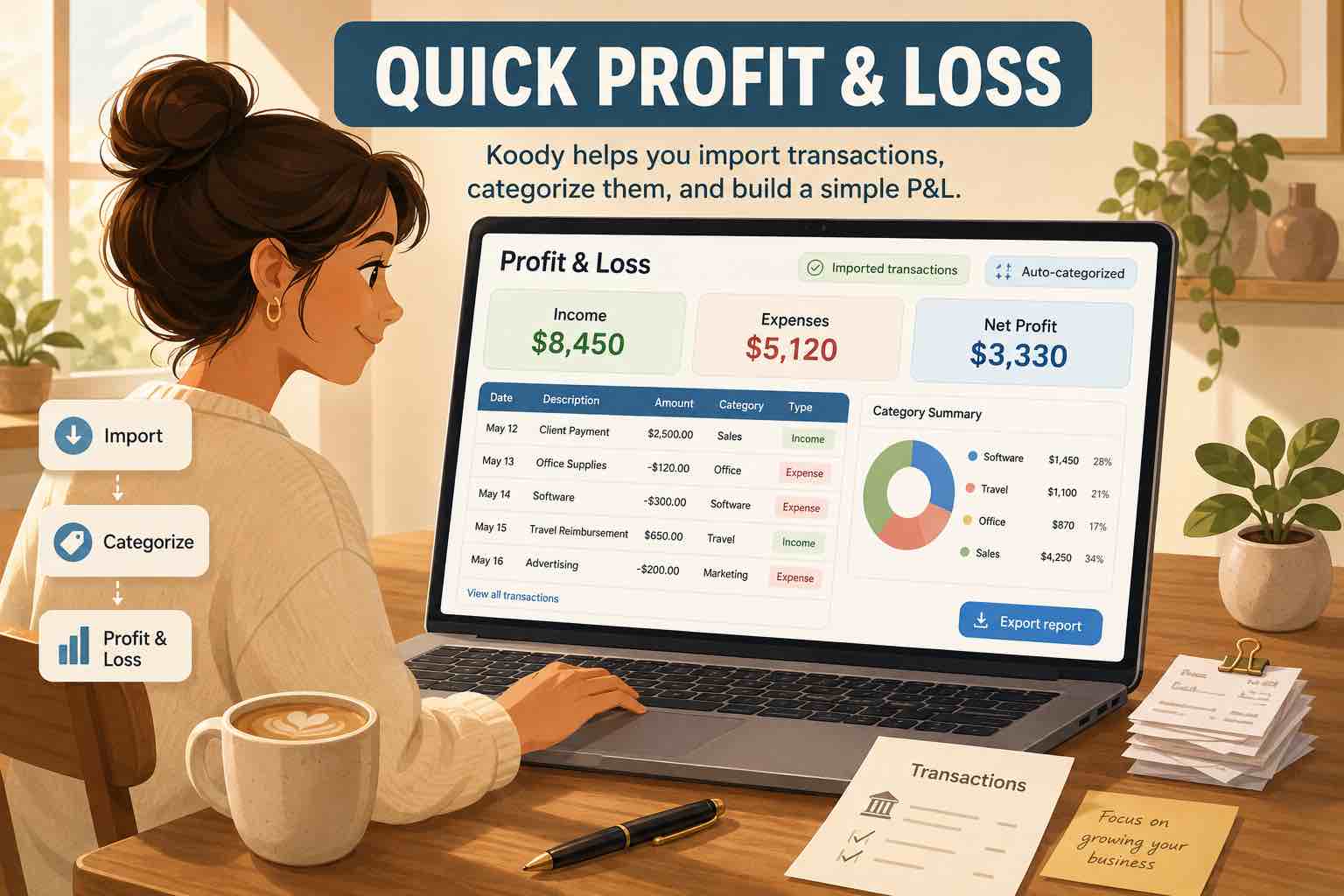
Once income, account movement, personal spending, and business categories have been reviewed, create the P&L for the tax year. This report adds up business income, subtracts business expenses, and shows the resulting profit or loss.
Read the totals as a review tool. Compare revenue with invoices, Forms 1099, platform reports, and deposits. Open any expense category that looks unusually high, unusually low, or empty. Check Uncategorized, Other Business Expenses, transfers, refunds, and owner draws before treating the report as finished.
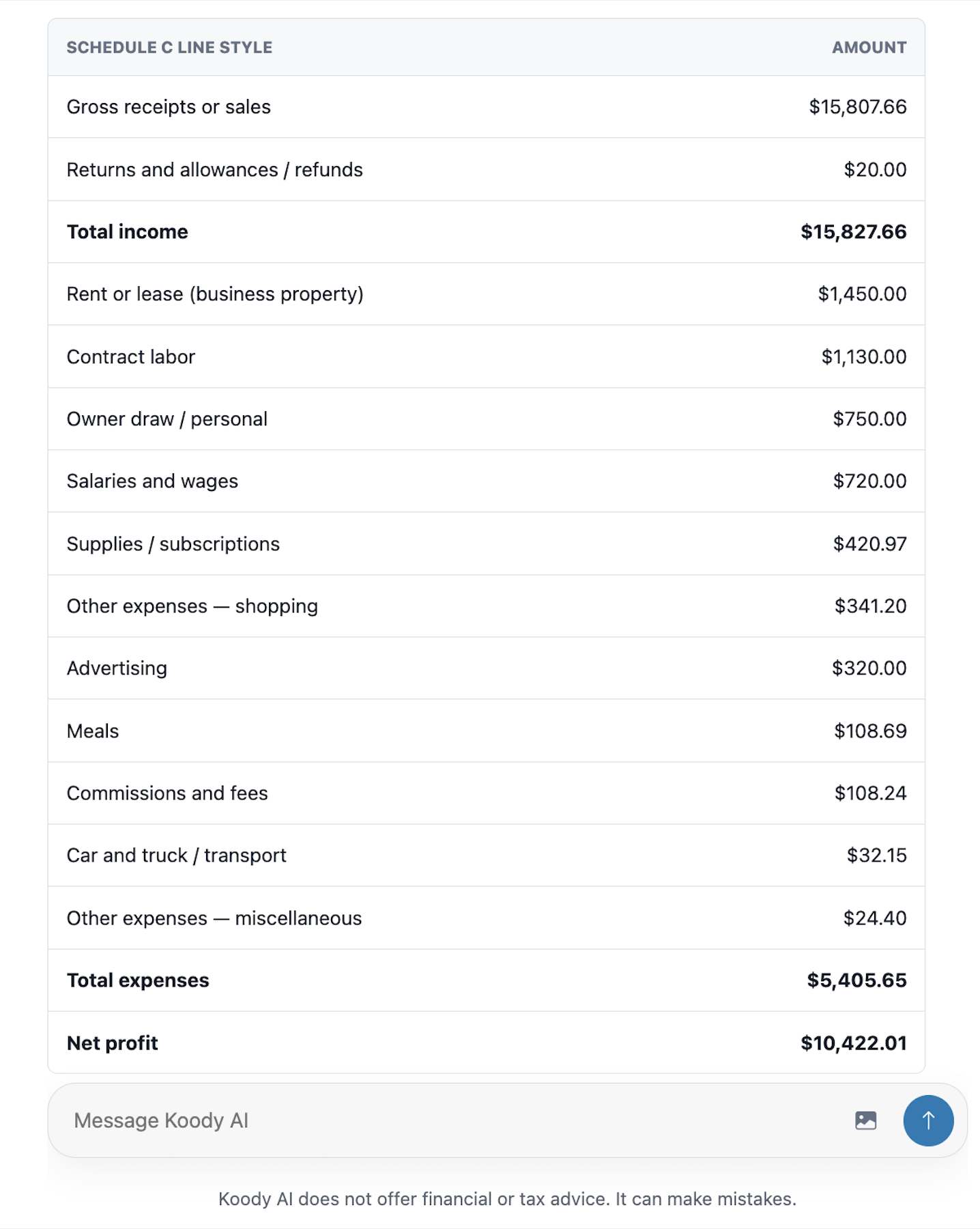
Your accountant may change the tax treatment of equipment, inventory, home office expenses, vehicle costs, or another item. Keep the transactions and supporting records available so those changes can be made from real information.
Prepare the records for your accountant
Ask your accountant what they want and how they want it delivered. A useful handoff commonly includes:
- The reviewed P&L for the tax year.
- A filtered transaction export for the same period.
- Forms 1099 and platform reports.
- Receipts, invoices, statements, mileage logs, and other supporting records requested.
- Contractor, equipment, inventory, vehicle, home office, loan, insurance, and license records when relevant.
- A short list of open questions.
Koody exports filtered transactions as CSV, Excel, or JSON on Standard and Plus plans. Confirm the date range, accounts, categories, transaction types, notes, and split amounts before sending the file.
Tax records can contain personal, banking, contractor, and health insurance information, so use the secure portal or transfer method your accountant provides.
Make next year easier
Keep the system you just built. Import monthly or on the schedule that works for your business. Review transfers, refunds, and mixed purchases while the details are recent. Take receipt photos when you receive them. Koody can remember import edits so repeated merchants need fewer changes next time.
FAQs
1. What should I do if I did not track business expenses all year?
Gather the original CSV files from every bank and card account you used, plus payment-app and marketplace reports. Import each file into the matching Koody account, let Koody auto-categorize the transactions, then review income, transfers, refunds, personal spending, business categories, receipts, and notes before creating a P&L.
2. Can I reconstruct business expenses from bank statements?
Bank and card statements are a useful starting point because they show dates, amounts, and payees. They may not show what you bought or why it was for business, so use receipts, invoices, email confirmations, calendars, client records, order histories, and notes to add support.
3. What if I lost some business receipts?
Search email, supplier accounts, online order histories, payment apps, card statements, calendars, and client records. Add a note only when you can identify the purchase from reliable information. Do not invent a business purpose for a charge you cannot explain.
4. Can I separate business expenses from a personal account?
Yes. Import the account into Koody, review each business transaction, and keep personal spending in personal categories. When one purchase contains both, split the transaction between the correct personal and business categories.
5. How do I record business expenses paid in cash?
Cash expenses will not appear in a bank CSV. Add them separately using the receipt, date, amount, payee, category, and business purpose. Check cash withdrawal records, but do not treat the whole withdrawal as a business expense without records showing how the cash was used.
6. Should credit card payments count as business expenses?
The payment to the credit card is usually account movement, while the purchases on the card are the expense records. Counting both can double the spending. Import the card purchases and keep the payment categorized as a transfer or card payment.
7. Can I delete an import if I uploaded the wrong file?
Yes. Koody keeps import history, and you can delete an import batch if you chose the wrong file or account. Review the batch details before deleting so you understand which imported transactions will be removed.
8. How does Koody help me catch up on business expenses?
Koody imports bank and card CSVs, auto-categorizes transactions, identifies transfers and refunds, supports bulk edits and split transactions, keeps receipts and notes with the rows, and creates a Schedule C-style P&L for review. Transaction imports are included in Koody's Plus plan.
Catch up before tax season.
Import the year, review the auto-categorized transactions, attach the records you can recover, and create the P&L your accountant can review.
Catch up in KoodySources: IRS references used
Sources accessed July 10, 2026. Koody is not a tax filing service or tax advisor.