The real problem is simple: Can I bring my own transaction files into the app?
A lot of people like Copilot Money. It looks modern, connects accounts, categorizes spending, tracks bills, and gives people a cleaner way to understand their money.
But that does not help much if your real transaction history is already sitting in a CSV file. Maybe it came from a credit union. Maybe it is an old budgeting app export. Maybe it is a card statement. Maybe it is a spreadsheet you have been maintaining for years. Maybe you just have a bunch of transactions and do not want to enter them one by one.
That is where Koody is different. Koody lets you import transaction CSVs, then it cleans descriptions, auto-categorizes rows, and finds transfers, refunds, subscriptions, bills, and duplicates. You can review and edit the results before you move on.
What to do if your bank or card history is in a CSV file
Do not copy transactions into a spreadsheet and rebuild your budget by hand if you are trying to move quickly.
A CSV already has the pieces a budgeting app needs: dates, descriptions, amounts, accounts, and sometimes categories. The right app should help you turn those rows into reviewable budget data.
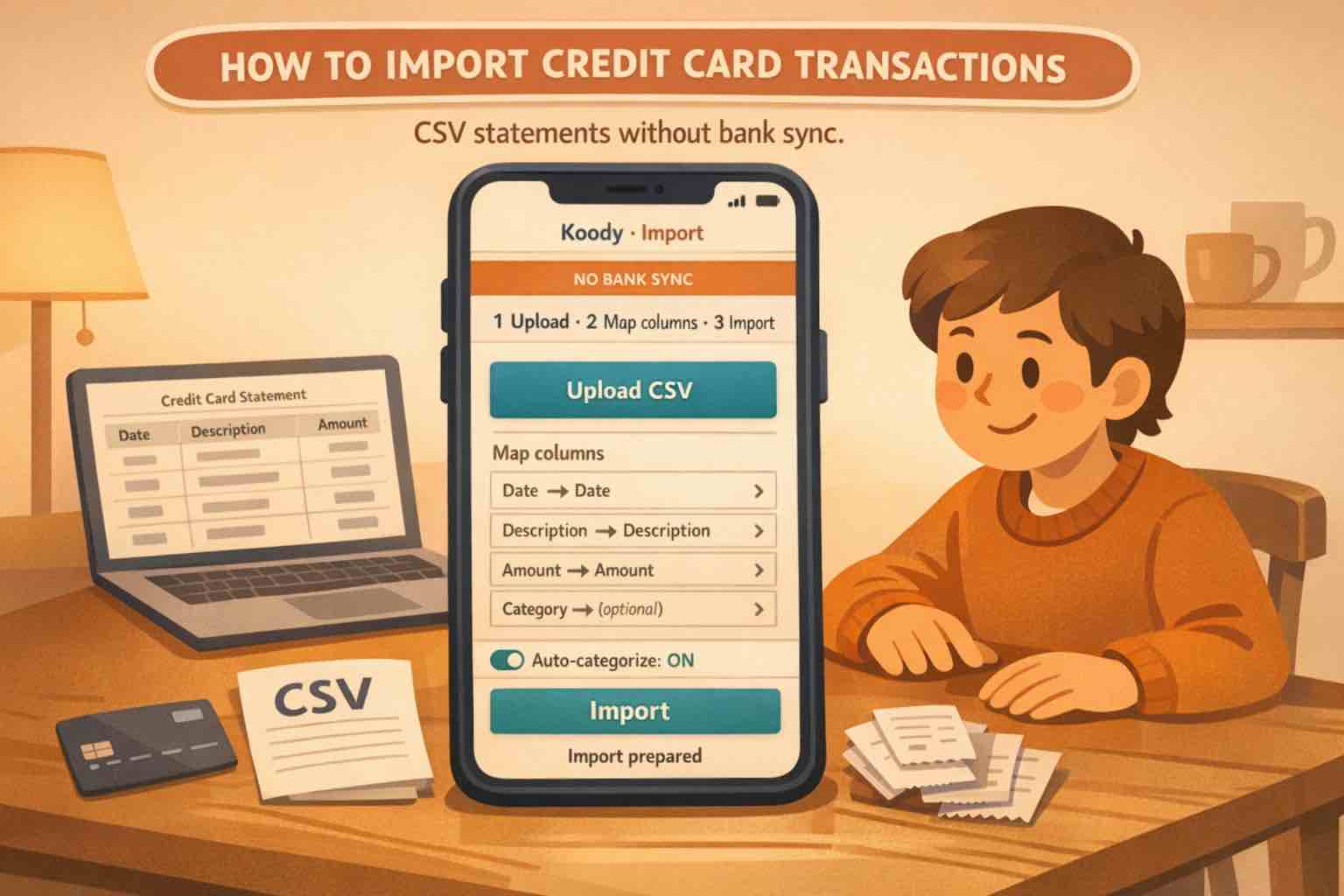
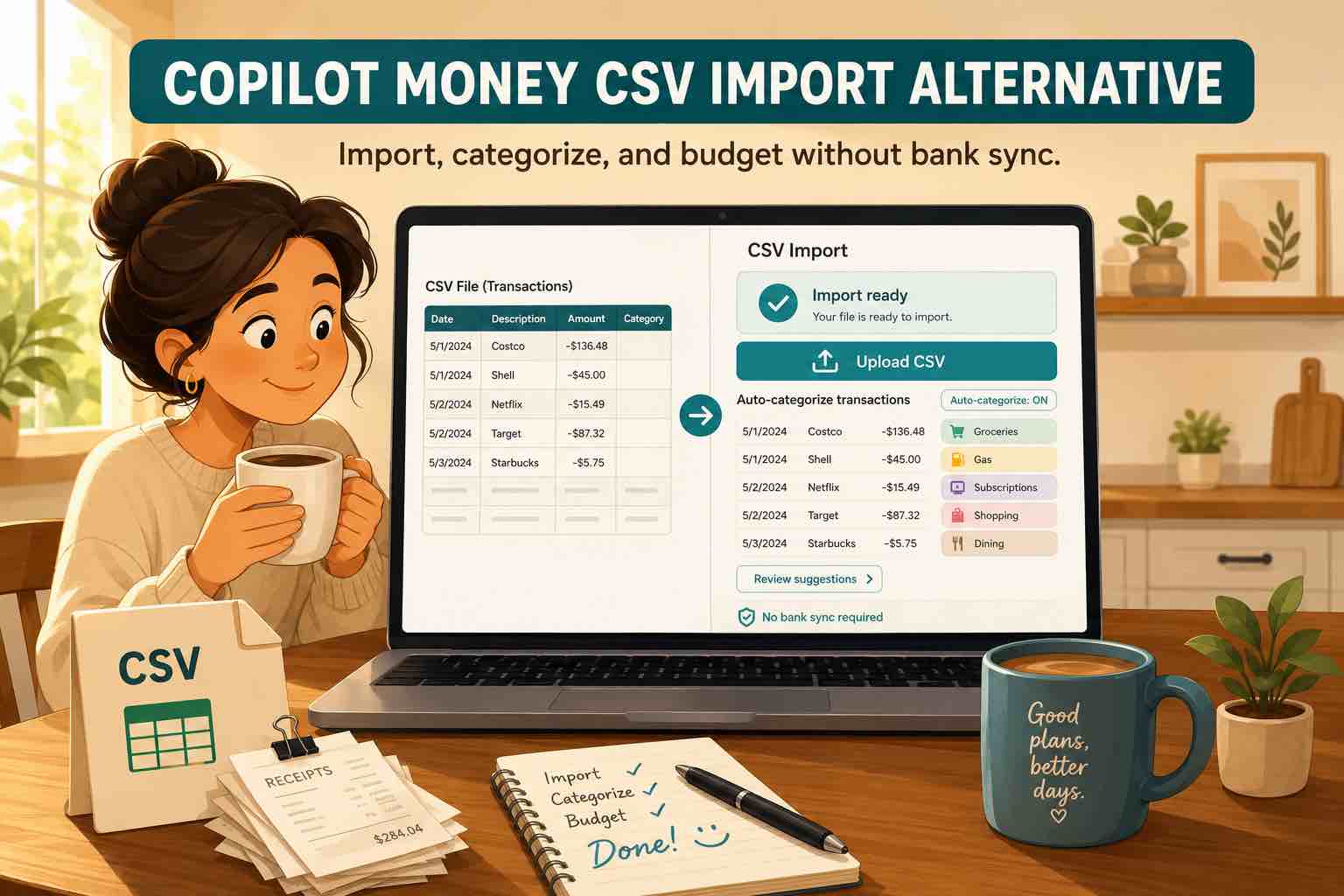
In Koody, you can import a bank or card CSV, choose the matching Koody account, and review the cleaned and categorized transactions after upload. That gives you a place to work with old history without relying on a live bank connection.
A modern budget app that works with CSV imports
The important thing is not just CSV upload. Plenty of tools can accept a file and still leave you with messy rows.
The point is to get the parts people want from a modern personal finance app: cleaner transaction names, categories that make sense, spending review, recurring charge detection, useful insights, and AI support.
Koody gives you that while still letting you bring your own transaction files.
If you are choosing between Copilot and Koody
Choose Copilot if you mainly want a sync-first experience and your accounts connect cleanly. Choose Koody if you want the modern budgeting experience but your transactions live in CSV files.
Start importing CSV transactionsImport bank statements, credit card CSVs, and spreadsheet exports
Koody is built around the files people actually have.
- Bank statement CSVs from checking and savings accounts.
- Credit card CSVs with purchases, payments, refunds, and recurring charges.
- Spreadsheet exports from Microsoft Excel, Google Sheets, or an older budget system.
- Budgeting app exports when you want to bring old transaction history into a cleaner review screen.
You do not need to reshape your entire financial life around a bank connection before you can start budgeting.
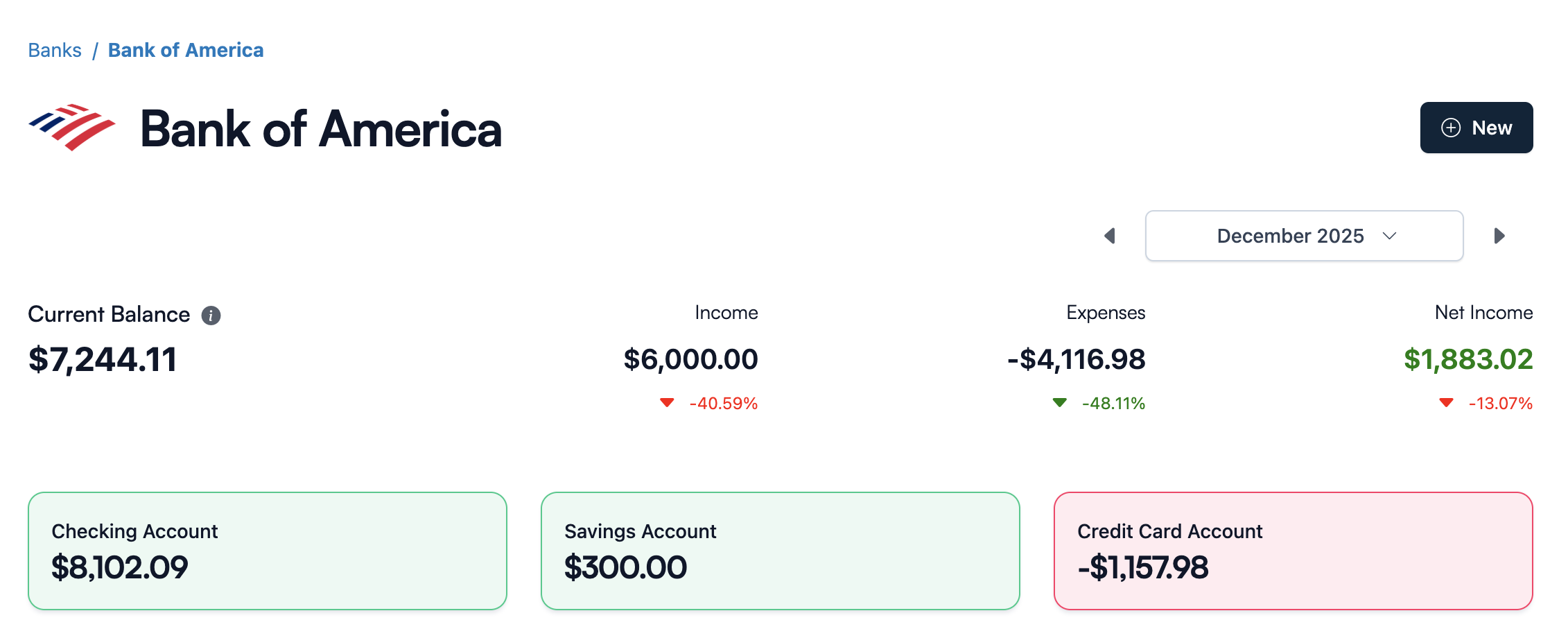
Get cleaner transactions after upload
CSV files are useful, but raw transaction rows can still be hard to read.
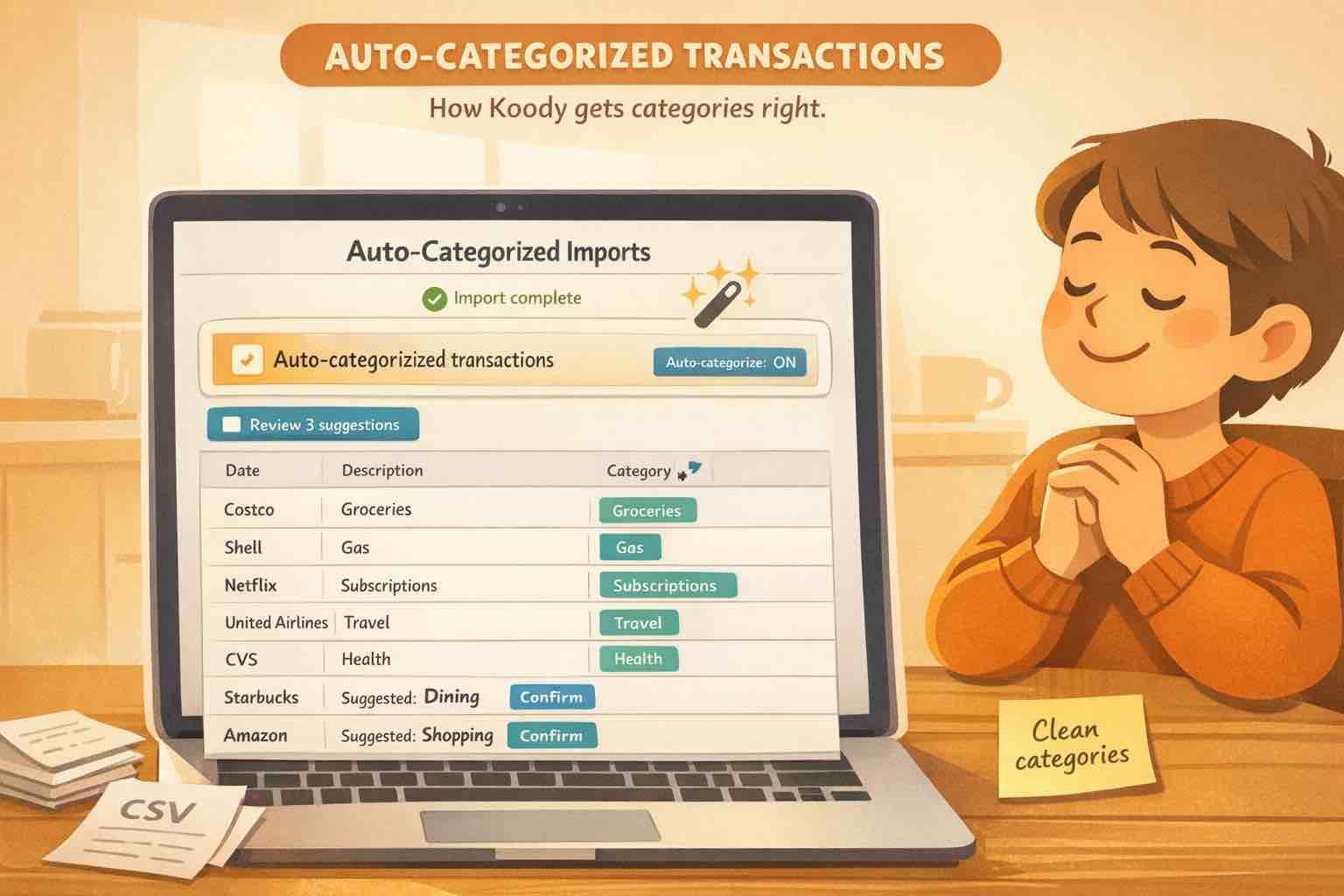
Koody helps turn noisy imported descriptions into cleaner merchant names, then auto-categorizes transactions so you can review instead of rebuilding everything from scratch.
That matters when you are importing older history. You do not want to spend a weekend fixing hundreds of rows by hand just to make the numbers usable.
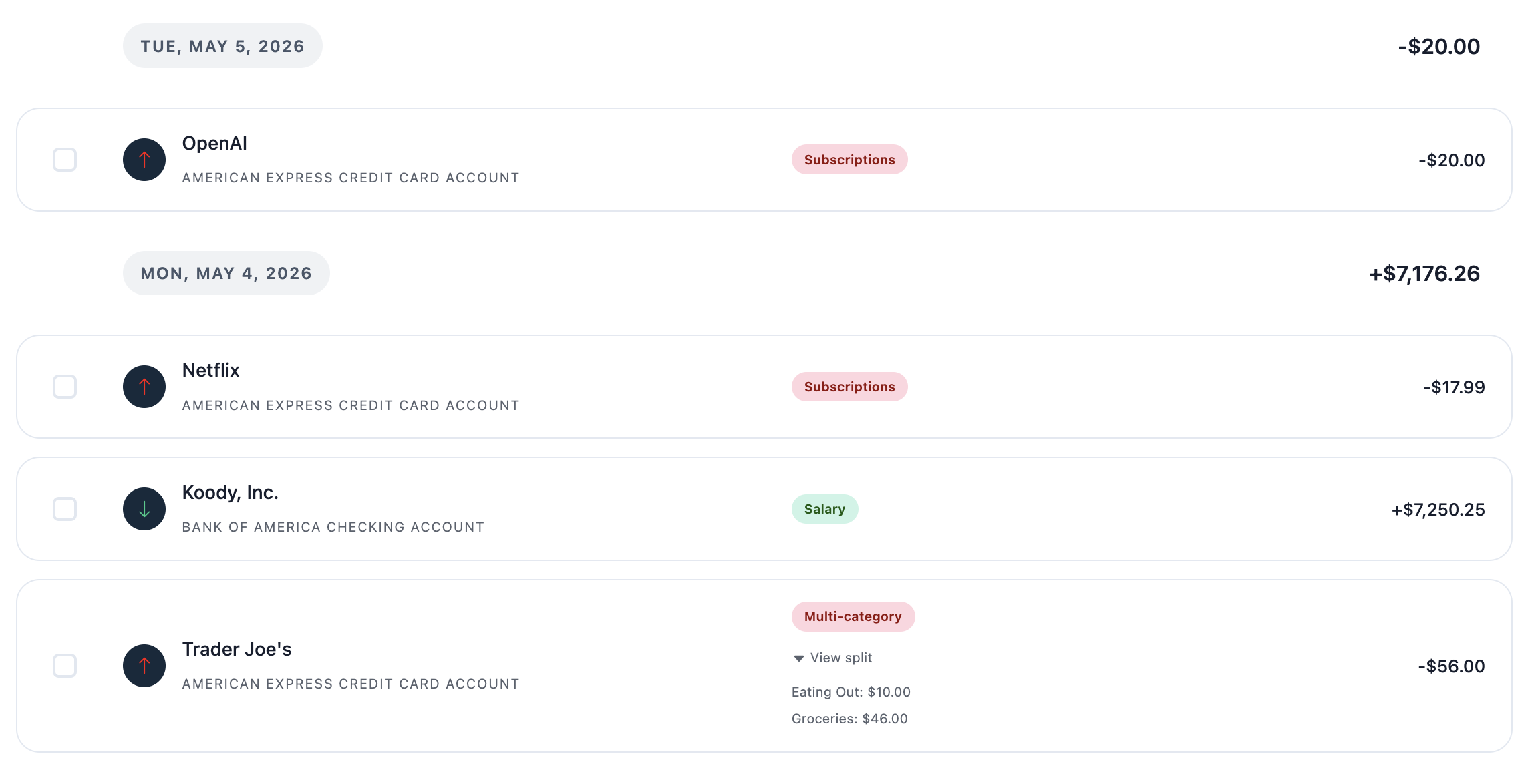
Review categories, transfers, refunds, bills, and duplicates
A good import does more than place rows in a list.
Koody helps you review the details that make a budget trustworthy:
- Categories: auto-categorized transactions after upload.
- Transfers: movement between accounts that should not distort spending.
- Refunds and credits: money coming back that changes the true cost.
- Subscriptions and bills: recurring charges hiding in older history.
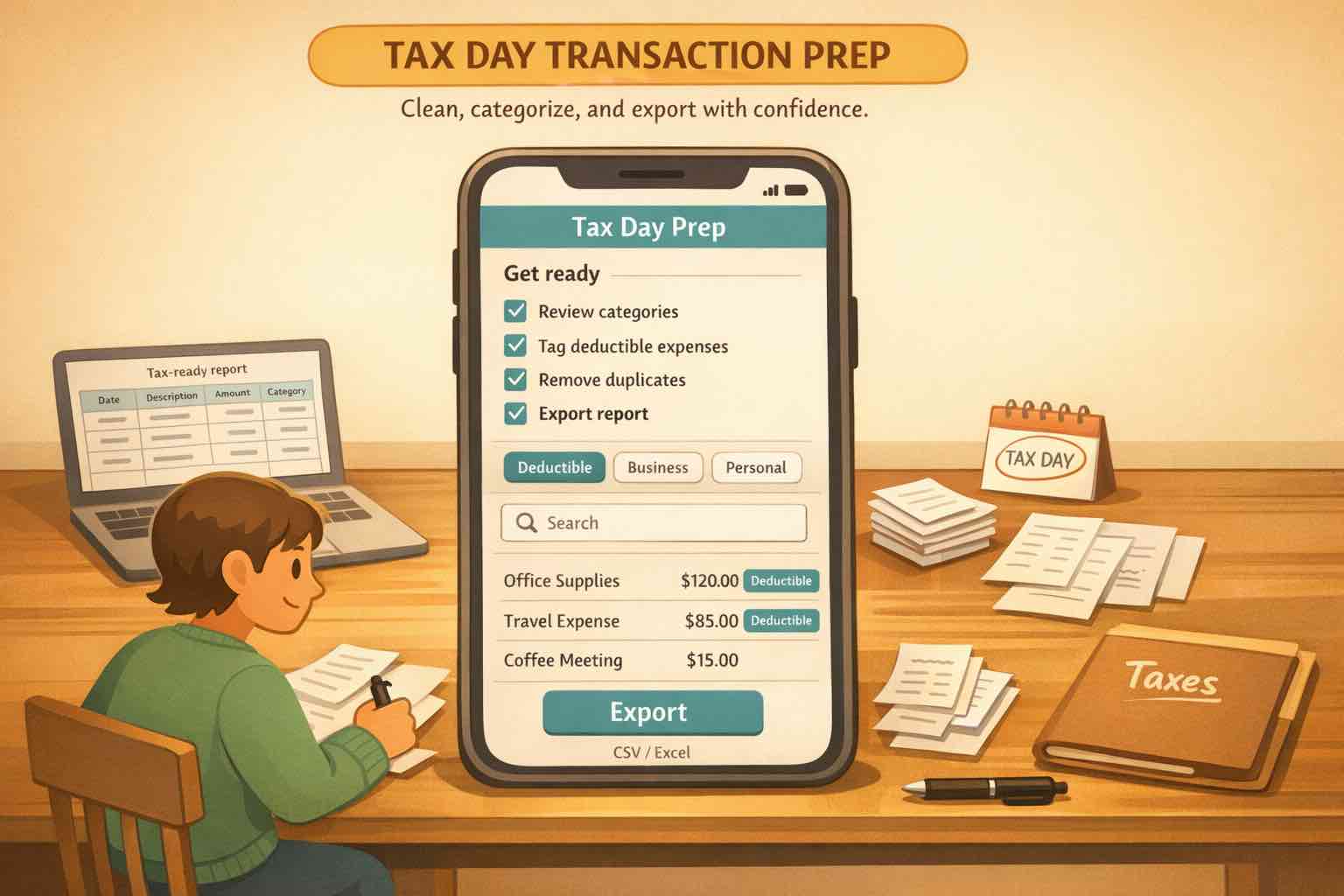
- Duplicates: repeat rows from overlapping imports.
- Bulk edits: faster fixes for merchant, category, note, and cleanup patterns.
- Saved preferences: teach Koody your import rules and it will remember them next time.
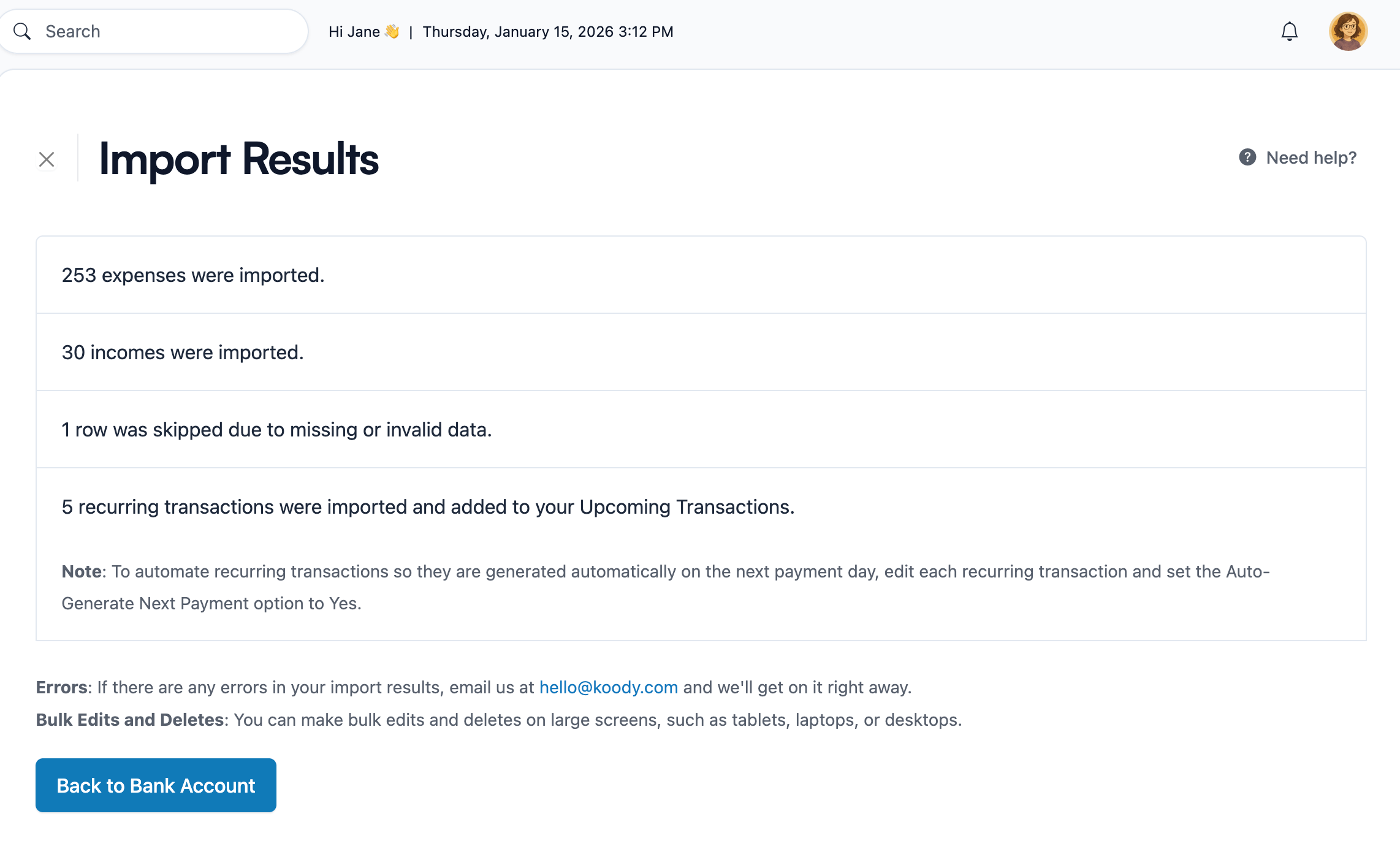
Use Koody AI to understand your spending
Importing old transactions is only useful if the history helps you make better decisions.
Koody AI can help you ask practical questions about your money, spot patterns, and understand what the imported data is telling you.
That makes Koody a better fit if you want CSV imports and a modern, AI-supported personal finance app in the same place.
Copilot Money vs Koody for CSV imports
If your transactions are already in CSV files, the comparison gets simple: one app expects connected accounts, while Koody is built to import and review your files.
| Need | Copilot Money | Koody |
|---|---|---|
| CSV transaction import | Not the main path shown in public docs. | Import bank, card, spreadsheet, and app-export CSVs. |
| Bank and card files | Depends on connected-account data. | Import bank statement CSVs and credit card CSVs directly. |
| No bank linking | Built around linked accounts. | Use manual entry and CSV imports without required bank linking. |
| Auto-categorization | Categorization centers on synced data. | Auto-categorize imported transactions after upload. |
| Review and bulk edits | Review tools are not built around CSV cleanup. | Bulk edit merchant names, categories, notes, and cleanup rules. |
| Best fit | People who want a sync-led setup. | People who want a modern budget app that can work with CSV transaction files. |
Start importing CSV transactions into Koody
If you already have transaction history in files, you should not have to wait for a roadmap item or type rows one by one.
Bring your CSVs into Koody, review cleaner transactions, and use the history you already have.
Import CSV transactions into Koody
Upload bank statements, credit card CSVs, spreadsheet exports, and older transaction files. Koody cleans descriptions, auto-categorizes transactions, helps you review duplicates, and gives you Koody AI when you need help understanding the numbers.
Start importing CSV transactionsFAQs
1. What should I use if my bank or card history is already in CSV files?
Use Koody. You can import bank statement CSVs, credit card CSVs, spreadsheet exports, and older budgeting app transaction files, then review the cleaned results.
2. Does Koody auto-categorize imported transactions?
Yes. Koody auto-categorizes imported transactions after upload and lets you adjust anything that needs correction.
3. Can Koody clean up merchant descriptions?
Yes. Koody helps turn noisy imported descriptions into cleaner merchant names, so your budget is easier to scan and review.
4. Can Koody identify transfers, refunds, subscriptions, and bills?
Yes. Koody helps you review transfers, refunds, recurring subscriptions, bills, duplicate imports, and category patterns after your CSV is uploaded.
5. Do I have to link my bank to use Koody?
No. Koody lets you budget with manual entry and CSV imports, so you can use the app without connecting your bank.
6. Can I import a bunch of old transactions at once?
Yes. Koody can import old transactions from CSV files, so you do not have to enter each row by hand.
7. Can Koody help with CSV imports from credit unions or smaller banks?
Yes. If your institution lets you export transaction activity as a CSV, Koody can help you bring those rows into your budget without relying on a live bank feed.
8. Is CSV import a paid feature in Koody?
Koody's free plan supports manual budgeting. Transaction imports are part of Koody Plus, which includes bank statement imports, auto-categorization, recurring transaction detection, and advanced Koody AI.
Ready to try it? Open Koody and start importing CSV transactions.