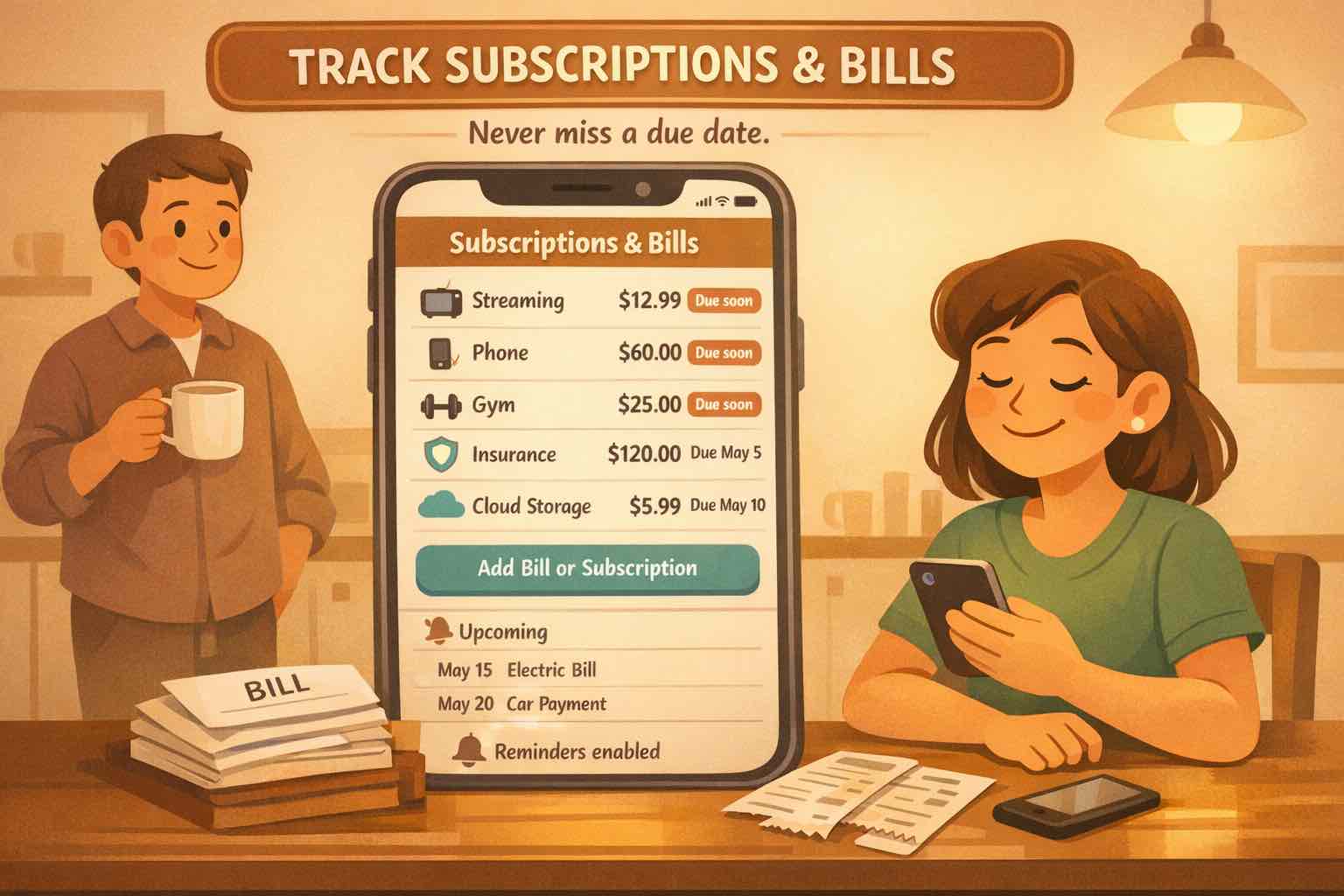
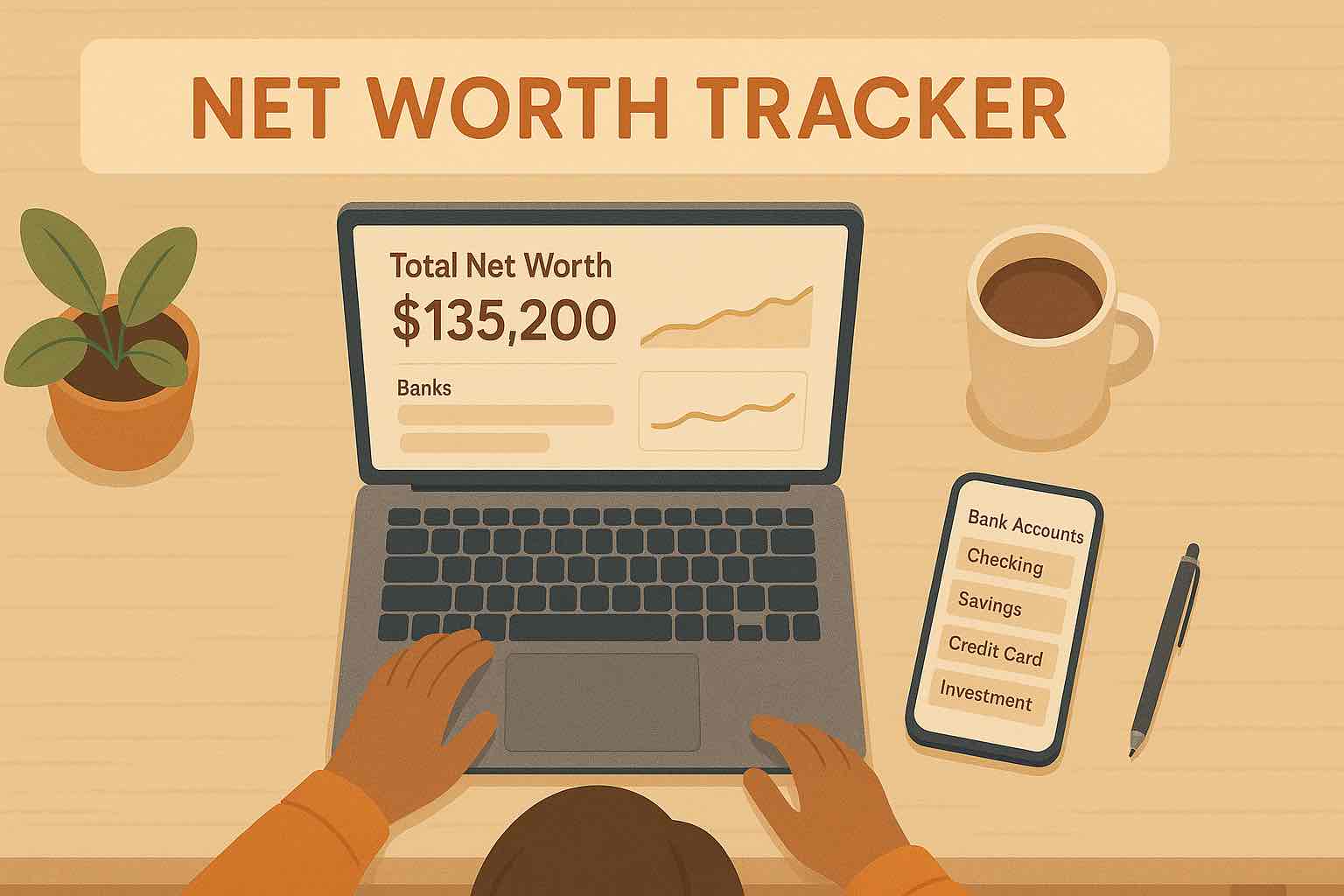
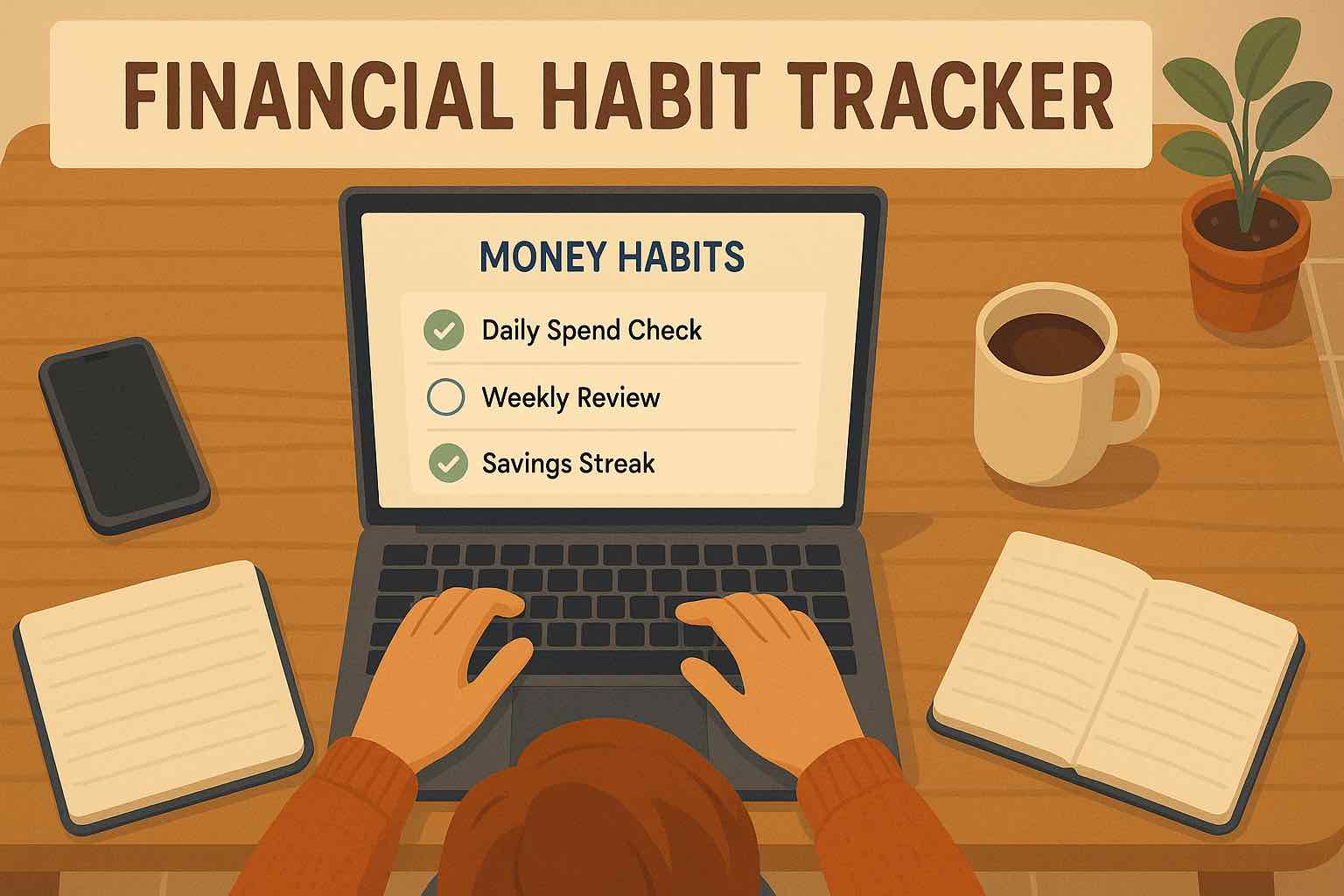
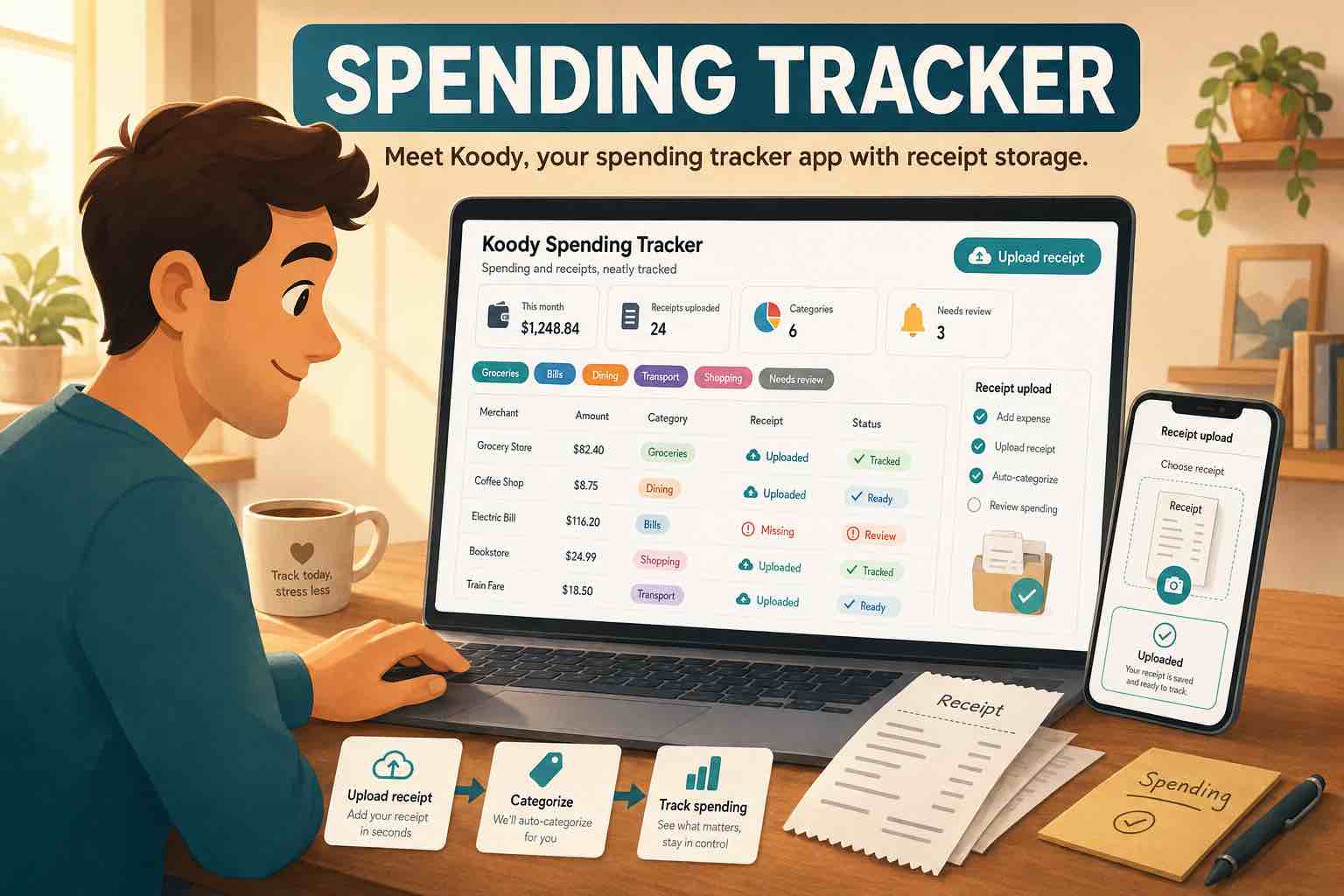
One screen, all renewals—subscriptions and bills lined up with due dates.
Why Subscriptions And Bills Feel Invisible
Subscriptions and bills are the payments you agree to once and then stop thinking about. They are small enough to ignore on their own, but together they become your monthly minimum.
That is why people feel blindsided at the end of the month. A couple of streaming services, a gym membership, a software tool, phone and internet, insurance, and utility bills can quietly eat a big chunk of your budget.
A good subscription tracker is simply a clear list: what it is, how much it costs, when it renews, and which account it comes from. Once you see that list in one place, the waste is obvious and planning gets calmer.
What To Include In Your Subscriptions And Bills List
Start with anything that repeats on a schedule. If it hits every month, quarter, or year, it belongs on the list.
Streaming and music subscriptions.
Software, cloud storage, and app subscriptions.
Phone, internet, and utility bills.
Rent or mortgage payments.
Insurance premiums and annual fees.
Gym memberships, clubs, and professional memberships.
Quarterly or yearly expenses like taxes or renewals.
You do not need a perfect list on day one. You just need a list you can see, update, and trust. Start with the bills you already know, then use the steps below to add the rest and keep them organized.
Step 1: Add Each Subscription Or Bill In Koody
In Koody, create an expense for each subscription or bill. Use the real merchant name, the expected amount, and the date it usually hits.
Pick a category that makes sense, such as Subscriptions, Utilities, Insurance, or Rent. If you want more detail, you can split categories by type (for example, "Streaming" and "Software") so your totals are easier to read.
If you are starting from scratch, begin with the big ones. You can add the smaller services over time.
Step 2: Set It As Recurring (And Auto-Generate Future Payments)
Once an expense is created, toggle Recurring and choose the frequency. Most subscriptions are monthly, but Koody also supports weekly, bi-weekly, quarterly, yearly schedules, and more for things like insurance or domain renewals.
If you want Koody to handle future entries for you, turn on Auto-Generate Next Payment. That way, the next payment appears automatically on its due date without you lifting a finger.
If a bill varies, keep it recurring and just edit the next payment when the amount changes. You still get the rhythm without locking yourself into the wrong number.
Step 3: Review Upcoming Transactions And Your Minimum Monthly Burn
Recurring subscriptions and bills show up in your Upcoming Transactions, so you can see what is due before it lands. That list is your "minimum monthly burn" — the amount you will pay even if you spend nothing else.
When you know that number, it is easier to decide how much room you have for groceries, fun, savings, or extra debt payments.
A quick weekly glance keeps surprises out of your budget and helps you avoid overdrafts before payday.
Find Subscriptions Faster With CSV Import (And Koody AI)
If you already have a year of history sitting in your bank, use CSV import to pull it into Koody. The importer highlights likely recurring items so you can convert them into subscriptions or bills quickly.
You can also ask Koody AI questions like, "Which of these look like subscriptions?" or "What are my most expensive recurring bills?" The answers are grounded in your own data, not generic advice.
Prefer to stay manual? Koody still works great without bank linking. You choose what to add and when.
FAQs: Tracking Subscriptions And Bills In Koody
1. Do I need to link my bank to track subscriptions and bills in Koody?
No. You can add subscriptions manually or import a CSV statement and let Koody flag likely recurring items. No bank linking necessary.
2. Will Koody auto-generate my recurring bills?
Yes. When you mark an expense as recurring, you can turn on Auto-Generate Next Payment so Koody creates the next one on its due date.
3. What if a bill changes amount or date?
Keep the item recurring, then edit the next payment when the amount or due date changes. You stay in control without losing the recurring pattern.
4. Can I track annual or quarterly bills?
Yes. Set the recurring frequency to yearly or quarterly so those payments show up in your Upcoming Transactions before they hit.
5. How do I find hidden subscriptions in old statements?
Import your CSV history into Koody. The importer highlights likely recurring transactions so you can convert them into subscriptions or bills in a few clicks.
Ready to build a clean list of recurring costs?Create an accountand start tracking your subscriptions and bills in Koody today.