The three best ways to track spending automatically
If you want to track spending automatically without manual logging, you have three realistic options.
1. Import transactions into budgeting software
This is the strongest option when your bank, card, spreadsheet, or old budgeting app can export a CSV. You upload the file into a personal finance app, and the right software prepares the transactions for review.
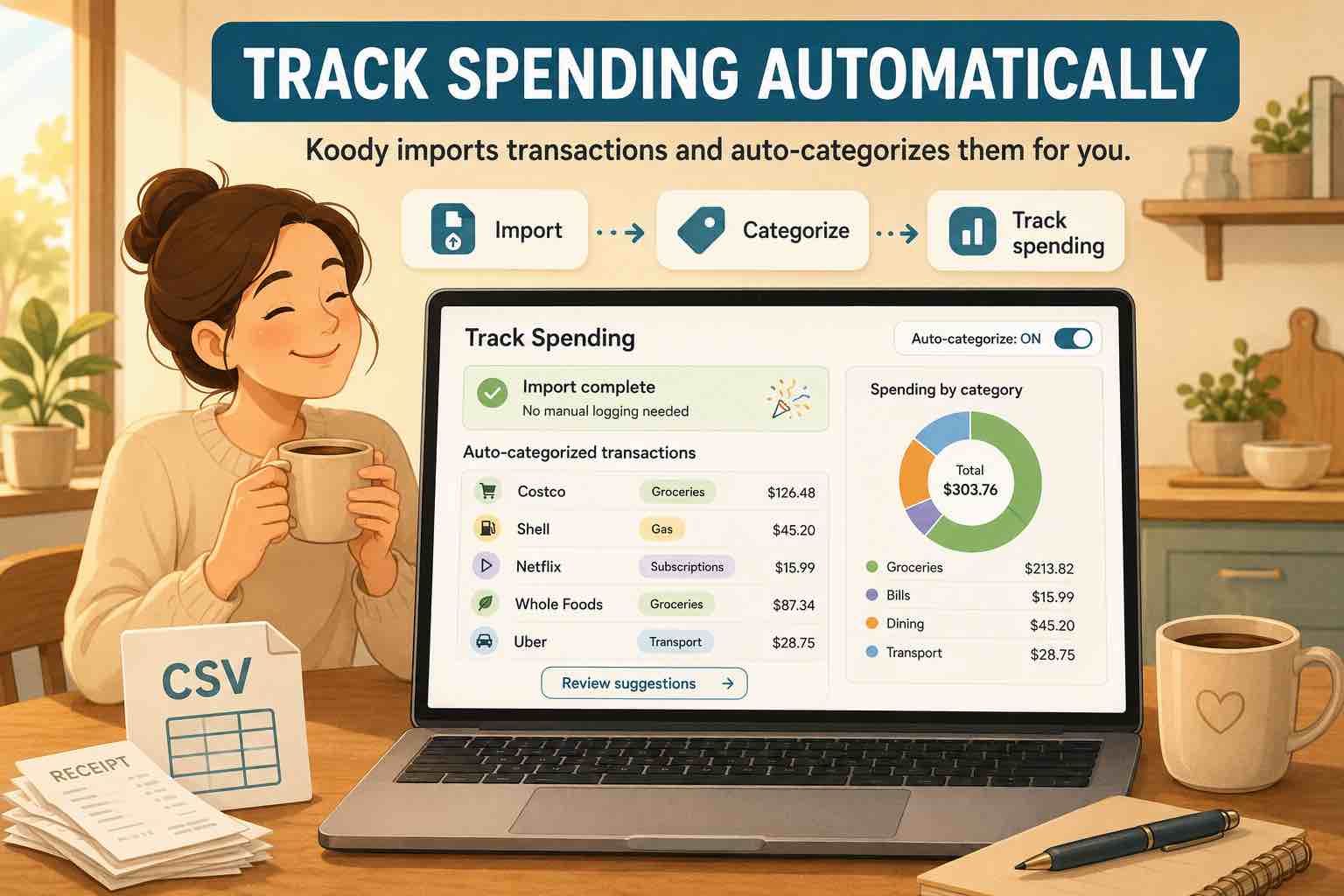
Importing works because it starts with real transaction history. Good import software cleans merchant descriptions, auto-categorizes spending, checks for duplicates, and helps identify transfers, refunds, subscriptions, and bills. You get automatic spending history without entering each purchase one by one.
It is also a strong fit if you care about privacy and prefer not to connect a live bank feed. You still get automated spending review, but you choose the file, the account, and the moment the data enters your budget.
2. Link your bank account
The second option is bank linking, which gives you a live transaction feed. It works well when you want transactions to appear as they happen and you like checking your budget often enough for real-time updates to matter.
This is a strong fit for people who want their budget to update in the background and are comfortable connecting accounts through a data provider.
Bank linking is especially useful when you want daily visibility across several accounts, quick spending alerts, and less time spent downloading files. If your main goal is continuous tracking, it can be a convenient way to keep recent activity in front of you.
3. Use a spreadsheet
Spreadsheets are the third strong option because they give you maximum flexibility. You can download transaction files, paste them into Excel or Google Sheets, and build your own categories, charts, projections, and reports.
This works especially well for custom analysis and one-off reports. If you like building your own system and want complete control over formulas and layout, spreadsheets can be a good fit.
For automatic spending tracking, imports are usually stronger because the software can prepare the transaction data for review. That is the space Koody is built for: keep the file-based control, then let Koody clean, categorize, check, and organize the spending.
Why transaction imports work so well
Transaction import works well because most banks, credit cards, and finance apps already let you export spending history. You are not starting from scratch. You are bringing in data that already exists.
The important part is what happens after upload. A basic CSV uploader only stores rows. Koody turns those rows into spending you can actually review.
That is the core argument for file import: you decide when data enters your budget, and Koody helps make that data cleaner before you act on it.
Koody's transaction import feature is built for this exact job: upload the file, review cleaner transactions, and keep your budget moving.
What Koody does after upload
The import is only the beginning. The real value is what Koody does after the file lands.
- Cleaner merchant descriptions: Koody turns noisy bank text into descriptions you can read.
- Auto-categorization: Koody assigns useful categories to imported transactions.
- Transfers and refunds: Koody helps separate account movement and money coming back from normal spending.
- Recurring bills and subscriptions: Koody helps recurring charges stand out during review.
- Duplicate checks: Koody helps catch repeated rows when imports overlap.
- Bulk edits: Koody lets you update repeated merchant, category, and note patterns faster.
- Saved preferences: useful edits can carry forward so future imports get easier to review.
- Koody AI: ask practical questions when you want help understanding your spending.
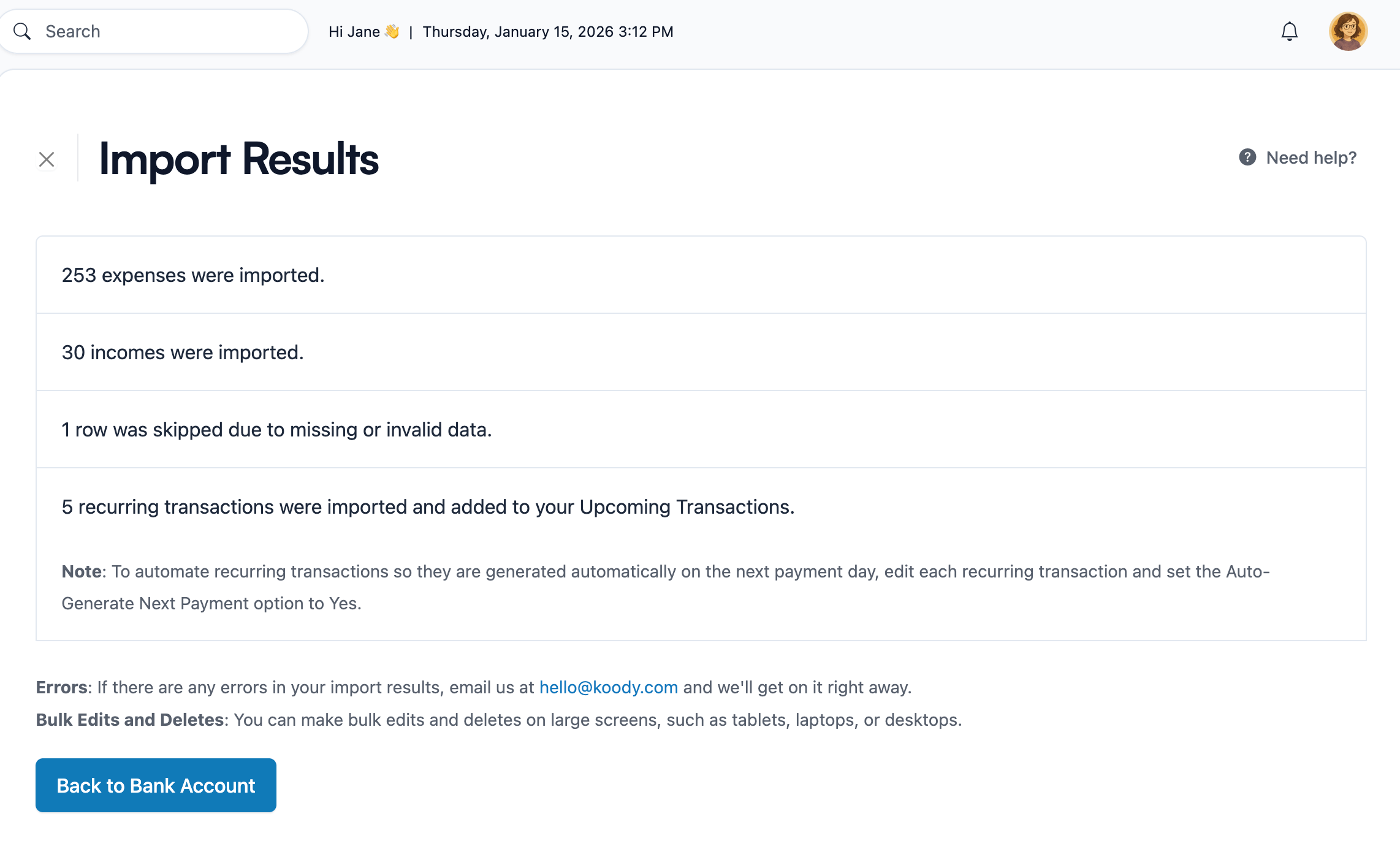
How to track spending automatically in Koody
Here is the practical path:
- Export a CSV from your bank, credit card, spreadsheet, or old money app.
- Open Koody and choose the account that should receive the transactions.
- Upload the file.
- Let Koody categorize transactions, check duplicates, and prepare the results.
- Review the imported spending and bulk edit anything you want to change.
- Ask Koody to remember useful edits for next time.
If you are starting with bank activity, Koody can help you turn bank statement CSVs into budget-ready transactions. If your spending is mostly on cards, use credit card CSV imports to bring in purchases, payments, refunds, and recurring charges.
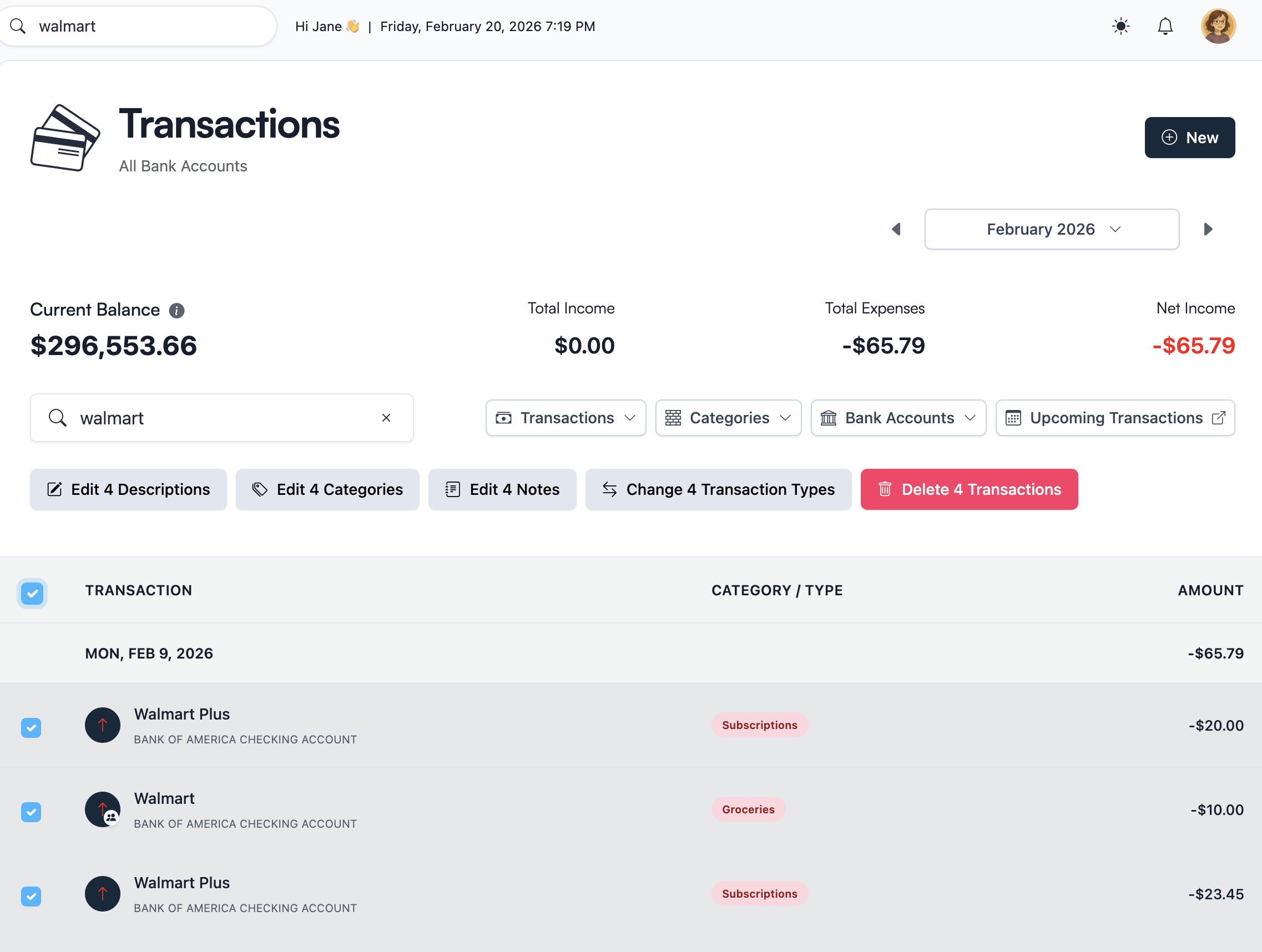
Why repeat imports get easier in Koody
Koody is useful from the first import because it turns a transaction file into categorized spending you can review. Repeat imports make that process even faster.
When the same merchants appear again, Koody can use saved preferences to make future imports easier to review. If you fix a merchant name, category, or note pattern, Koody can carry that useful edit forward.
That means tracking spending automatically does not have to restart from scratch every month. You bring in the next file, Koody prepares the transactions, and you review the smaller set of items that actually need attention.
Start importing transactions
If you came here looking for the best ways to track spending automatically without manual logging, start with imports.
Upload your bank statements, credit card CSVs, or spreadsheet exports into Koody. Koody prepares the transactions, auto-categorizes spending, checks duplicates, supports bulk edits, remembers useful edits, and gives you Koody AI help while you review.
Track spending automatically without manual logging.
Import bank statements, credit card CSVs, and spreadsheet exports into Koody. Koody auto-categorizes transactions, checks duplicates, supports bulk edits, remembers useful edits, and gives Koody AI help while you review.
Open KoodyFAQs
1. What is the best way to track spending automatically without manual logging?
The best way is to import transaction files into software that cleans and categorizes them for review. Koody does this with bank, card, and spreadsheet CSVs.
2. What are the main ways to track spending automatically?
The main ways are transaction import, bank linking, and spreadsheet-based tracking. Transaction import is the best fit when you want automated categorization and review from files you control.
3. Can Koody track spending without typing every transaction?
Yes. Import your transaction file into Koody, and Koody turns the file into categorized spending history for review.
4. What files can I import into Koody?
Koody can import bank statement CSVs, credit card CSVs, spreadsheet exports, and transaction CSVs from older budgeting or personal finance apps.
5. Will Koody automatically categorize imported spending?
Yes. Koody auto-categorizes imported transactions after upload, then lets you review and adjust anything that needs a different category.
6. Can Koody find duplicates after import?
Yes. Koody helps you review repeated rows and overlapping imports so duplicate transactions are easier to catch before they distort your budget.
7. Can Koody find transfers, refunds, subscriptions, and bills?
Yes. Koody helps identify transfers, refunds, recurring bills, subscriptions, and other spending patterns after you import transaction files.
8. Is CSV import better than a spending spreadsheet?
CSV import in Koody is better when you want automated categorization, duplicate checks, bulk edits, saved preferences, and spending review without rebuilding formulas.
9. Is transaction import a paid feature in Koody?
Yes. Transaction imports are part of Koody Plus, which includes CSV imports, auto-categorization, recurring transaction detection, and advanced Koody AI.
Start with your next transaction file.
Upload a bank statement CSV, credit card CSV, or spreadsheet export into Koody. Koody prepares the file, auto-categorizes spending, checks duplicates, and gives you cleaner transactions to review.
Open Koody