Long-term planning works better when the spending numbers are real. The hard part is getting those numbers out of old statements, card exports, and spreadsheets without rebuilding your expense history by hand.
Koody gives that spending data a place to land. Import the CSV, review cleaner transactions, fix the patterns that matter, and keep useful edits for next time.
Use Koody for the transaction side: importing, organizing, and reviewing the spending history that makes planning numbers easier to trust.
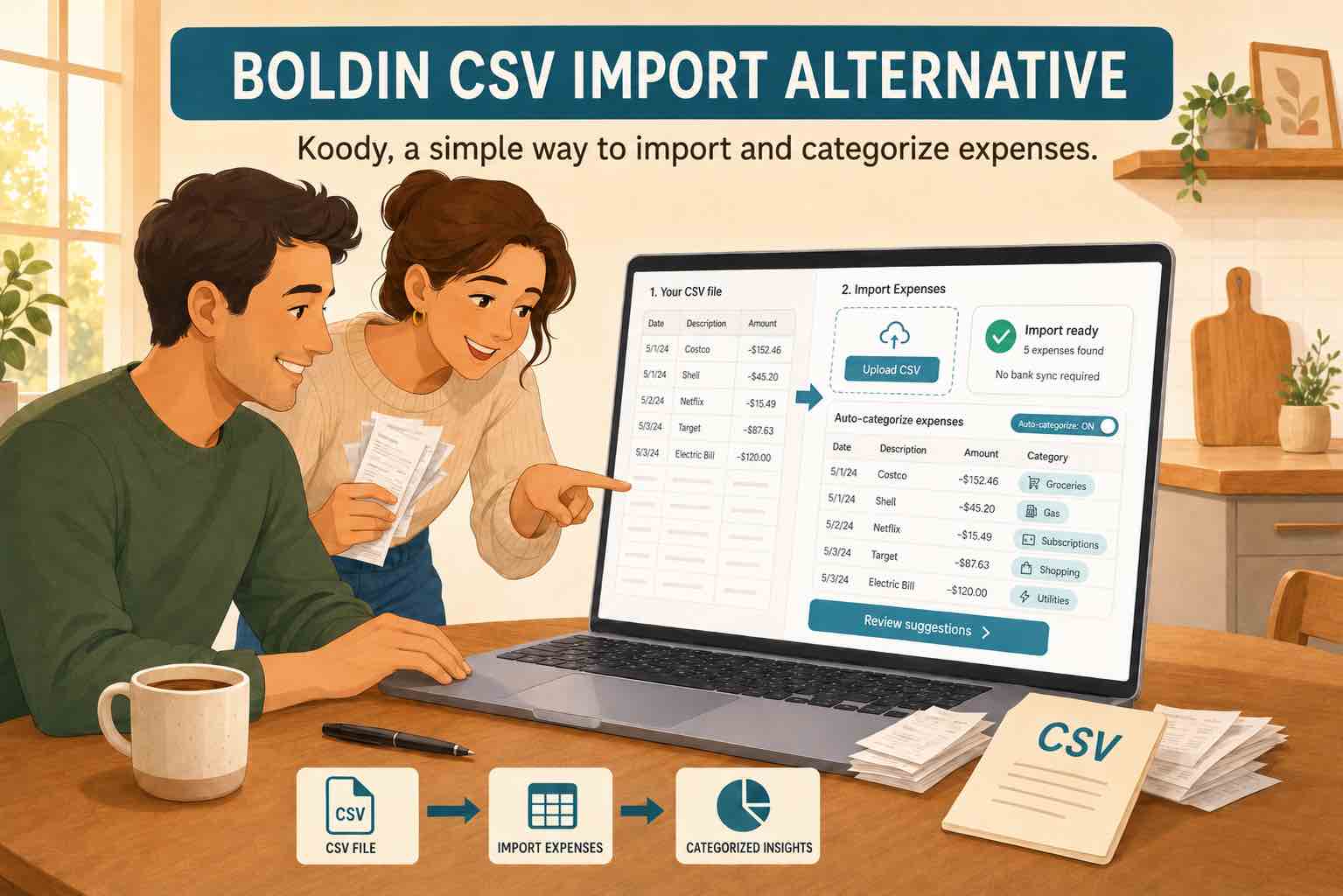
Need to import expense CSVs before planning in Boldin?
Your expense history may already be sitting in a file: a bank CSV, a credit card export, a spreadsheet, or an older budgeting app export.
That file is valuable because it shows what actually happened. But raw files are rarely ready for decisions. Merchant names are noisy, transfers can distort spending, refunds get mixed in, and recurring bills hide inside hundreds of rows.
Koody helps turn that file into spending data you can read, review, and trust.
Turn bank and card CSVs into cleaner transactions
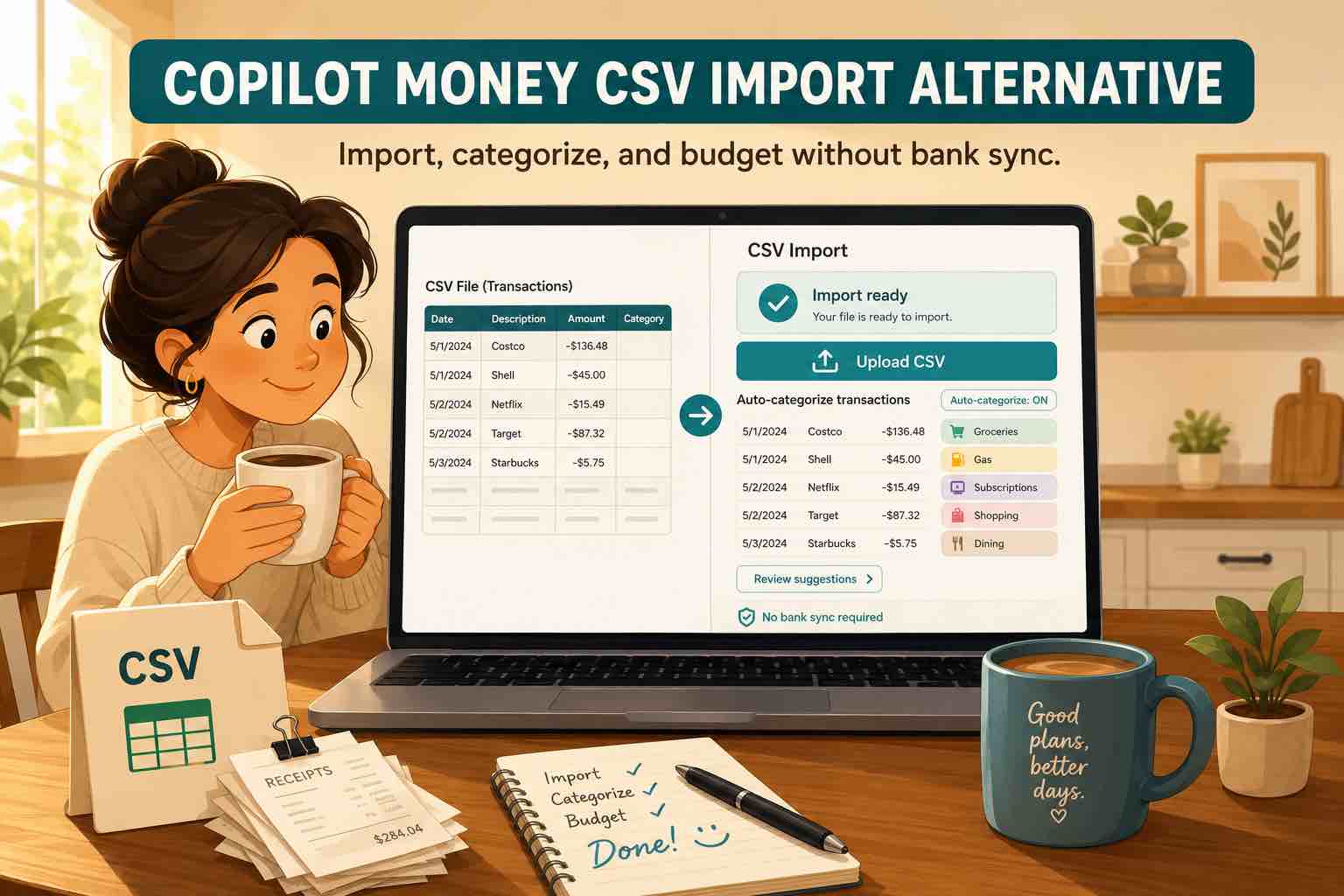
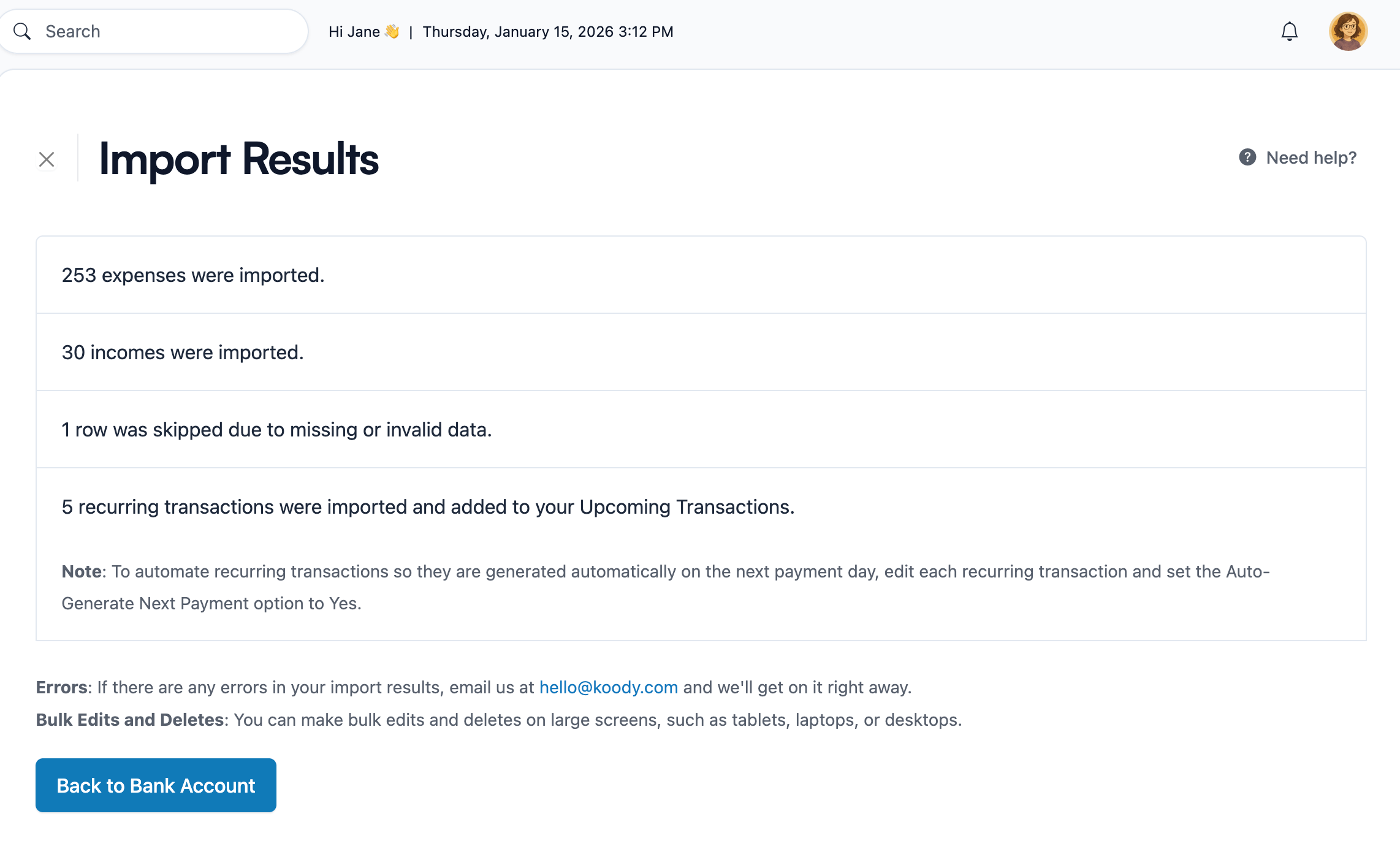
Bring in bank statement CSVs, credit card CSVs, and spreadsheet exports without connecting a live bank feed first.
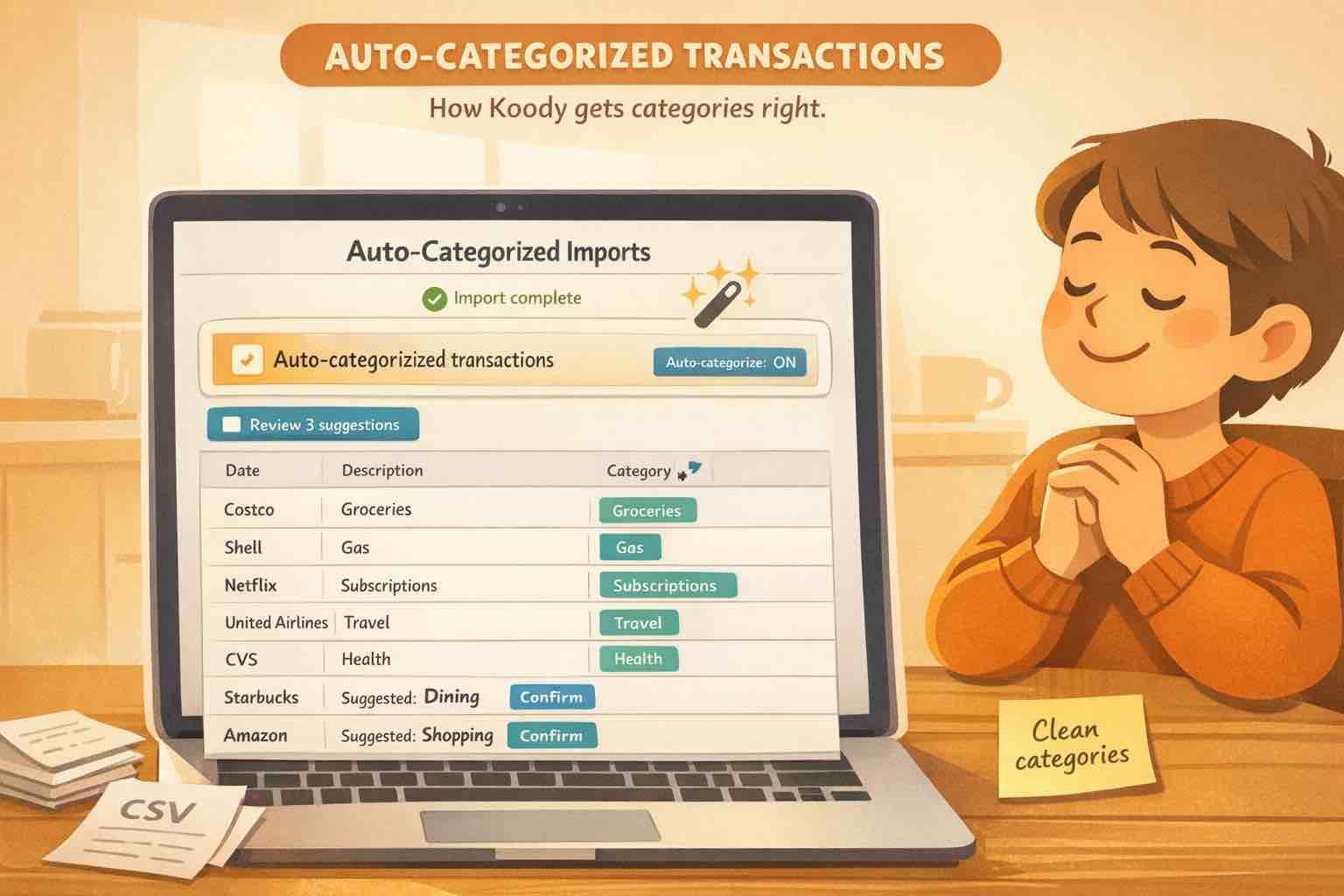
Koody imports the transaction rows, cleans descriptions, and auto-categorizes expenses so you are not staring at raw statement text.
That gives you a cleaner base before you estimate monthly expenses, compare spending categories, or update a larger plan.
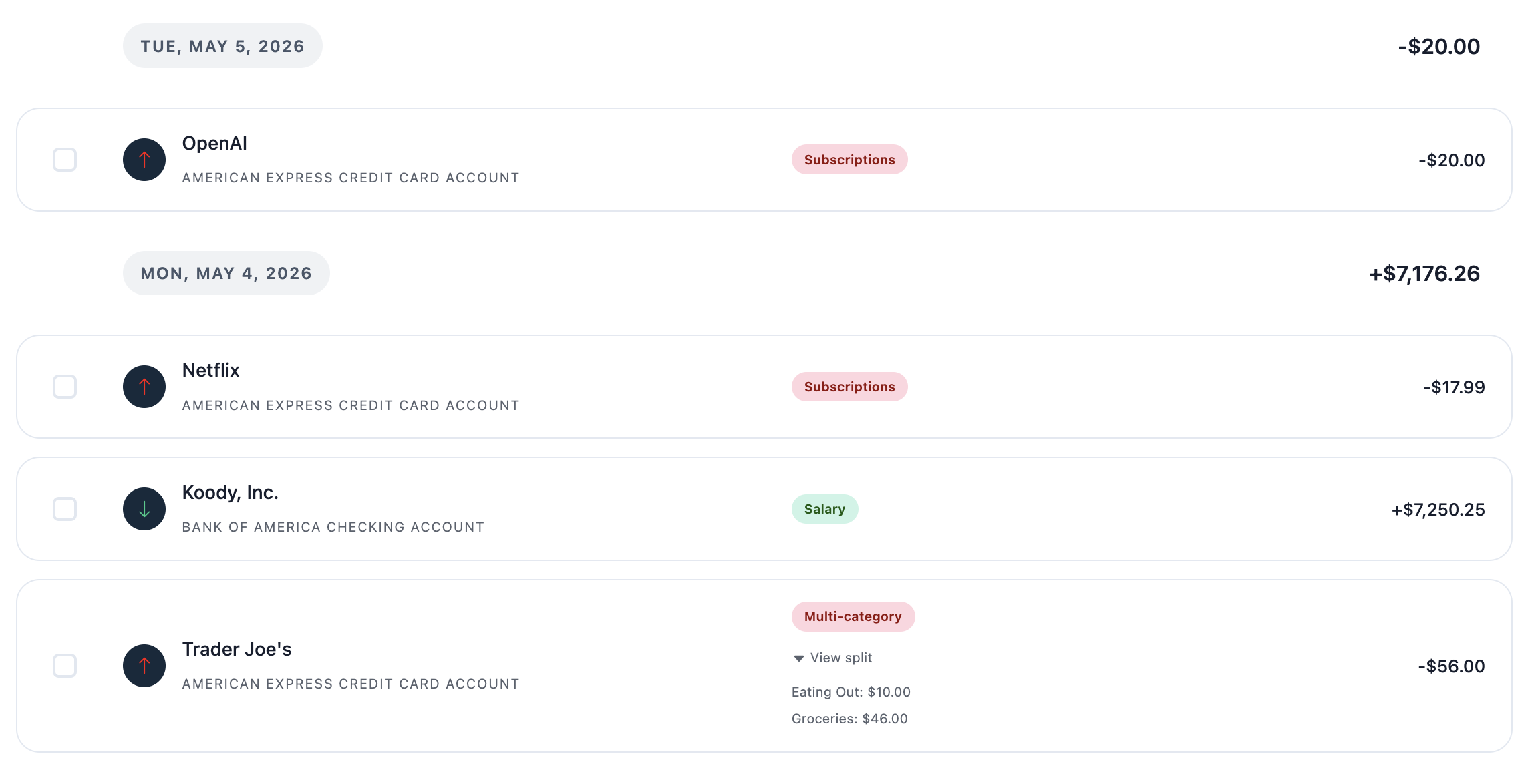
See what you actually spend before you plan ahead
Planning with guesses can make every future projection feel fragile. Planning with reviewed transaction data gives you a better starting point.
Use Koody to group spending by category, spot repeat charges, and review the accounts behind the numbers. When you understand the spending history, it is easier to decide what belongs in a plan.
If your starting point is an Excel or Google Sheets file, Koody can also help you move from spreadsheet maintenance to a cleaner spreadsheet budgeting alternative.
Catch transfers, refunds, subscriptions, bills, and duplicates
Expense files usually contain more than simple purchases.
- Transfers: money moving between accounts that should not inflate spending.
- Refunds and credits: money coming back that changes the true cost.
- Subscriptions and bills: recurring charges that quietly shape monthly spending.
- Duplicates: repeat rows from overlapping date ranges or repeated exports.
- Category patterns: groups of spending that should be reviewed together.
Koody helps surface these details after upload, so you can review the data before treating it as your real expense picture.
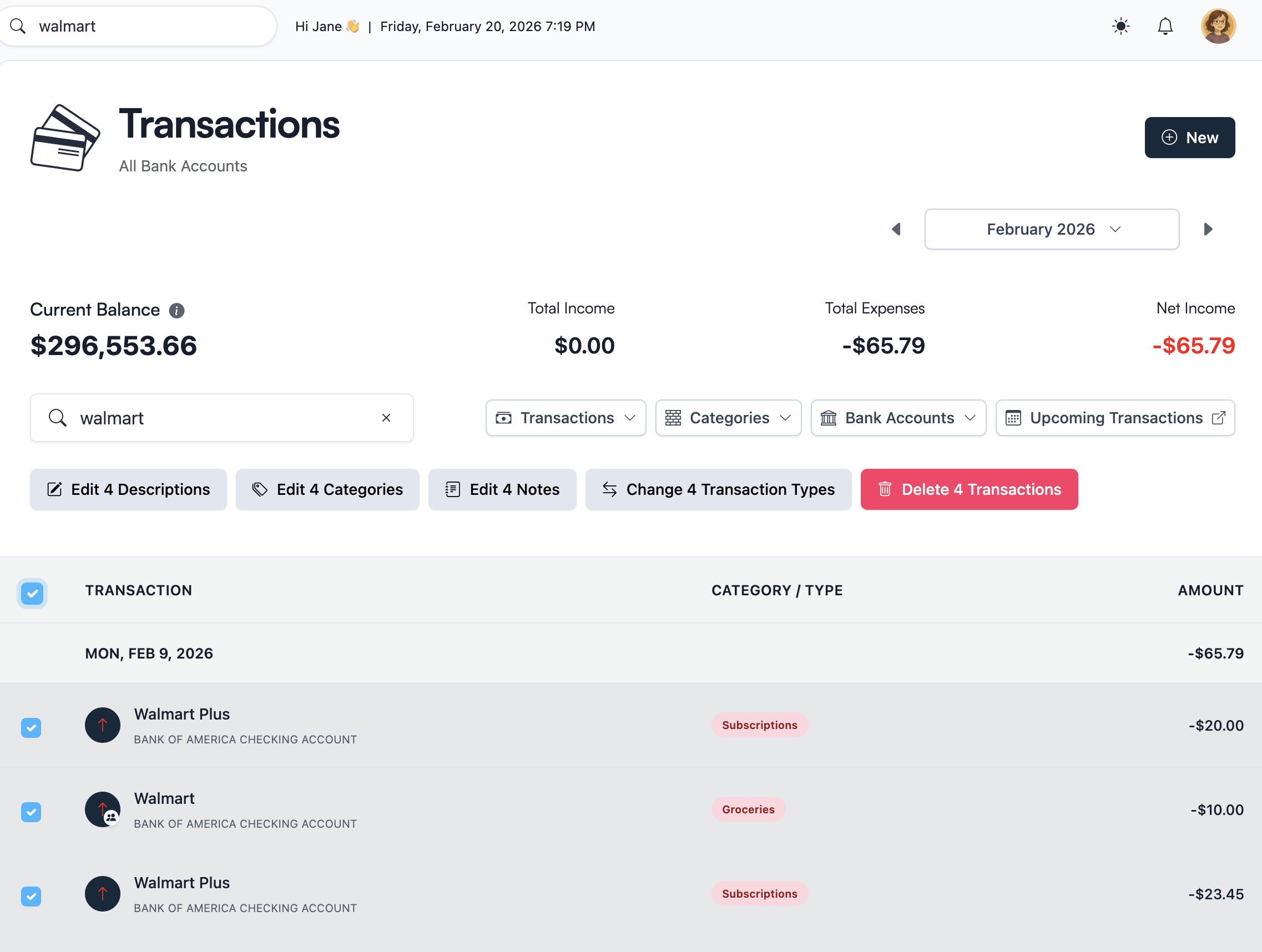
Use bulk edits when the same merchants repeat
Older spending history often repeats the same cleanup problem again and again.
One merchant may appear with several statement descriptions. One category may need to change across dozens of rows. One note pattern may apply to a whole set of transactions.
Koody lets you bulk edit repeated merchant, category, note, and cleanup patterns so you are not fixing every row one by one.
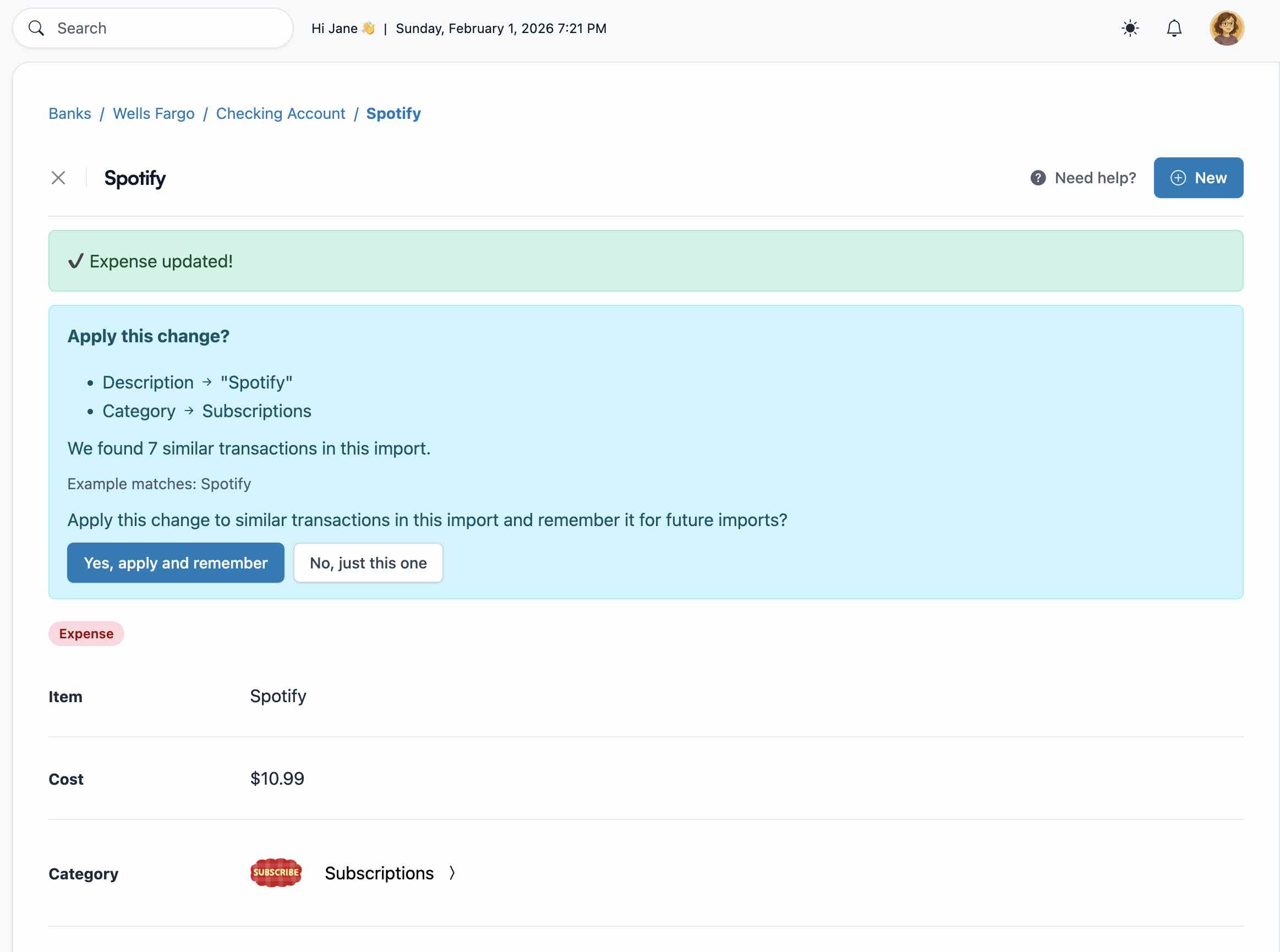
Let Koody remember useful edits for next time
The best import cleanup should not restart from zero every month.
When you make useful corrections in Koody, those preferences can help future imports get cleaner. That matters if you review spending monthly, quarterly, yearly, or whenever you need updated numbers.
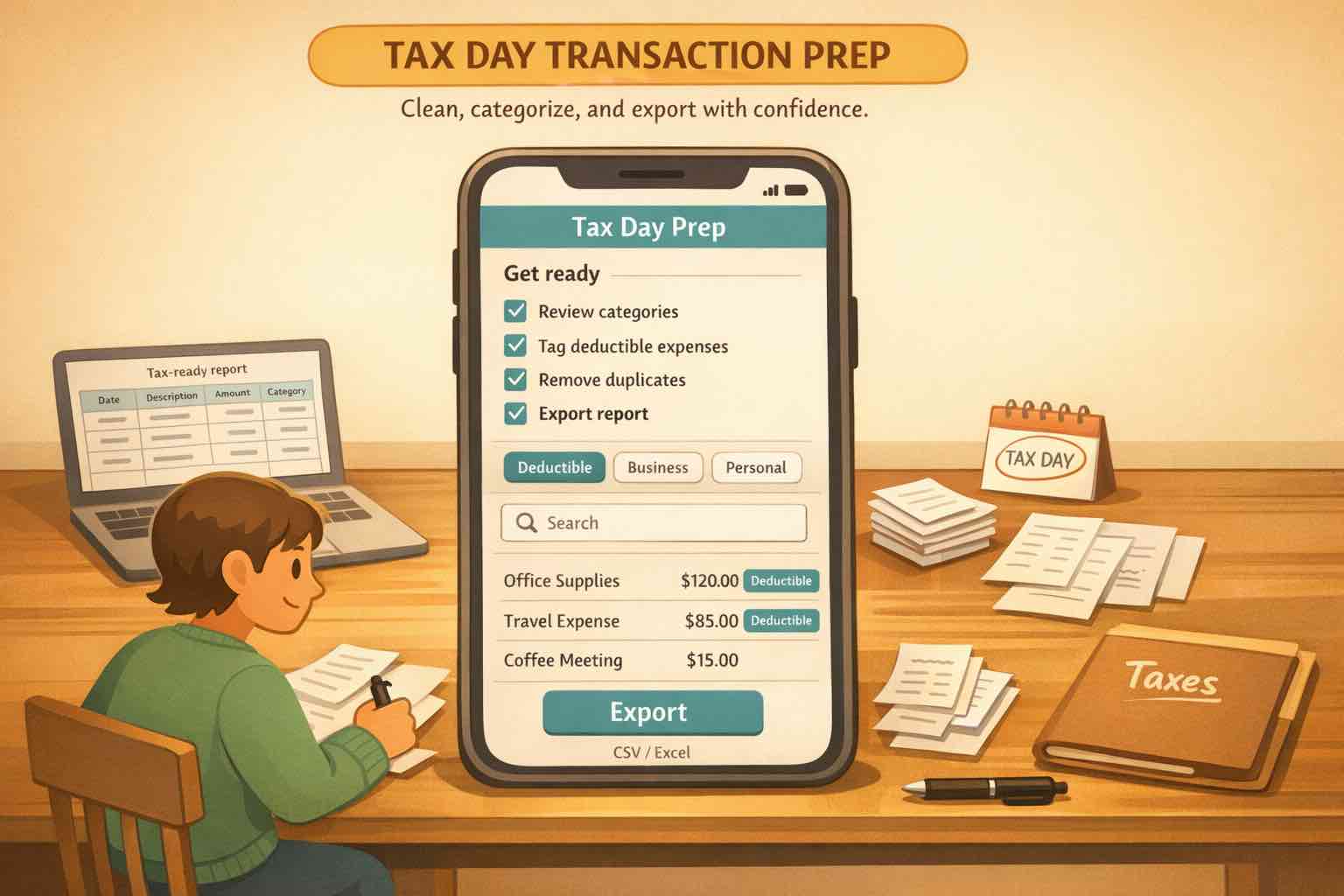
You can also export transactions from Koody when you need records for spreadsheets, tax prep, or another planning tool.
Use Koody AI to understand your spending
Importing expenses is only useful if the numbers help you make better decisions.
Koody AI can help you ask practical questions about spending, understand patterns, and make sense of the transaction history you imported.
That gives you more than a file upload. It gives you a cleaner place to review what your money has actually been doing.
Where Boldin and Koody fit together
If your goal is long-term planning, Boldin is built around planning inputs. If your immediate problem is expense CSV cleanup, Koody is built around importing and reviewing transaction files.
| Need | Boldin | Koody |
|---|---|---|
| Expense planning | Built for retirement and long-term planning inputs. | Clean real spending history before those numbers shape a plan. |
| CSV expense import | Built around planning inputs, not messy transaction files. | Import bank, card, spreadsheet, and app-export CSVs. |
| Bank and card files | Best when the expense inputs are already ready to use. | Import bank statement CSVs and credit card CSVs directly. |
| Spreadsheet exports | Useful after the file has already been cleaned elsewhere. | Bring Excel or Google Sheets transaction exports into Koody for review. |
| Cleanup | Planning tools still need clean expense numbers. | Clean merchant names, categories, duplicates, transfers, refunds, bills, and subscriptions. |
| AI help | Useful for planning questions. | Ask Koody AI about spending patterns in the transactions you imported. |
| Best fit | People focused on retirement projections and planning scenarios. | People who need cleaner expense CSVs before using the numbers for planning. |
Start cleaning your expense CSVs in Koody
If your spending data is already in files, start there.
Upload the CSV, review cleaner transactions, and use real spending history with more confidence.
Clean expense CSVs in Koody
Import bank statements, credit card CSVs, spreadsheet exports, and older transaction files. Koody cleans descriptions, auto-categorizes expenses, helps you review duplicates, and gives you Koody AI when you need help understanding the numbers.
Start cleaning expense CSVsFAQs
1. Can I import expense CSVs into Koody?
Yes. Koody imports expense CSVs from banks, cards, spreadsheets, and older transaction files, then helps you review the cleaned results.
2. Can Koody import bank and credit card CSVs?
Yes. You can import bank statement CSVs and credit card CSVs into the matching Koody accounts so checking, savings, and card activity stays organized.
3. Can Koody clean merchant names after import?
Yes. Koody helps turn noisy imported descriptions into cleaner merchant names, so spending is easier to scan before you use the numbers for planning.
4. Will Koody auto-categorize imported expenses?
Yes. Koody auto-categorizes imported expenses after upload and lets you adjust categories when something needs correction.
5. Can Koody identify transfers, refunds, bills, and subscriptions?
Yes. Koody helps you review transfers, refunds, recurring bills, subscriptions, duplicate imports, and category patterns after your CSV is uploaded.
6. Can I use Koody before updating a retirement plan?
Yes. Use Koody to import and review real spending history first, then use cleaner expense numbers wherever you plan your future.
7. Can I export cleaned transaction data later?
Yes. Koody supports transaction exports as CSV, Excel, and JSON, so you can save records or use them elsewhere when you need them.
8. Is CSV import a paid feature in Koody?
Koody's free plan supports manual budgeting. Transaction imports are part of Koody Plus, which includes bank statement imports, auto-categorization, recurring transaction detection, and advanced Koody AI.
Ready to try it? Open Koody and start cleaning expense CSVs.