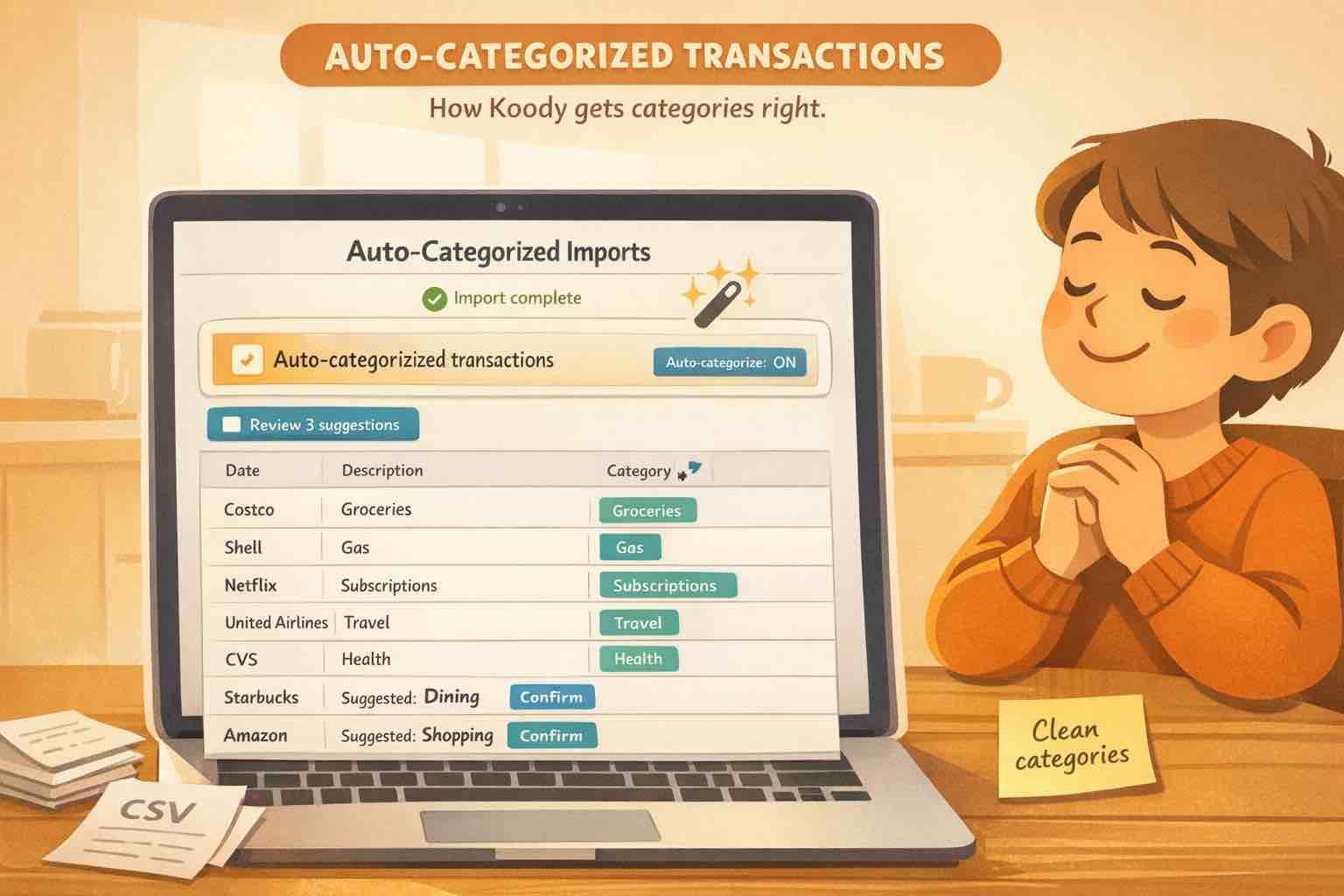
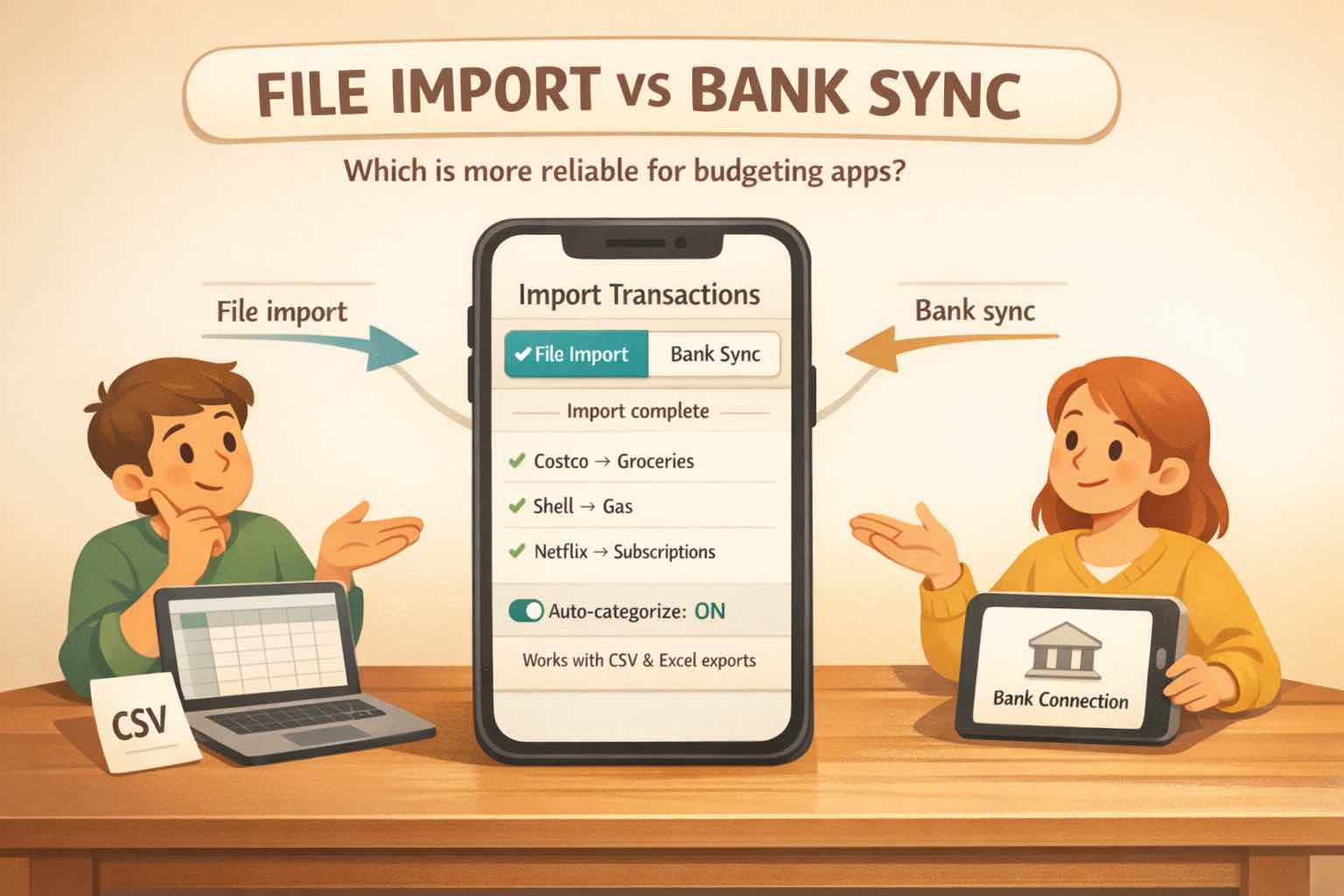
A practical guide to how Koody auto-categorizes imported transactions and where review still matters.
At A Glance
People do not want a budgeting app that dumps everything into the General category, but they also do not want to babysit every transaction. Koody auto-categorizes imported transactions so your first review starts with a useful spending breakdown, not a blank slate. Then you can bulk-fix what is off and save the cleanup for future imports.
A lot of people searching for a budgeting app with automatic categorization are really asking a simpler question: will this save me time without making me distrust the numbers?
That is the right question. Good auto-categorization is not about pretending the app is psychic. It is about getting you to a clean, usable first pass quickly, then making the exceptions easy to review.
In Koody, auto-categorization sits inside the import workflow because that is where most people first bring in real transaction history. This post focuses on what happens after the file lands: how Koody makes the first pass, where that works well, and where your judgment still matters.
What Auto-Categorization Actually Means
In Koody, auto-categorization is a first pass, not a demand that you accept every guess forever.
The goal is to turn imported transaction data into something you can review quickly. That means you should be able to upload a CSV or bank statement and immediately see useful category totals instead of facing a raw transaction list full of cryptic merchant strings and uncategorized rows.
This matters because people rarely want to spend their money-review time doing clerical work. They want to answer questions like:
Where did most of my spending go this month?
Which charges are clearly subscriptions, bills, or transfers?
What looks wrong enough that I should fix it now?
Auto-categorization earns its keep when it shortens that path. The next question is how Koody gets to that first pass in the first place.
How Koody Makes The First Pass
Koody does not just stare at one raw description string and hope for the best.
During import, it first cleans up messy statement data so transaction descriptions are easier to read and easier to reason about. Then it uses practical signals such as merchant names, amounts, and common patterns to place transactions into sensible categories.
In plain English, here is what Koody is doing during that first pass:
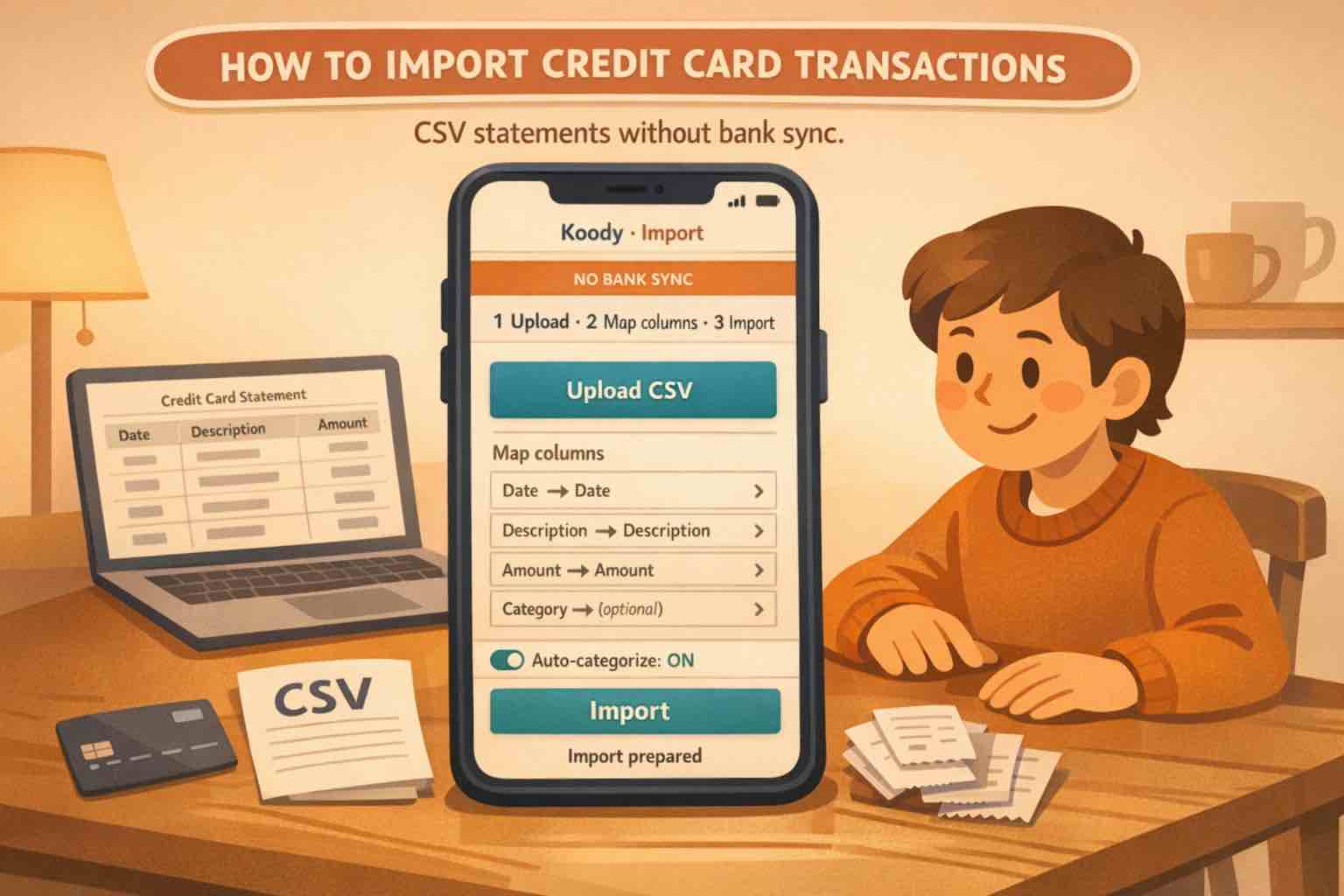
It reads the CSV, statement, or export file you uploaded.
It cleans up noisy descriptions so merchants are easier to recognize.
It uses your file's Category column if it already exists and you want to keep it.
Otherwise, it assigns categories based on the cleaned merchant information and import patterns.
It surfaces the results in a form you can review and bulk-fix quickly.
That sequence matters because category guesses are much easier to trust after merchant cleanup than before it. You are reviewing a cleaner transaction list, not trying to decode raw bank text and judge categories at the same time.
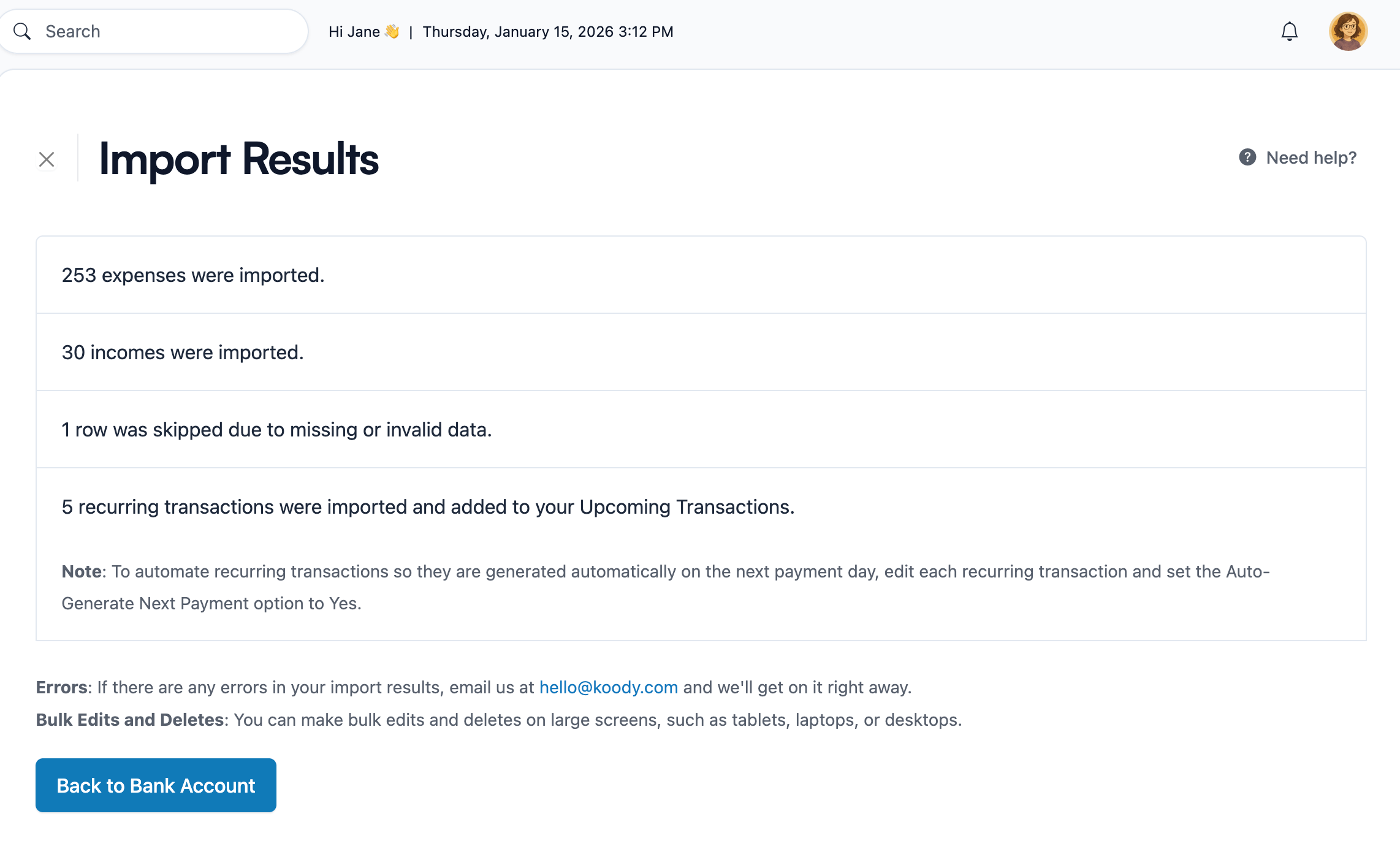
Koody gives you a quick import summary so you can see what was categorized and what needs attention.
Where Auto-Categorization Helps Most
Auto-categorization tends to help most where spending is repetitive enough to be recognizable and broad enough that you mainly care about the right bucket, not a perfect merchant biography.
Common merchants such as grocery stores, subscriptions, utilities, travel brands, and large retailers.
Repeated bank or card imports where the same merchants keep appearing.
Spreadsheet or CSV migrations where you want fast category totals before you do any cleanup.
Transaction histories where the real problem is noisy merchant descriptions, not missing amounts or dates.
This is also why CSV import and auto-categorization work well together. The file gives Koody the transaction history, and the categorization layer gives you a useful first review.
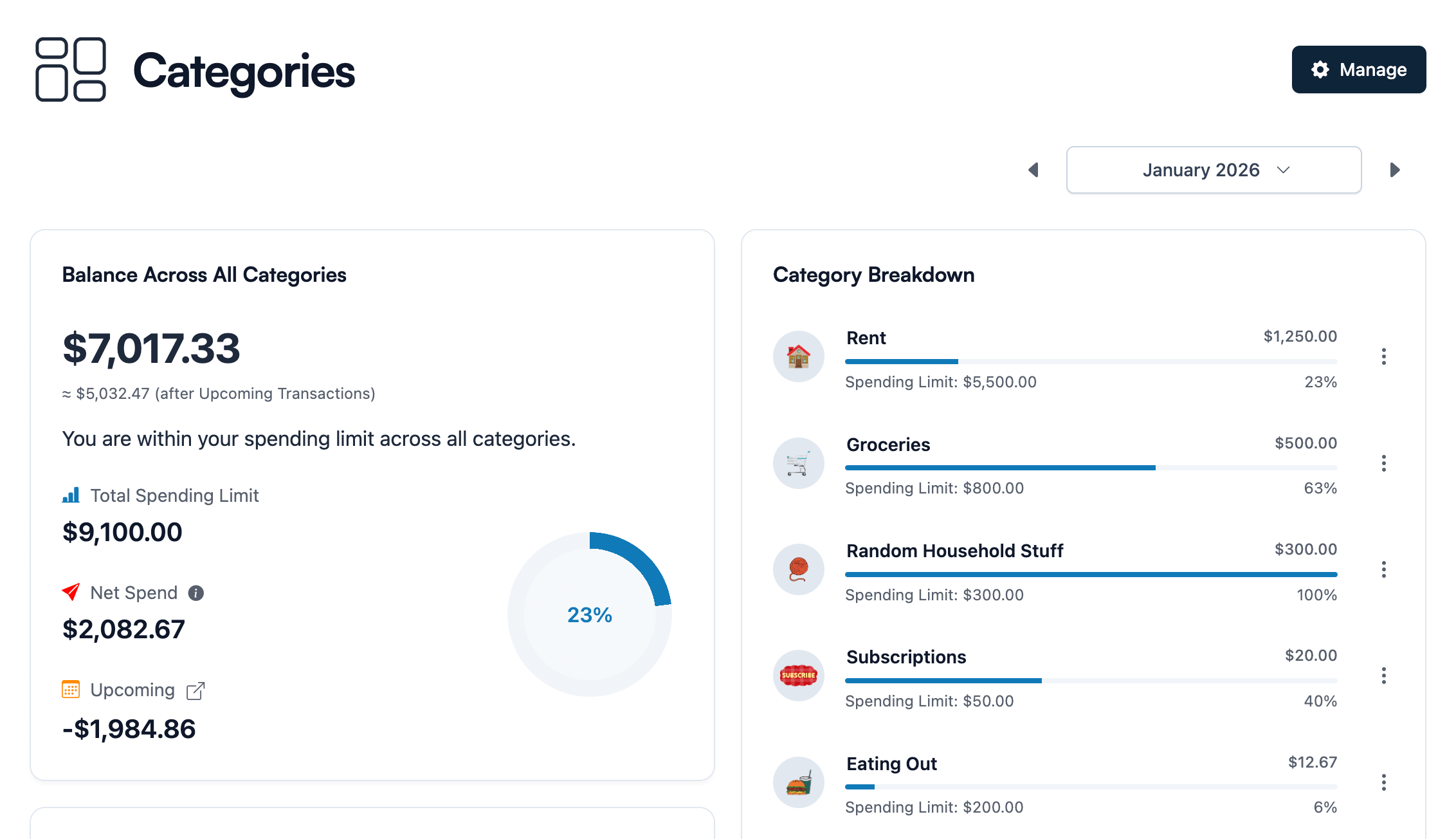
The Categories tab gives you a quick read on where money went after import.
Where Review Still Matters
The honest answer is that no budgeting app should make you stop thinking altogether.
Review still matters most in edge cases:
Local merchants or new vendors with unclear bank descriptions.
Payment-processor strings that hide the real merchant.
Transfers, credit card payments, and reimbursements that can distort spending if they are treated like ordinary purchases.
One-off expenses where your personal category preference matters more than a general default.
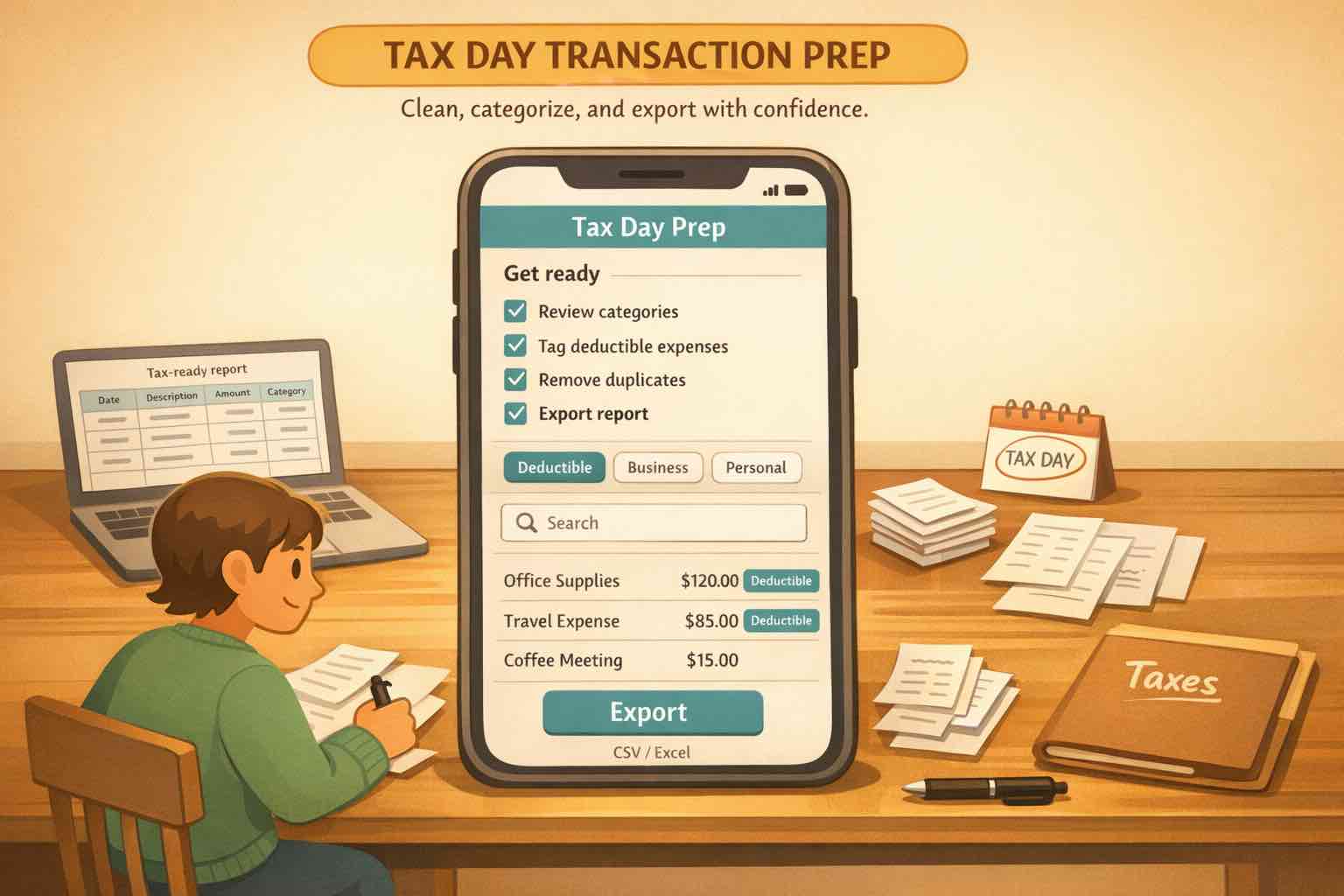
Tax-sensitive records where you want cleaner bookkeeping than a broad consumer category can provide.
That is why Koody's goal is not to pretend every import is perfect. The goal is to get the obvious parts right, isolate the ambiguous parts, and give you fast tools for the rest. That matters even more when you need cleaner bookkeeping for tax filing, where the standard is stricter than an ordinary monthly review.
Once you know what needs attention, the important question becomes how fast you can fix it.
How To Fix Categories Fast
The fastest way to lose trust in auto-categorization is when fixing one mistake creates ten minutes of tedious cleanup.
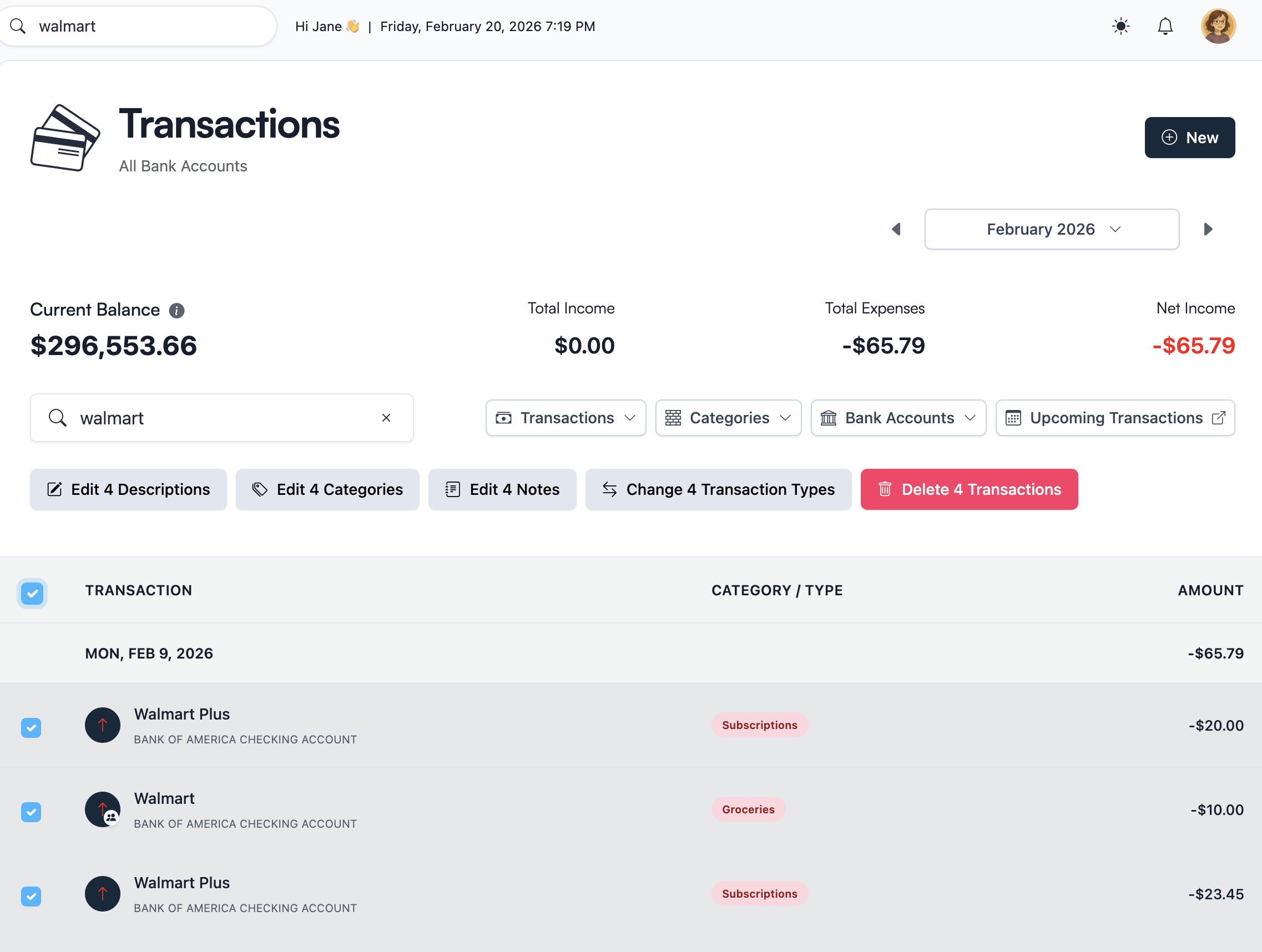
Koody avoids that by giving you bulk edit tools instead of forcing you to open and correct transactions one by one.
That matters in the real scenarios people actually hit:
A merchant comes in under three slightly different names.
A batch of transfers should be grouped and marked consistently.
A whole run of purchases belongs in one category instead of another.
A category is technically fine, but not how you think about your money.
Bulk edit lets you correct those patterns in one pass instead of reopening and fixing transactions one by one.
Most of the time, that is enough. But sometimes the issue is not a wrong category at all. It is one transaction that honestly belongs in more than one place.
Bulk edit is what turns an okay first pass into a practical monthly workflow.
Split Transactions Across Multiple Categories
Some category problems are not really mistakes. They are mixed purchases, which is a different job from simply recategorizing a merchant.
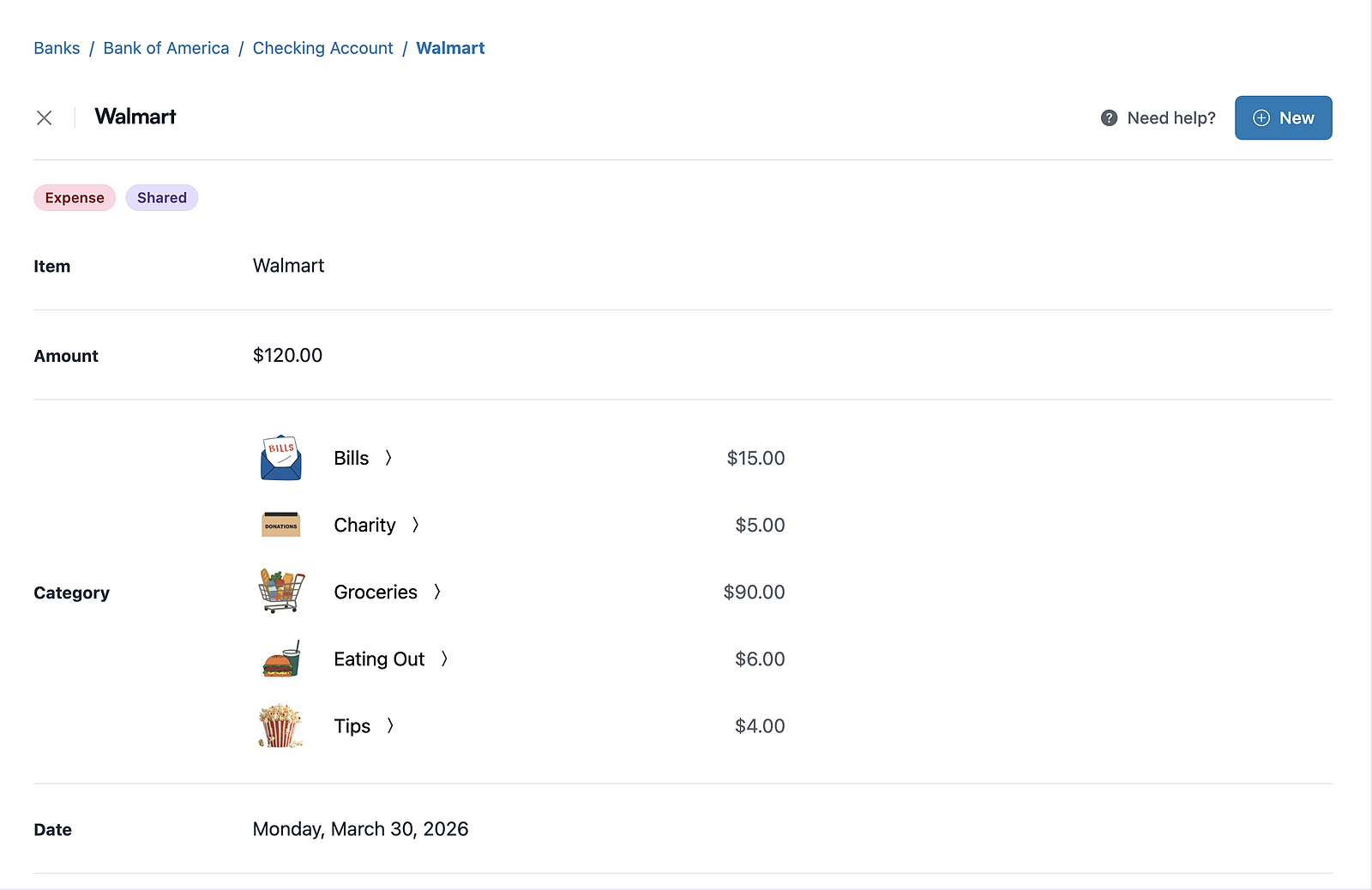
That is where split transactions matter. If one imported transaction genuinely belongs in more than one category, such as a warehouse-club purchase that mixes groceries, household items, and pharmacy spending, the cleanest answer is not to force the whole charge into one bucket.
In Koody, you can open that transaction, edit it, turn on split mode, and enter one category row per part of the purchase. The split rows must add up exactly to the full transaction total before you can save.
A single Walmart transaction split across Bills, Charity, Groceries, Eating Out, and Tips inside Koody.
This feature is important because auto-categorization is designed to give you a strong first pass, not to flatten every real-world edge case into one label. Split mode gives you a way to keep your reports honest when a single payment crosses category lines.
One important limitation is that bulk category edits do not support split transactions. If a transaction needs to be split, the right workflow is to open that specific transaction and edit the split rows directly.
Once you have corrected categories, whether with bulk edit or split mode, the next question is whether Koody can save that work from repeating itself next month.
How It Gets Better Over Time
A good first pass is helpful. A first pass that improves over time is much better.
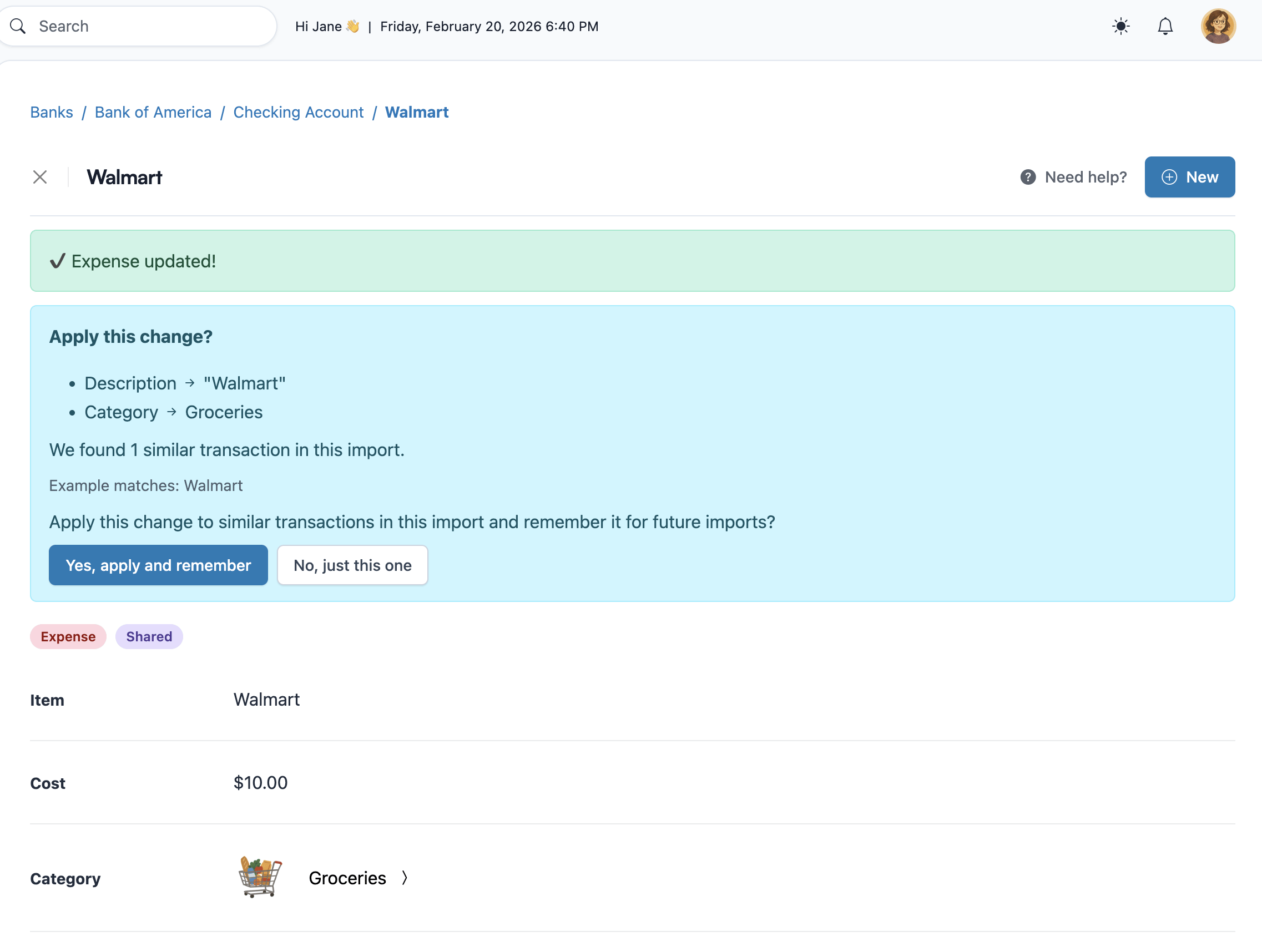
That is where Import Edit Persistence matters. If you fix a merchant name, a category, or both after import, Koody can remember that edit and reuse it on future imports.
In practice, that means your monthly cleanup can shrink instead of repeating itself forever. The point is not just “AI categorization.” The point is steadily reducing repeat work while keeping you in control.
For most people, that is the real win: fewer recurring corrections, cleaner merchant names, and categories that start feeling more aligned with the way they actually budget.
And that only feels useful if the automation still stays optional and visible, which is why manual control matters just as much as smart defaults.
Saved import edits help future category guesses stay closer to your preferences.
What If You Want More Manual Control?
Auto-categorization is helpful, but it should not erase work you already did or push you into a structure you do not want.
If your CSV already includes a Category column, Koody can use it as the starting point instead of categorizing from scratch. That is useful if you are moving over from a spreadsheet or another app and do not want to throw away your existing structure.
It is also fine to use Koody more manually. Some people want the first pass for obvious merchants, then prefer to review everything else themselves. Others want to import, fix a batch, and save those edits so the next import is calmer. Both are valid.
The practical test is simple: does the workflow leave you with a category view you trust more quickly than doing it all by hand? If yes, the system is working.
FAQs: Auto-Categorization In Koody
1. Will Koody automatically categorize imported transactions?
Yes. When you import a CSV or bank statement into Koody, Koody automatically categorizes your transactions so you get a useful spending breakdown quickly instead of starting from a blank list.
2. How does Koody decide what category a transaction belongs in?
Koody uses the imported description, merchant cleanup, common spending patterns, amount context, and similar signals to make a practical first pass. If your file already includes a Category column, Koody can use that instead of guessing.
3. What if Koody puts a transaction in the wrong category?
You can fix a single transaction or bulk edit a whole group at once. If you want that cleanup to carry forward to future imports, you can save the edit through Import Edit Persistence.
4. Does Koody learn from my category changes over time?
Yes. If you choose to save an import edit, Koody can remember the corrected description, category, or both for future imports, so you do less repeat cleanup next month.
5. Can I keep the categories already in my CSV?
Yes. If your CSV already has a Category column, Koody can use those categories as a starting point instead of auto-categorizing from scratch.
6. Do I need bank sync for auto-categorization to work?
No. Koody's auto-categorization works on imported CSV files and bank statements, so you can keep a file-based workflow and still get a smart first pass.
If you want to see this on real transaction data, create a Koody account and upload a recent CSV or bank statement. The fastest way to evaluate auto-categorization is to run it on the merchants you already spend with every month.