If you used Mint for years, it is normal to feel a bit lost now. You had all your transactions in one place, your categories were dialed in, and your budgets more or less made sense. Then Mint changed direction, or shut down for you, and suddenly you are searching for Mint substitutes and trying to figure out where all that history should live.
Koody is built for exactly this moment.
It is a Mint alternative that does not force you to link bank accounts, can work in a more offline, manual-first way, and still gives you smart features like automatic categorization and AI-powered insights. If you have ever typed, "What app automatically categorizes transactions like Mint?" into a search bar, this guide is for you.
In this article, we will walk through, step by step:
- Exporting your data from Mint or using the CSV backups you already have.
- Importing that Mint CSV into Koody.
- Rebuilding your categories and budgets in a way that fits your life now.
- Making your new setup even better than what you had before.
What You Need Before You Start
You do not need anything fancy to move from Mint to Koody, but a bit of preparation makes the process smoother.
You will want:
- A Mint export in CSV format. Ideally, this includes your transactions. If Mint is already gone for you, use any CSV exports or backups you downloaded earlier.
- A Koody account. Sign up, confirm your email, and go through the basics so Koody knows your main currency and starting point.
- Thirty to sixty minutes of quiet time. Enough to upload your file, map the columns, and set up a fresh budget that matches your current reality.
Once that is in place, you are ready to move.
Step 1: Export Your Mint Data To CSV
If you still have access to Mint, or to a Mint archive from before things changed, the first step is to get your data into a CSV file.
In Mint, or in your Mint backup, you will usually see:
- A Transactions export (this is the most important part).
- Sometimes CSVs for things like Budgets, Categories, or Tags.
For our purposes, the transactions CSV is the key. That is where all your real history lives: dates, merchants, amounts, and categories.
When you export or open your old Mint CSV, you will typically see columns like:
- Date
- Description or Original Description
- Category
- Amount (sometimes split into separate Credit and Debit columns)
- Account Name
- Notes or Tags
You do not have to obsess over every column. Koody's CSV import is flexible and will let you map whatever Mint gives you into the fields Koody needs.
If Mint is already fully shut down for you and you do not have an export, do not panic. You can still start clean in Koody and build from today forward, but if you do have even one big CSV export, the rest of this guide will help you squeeze as much value out of it as possible.
Step 2: Review And Tidy Your Mint CSV File
Before you upload anything into Koody, it is worth opening your Mint CSV in a spreadsheet tool and giving it a quick once-over.
You are mainly looking for:
- Weird header rows. Sometimes exports include an extra title line above the actual column names. Delete any rows that are not real data.
- Empty or broken rows at the top or bottom. If there are blank lines, totals, or summaries, remove them. Your file should be one header row plus clean data.
- Date format sanity. Check that your dates are consistent, for example, all using the same MM/DD/YYYY or YYYY-MM-DD style. Koody will do its best to detect and parse your dates, but consistency always helps.
- Category column presence. If Mint exported a Category column, keep it. It gives you a history of how you used to think about your spending. You can import these as-is or map them into Koody's categories, then refine them over time.
You do not need the CSV to be perfect. Koody is designed to work with messy, real-world exports. You just want to avoid obvious junk rows that you know you never want to see again.
Step 3: Import Your Mint CSV Into Koody
Now for the satisfying part: bringing your Mint history into its new home without fiddling with columns or spreadsheets.
In Koody, importing a Mint CSV is simple: you upload the file, and Koody does the heavy lifting behind the scenes. There is no manual column mapping, no guessing which header means what, and no need to clean things up line by line.
Upload Your Mint CSV File
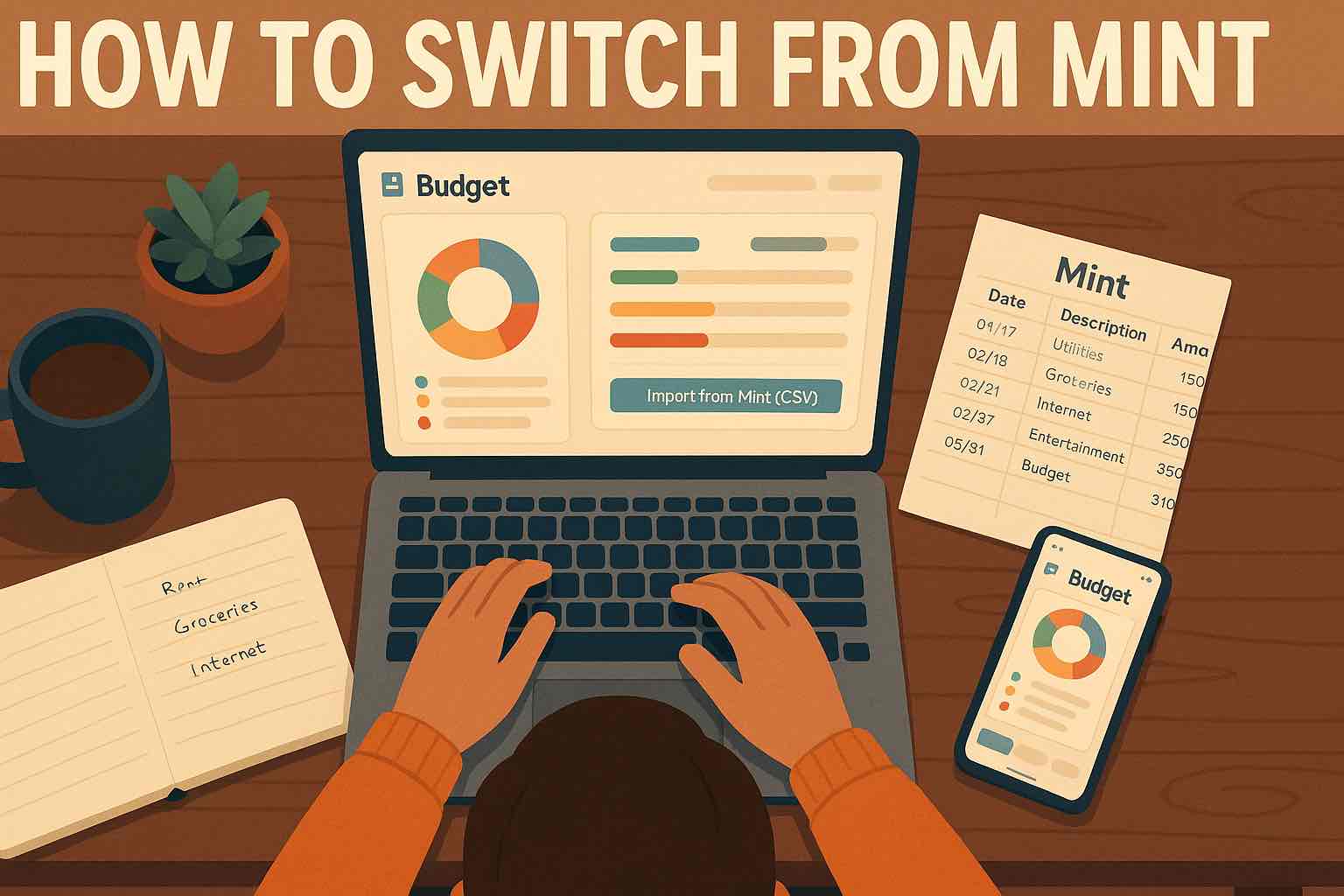
Open Koody and go to your overview or transactions area. Choose the option to import bank transactions, pick your Mint export from your computer, and upload it. That is it. As soon as the file is uploaded, Koody starts processing it in the background.
What Koody Does Automatically
After upload, Koody:
- Detects the right separator, date format, and amount format for your file.
- Strips out obvious junk rows such as duplicate headers and totals.
- Normalizes merchant names so that similar-looking descriptions are grouped together.
- Automatically categorizes transactions based on merchant, amount patterns, and your existing setup.
- Identifies likely recurring transactions such as subscriptions, rent, or regular bills.
You do not have to tell Koody which column is the Date or which one is the Amount. The importer is built to recognize common Mint-style exports and make sensible decisions up front so you can focus on reviewing, not configuring.
Review With Bulk Edit And Koody AI
Once the import is processed, you land in the relevant bank or cash account screen, where you can see how Koody categorized and grouped your Mint transactions. If something does not look right, navigate to the Transactions tab to use the bulk edit tools to:
- Change the category for a whole group of similar transactions at once.
- Reassign a recurring payment to a different category or goal.
- Tweak a handful of edge cases without touching the rest of the file.
As you make changes, Koody learns from your edits so future imports get smarter. Over time, the importer will recognize your preferences and apply them automatically to similar transactions.
If you get stuck or are not sure where a group of transactions should go, you can open Koody AI right inside the app. Ask questions like, "How should I categorize these?", "Is this really a subscription?", or "What is the simplest way to group these transactions?", and let the AI coach you through the decisions.
The result is a clean, categorized history imported from Mint with far less effort than starting from scratch, and a workflow that keeps getting easier every time you bring in a new CSV.
Step 4: Rebuild Your Budgets In Koody
Importing your data is only half the job. The real power comes from rebuilding your budgets in a way that fits your life now, not three years ago when you first set up Mint.
Start With A Simple Monthly Budget
In Koody, create a fresh monthly budget with just the categories that actually matter to you:
- Fixed essentials such as rent or mortgage, utilities, insurance, and transport.
- Flexible essentials such as groceries and fuel.
- Lifestyle categories such as eating out, shopping, subscriptions, and hobbies.
- Goals such as savings, debt payments, and sinking funds.
Instead of trying to recreate every single Mint category, think of this as a chance to simplify. Koody is manual-first, so you are free to design a structure that is easy to maintain.
Map Mint Categories To Koody Categories
Next, look at the categories that came over from Mint, if you imported them.
Combine overly specific Mint categories into simpler Koody categories. For example, "Coffee Shops," "Restaurants - Lunch," and "Restaurants - Dinner" might all roll into "Eating Out." Keep only the distinctions that actually change decisions. If it does not affect how you spend or save, it does not need its own category.
Over time, you can refine categories as you see how the numbers actually show up in Koody. The goal is to make your budget easier to review on a Sunday afternoon, not harder.
Step 5: Make Your New Setup Even Better Than Mint
Once your data is in and your budget is rebuilt, this is where moving away from Mint becomes an upgrade, not just a replacement.
Attach Receipts And Extra Details Going Forward
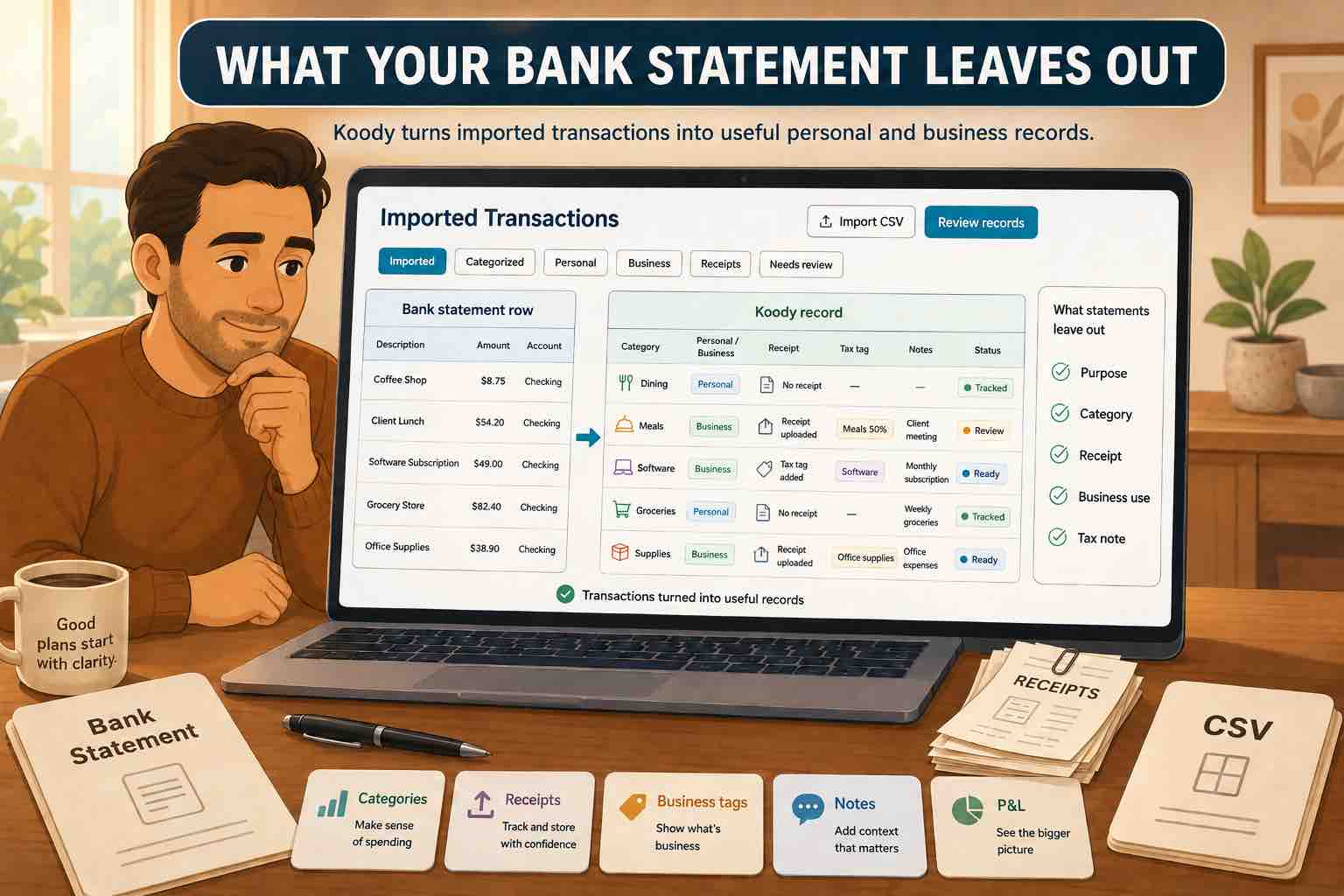
Mint treated most transactions as simple rows in a table. In Koody, you can go further, especially if you use the receipts feature:
- Attach a photo of the receipt to big or important purchases.
- Add notes about what a purchase really was, such as "Work trip - can expense fifty percent."
- Tag things that matter to you, such as kids' activities, side hustle, or tax-deductible expenses.
Your transaction history becomes much more useful when it carries context, not just numbers.
Let Koody AI Look At Your Old Mint Data
If you have been curious about "Mint AI budget" style features, Koody has its own take: an AI that sits inside your budget and can look at your real numbers.
Once your Mint transactions are imported, you can ask questions like:
- "How did my eating out spending change this year compared to last year in Mint?"
- "What would happen to my budget if I cut subscriptions by fifty dollars a month?"
- "Can I afford a weekend trip if I keep this month's budget as it is?"
Because Koody AI can see your actual imported transactions and current budget, it is not just guessing based on generic advice. It is reasoning about your situation.
Use Koody As A Mint Alternative Offline
One of the big pain points for many former Mint users is feeling like everything depended on constantly linking bank accounts.
Koody works well if you prefer to enter transactions manually, import CSVs periodically from your bank, or keep tighter control over what data you share and when. If you have been searching for a Mint alternative offline, this is where Koody really shines.
Our article on using Koody without bank linking explores this manual-first approach in more detail.
What You Lose Versus What You Gain
No migration guide is complete without being honest about what you lose and what you gain along the way.
What You Might Lose
When you leave Mint, you may lose:
- Certain Mint-only metadata, such as app-specific tags or offers that do not have one-to-one equivalents in Koody.
- Automatic recreation of every historical Mint budget exactly as it was defined.
- Old alerts and notifications that were specific to Mint.
Those things can be frustrating to let go of, but most people find that they were not what actually drove better decisions.
What You Gain In Koody
In exchange, you gain:
- A clean, flexible budgeting structure that matches your life today.
- Manual-first control, with CSV imports and optional automation instead of forced account linking.
- Richer context with receipts, notes, and tags attached to important transactions.
- An AI assistant that talks to your actual budget and helps you understand what is going on before you make decisions.
Moving from Mint is not just about copying everything over. It is a chance to rebuild a system that actually supports how you want to manage money now.
FAQs: Moving From Mint To Koody
1. Can Koody automatically categorize transactions like Mint?
Yes. If you want it to, Koody can automatically categorize imported transactions based on merchants, amounts, and your past edits. You can import Mint's existing categories and keep them, or let Koody learn your preferences over time and auto-categorize future imports.
2. Do I have to link my bank accounts to use Koody?
No. Koody is built to work well even if you never link a bank account. You can import CSVs from your bank or from Mint, enter transactions manually, and use Koody as more of an offline or manual-first budgeting tool.
3. What if I cannot export from Mint anymore?
If Mint is already fully shut down for you and you do not have any CSV exports, you still have options: start fresh in Koody and build a budget for the next thirty to ninety days, use your bank's own CSV exports going forward, or recreate only the big patterns you remember, such as debt payments, savings, and major bills. You lose some historical detail, but you gain clarity and control going forward.
4. Will Koody import my old Mint budgets automatically?
Your transactions will come over via CSV. Your exact old Mint budgets, as they were defined in Mint, will not automatically show up as a separate structure in Koody. Instead, you can use your imported history to see what you actually spent in each category and build a new budget that reflects your current goals.
5. How does Koody compare to other Mint substitutes?
Koody is different in three important ways: it is manual-first and bank-agnostic, it has strong CSV and receipts support for historical data, and it includes Koody AI, an assistant that can see your real numbers and help you plan, not just a generic chatbot.
If you have read this far, you are exactly the kind of person Koody is built for: someone who cares about the details but does not want their whole financial life locked into one app ever again.
Ready to move on from Mint? Start tracking your spending and rebuilding your budget in Koody today.