The month ends. You download your bank statement CSV, open Excel or Google Sheets, and tell yourself this time will be quick.
Then the import review starts.
A grocery store comes in under three different names. Amazon charges look cryptic. Transfers look like spending. Credit card payments make your totals look off. One formula breaks, and suddenly your whole spreadsheet budget feels fragile again.
That is the moment most people realize the spreadsheet is not the real problem.
The repeat import routine is.
Spreadsheets are great for planning. They are great for custom reports. They are even great for building your first budget. But once you are importing real transaction history every month, your budget can turn into a repetitive admin job that steals time and still leaves you second-guessing your numbers.
If you are looking for ways to auto-categorize bank transaction CSV files, categorize bank transactions in Excel, or make spreadsheet budget CSV imports easier to review, you are not looking for more manual work. You are looking for software that prepares the file, categorizes the rows, and helps you trust the result.
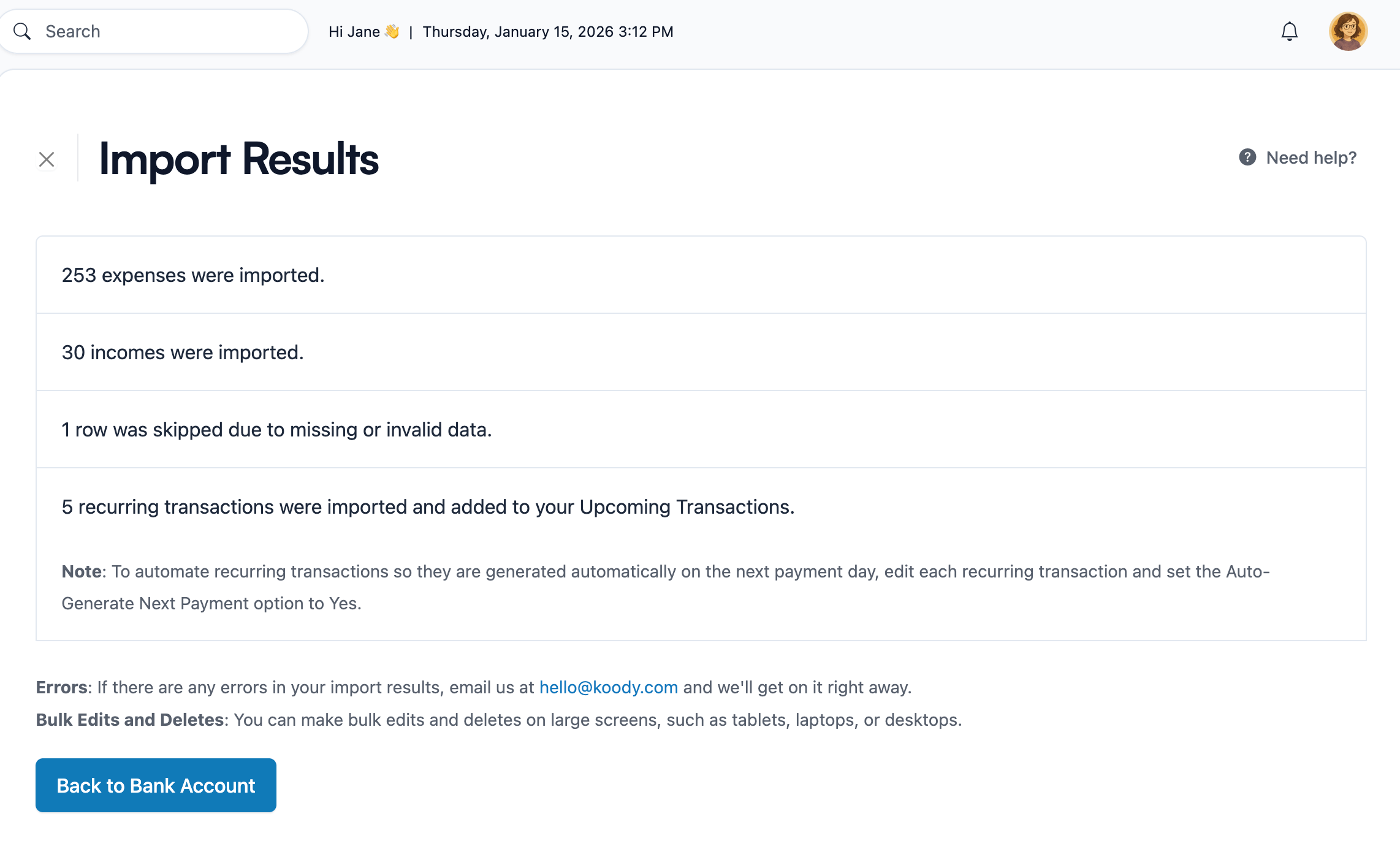
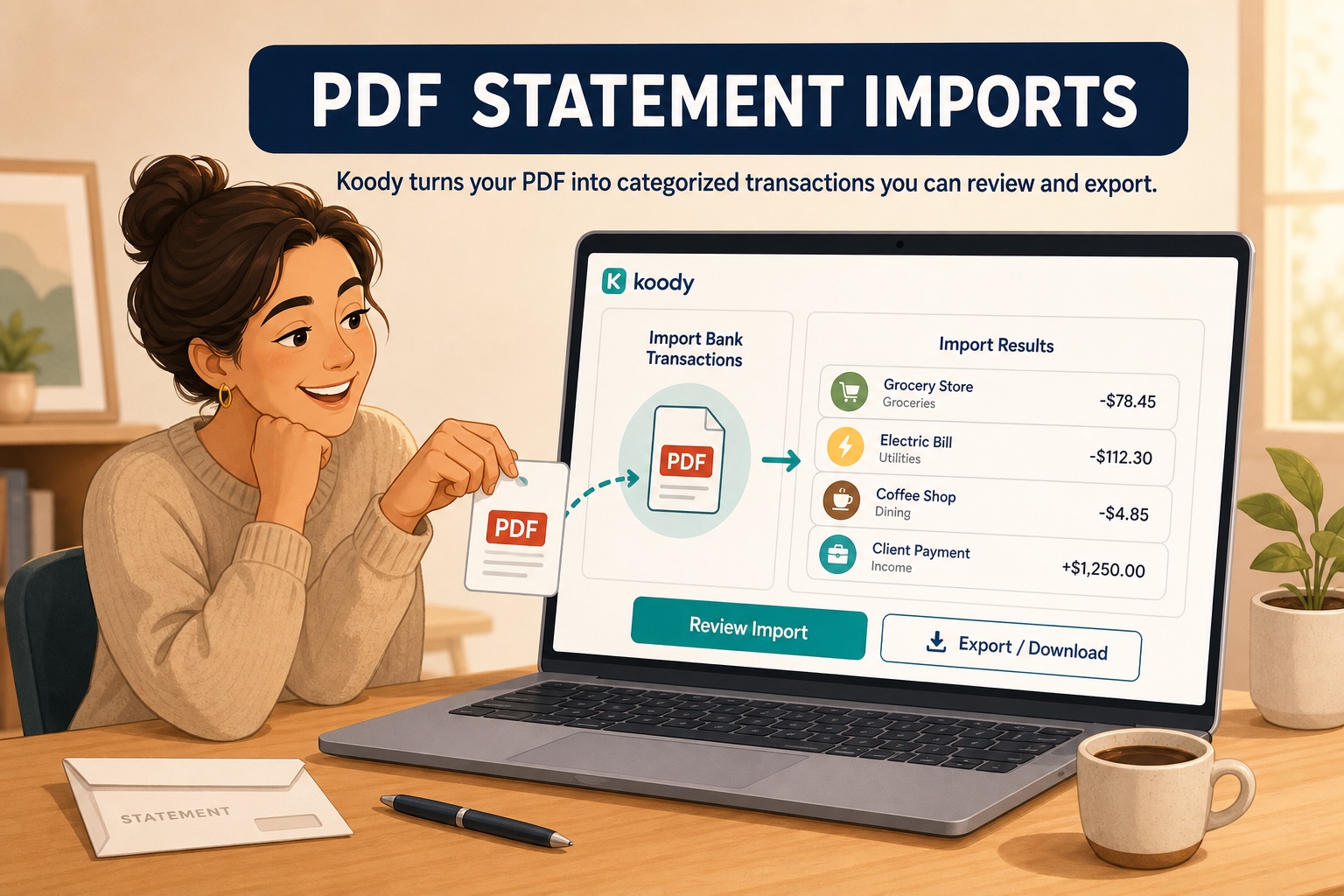
That is exactly what Koody is built for. You can upload bank statement CSV files, credit card CSVs, spreadsheet exports, or data from other apps. Koody cleans merchant descriptions, auto-categorizes imported transactions, identifies transfers, refunds, recurring bills, subscriptions, and duplicates, then gives you cleaner results to review.
Why spreadsheet budgeting becomes a monthly import task
The usual spreadsheet routine looks simple on paper:
- Export your bank or card transactions.
- Paste them into Excel or Google Sheets.
- Categorize each line.
- Update your totals.
- Repeat next month.
The problem is that real transaction data is messy.
Merchant names are inconsistent. Dates vary. Amount formats change. Transfers get mixed in with spending. Some rows need renaming before they make any sense at all. What started as a budgeting habit becomes a maintenance task.
That is why so many people hit the same wall with spreadsheet budget CSV imports. The import itself is not the hard part. The hard part is making the same merchants, categories, transfers, refunds, and duplicates make sense every month.
You should not need to spend your Saturday fixing transaction labels just to understand where your money went.
Why it is hard to categorize bank transactions in Excel
People search for ways to categorize bank transactions in Excel because Excel feels flexible and familiar. That makes sense. You can build whatever structure you want. You can add formulas, tabs, dropdowns, lookup tables, and dashboards.
At first, it feels powerful.
Then real life shows up.
A merchant changes its description. A local coffee shop appears as a payment processor string. A new vendor breaks your lookup logic. A transfer looks like an expense in one place and income in another. A copied formula misses a block of rows.
So now you are not budgeting. You are troubleshooting.
That is the core problem with trying to categorize bank transactions in Excel month after month. The tool gives you control, but it also makes you responsible for every repetitive import step. You become the parser, the categorizer, the error checker, and the backup plan when the sheet gets messy.
If your budget only stays accurate when you keep patching formulas, the process is already too brittle.
Why Google Sheets transaction categorization gets messy
The same thing happens when people try to make Google Sheets categorize transactions automatically. If you have ever wondered how personal finance apps categorize transactions, the practical answer is that the good ones clean the file first and then give you an easy way to review the exceptions.
Google Sheets is easy to open, easy to share, and easy to customize. That is why so many people start there. But once the transaction list grows, the process gets old fast.
You still have to normalize merchant names. You still have to map categories. You still have to catch transfers and payments. You still have to fix the same merchants over and over.
The result is a process that looks simple from a distance, but feels exhausting in practice.
If you are trying to categorize expenses from bank statement exports in Sheets, you are probably not asking for a bigger spreadsheet. You are asking for a way to keep control while removing repetitive labor.
How to auto-categorize bank transaction CSV files
If you want to categorize bank transactions automatically, the best answer is not to pile more formulas on top of a messy CSV.
It is to keep the part you actually like about spreadsheets, which is visibility and control, and let software built for transaction imports prepare the file for review.
Here is the smarter version.
1. Start with the CSV you already trust
Export your bank statement, credit card file, or spreadsheet as CSV.
That gives you a clean handoff point. You stay in control of when you update your budget, and you do not have to depend on live bank sync to decide what shows up and when.
Here is an example CSV file:
2. Import categorized transactions instead of starting over
A lot of people have already done the hard work of creating categories in Excel, Google Sheets, or another app. They do not want to lose that progress just because they are moving to a better import process.
That is why it matters that Koody can import categorized transactions when your file already has a Category column.
You are not forced to wipe the slate clean. You can bring your work with you, then improve the process from there.
3. Auto-categorize imported transactions
This is the part spreadsheet users usually want most.
They do not want to hand-tag every row forever. They want to auto-categorize imported transactions and use an app to categorize spending by account while stepping in only when something looks wrong.
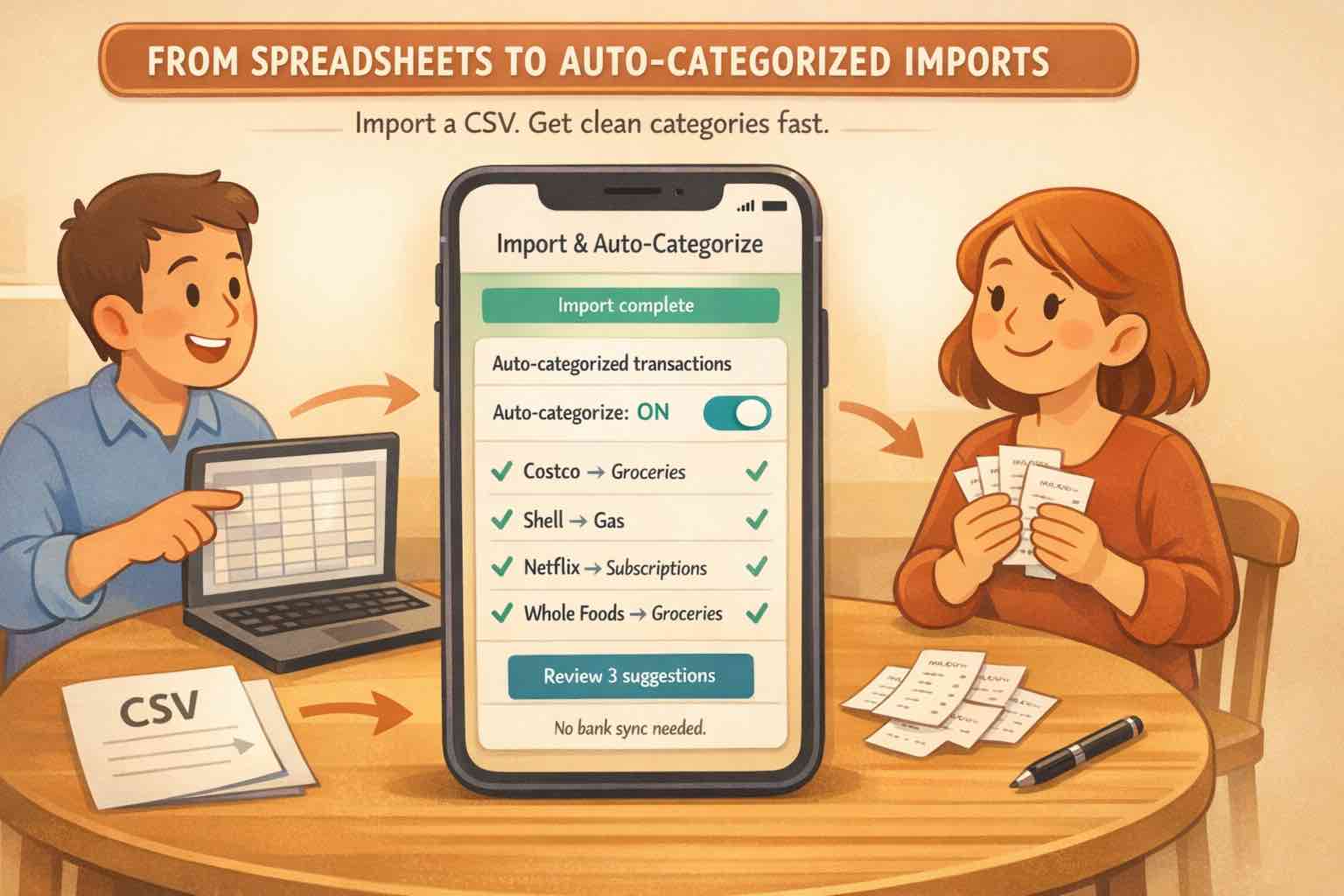
With Koody, you can upload a CSV and let the system clean descriptions, organize the data, and categorize transactions on import. That means less time staring at raw merchant strings and more time reviewing your actual spending.
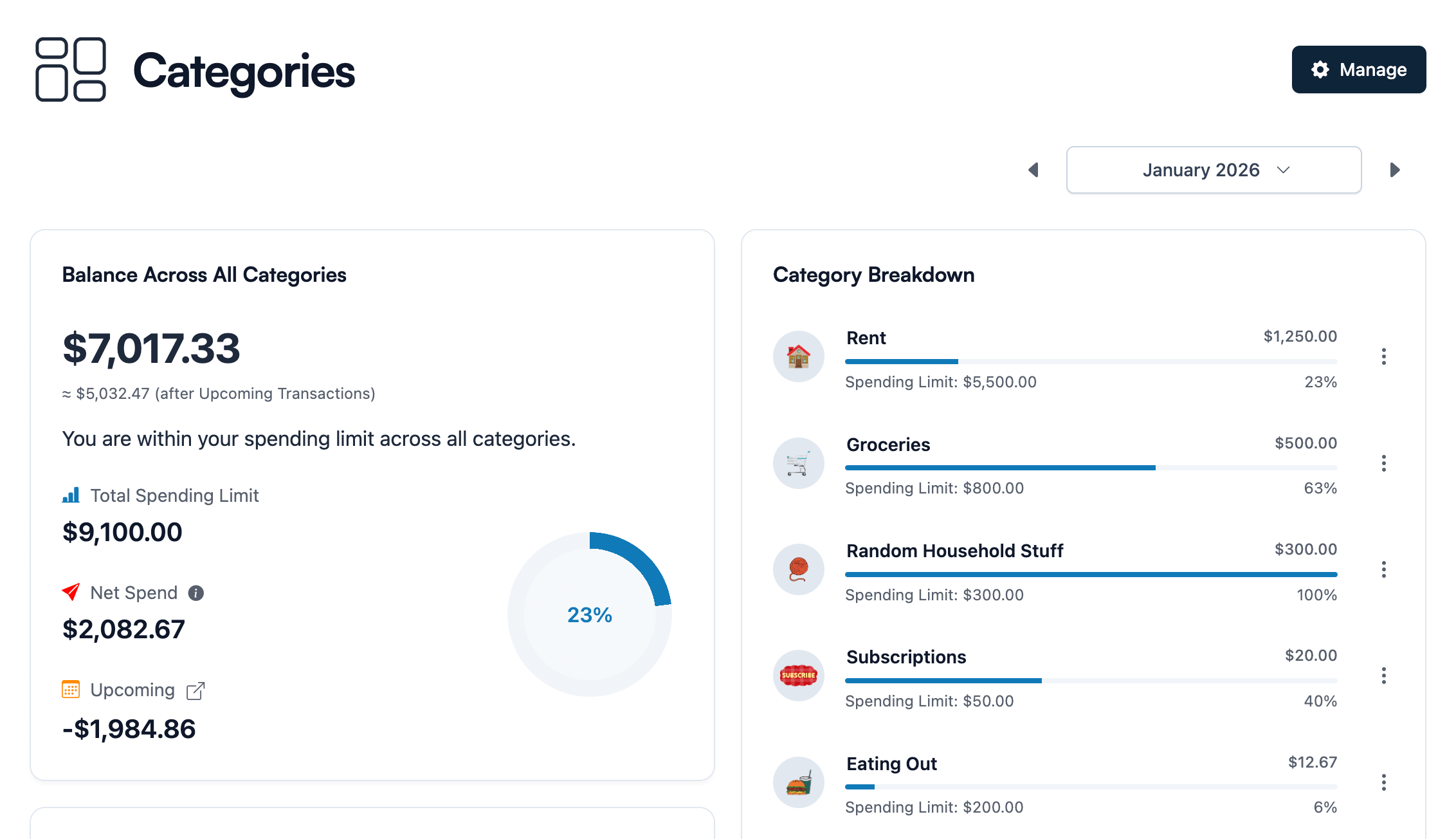
In other words, if your goal is to auto-categorize bank transaction CSV files without living in a spreadsheet, Koody gives you that path.
4. Bulk recategorize transactions instead of editing row by row
Repeated row-by-row editing is where spreadsheet budgets become exhausting.
One merchant comes in wrong. Then five more do the same thing. Then you realize your transfer logic needs to change. In Excel or Sheets, that often means editing row by row, fixing formulas, or rebuilding a helper tab.
That is exactly where Koody feels different.
You can bulk recategorize transactions, update descriptions in batches, mark transfers, and organize large groups of imported rows quickly. Instead of correcting one line at a time, you can fix the pattern and move on.
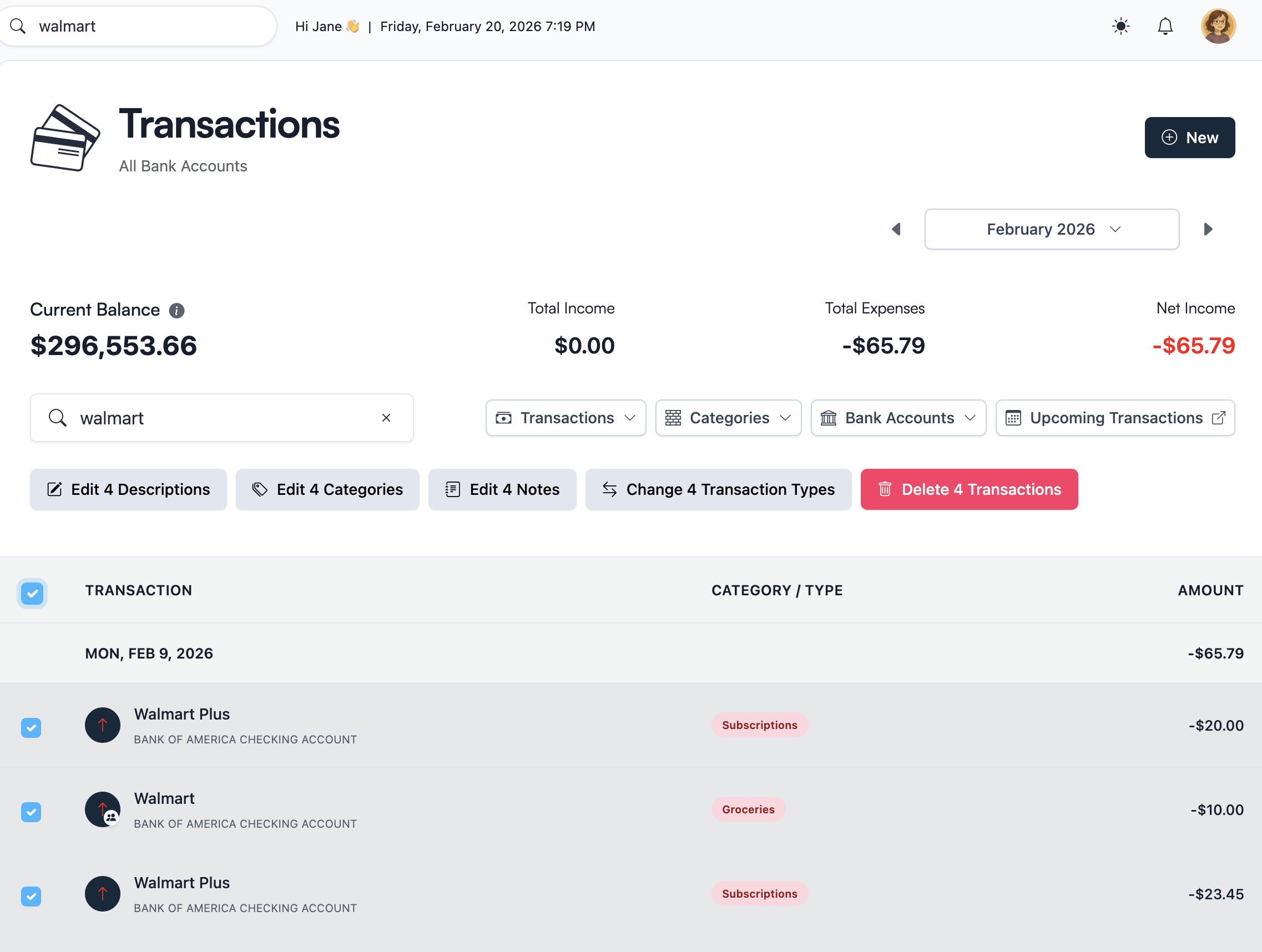
That is how a monthly review starts feeling manageable again.
5. Save useful edits for next time
One of the most frustrating parts of a spreadsheet import process is fixing the same merchant again next month.
You already cleaned it. You already categorized it. You already told your budget what it means.
So why are you doing it again?
Koody helps solve that by remembering useful import edits over time. When you adjust descriptions and categories, future imports can stay cleaner. That means repeat imports get easier the more you use Koody.
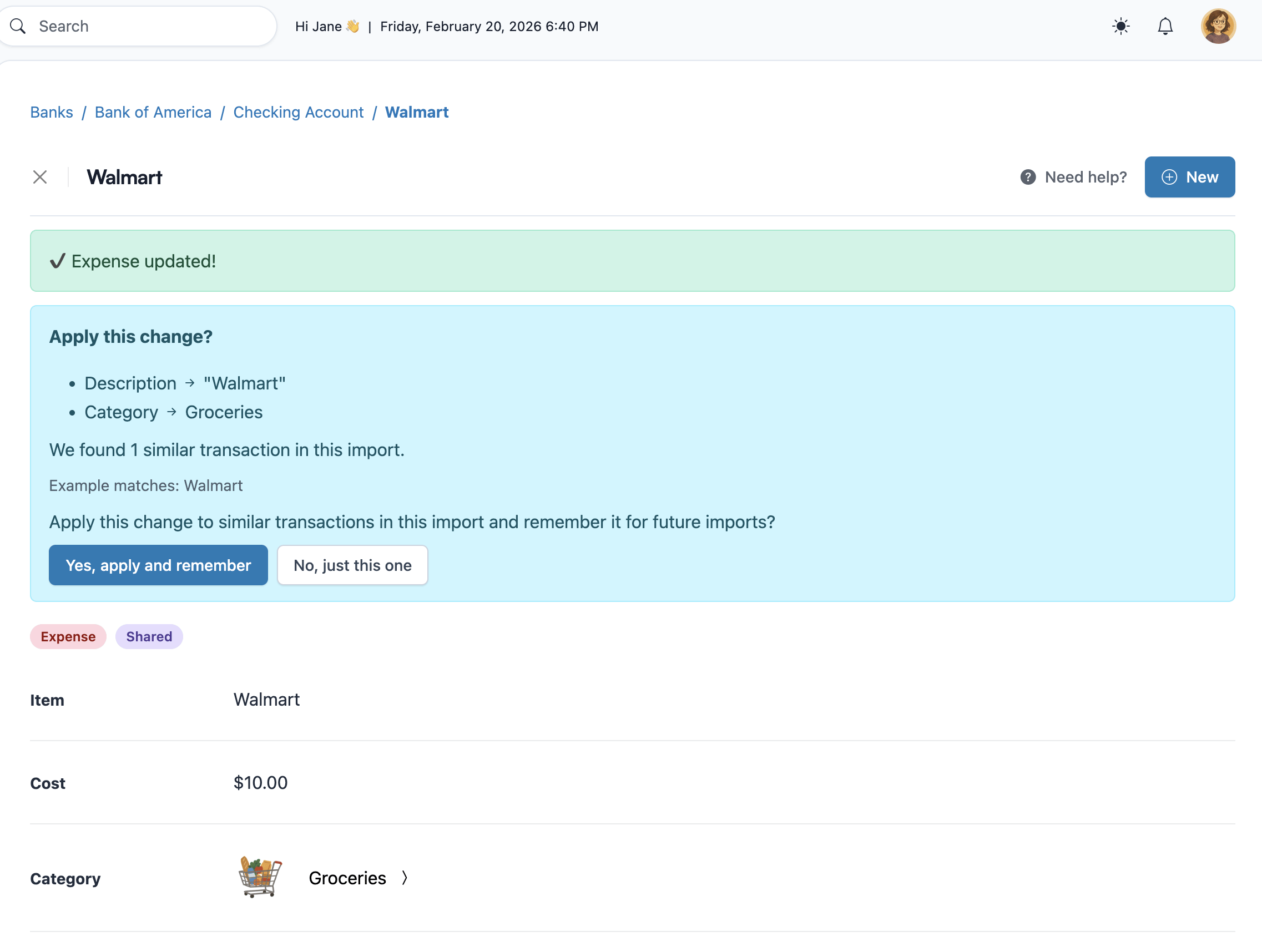
That is a big step up from a spreadsheet that depends on you to remember every rule yourself.
What to look for in a merchant rules budget app
A lot of people search for a merchant rules budget app when they are really asking a simpler question:
How do I stop recategorizing the same merchants every month?
That is the right question.
You do not need a flashy promise. You need import features that handle the real pain points:
- Messy merchant names.
- Category consistency.
- Transfers, refunds, and credit card payments.
- Bulk edits.
- Imports that get easier over time.
- Support for files that already include categories.
If a tool cannot do those things, it will not save you much time. It will just move your manual work somewhere else.
Koody is strong here because it does not ask you to choose between control and convenience. You can still import your own files, still review your data, still use your own categories, and still avoid bank syncing if that is your preference. Koody handles more of the repeated import work for you.
Why choose Koody for auto-categorization
Koody works well for spreadsheet budgeters because it solves the exact part of budgeting that tends to break first.
Not planning. Not visibility. Not category structure.
The monthly transaction import.
If you love the control of a spreadsheet but hate the work it creates, Koody gives you a better path:
- Upload a bank statement CSV or spreadsheet export.
- Let Koody clean merchant descriptions.
- Let Koody auto-categorize imported transactions.
- Identify transfers, refunds, recurring bills, subscriptions, and duplicates.
- Import categorized transactions when you already have categories.
- Bulk recategorize transactions when patterns need fixing.
- Save useful preferences so repeat imports get easier.
And if you still like planning ahead, Koody also gives you a cleaner budget planner experience without turning every month into a spreadsheet repair session.
This is not about replacing control. It is about getting to cleaner budget data faster.
That is the difference between a budget you built and a budget you can actually keep updated.
FAQs
Here are common questions people ask when moving from spreadsheet budgeting to automated CSV imports.
1. What budget software has a strong CSV importer?
If you are looking for budget software with a strong CSV importer, Koody is a strong fit. You can import bank, card, and spreadsheet CSVs, then Koody cleans descriptions, applies categories, identifies transfers, and helps repeat imports get easier.
2. How do I categorize transactions quickly in Excel or Google Sheets?
You can categorize transactions in Excel or Google Sheets with formulas, lookup tables, and category columns. Koody is faster when you want the app to clean merchant names, auto-categorize rows, and remember useful edits for next time.
3. What is the most efficient way to import and categorize transactions from a bank statement?
The most efficient way is to use software like Koody that imports bank statement CSV files, cleans descriptions, auto-categorizes transactions, and lets you review the results before they affect your budget.
4. Is there an AI budgeting tool that automatically categorizes and sums money spent based on a CSV?
Yes. Koody imports CSV files, auto-categorizes transactions, shows totals, and gives you Koody AI support when you want help understanding your spending.
5. Can Koody auto-categorize bank transactions CSV files?
Yes. Koody imports CSV files, cleans transaction descriptions, and categorizes transactions during import so you spend less time working through raw rows manually.
6. Can I categorize bank transactions automatically without connecting my bank?
Yes. Koody supports file-based importing, so you can upload your own CSV files and decide when transaction data gets added to your budget.
7. Can Koody import categorized transactions from Excel or Google Sheets?
Yes. If your file already includes a Category column, Koody can use it. That makes it easier to move from Excel or Google Sheets without throwing away category work you already did.
8. Can I bulk recategorize transactions after import?
Yes. Koody supports bulk updates, which is useful when one merchant, category, transfer, or note pattern needs the same change across many imported transactions.
9. Is Koody a good fit if I still want spreadsheet-style control?
Yes. Many spreadsheet budgeters want control, visibility, and flexible categories. Koody keeps those strengths while removing much of the repeated import work that makes spreadsheet budgeting hard to maintain.
10. What if I only want to import transactions and not link accounts?
That is a strong fit for Koody. You can use transaction imports and manual entry without relying on live bank sync.
Start importing CSV transactions into Koody
Bring in your bank statement CSVs, credit card CSVs, or spreadsheet exports. Koody cleans descriptions, auto-categorizes transactions, checks for duplicates, and helps each import get easier to review.
Start importing CSV transactionsFinal thoughts
A spreadsheet is often the right place to start budgeting.
It gives you control. It gives you flexibility. It gives you a way to build your system exactly how you want it.
But once you are importing real bank data every month, the cracks start to show. The categories drift. The same merchant names keep wasting your time. The budget becomes harder to maintain than it should be.
That is when it makes sense to move from a spreadsheet budget to auto-categorized imports.
With Koody, you can keep the control, keep the visibility, and keep the CSV-based import process. What you lose is the repetition that makes budgeting feel heavier than it needs to be.
And that is the point.
Your budget should help you understand your money, not trap you in another month of spreadsheet maintenance. Try Koody when you are ready.