What should you save before switching apps?
Download the transaction history you want to keep before closing an account or cancelling access to the old service. Choose a transaction CSV export where available. Save the original file unchanged, and work from a copy if you need to separate accounts or date ranges.
Make a short list of the bank accounts, credit cards, and cash accounts covered by the export. Include closed accounts if their spending forms part of the history you want to retain. Note the earliest and latest dates for each account so an unnoticed export limit does not leave a gap.
Save receipts and other attachments separately if they are not included in the export. Keep a record of useful category names and recurring bills too. A transaction file can preserve payments without carrying every saved rule, document, or budget setting with it.
How do you bring the history into Koody?
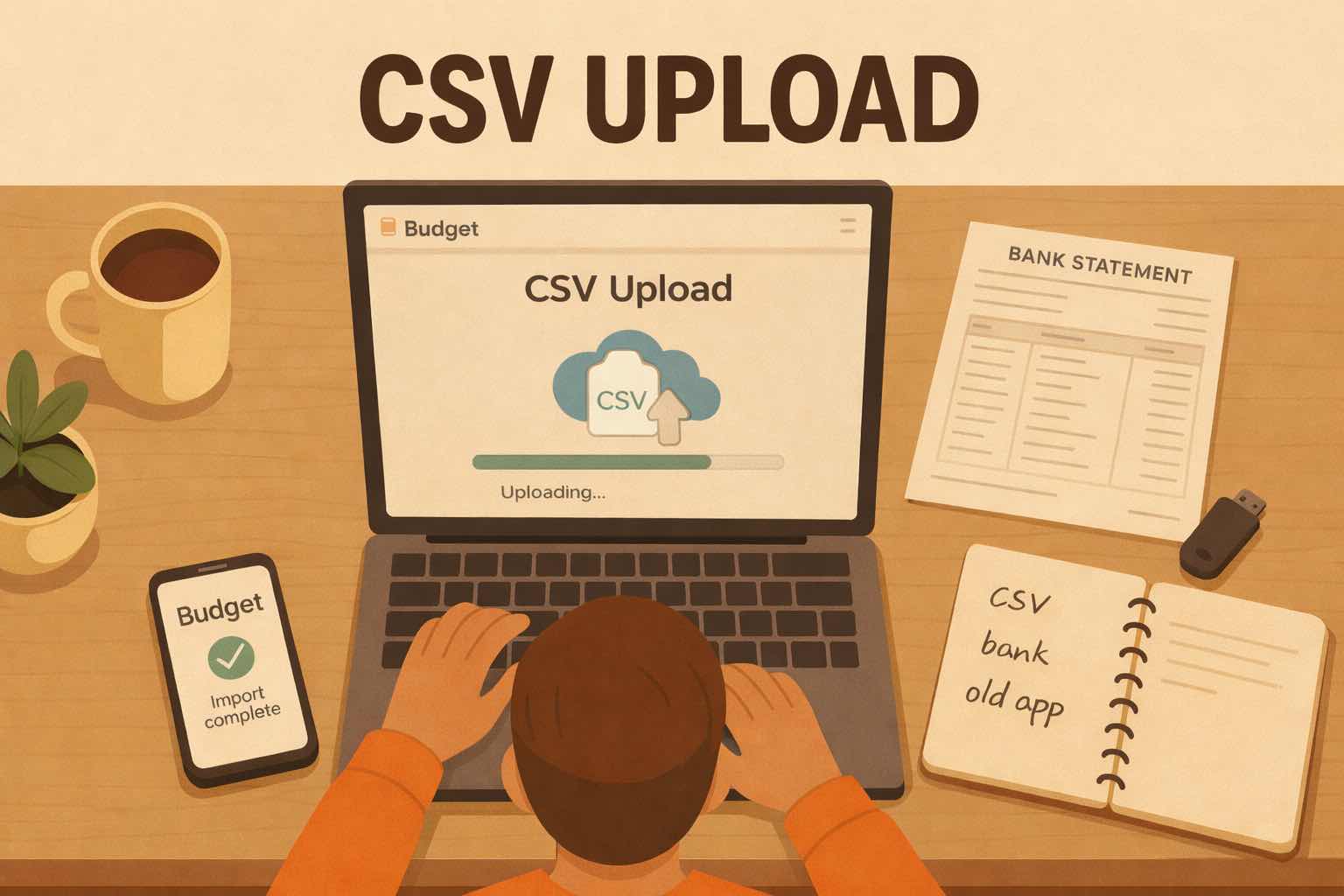
Start with one account and a completed month. Add the matching account in Koody, choose it for the import, upload the transaction file, and click Import. Review the result before bringing in the rest of the history. The transaction-import guide covers the upload steps.
If the export combines several accounts, separate their records into account-specific copies first, keeping the original intact. A checking-account purchase belongs in checking; a credit-card purchase belongs on that card. Keeping this distinction lets you review spending across accounts without losing where each payment happened.
If you cannot get an export from the old app, original bank statements can recover the financial activity. Koody imports PDF and CSV statements. They may not contain the categories or notes you added elsewhere, so retain any existing records that explain those decisions.
Can you keep the categories you already chose?
Yes. If your CSV includes category values, Koody lets you choose whether to keep them or use automatic categorization. Keeping established categories can preserve useful comparisons across years. Automatic categorization is helpful when the file has no categories or you want a fresh starting point.
Check a few familiar purchases after importing. For example, a school uniform might belong in Children rather than Shopping in your budget. Keep the distinction if you use it to plan school costs. You do not need to replace useful categories simply because you are changing apps.
You can edit individual transactions or change several together. Koody can remember your corrections for later imports, reducing repeated sorting when the same merchants appear again. Imported history and future categorization can therefore use the choices that suit your household.
What should you check before importing everything?
Compare the imported month with the original export and account statement. Check the number of transactions, the dates, and the direction of money in and out. Then look at a few entries that could otherwise distort the budget:
- Purchases: A $75 card purchase should appear as spending on that card.
- Card payments: The payment from checking to settle that card should be a transfer, not another purchase.
- Refunds: A returned purchase should have its refund recorded with the correct date, amount, and type.
- Split purchases: If the export lists a purchase as separate split rows, compare those rows with the original charge. Their amounts should add up to the purchase total, without counting the full charge again.
Check account balances separately from spending totals. Opening balances describe money or debt already there; they are not new income or purchases. If a balance differs, compare the starting point and imported activity before changing a category to make the figure match.
How do you move the remaining months?
Once the test month checks out, import the remaining history into the same matching accounts. Keep a simple note of each file and the dates it covers. This is particularly useful when one account has several years of activity and another began only recently.
Koody checks imported transactions for duplicates, including when statement dates overlap. Keep a note of the accounts and dates you have imported so you can see which parts of your history are already in place.
Keep your original exports after the move. They give you a reference if you later need to investigate an older payment, recover a note, or confirm what was included.
Put your transaction history to work with AI budgeting.
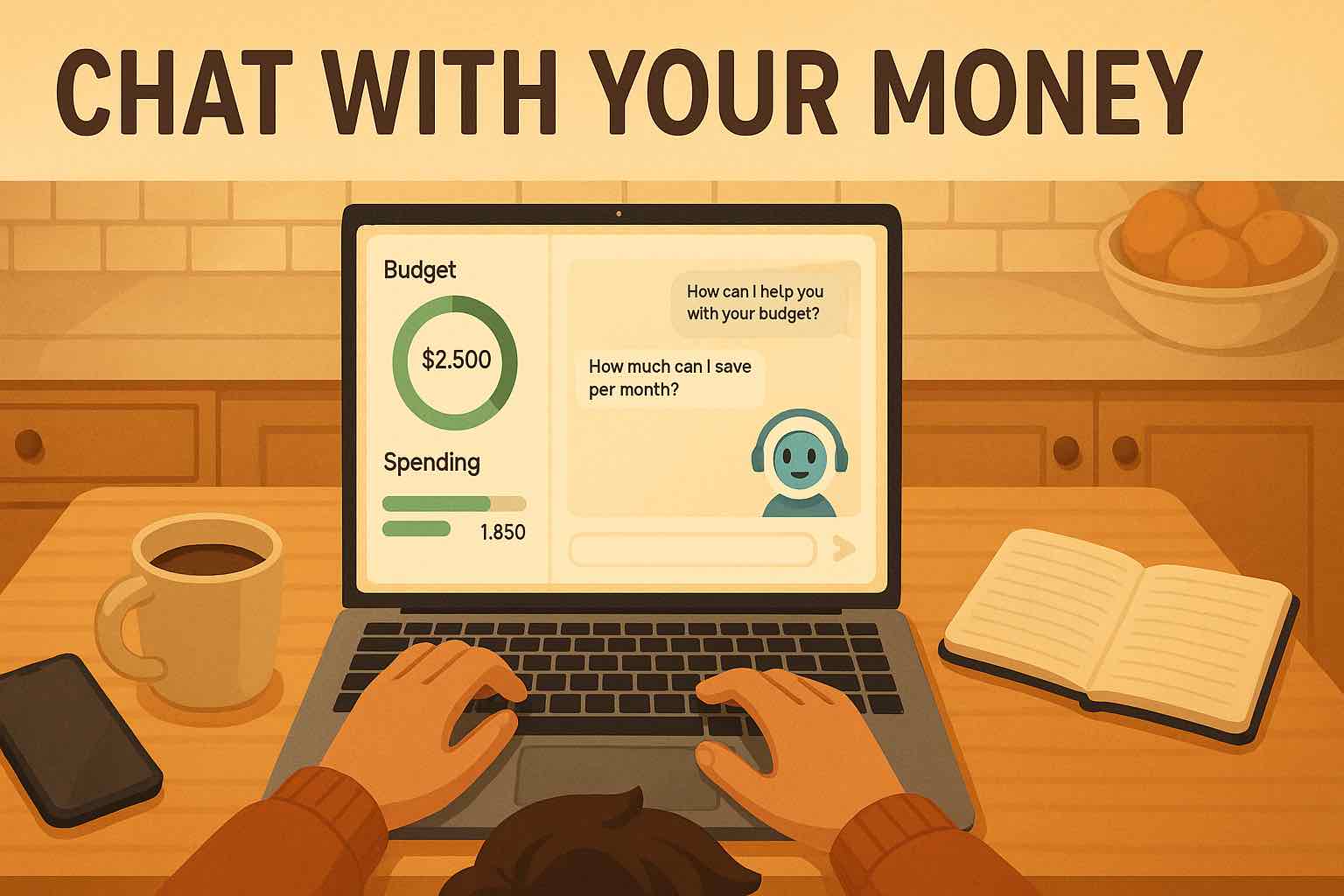
Your transaction history also gives Koody a starting point for AI budgeting. Ask Koody to create a budget from your past spending, then review the proposed amounts and apply it when you're happy with them. You can ask follow-up questions or tell Koody to change the proposed amounts before selecting Apply budget.
Imports and automatic categorization are paid features. You can also keep receipts, split purchases across categories, and ask about changes in your spending without linking a bank account.
Move your budget to KoodyHow do you keep the new records up to date?
Choose a regular time to bring in new statements and review the results. Weekly imports can help you follow spending between paydays; monthly imports can suit a review after the statement closes. Use the same accounts and categories so the history remains useful.
Before ending access to your old app, confirm that the full date range is present, supporting files are saved, and you can find an older purchase in Koody. You can then continue budgeting with the records you chose to keep, rather than starting with an empty history.