If your bank lets you download transactions, you may see file options like CSV, Excel, PDF, OFX, QFX, or QIF.
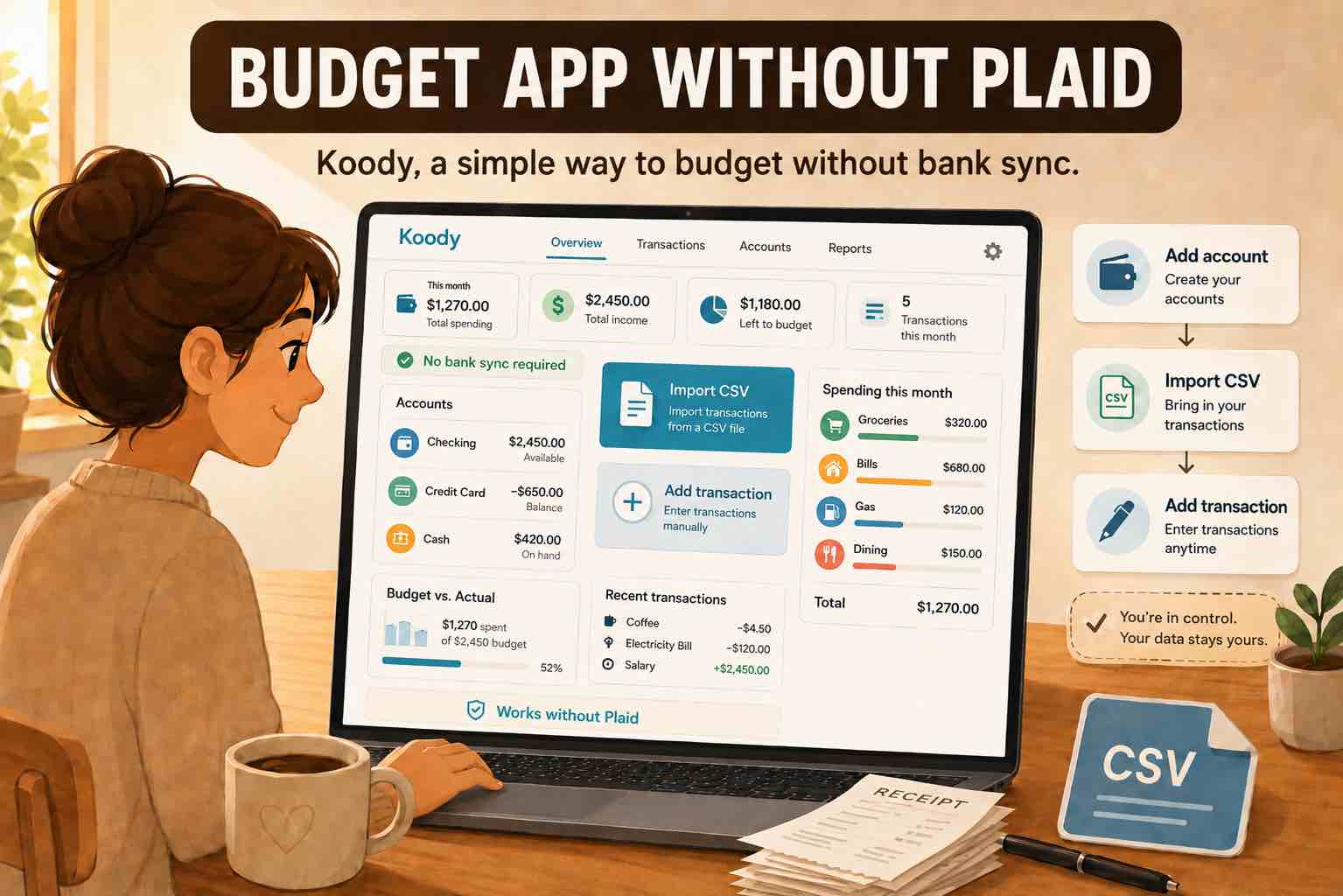
PDF is usually for reading. CSV is usually for working with the data. That is why CSV files are useful for budgeting apps, spreadsheets, accountants, and people who want to review their money without linking a bank account.
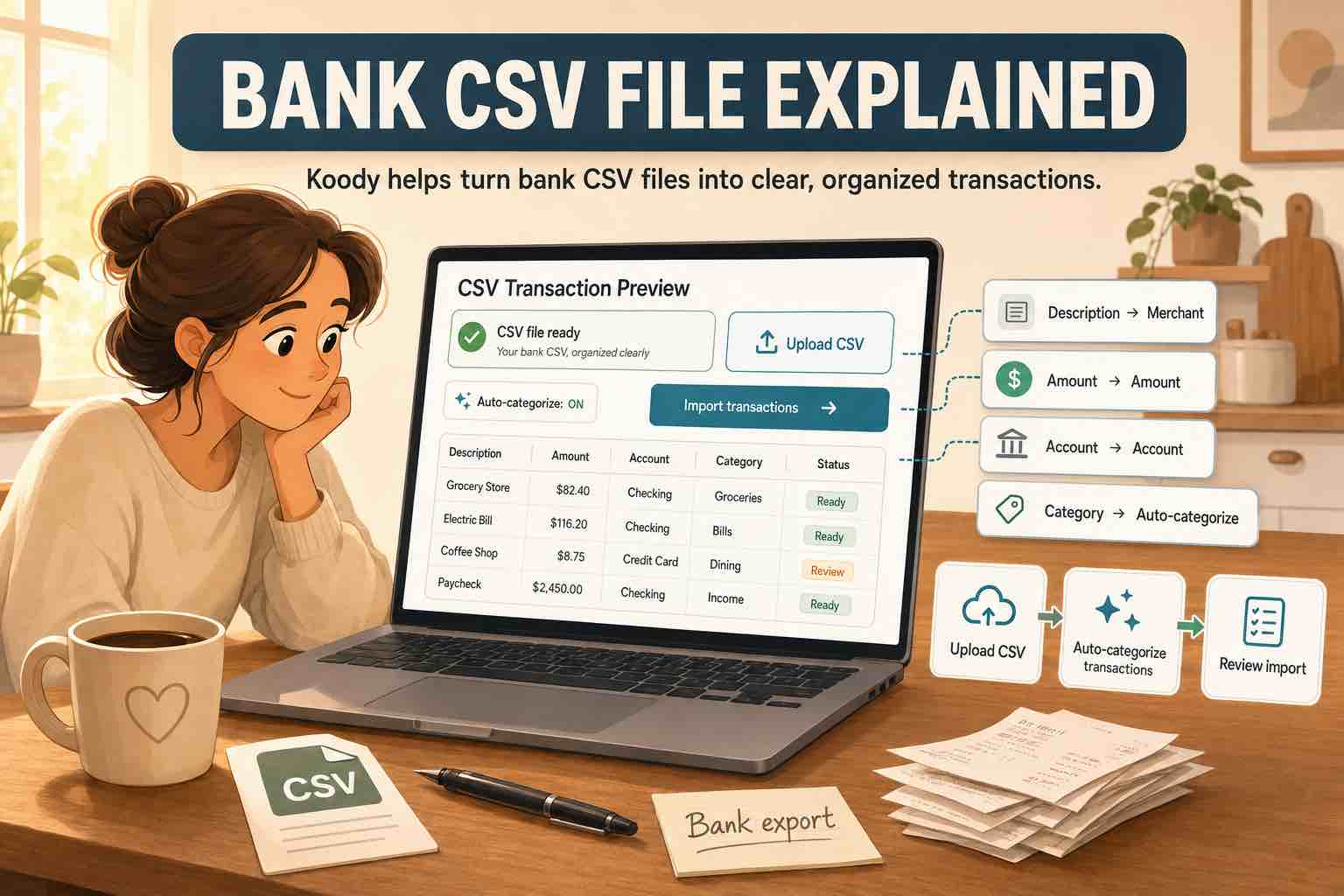
This guide explains what a bank CSV file is, what CSV format means for bank statements, how to get one from your bank, and how Koody helps turn the file into useful budget records.
CSV meaning in banking
What does CSV mean in banking?
CSV means comma-separated values. It is a plain file format that stores rows and columns.
In banking, a CSV file usually means an export of account activity. Instead of reading a statement page by page, you get a file that can be opened in Excel, Google Sheets, Apple Numbers, or a budgeting app, such as Koody.
A bank CSV may include:
- Transaction date.
- Posted date.
- Description or merchant.
- Amount.
- Debit and credit columns.
- Running balance.
- Transaction type.
- Reference number or memo.
Different banks use different columns. The useful part is the same: the file gives you transaction data in rows that software can read.
What is CSV format for bank statements?
CSV format for bank statements usually means one transaction per row.
A simple bank CSV might look like this:
| Date | Description | Amount |
|---|---|---|
| 2026-05-05 | Paycheck | 2500.00 |
| 2026-05-06 | Rent | -1200.00 |
| 2026-05-07 | Walmart | -84.32 |
| 2026-05-09 | Electricity | -92.10 |
Some banks use one Amount column with positive and negative numbers. Others use separate Debit and Credit columns. Some include Balance, Account, Memo, or Type.
Koody can work with normal transaction files. The most useful columns are Date, Description, and Amount.
CSV bank statement example
A CSV bank statement example does not need to be complicated. The file below has the basic structure many budgeting apps expect.
A real bank file may have extra columns or messier descriptions. That is normal. Koody is built to read real bank transaction rows without you cleaning the file first.
Turn a bank CSV into budget transactions.
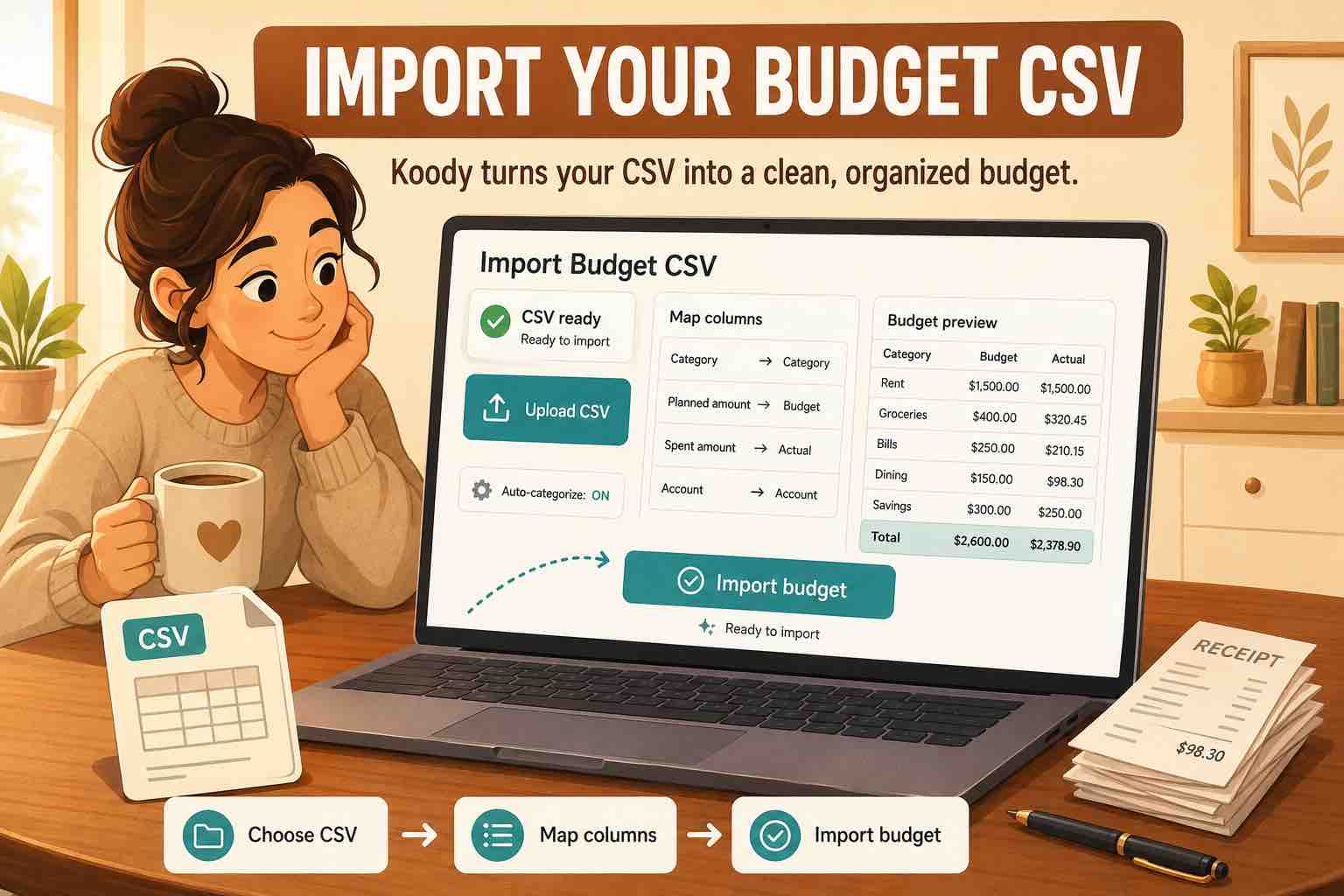
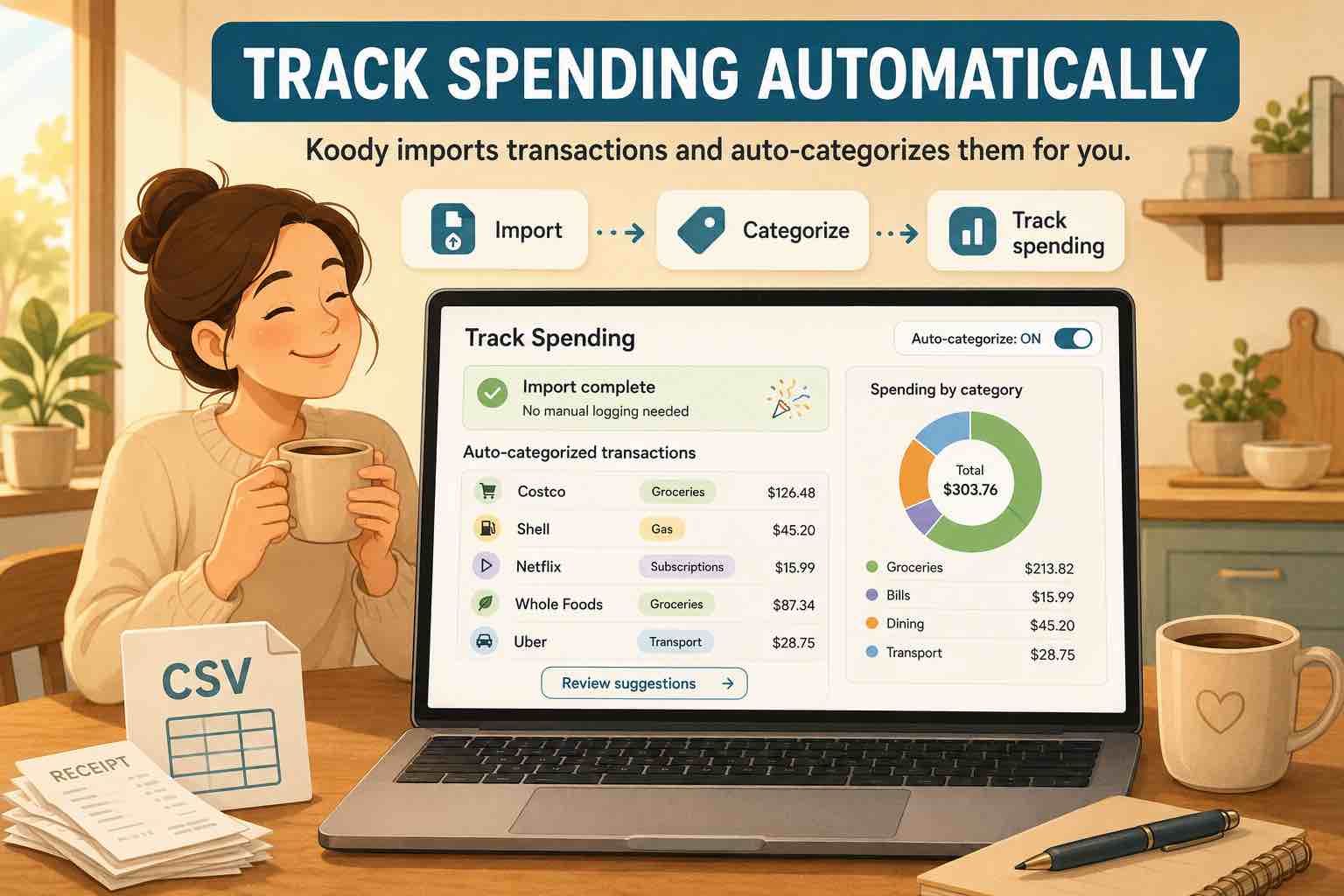
Upload the file to Koody. Koody reads the rows and auto-categorizes the transactions, then you review categories, transfers, refunds, recurring bills, and receipts in one app.
Import transactionsHow to get a bank statement in CSV format
How do I get a CSV file from my bank?
The exact buttons change by bank, but the path is usually similar.
- Log in to your bank on web or mobile.
- Choose the checking, savings, or credit card account.
- Open account activity, transactions, statements, or download history.
- Choose the date range you want.
- Look for Download, Export, or Download transactions.
- Choose CSV if the bank gives you format options.
- Save the file somewhere you can find it.
If your bank only offers Excel, open the file in a spreadsheet app and save or export it as CSV. If your bank only offers PDF, look for another transaction export option from the bank. Do not use a PDF-to-CSV converter. Those tools are not built for bank imports and can put dates, descriptions, and amounts in the wrong place.
Some banks call the file "Excel" even when the downloaded file ends in `.csv`. Check the file name. A file ending in `.csv` is a CSV file.
Before you import a bank CSV
Use the original CSV your bank gives you. You do not need to spend time rearranging columns, deleting rows, or trying to make the file look perfect. Koody is built to understand real bank exports and turn the rows into auto-categorized transactions you can review.
- Choose the Koody account the file belongs to.
- Upload the original CSV from your bank or card provider.
- Click Import.
- Review the auto-categorized transactions in Koody.
- Change any category, transfer, refund, recurring bill, or receipt detail you want to adjust.
If Koody needs help reading the file, it will ask. If the signs are confusing, Koody can also ask whether expenses are positive or negative before continuing.
Use the original transaction export rather than converting a PDF bank statement. PDF statements are made for reading, not clean transaction import, and converter tools can scramble the rows before Koody ever sees them. Bank statements can also contain personal and sensitive information, so be careful about where you upload them.
How Koody helps with bank CSV files
A bank CSV gives you raw rows. Koody helps turn those rows into a budget you can review.
- Import bank statement CSVs, card CSVs, spreadsheet exports, and old-app exports.
- Auto-categorize transactions after import.
- Clean messy merchant descriptions.
- Flag likely duplicate imported rows.
- Help separate transfers and card payments from spending.
- Highlight recurring bills and subscriptions.
- Let you change categories, add notes, attach receipts, and split mixed transactions.
- Remember useful edits so future imports need less cleanup.
You stay in control. Koody does the first pass, then you review the results and change anything you do not like.
Import the bank CSV and review the results.
Choose the account, upload the file, click Import, and let Koody prepare the transaction rows for review.
Open KoodyFAQs
1. What is a CSV file from a bank?
A CSV file from a bank is a downloadable transaction file. It usually lists dates, descriptions, and amounts in a spreadsheet-style format that an app like Koody can import.
2. What does CSV mean in banking?
CSV means comma-separated values. In banking, it usually means a plain transaction export that can be opened in Excel, Google Sheets, Numbers, or a budgeting app such as Koody.
3. What is CSV format for bank statements?
CSV format for bank statements usually means one transaction per row, with columns such as Date, Description, Amount, Balance, Debit, Credit, or Type depending on the bank.
4. How do I get a CSV file from my bank?
Log in to your bank, open the account activity or statements area, choose a date range, look for Download or Export, choose CSV if available, and save the file.
5. Can I import a bank CSV into Koody?
Yes. Choose the account the file belongs to, upload the original bank CSV, click Import, then review the auto-categorized results in Koody.
6. What if my bank does not offer CSV?
If your bank offers Excel, save or export it as CSV. If it offers a PDF statement, upload the original PDF directly to Koody rather than converting it to CSV. If it only offers OFX, QFX, or QIF, look for a CSV or PDF download instead.