A spreadsheet is a common place to start budgeting. It is flexible, familiar, and easy to edit.
The problem usually shows up later. A bank description changes. A grocery store appears three different ways. Transfers look like spending. Credit card payments throw off totals. One formula breaks. Then the budget becomes another file you keep meaning to fix.
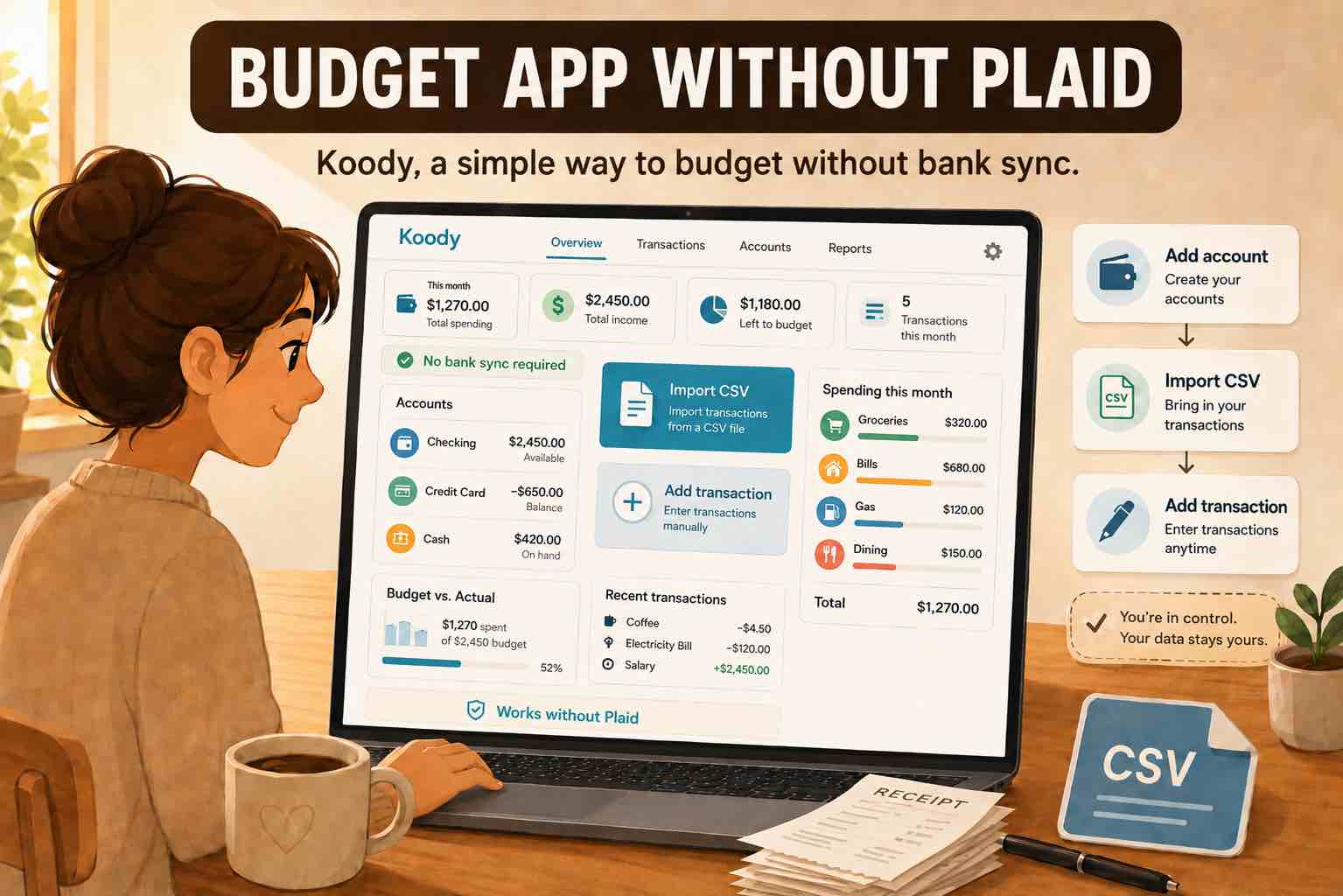
Koody gives spreadsheet budgeters a cleaner path: keep the transaction file, import it, review the rows, and let the app handle more of the repeated sorting.
What to export from your spreadsheet
For the cleanest import, export transaction-level data. A monthly summary helps you read totals, but a detailed Koody budget needs one row per transaction.
A simple import file should include:
- Date: when the transaction happened.
- Description: merchant, payee, payer, or transaction note.
- Amount: money in or money out.
- Category: optional, but helpful if your spreadsheet categories are already useful.
Keep one row per transaction. Avoid total rows, blank sections, formulas, and notes that are not tied to a specific transaction.
A few quick checks before import
You do not need to make the file perfect. You just need it clear enough for Koody to read.
- Keep one row per transaction.
- Make sure each row has a date, description, and amount.
- Remove totals, summary rows, and blank sections.
- Export as CSV when your spreadsheet app gives you that option.
If you are not sure whether the file is ready, import a small sample first, or email us at hello@koody.com. Someone from our team will be happy to look at the file with you and jump on a quick video call if that helps.
Import your first transaction file.
Bring in a spreadsheet export, bank statement, card statement, or CSV file, then review the rows in Koody.
Import transactionsImporting into Koody
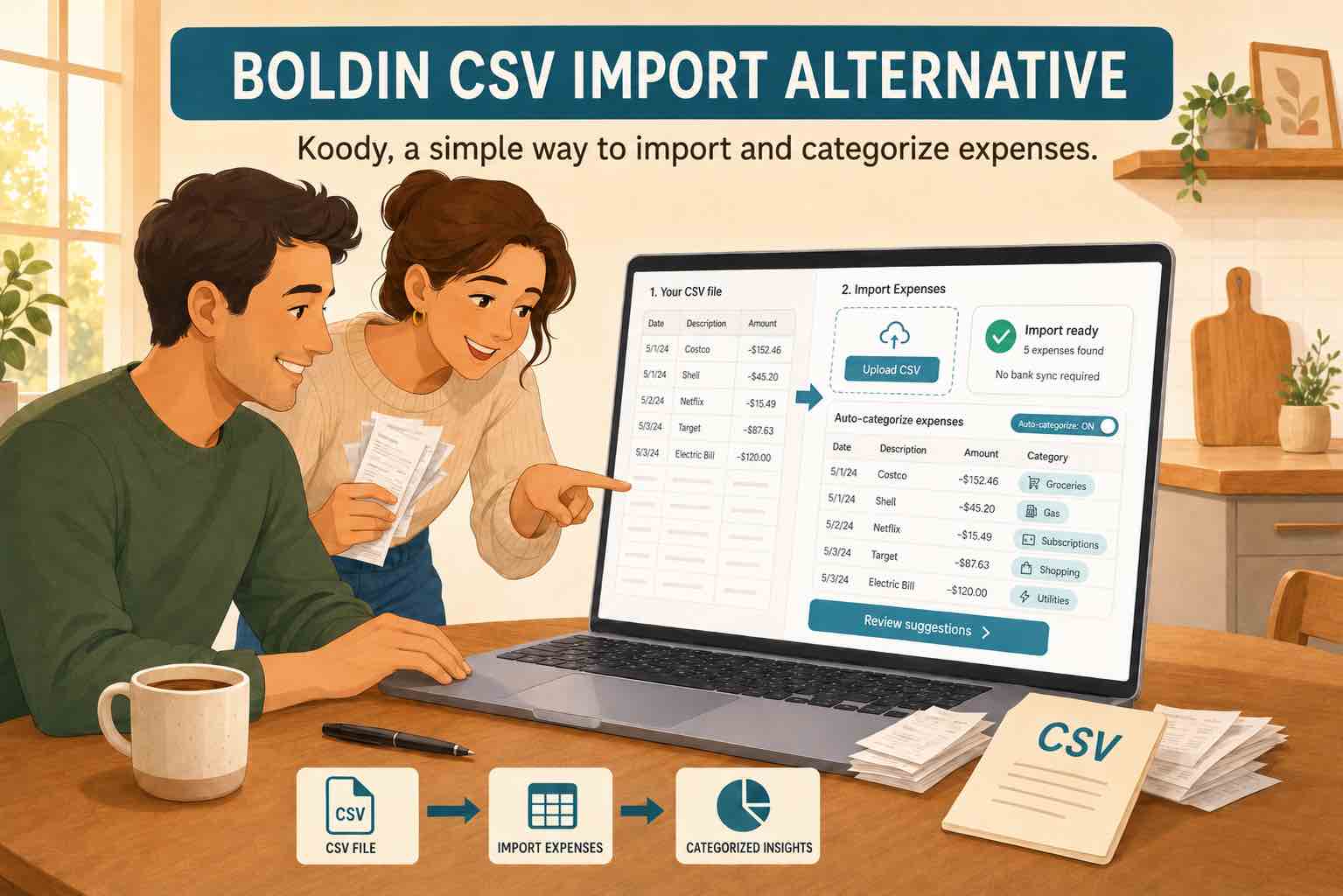
Koody is built for normal transaction files, not perfect accounting exports. The import flow is simple:
- Choose the account the file belongs to.
- Upload the file.
- Click Import.
- Review the results.
If Koody needs help reading the file, it will ask for the missing details during import.
What Koody does after import
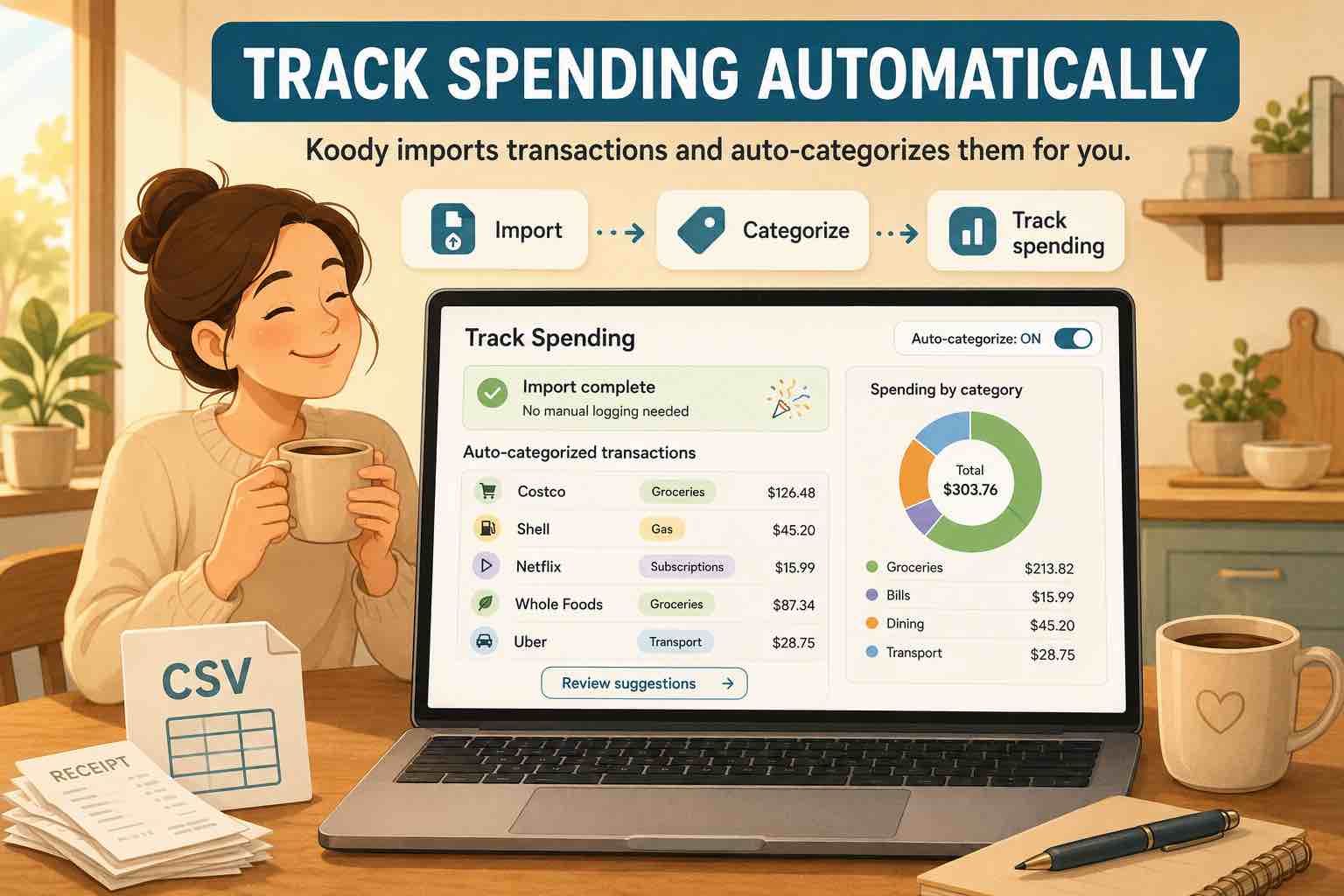
After import, Koody helps turn raw rows into records you can review.
- Cleans messy merchant descriptions.
- Auto-categorizes rows.
- Flags likely duplicates.
- Helps separate transfers from spending.
- Helps identify refunds.
- Highlights recurring bills and subscriptions.
- Gives you a results screen before the data shapes your reports.
You can review the results, change anything you do not like, ask Koody to remember your changes for future imports, or delete the entire import if you made a mistake like uploading the wrong file. Koody does the first pass so you are not rebuilding the same spreadsheet rules again.
Fixing the rows that need attention
Some rows will need a human decision. That is normal.
In Koody, you can:
- Change a category.
- Fix a merchant name.
- Add a note.
- Attach a receipt, invoice, or screenshot.
- Split one transaction into multiple categories.
- Bulk edit repeated rows.
- Export records later when you need a file.
This is where Koody is different from a spreadsheet. The cleanup happens inside the place where you budget, not in a separate file you have to maintain forever. The best part is that Koody can remember your edits, so future imports require little to no cleanup.
What to do after the first import
Once the first file is in, use the imported history to make the budget useful.
- Check account balances.
- Set category limits for the current month.
- Add recurring bills and expected income.
- Review transfer and credit card payment categories.
- Attach receipts or notes to rows that need context.
- Decide whether you want to import monthly, weekly, or only when you need to catch up.
You can still add quick manual entries between imports. Use the path that keeps your budget updated.
Move from spreadsheet cleanup to Koody review.
Import your transactions and let Koody auto-categorize them. Then review the rows, fix anything you want to change, and keep your budget in one app.
Open KoodyFAQs
1. Can I import a budget CSV into Koody?
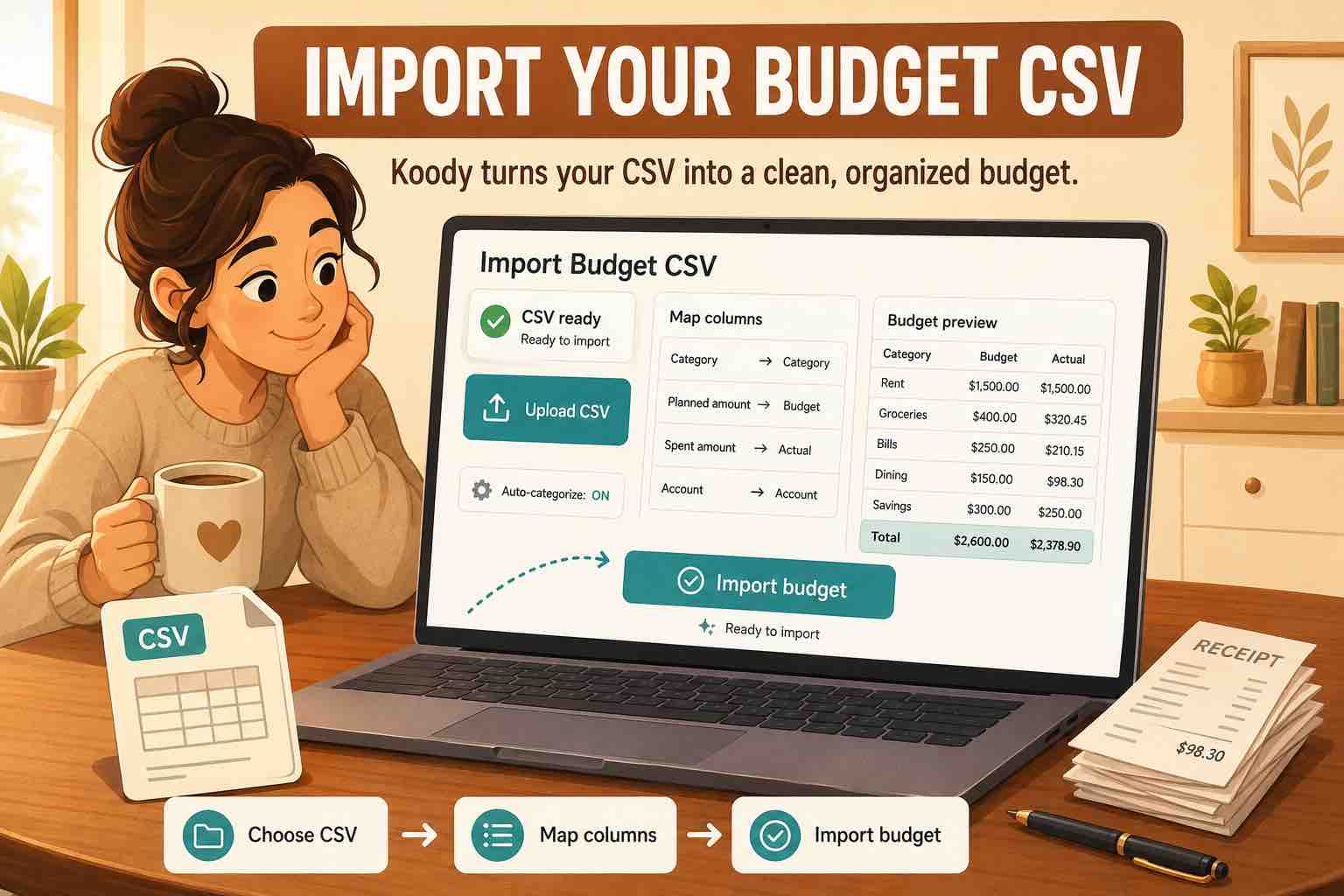
Yes. Koody can import transaction files from spreadsheets, bank statements, credit card statements, CSV exports, and older budgeting apps. Keep one row per transaction and map the columns during import.
2. What columns does my CSV need?
A simple file should include date, description, and amount. A category column can help, but it is not always required because Koody can help categorize imported rows.
3. Can Koody use categories already in my spreadsheet?
If your file includes a useful category column, Koody can use that information during import. You can still review and edit categories after the rows are imported.
4. Can I import bank statements and spreadsheet exports?
Yes. Koody supports transaction files from bank statements, card statements, spreadsheet exports, CSV files, and older apps.
5. Can Koody detect duplicates?
Koody can flag likely duplicates during import, which helps when you import more than one file or catch up on older history.
6. Is transaction import a paid feature?
Transaction import is part of Koody Plus. You can still start free with accounts, budgets, and quick entries, then upgrade when importing files would save you time.