At a glance
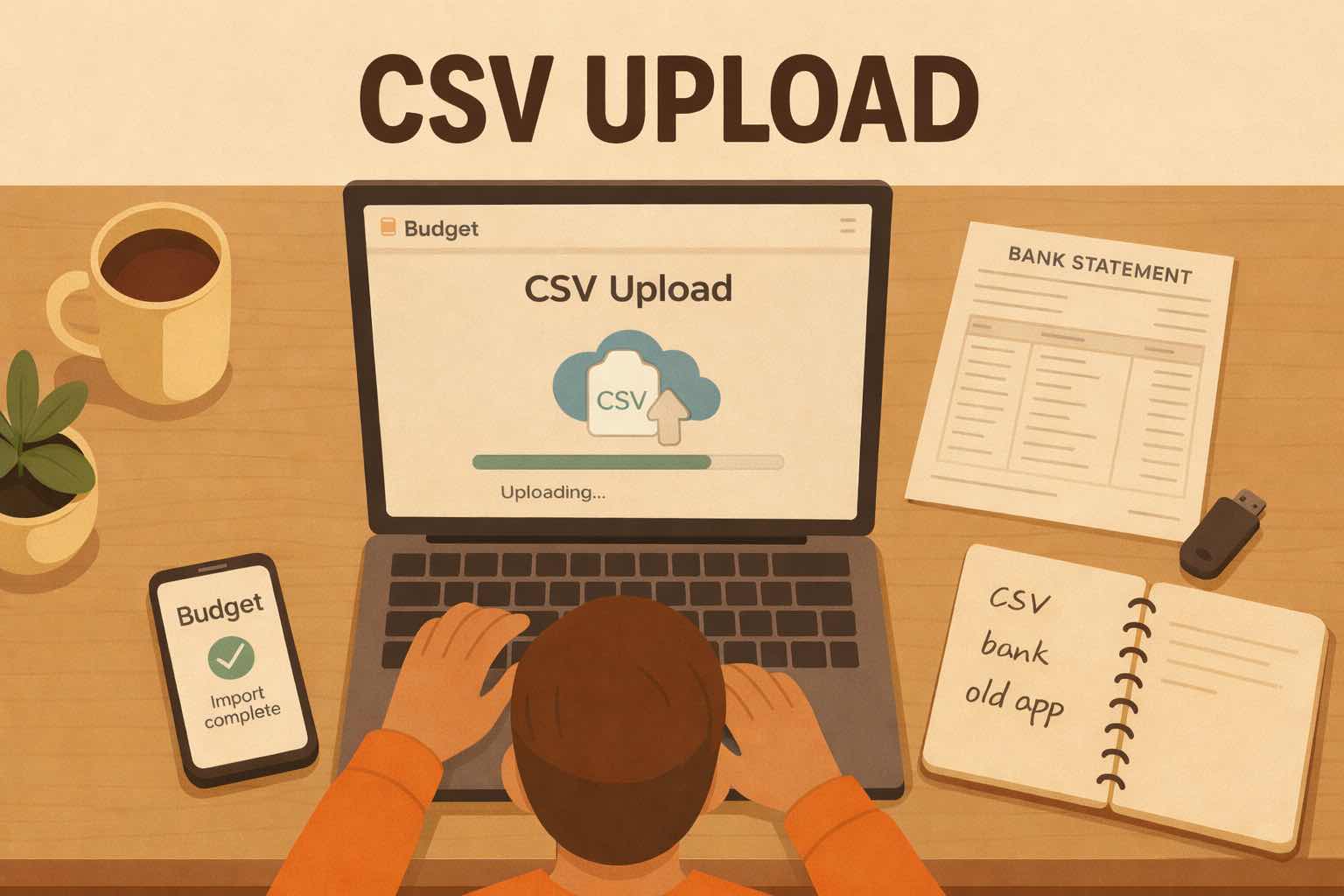
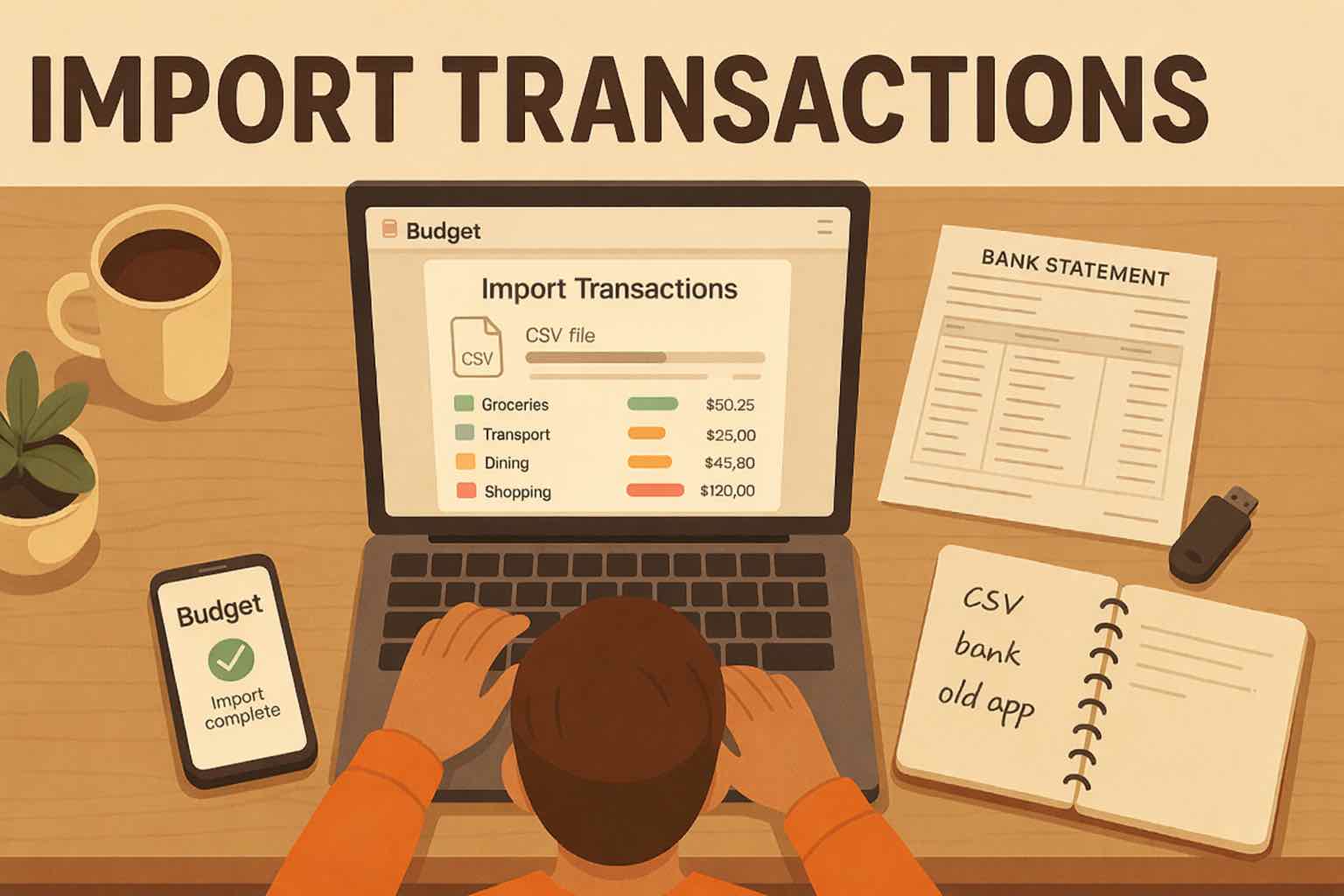
Koody now imports PDF bank and credit card statements, alongside the CSV files it already supports. PDF and CSV statement imports require the Plus plan.
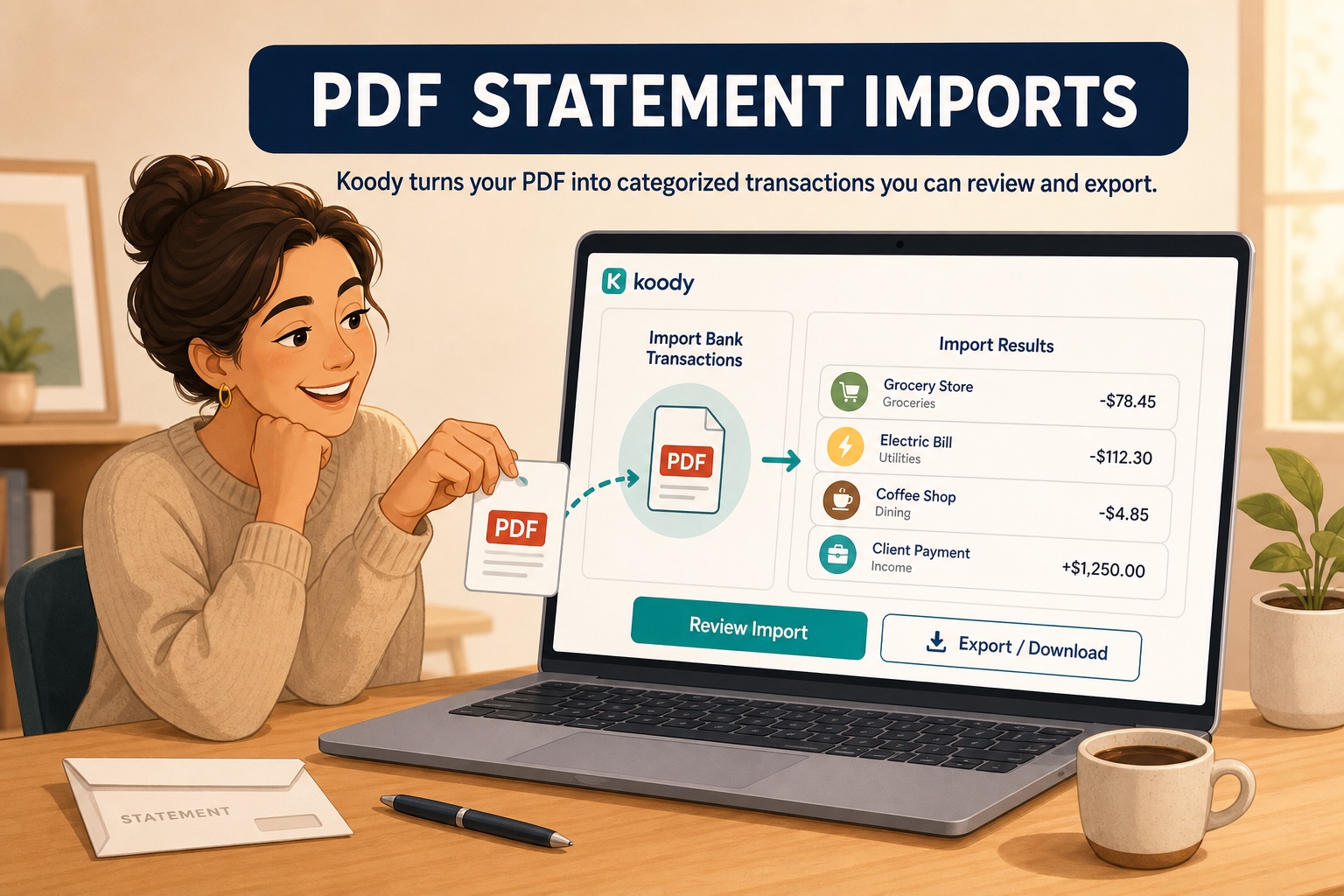
Choose the account the statement belongs to, upload the PDF, and let Koody extract and auto-categorize the transactions. You can review the saved results, use them in your budget and money records, or export them as CSV, Excel, or JSON.
Import a PDF statementA bank statement PDF is easy to read but hard to use for budgeting and analysis. The dates, descriptions, and amounts are visible, but getting those rows into a budget or spreadsheet often means finding a converter, cleaning its output, and importing the file again.
Koody now removes that extra handoff. Upload the statement inside Koody, review the resulting transactions, and keep working in the same place.
Why import PDF bank statements directly
CSV is still a useful transaction format, but it is not always the file you have. A bank may make recent activity available as CSV while keeping older statements as PDFs. A closed account, an old credit card, or a statement saved for your records may leave you with no practical transaction export at all.
That gap is especially frustrating when you are catching up on several months of spending. Copying rows by hand is slow. A separate PDF converter can add another file, another cleanup step, and another place to check before the transactions reach your budget.
Direct PDF import gives the statement somewhere useful to go. It can help you rebuild older history, review spending in batches, organize personal and business cash flow, or prepare records for tax season.
How to import a PDF bank statement into Koody
The PDF uses the same import experience as your other statement files:
- Sign in to Koody and choose or create the bank or card account the statement belongs to.
- From Overview, open New and choose Import Bank Transactions.
- Select the matching Koody account.
- Choose the PDF statement and start the import.
- Wait for Koody to show the normal Import Results.
- Open Import Review to check the saved transactions and change anything you want.
If your PDF is password-protected, Koody will still try to import it. If Koody cannot read it, save an unlocked copy and try again.
What Koody does after you upload the PDF
Koody extracts each transaction's date, description, and amount from the statement. It cleans hard-to-read descriptions, auto-categorizes transactions, checks for possible duplicates, and identifies recurring activity.
When the import is ready, Koody shows the transactions in Import Results and Import Review. Check unfamiliar merchants, transfers, refunds, personal and business spending, and anything that needs a different category or note.
Koody can read digital and scanned statements, but layouts and scan quality vary. If something looks wrong, edit it in Import Review or remove the import and try again with a clearer statement or a CSV export.
Convert a PDF statement to CSV, Excel, or JSON
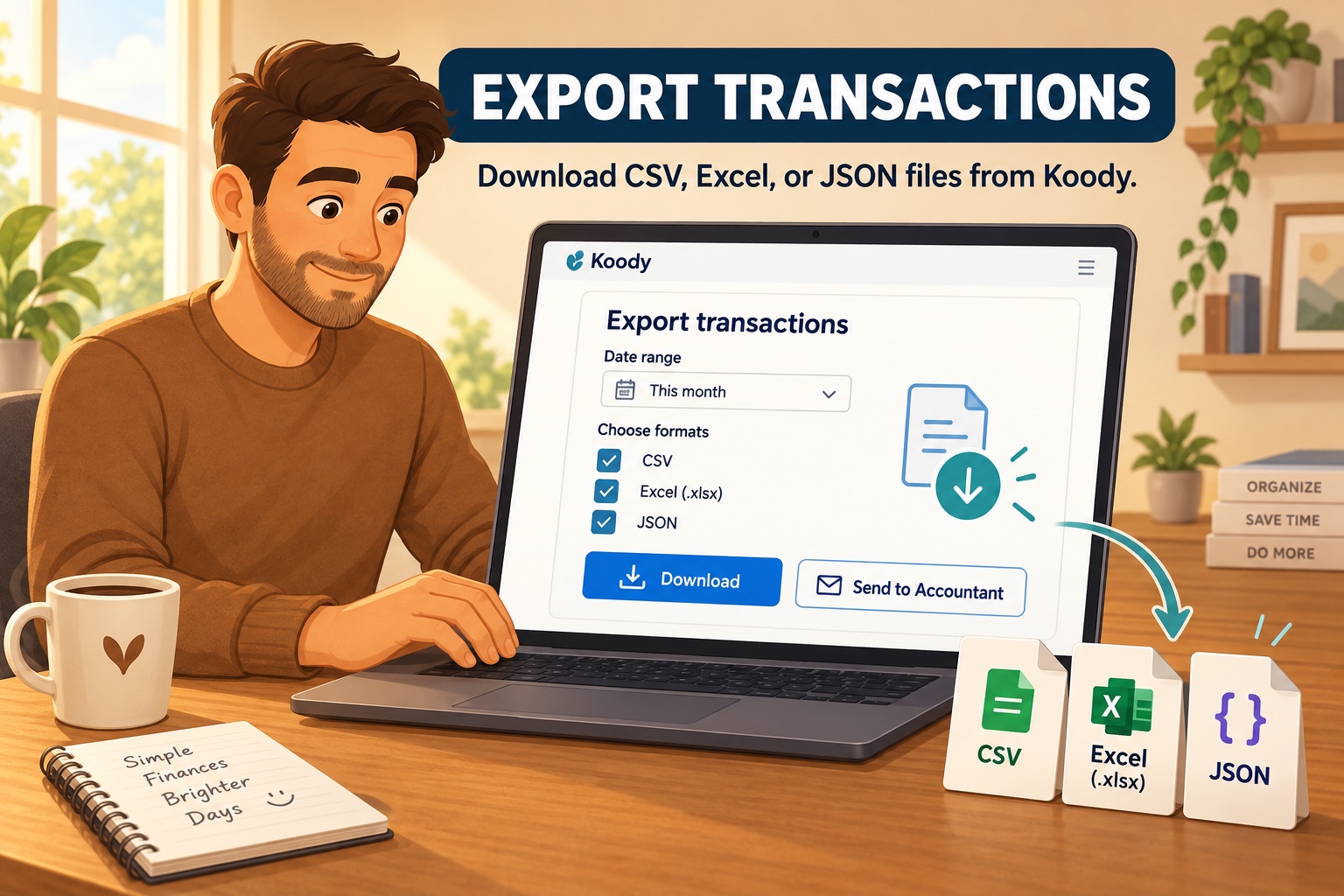
After Koody imports the transactions from your PDF bank or credit card statement, you can review them and download the records as CSV, Excel, or JSON. That gives you a file you can use for budgeting, spending analysis, recordkeeping, or moving your transaction history into another app without copying every date, description, and amount by hand.
Choose the accounts and dates you want to include, then select the format that fits what you need. Use CSV or Excel to open and organize the transactions in a spreadsheet, or choose JSON if another tool asks for it. You can also send the file to your accountant. Our guide to exporting transactions from Koody explains the formats, filters, and download steps.
One statement, one review flow.
Upload the PDF, review the categorized transactions, and export only when you need a separate file.
Get started with PDF importShould you import a PDF or CSV?
Use the format that best matches the records you have and the job you need to finish.
- Use PDF when the statement is the only history available, when your bank does not offer a clean transaction export, or when you want to bring an older statement into Koody without converting it first.
- Use CSV when your bank or card provider offers an original transaction export and you already have the structured rows ready to import.
PDF and CSV imports require the Plus plan. After you upload either file, Koody organizes the transactions and shows you the results, so you can check the details and make any changes in one place.
Treat a PDF statement like the financial record it is
Bank and credit card statements contain sensitive financial information. Upload only the statement you intend to import, use an account you control, and protect your Koody login. Koody's Privacy Policy explains how uploaded statements, service providers, and account data are handled.
Before relying on the imported transactions, check the statement period, transaction count, money-in and money-out entries, categories, transfers, refunds, and recurring items. If anything looks wrong, change it in Import Review.
FAQs
1. Can Koody import PDF bank statements?
Yes. Koody imports bank and credit card statement PDFs. Choose the matching Koody account, upload the PDF, and review the transactions Koody extracts and auto-categorizes. PDF and CSV statement imports require the Plus plan.
2. Can Koody turn a PDF bank statement into CSV?
Yes. Koody first saves the extracted transactions to your account so you can review and organize them. You can then export the saved transactions as CSV, Excel, or JSON.
3. Do I need to link my bank to import a PDF statement?
No. You download the statement from your bank or card provider and upload it when you choose. Koody does not need your bank login for the import.
4. Does Koody still import CSV files?
Yes. Koody imports both PDF statements and transaction CSV files. Use the format your bank, card, spreadsheet, or previous app gives you. PDF and CSV statement imports require the Plus plan.
5. Will Koody automatically categorize transactions from a PDF?
Yes. PDF transactions enter Koody's normal import flow, where descriptions are cleaned and transactions are auto-categorized. You can review and change the results before relying on them.
6. Can Koody import a password-protected PDF?
Koody will attempt to import it. PDFs that open normally but carry security restrictions may work. Koody cannot enter or remove a password, so a file that truly requires one may need to be saved as an unlocked PDF first.
Your PDF statement can now become part of your Koody records.
Import it into the matching account, review what Koody finds, and keep the transactions ready for budgeting, cash-flow review, or export.
Import a PDF statement