You chose your credit union for a reason. Maybe it offers better rates, lower fees, a nearby branch, or people who know the community. A budgeting app should not make you move your money because its connection keeps failing.
The account may be missing from the connection list. It may connect once and stop updating later. You may be asked to sign in again every few days, or transactions may arrive late. After enough failed refreshes, the budget stops being useful.
Koody gives you another route. The transaction file already available through online banking can become the source for your budget.
Why credit-union connections stop working
Budgeting apps usually rely on another company to move data from a financial institution into the app. That connection has several parts: the credit union's online banking system, its data-sharing settings, the connection provider, and the budgeting app.
A connection can fail when the credit union changes its website, completes a system upgrade, requires a new sign-in step, changes its data-sharing support, or experiences an outage. A password change or an expired authorization can also require the account to be connected again.
Sometimes the user can fix the problem by signing in again. Sometimes the budgeting app or connection provider has to wait for the financial institution. That uncertainty is the part that wears people down: you can do everything correctly and still have stale transactions.
You can keep your credit union
Your credit union does not need a live connection to work with Koody. Add the checking, savings, credit card, cash, or other account you want to see in your budget. Then bring in transactions with manual entry or statement imports.
A statement import is a snapshot that you control. You choose the account, the file, and the date range. Once those transactions are in Koody, they stay in your history even if the credit union changes its website next month.
This also works when only one account has connection problems. You can track several accounts in Koody and import a separate file into each one. The categories stay consistent across the budget, so groceries from a credit-union card and groceries from another account can still appear together.
What to download from your credit union
Choose CSV when it is available
Sign in to your credit union's website and open the account you want to update. Look for words such as Download, Export, Download transactions, Account activity, or Statements and documents. Choose CSV when it is available.
Some credit unions describe CSV as a spreadsheet or Excel download. Check the filename. If it ends in .csv, it is a CSV file even if the button used a different name.
Use the file exactly as the credit union gives it to you. You do not need to rearrange columns, delete heading rows, reverse amounts, or rename fields. Koody is built to understand bank exports and only asks for extra information when a file is unusual.
Upload the original PDF when there is no CSV
If your credit union provides only a PDF statement, upload that original PDF directly to Koody. Koody extracts the transactions and sends them through the same import review as transactions from a CSV.
The PDF can be a digital statement or a scanned statement. Use the statement exactly as your credit union provides it.
How to import a credit-union statement into Koody
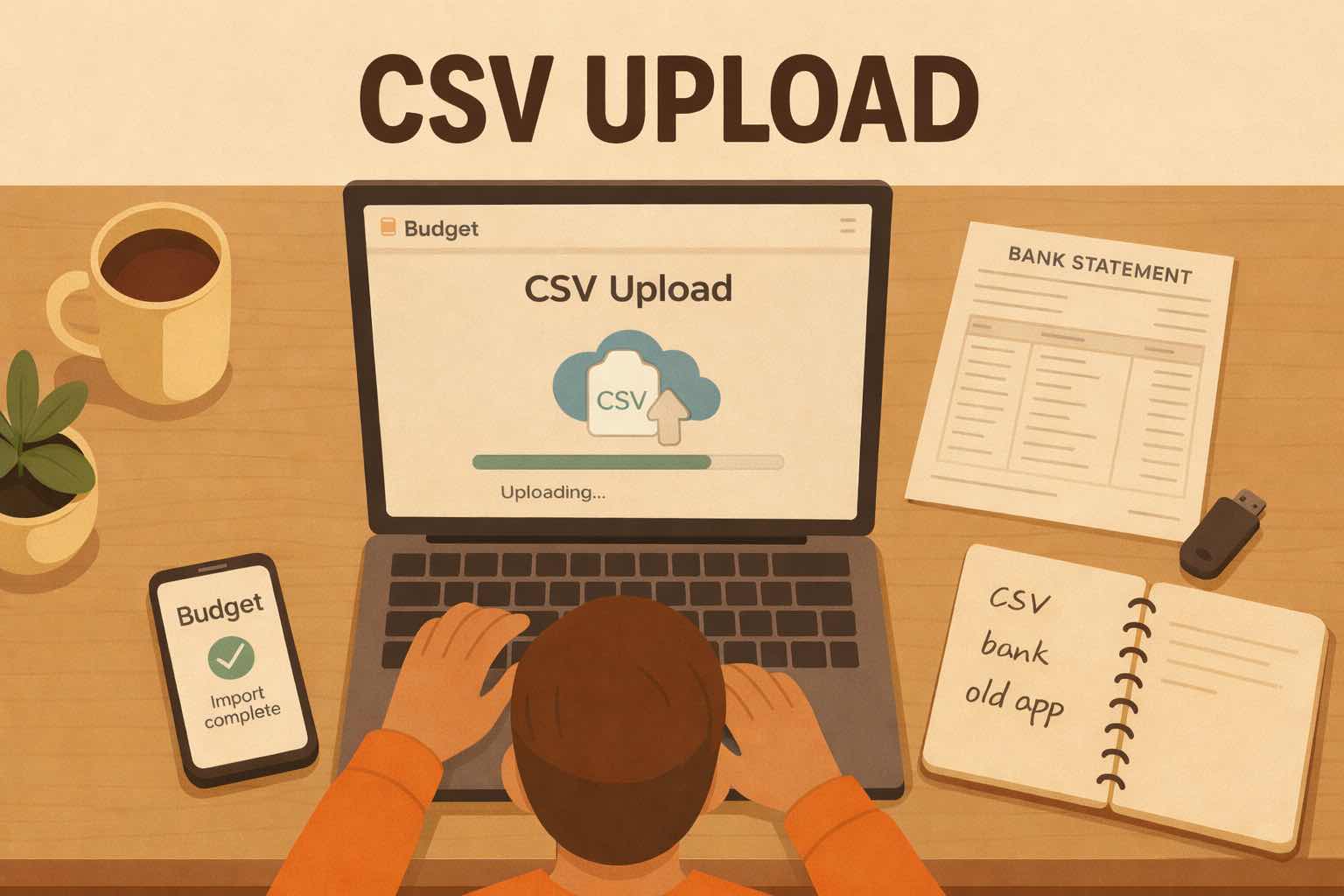
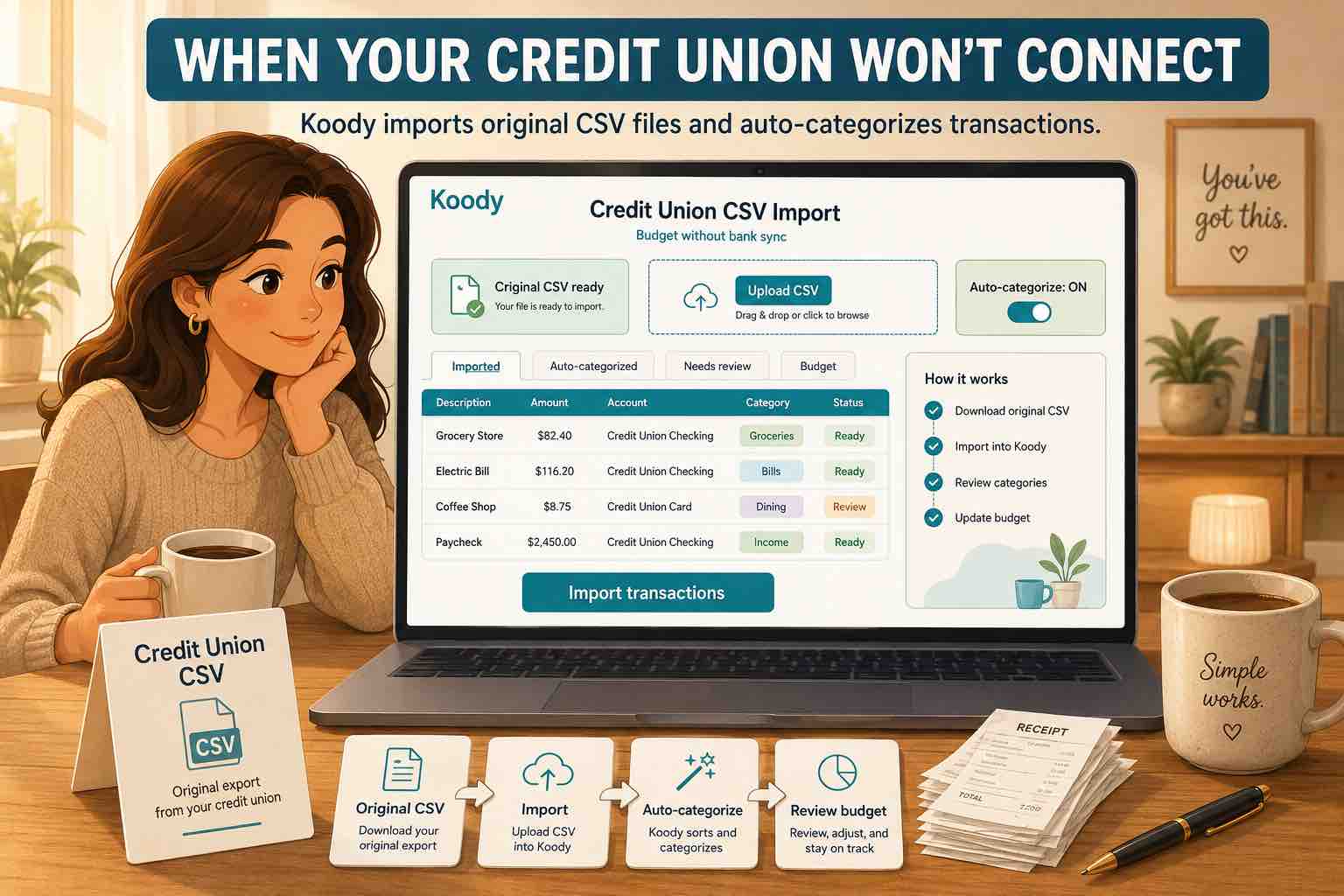
The import itself has four steps:
- Choose the account the file belongs to.
- Upload the file.
- Click Import.
- Review the results.
Koody reads the transaction rows and prepares them for the account you chose. The file remains tied to that account, which helps account filters and balances make sense later.
Start with one account if you want to see how your credit union's file imports. Once you have reviewed that result, add the next checking, savings, or card file.
Bring your credit-union transactions into Koody.
Choose the account, upload the original CSV or PDF statement, and let Koody auto-categorize the transactions. You can review every result before using it in your budget.
Import a credit-union statementWhat Koody does after import
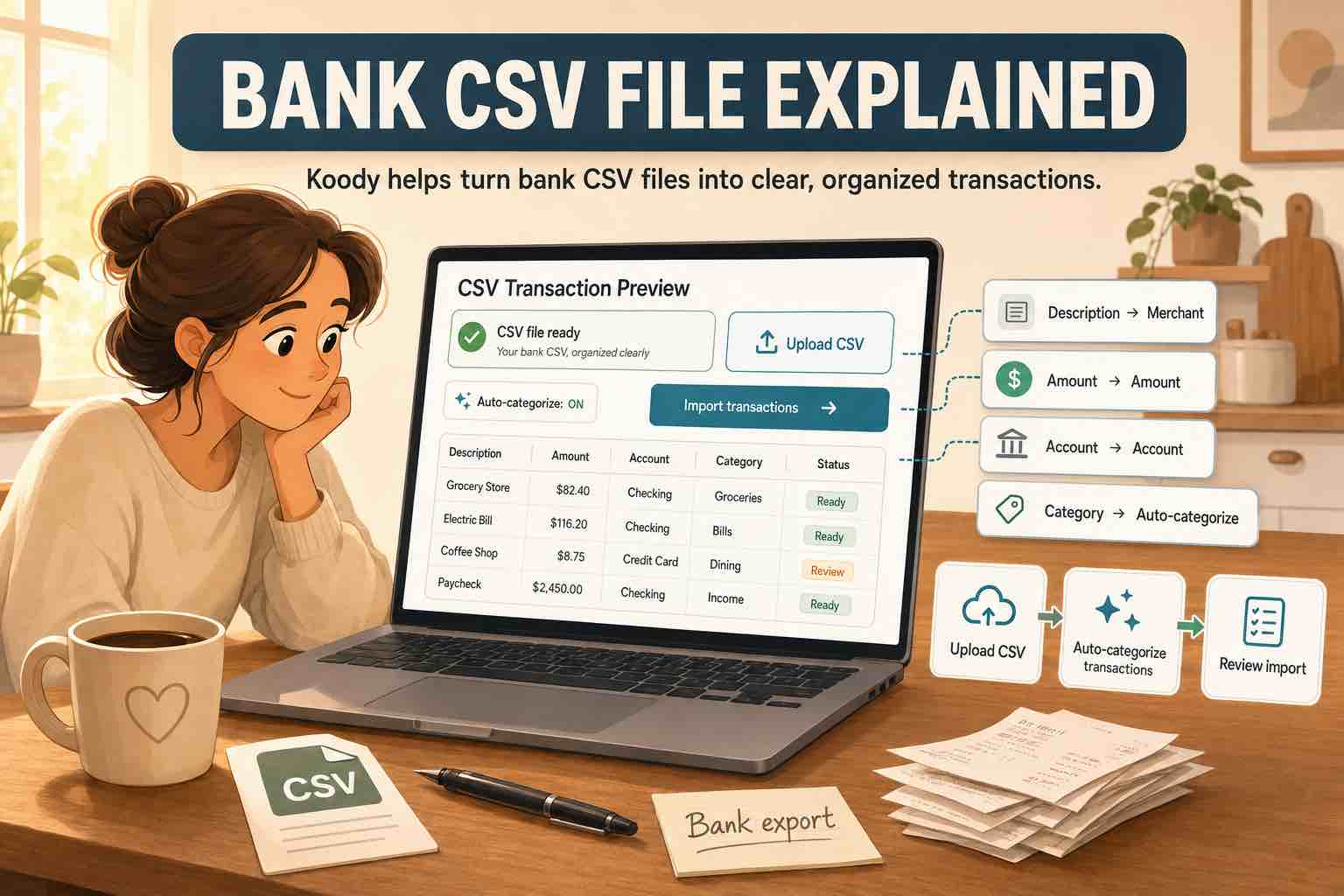
Koody makes the first pass through the file. It cleans hard-to-read bank descriptions, suggests categories, and identifies transaction types such as expenses, income, transfers, and refunds. It can also highlight recurring bills and subscriptions found in the history.
You review the results. If you want a transaction organized differently, change its category, description, transaction type, or note. For repeated merchants, Koody can remember useful import edits so later files need fewer changes.
Koody also checks imported rows against earlier imports and refuses duplicate imported transactions. This is useful when one monthly download overlaps the last few days of the previous file. If you manually entered a purchase that also appears in the statement, review the results and keep the record you want.
What should you review?
- Money in and money out: Confirm that deposits and withdrawals went in the right direction.
- Transfers: Check movement between your own accounts so it does not look like new income or new spending.
- Credit card payments: Keep the payment separate from the purchases already recorded on the card.
- Refunds: Tag money returned by a merchant as a refund instead of ordinary income.
- Categories: Change any category that does not describe the transaction correctly.
- Recurring bills and subscriptions: Confirm the repeated charges you want Koody to track.
How to keep the budget current each month
Pick an update schedule that fits the way you use your budget. Some people import after each monthly statement closes. Others download activity every week or before a budget review.
Use the same pattern each time: download the next CSV date range or PDF statement, choose the matching Koody account, import, and review. Koody will check for duplicate transactions when imported date ranges overlap. It can also remember your edits and use them to auto-categorize repeated merchants in future imports.
You can still use manual entry between imports. Add a purchase when you want the budget updated immediately, attach a receipt while it is in your hand, or record cash that will never appear in a credit-union file.
The imported history can support more than a personal budget. If you also earn freelance or side-hustle income, Koody lets you keep personal and business categories in the same app and split a transaction when one purchase includes both.
What to do when the file will not import
Credit unions use many online-banking systems, and some exports are unusual. Do not spend an afternoon rebuilding the file by hand.
Start with the original CSV or PDF statement. If Koody cannot read it, or a PDF result is incomplete, email us at hello@koody.com. Someone from our team will help you get it imported.
Email us before sending any financial file. Our team will explain how to share the smallest useful sample. We do not need your bank login.
FAQs
1. How can I budget when my credit union won't connect to budgeting apps?
Download a transaction CSV or PDF statement from your credit union and import it into the matching account in Koody. Koody auto-categorizes the transactions, checks imported rows for duplicates, and gives you the results to review without relying on a live bank connection.
2. What file should I download from my credit union?
Choose a CSV transaction download when your credit union offers one. It may be labeled CSV, spreadsheet, Excel, download transactions, export activity, or comma-separated values. If CSV is not available, download the original PDF statement.
3. Can Koody import a PDF bank statement?
Yes. Upload the original PDF bank or credit card statement directly to Koody.
4. Can I import more than one credit-union account?
Yes. Add each checking, savings, or card account you want to track in Koody, then choose the matching account before importing its file. Keeping files attached to the correct account makes balances and filters easier to review.
5. Will I create duplicates when I import next month?
Koody checks imported rows against earlier imports and refuses duplicate imported transactions. Overlapping date ranges are common, but you should still review the import results, especially when you also entered some transactions manually.
6. What if Koody cannot read my credit union's file?
Email us at hello@koody.com. Someone from our team will help you get the file imported.
Keep your credit-union budget current.
Import the statement when you are ready. Koody auto-categorizes the transactions, and you decide what to keep or change before the numbers enter your budget.
Start budgeting with KoodySources
Sources accessed August 15, 2026.