Meet Koody, a free monthly budget planner app.
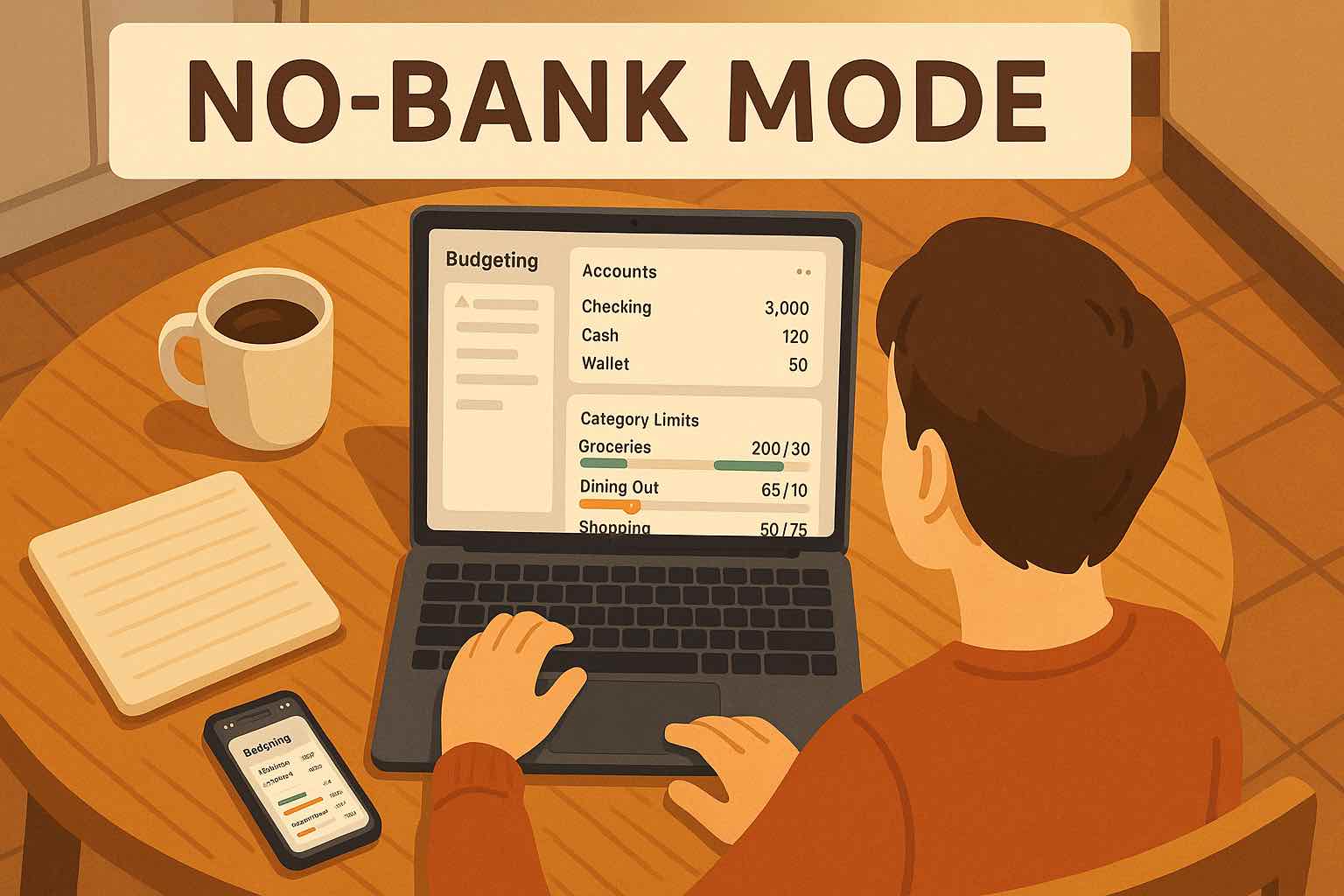
Build a monthly budget you can actually stick to, then adjust it quickly as life changes. Track income and expenses manually or with CSV imports — no bank linking required. Start free, then upgrade when you are ready.


How it works
If you have ever tried to budget in Google Sheets or a Microsoft Excel spreadsheet, you already know the hardest part is not building the template. It is keeping it updated when life gets busy.
Koody is a free monthly budget planner app that keeps the structure of a spreadsheet (categories, monthly targets, totals), but removes the spreadsheet chores: formulas, copy/paste, and broken totals. Use Koody on the web, Android, and iOS, so your budget stays with you everywhere.
Set Your Plan
Coming from a spreadsheet in Google Sheets or Microsoft Excel? Copy your categories and monthly targets into Koody once. From then on, Koody keeps totals and category balances consistent without formulas or spreadsheet maintenance.
Track & Update
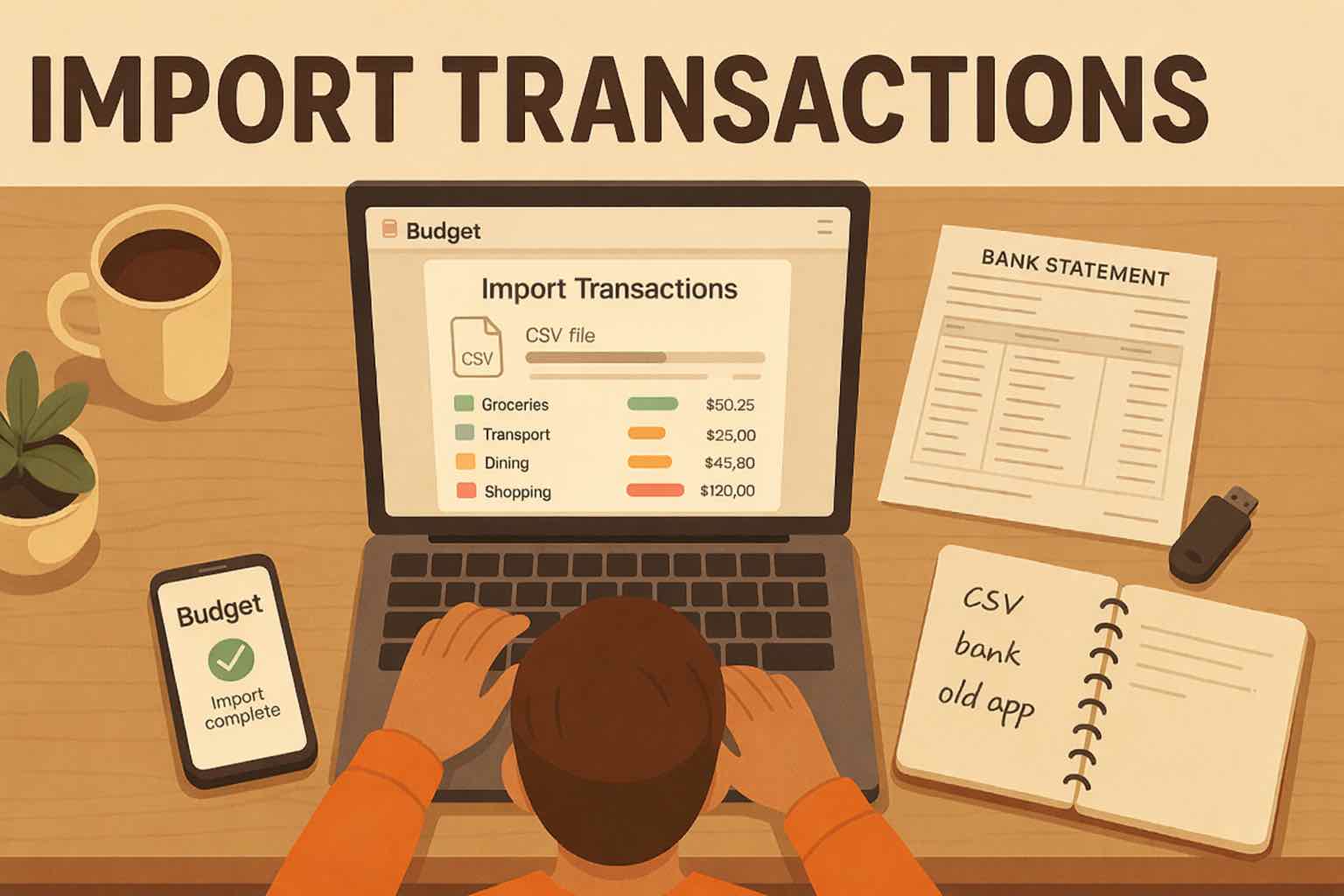
Track income and expenses in seconds from mobile or desktop, or import a CSV from your bank, card, or spreadsheet when you want a fast update. No bank linking required, and what is left updates automatically, so your monthly plan stays usable.
Weekly Check-In
Once a week, take 10 minutes: scan what is left, what is overspent, and what is coming up. Move money between categories, tweak one or two targets, and get back to your life with a clear plan you can trust, and a simple next action for the week ahead.
Choose a budgeting style that fits your life right now.
Whether you plan by goals, percentages, or detailed categories, Koody supports the workflow without forcing one system or bank connection.
Goal-first planning
Set monthly targets for debt payoff, savings, or specific purchases, then assign category limits that protect those goals.
Percentage-based budgets
Use split methods like 50/30/20 as a baseline, then tune percentages to fit real obligations and priorities.
Category custom planning
Build your own categories and set spending rules for groceries, rent, subscriptions, transport, eating out, and more.
CATEGORY PLANNING
Turn monthly goals into clear category limits.
Start each month with intentional amounts in your monthly budget planner. You always know what is on pace and what needs a course correction.
- Set planned amounts per category before each month starts.
- See what is left, what is overspent, and what needs attention now in one monthly budget planner view.
- Carry over context with notes so each month starts smarter.

IRREGULAR INCOME
Budget confidently with variable pay.
Freelance, seasonal, and commission income requires a budget planner that can adapt quickly. Koody helps you re-balance categories when income lands, without rebuilding your whole monthly plan.
- Plan with variable income by using conservative baselines and priority buckets.
- Reallocate quickly when income lands higher or lower than expected.
- Use manual tracking or CSV imports to keep your budget planner accurate without bank linking.

RECURRING PLANNING
Keep bills and subscriptions inside the plan.
Your budget plan is only useful when recurring obligations are visible. Koody keeps fixed expenses in view so there are fewer surprises between paydays.
- Add recurring bills and paychecks once, then let them generate automatically.
- Keep due dates visible so upcoming obligations never sneak up on you.
- Adjust recurring amounts when life changes without rebuilding your budget planner.

RECEIPT UPLOAD
Keep proof of spending with your budget.
Receipts are part of real-life budgeting, especially when you need to verify purchases later. Koody keeps them attached to the matching expense, so nothing gets lost in your camera roll.
- Upload receipts in seconds from mobile or desktop.
- Attach each receipt to the matching expense so proof is easy to find later.
- Keep one searchable record for taxes, reimbursements, and returns.

KOODY AI
Ask for planning help in plain English.
When you need a fast decision, Koody AI can explain trade-offs and pacing without digging through reports. Use it to stay proactive instead of reacting late.
- Ask plain-English questions about monthly pacing, category pressure, and trade-offs.
- Run what-ifs before purchases to see the impact on this month's plan.
- Get practical next-step suggestions, not just charts.

Keep a simple monthly budget.
One monthly setup + one short weekly check-in is enough for most people. Small adjustments each week prevent end-of-month surprises.
- Set category targets at the start of each month.
- Review pace weekly and adjust two or three categories.
- Use CSV import when you want a faster refresh.
Pricing
Start with Koody as a free budget planner, then upgrade when you want advanced planning, exports, or import workflows.
Cancel anytime. No hidden fees.Input transactions manually
Add bank accounts
Track spending and income (up to 1 year)
Categorize transactions
Monitor subscriptions or bills
Koody AI
Upload receipts
Estimate your tax bill
Access on mobile and desktop
Everything in Free
Track spending and income (up to 3 years)
Add new categories
Auto-generate recurring transactions
Export transactions (CSV, Excel, JSON)
Create and manage budgets
Sync budgets with your payday
Create recurring budgets
Everything in Standard
Import transactions from bank and credit card statements (CSV files only)
Track spending and income (unlimited years)
Automatic transaction categorization
Unlimited categories
Automatic detection of recurring transactions
Advanced Koody AI
Keep budgets active indefinitely
Helpful Articles From The Koody Blog

Frequently Asked Questions
1. What is the easiest way to start a budget planner in Koody?
Start by adding your accounts, then create category limits for the month and add your recurring bills. You can refine details after your first weekly review.
2. Can I use 50/30/20 in Koody?
Yes. In Koody, you can structure categories around needs, wants, and savings, then tune allocations to match your real expenses.
3. Can Koody AI help me stay on budget?
Yes. Koody AI can answer pacing and trade-off questions and suggest practical changes when spending patterns shift.
4. Can I use Koody as a monthly budget planner?
Yes. Koody supports monthly budget planning with category targets, recurring items, and progress tracking so you can review and adjust throughout the month.
5. Can I plan for irregular income?
Yes. Koody works well for irregular pay because you can set conservative category targets and adjust quickly when new income arrives.
6. Can I track recurring bills and subscriptions in the planner?
Yes. Add recurring expenses once, and Koody will keep them on schedule so your budget plan reflects what is actually due.
7. How often should I review my budget plan?
A short weekly check-in is usually enough. Review category pacing, upcoming bills, and cash flow, then make small adjustments before issues compound.
8. Can a household use one budget planner in Koody?
Yes. One account owner can maintain a household budget planner with categories, recurring transactions, imports, and AI support in one place.
9. Does Koody support zero-based budgeting?
Yes. You can assign every dollar a purpose by setting category targets and savings goals until your monthly plan is fully allocated.
10. Is Koody a budget planner without bank linking?
Yes. Koody is a budget planner without bank linking. You can enter transactions manually or import from a CSV file.
11. Can I change the budget start and end dates to match my pay period?
Yes. When you create or edit a budget in Koody, you can set custom start and end dates to match your pay period, including weekly, biweekly, and monthly cycles.
12. Can I import transactions into my budget planner?
Yes. Upload a CSV from your bank or another app, then review and categorize inside Koody to keep your budget planner current.